How to reverse the flex direction in Webflow
Here is how to reverse the flex direction in webflow
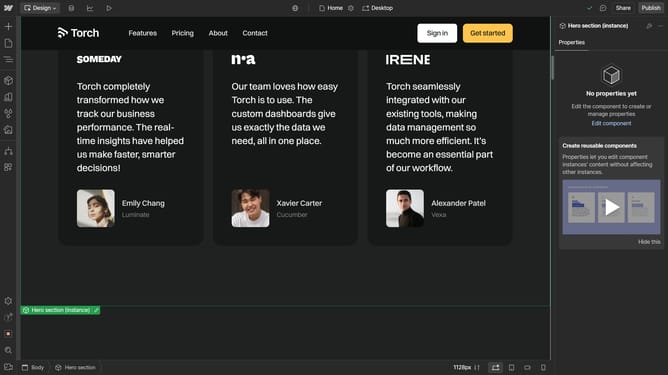
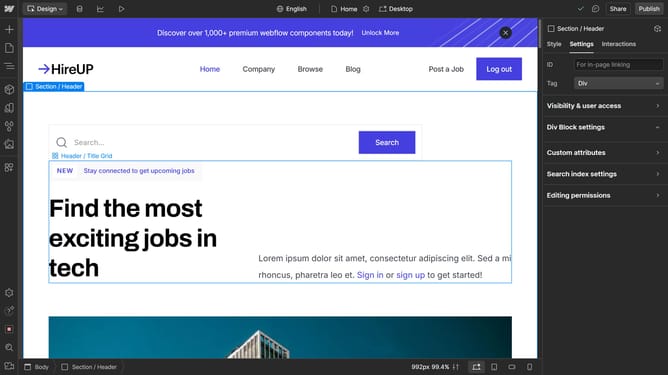
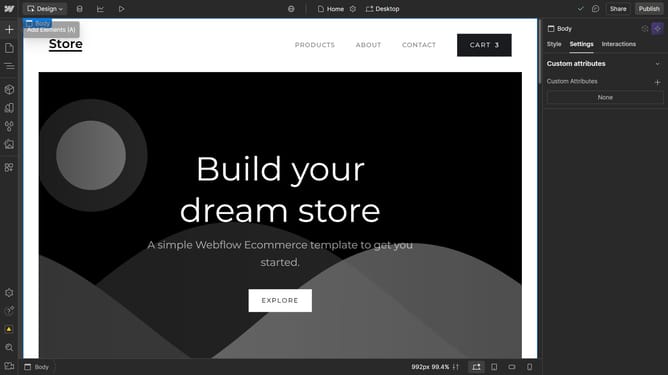
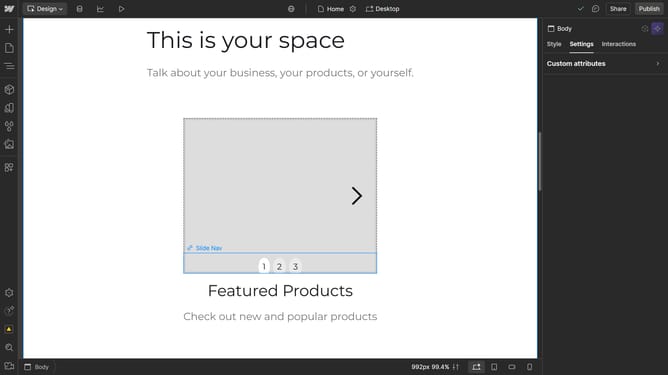
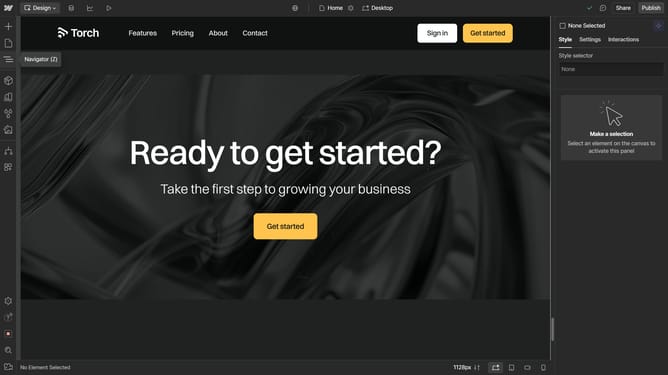
- First click on the element you want to edit
- Click on "Style" tab in the properties panel to access layout options
- In the Direction dropdown menu of the Layout section, click the down arrow to expand options
- Finally select "Single column" option from the Direction dropdown menu
Why should you reverse the flex direction in Webflow
Webflow is a versatile design tool that empowers you to create responsive websites with ease and precision.
Reversing the flex direction in Webflow is a handy feature that allows designers to change the order of elements within a flex container. This flexibility is crucial when creating layouts that need to adapt to different screen sizes or design requirements.
By reversing the flex direction, designers can maintain visual hierarchy and improve user experience, ensuring content flows logically from every perspective. Overall, this feature enhances creative control and website responsiveness.
Last update