How to add an image to your website in Webflow
Here is how to add an image to your website in webflow
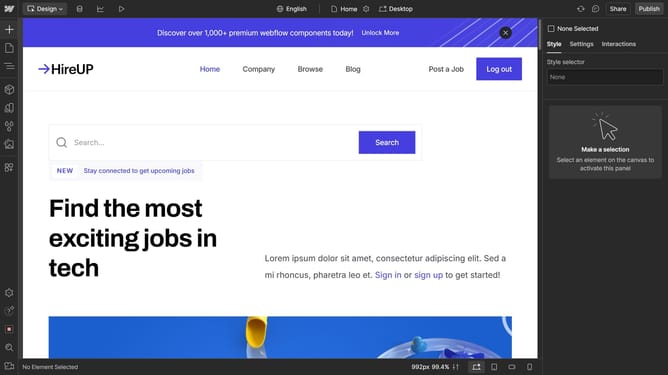
- First click on the "Plus" button in the left sidebar to open the Add panel
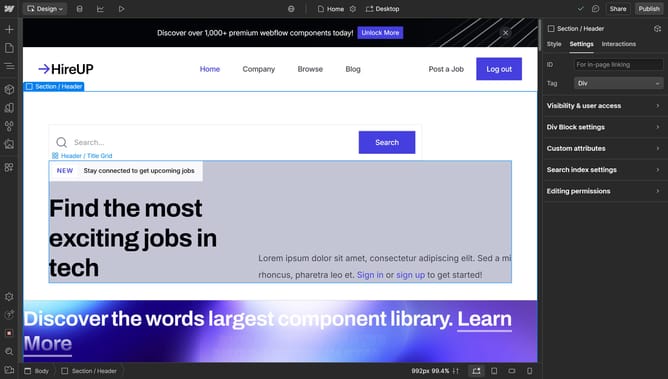
- Then click on the "Search elements" field in the Add panel
- Next type "image" in the search field of the Add panel
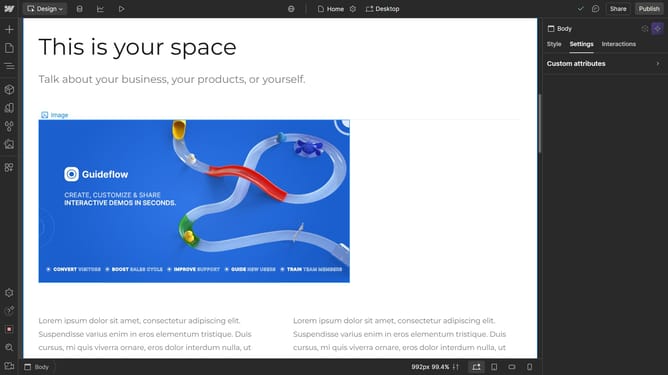
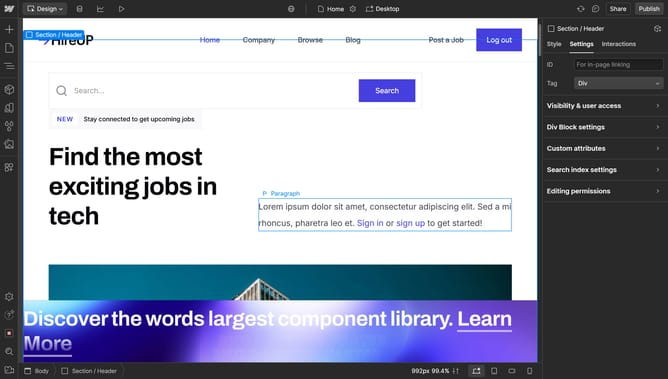
- Finally click on the "Image" element in the Add panel to insert it into your design
Why should you add an image to your website in Webflow
Webflow is a powerful platform that empowers designers to create responsive websites visually.
Adding an image to your website in Webflow is seamless and intuitive. It enhances your content by visually communicating your message more effectively.
Images enrich the user experience, engage audiences, and boost visual appeal, making your website more inviting. This feature allows for easy integration of images, ensuring your design remains cohesive and professional.
Overall, incorporating images helps in conveying ideas quickly, capturing attention, and reinforcing your website’s aesthetic.
Last update