How to change favicon in Webflow?
Here is how to change favicon in webflow
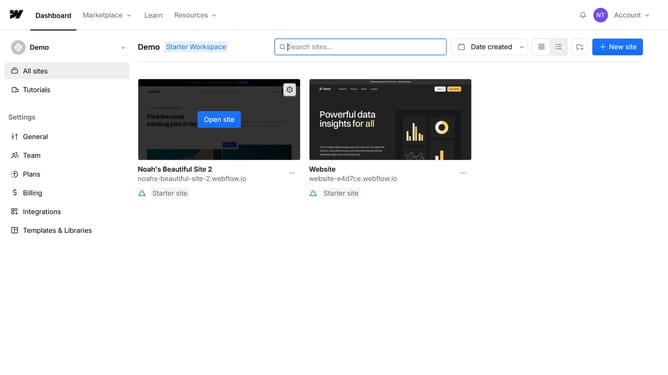
- First go to your Webflow account Dashboard
- Then click on the three-dot menu on your project thumbnail
- Select "Settings" from the menu
- Scroll to the Icons section and find the Favicon field
- Next, click on the "Upload" button to upload your favicon
- After uploading, you should see a message confirming that the project has been updated successfully
- Finally, click on the "publish" button to update and make your changes live
Why should you change favicon in Webflow?
Webflow is a cutting-edge platform for designing, building, and launching responsive and visually stunning websites without writing any code.
Changing the favicon in Webflow is a seamless process that enhances your website's branding. This tiny, yet powerful icon represents your site on browser tabs and bookmarks, making a lasting impression. By customizing it, businesses can maintain a consistent brand image, fostering trust and recognition among users. Additionally, a unique favicon aids in differentiating your site in a crowded digital space, contributing to a professional and polished online presence.
Last update