How to replace an image using the legacy Editor in Webflow
Here is how to replace an image using the legacy editor in webflow
- First click on the gear icon in the top-right corner of the site preview
- Then click on the "Editor" button in the top navigation bar
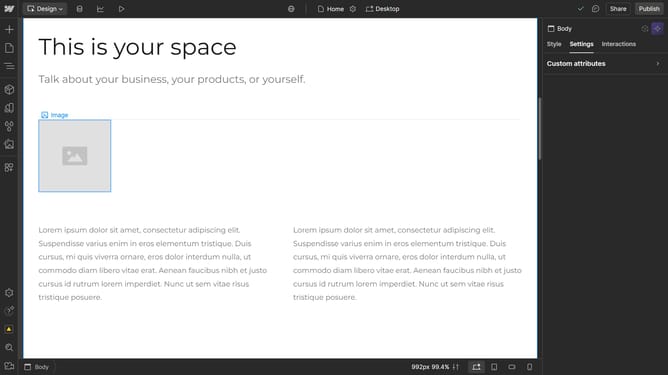
- Next click on the "Replace image" icon besides the image
- Then, click the "Publish" button after selecting a new image
- Finally click the "Publish Change" button in the confirmation dialog box
Why should you replace an image using the legacy Editor in Webflow
Webflow empowers creators to design, build, and launch stunning websites visually, without writing code.
Using the legacy Editor in Webflow, replacing an image is straightforward and efficient. This feature allows for seamless updates to visual content without the need for intricate coding skills.
Altering images swiftly enhances user engagement, keeps content fresh, and maintains brand consistency. It is perfect for optimizing your site's layout, ensuring a visually compelling experience for visitors.
Last update