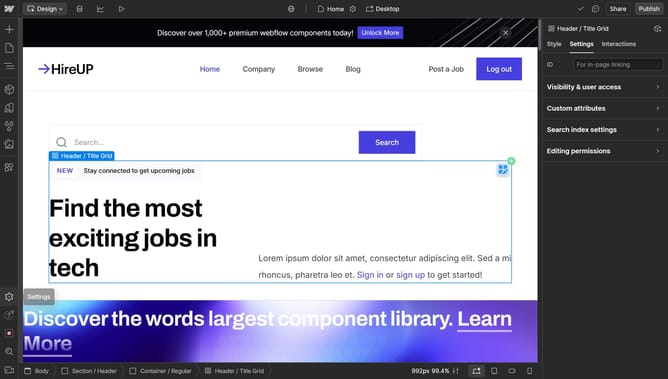
How to add Lottie animations to your website in Webflow
Here is how to add lottie animations to your website in webflow
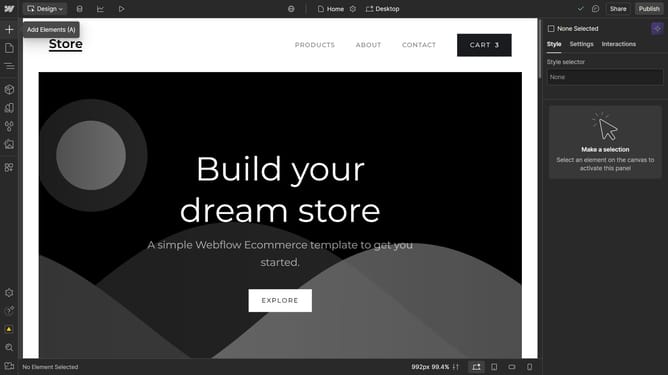
- First click on the "Add Elements (A)" button in the left sidebar
- Then click on the "Search elements" field in the Elements panel
- Type "Lottie" in the search field
- Click on the "Lottie Animation" option in the search results
- Click on the "Replace Lottie Sequence" button in the Lottie Animation Settings panel
- Click on the "Upload" button in the Assets panel and upload your .json Lottie animation file
- Select the .json file from the assets list
- Click on the "Use built-in duration" checkbox to use the full duration of the animation
- You can also enable "Loop" for your animation
Why should you add Lottie animations to your website in Webflow
Webflow is a powerful platform that empowers users to design, build, and launch fully customizable websites without coding.
Integrating Lottie animations into your Webflow site adds a layer of dynamic interactivity that enhances user engagement. Lottie allows for scalable vector animations, offering a smoother, more visually appealing experience across devices.
Using this feature brings your website to life, making it not only more attractive but also more memorable, thus improving both user satisfaction and retention.
Last update