How to rotate an image in Webflow?
Here is how to rotate an image in webflow
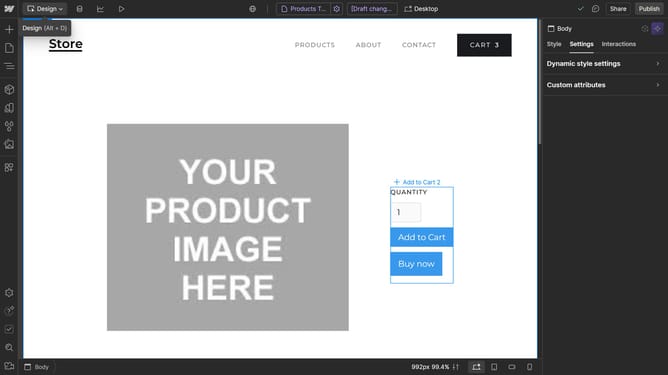
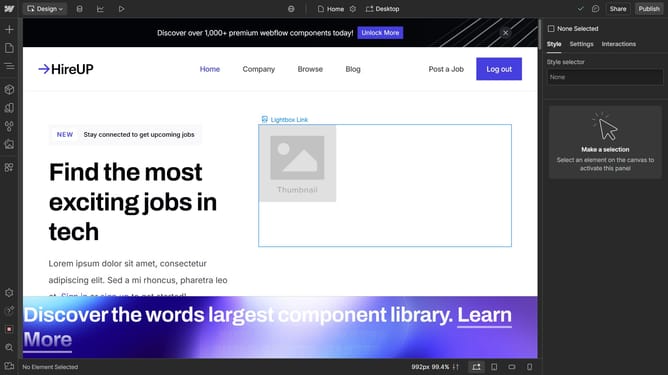
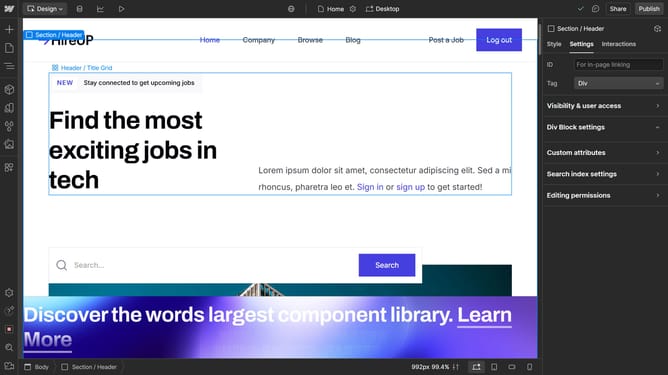
- 1- Select the image you want to rotate by clicking on it
2- Go to the "Style" panel in the right sidebar
3- Scroll down to the "2D & 3D Transforms" section
4- Next, click on the "+" button to add a new transform
5- Select "Rotate" from the transform options
6- Enter the desired rotation angle (e.g., 90 degrees) or use the slider to set the angle
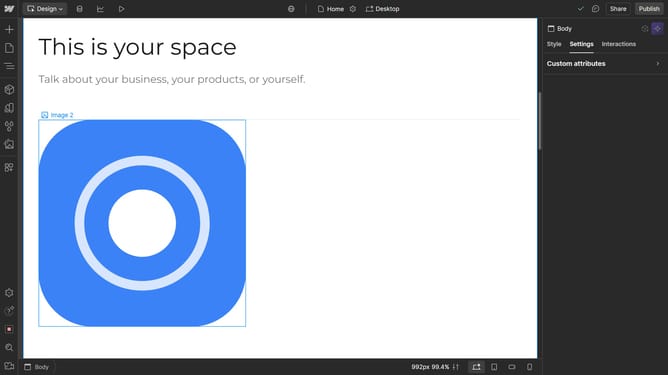
7- You can see that your image has been successfully rotated
Why should you rotate an image in Webflow?
Webflow is a visual web design tool that empowers designers to build responsive websites without code.
Rotating an image in Webflow offers a flexible way to enhance your design aesthetics, providing a simple yet powerful feature for creative expression. By integrating easy image manipulation, you can consistently maintain a dynamic visual style across your site. This tool allows for precise adjustments, perfect for designers looking to add a touch of flair or highlight specific content.
Embracing this feature not only elevates user engagement but also enriches the overall browsing experience, making your website stand out with seamless transitions and engaging visuals.
Last update