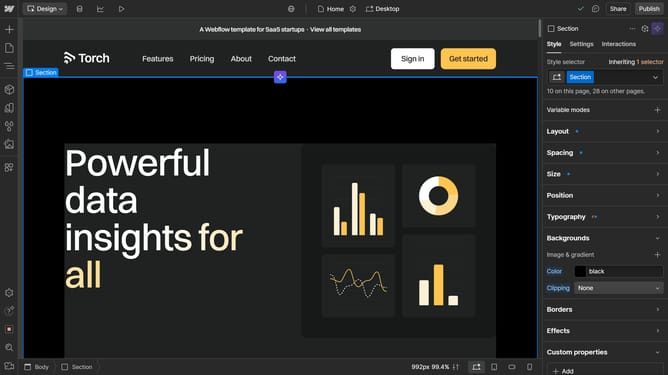
How to add a URL to a dropdown in Webflow
Here is how to add a url to a dropdown in webflow
- First click on the "Dropdown" element in the main content area
- Then click on "Dropdown settings" in the right sidebar
- Next click the "Show" option under Menu in the Dropdown settings panel
- Click on the "Dropdown Link" item in the dropdown menu
- Then click on "Link settings" in the right sidebar
- Click on the "URL" icon in the Link settings panel
- Finally click on the "URL" text field to enter the link destination
Why should you add a URL to a dropdown in Webflow
Webflow empowers designers to craft beautiful, custom websites without writing code.
Adding a URL to a dropdown in Webflow is a streamlined feature that enhances navigational efficiency on your site.
This capability is particularly useful for organizing related content, making it accessible within a click, and improving user experience.
By seamlessly routing users to specific pages, the site remains intuitive, promoting engagement and fluid interaction within the site’s structure.
Last update