How to delete grid columns in Webflow
Here is how to delete grid columns in webflow
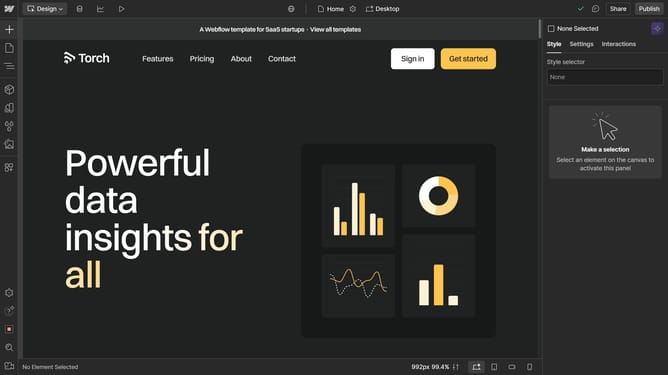
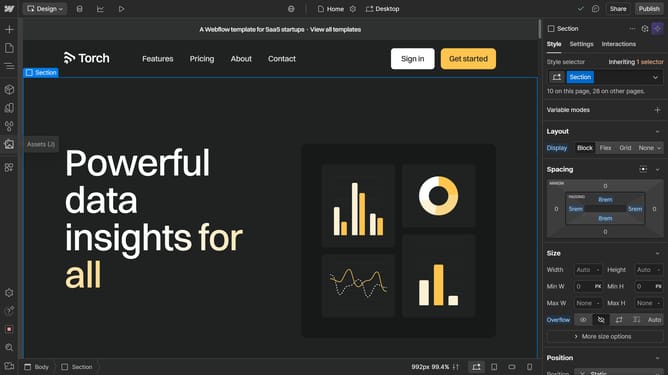
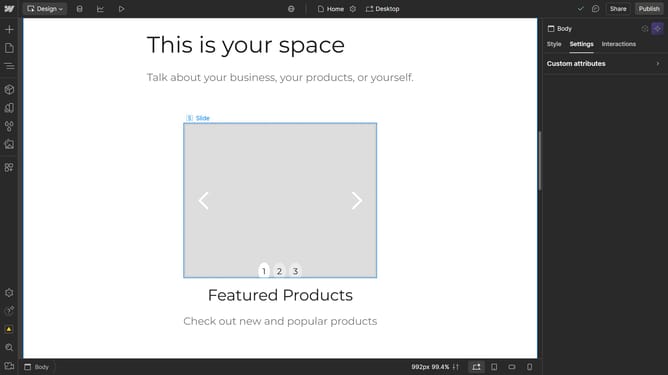
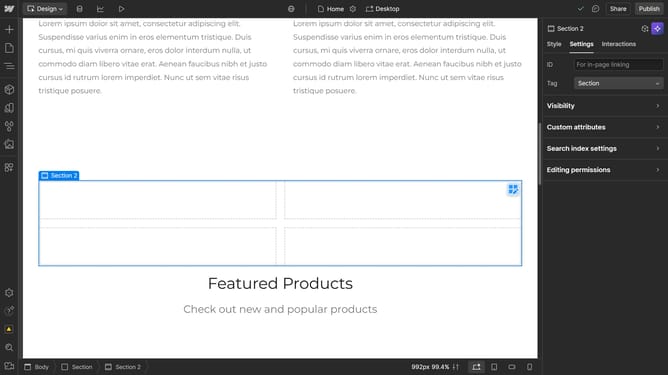
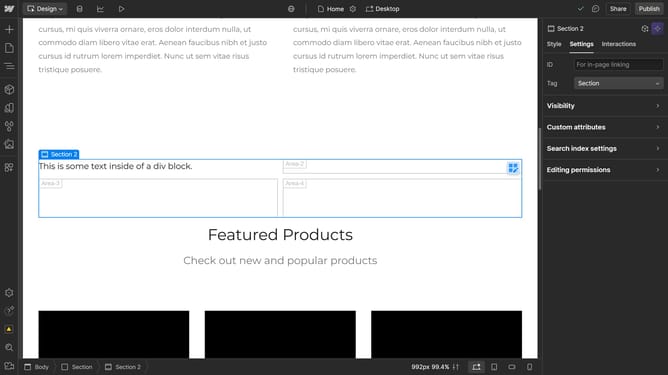
- First, select a grid in the main canvas area
- Then click on the "Style" tab in the right sidebar
- Next click on the "Layout" option in the style settings panel
- Then click on the "Configure grid" button in the Layout settings
- Finally click on the "Remove" button in the Grid settings panel to delete the selected column
Why should you delete grid columns in Webflow
Webflow empowers designers to build professional websites with complete creative control.
Deleting grid columns in Webflow is a straightforward feature that enhances your design flexibility. This feature allows you to effortlessly declutter your layouts, ensuring your site remains clean and professional.
By refining your grid, you ensure that your content is effectively highlighted and stays visually appealing. It also simplifies the design process, helping you streamline the user experience, which is crucial for engaging visitors.
Last update