How to hide a page in Webflow?
Here is how to hide a page in webflow
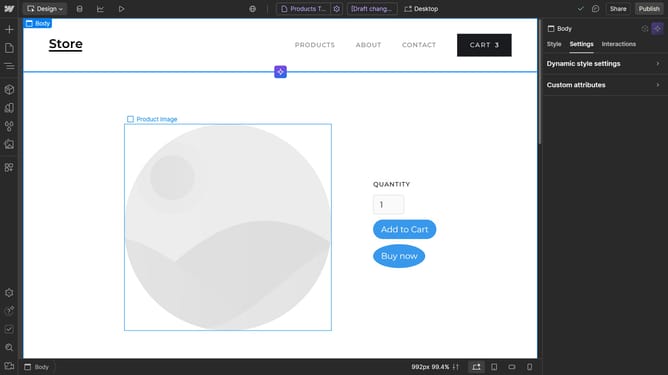
- 1- First, click on the "Pages" panel on the lef sidebar
2- Then find the page you want to hide and click on its name to open the page settings
3- In the settings, click on the "Save" dropdown button in the top toolbar
4- Next click on "Save as draft" option from the dropdown menu
5- Once you've saved it as a draft, the page will be hidden from your website visitors
Why should you hide a page in Webflow?
Webflow is a versatile design tool that seamlessly combines website creation with customized code-free development.
One of the practical features within Webflow is the ability to hide a page. This feature is invaluable when you're preparing content that isn't quite ready for the public or when you need to archive a page temporarily without deleting it.
Hiding a page in Webflow allows developers to manage site visibility while keeping their workspace organized. By utilizing this feature, you can craft a better user experience while maintaining full control over your site’s content.
Last update