How to replace an image on your website in Webflow
Here is how to replace an image on your website in webflow
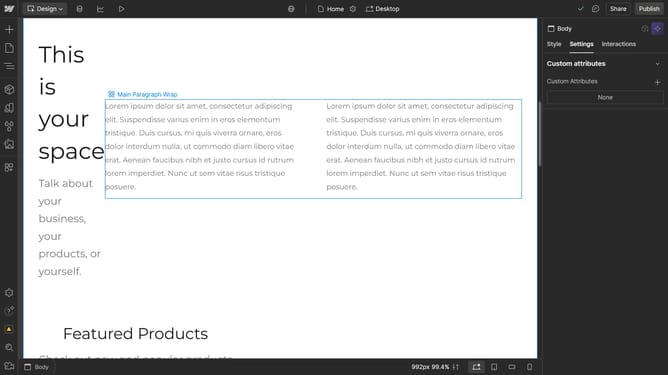
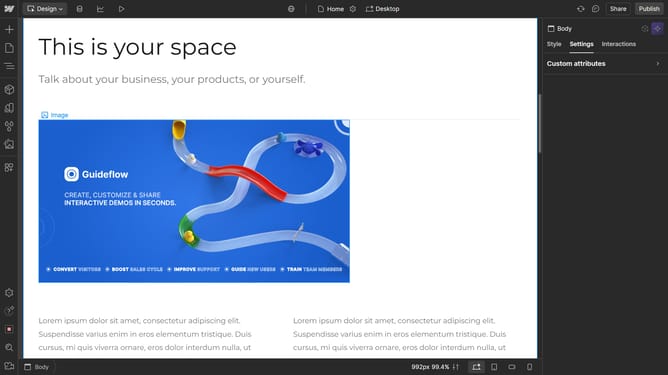
- First click the image element in the content area
- Next click on the "Settings" tab in the right sidebar
- Then click on the "Image settings" option in the settings panel
- Next click on the "Replace Image..." button in the image settings section
- Finally click the desired image to use in the Assets panel
Why should you replace an image on your website in Webflow
Webflow is a cutting-edge design tool that empowers creators to build innovative, responsive websites without needing code.
Easily replacing an image on your Webflow site is an essential feature that enhances flexibility in managing visuals. This capability ensures that your digital presence stays fresh and up-to-date.
By simplifying image updates, Webflow saves time and effort, allowing you to focus on crafting visually appealing and engaging content while maintaining a professional-looking site.
Last update