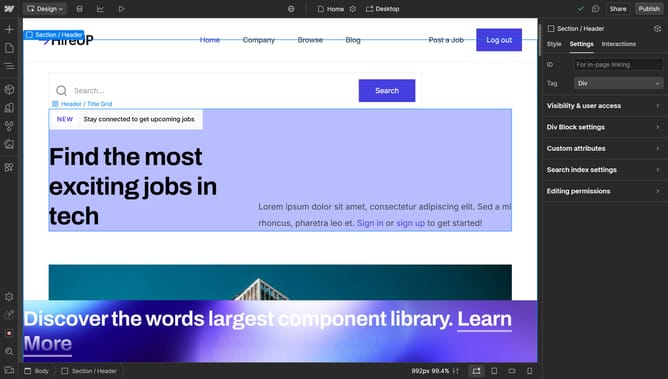
How to delete an animation in Webflow
Here is how to delete an animation in webflow
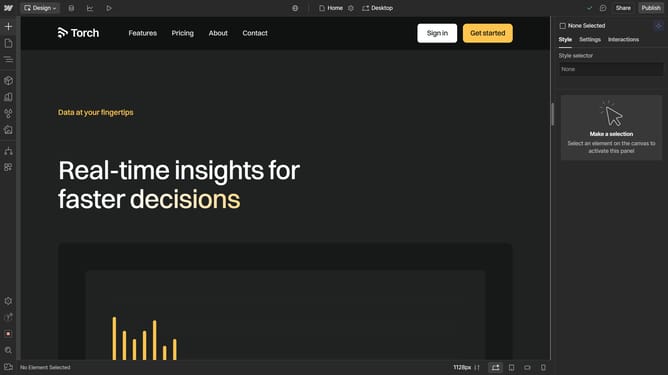
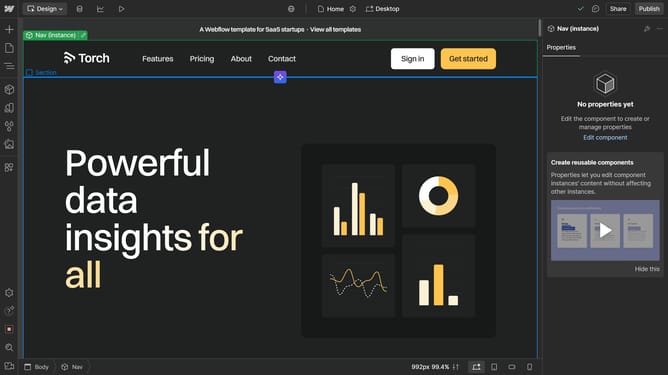
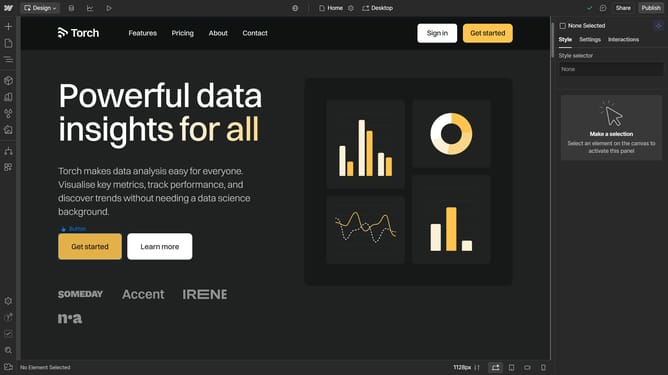
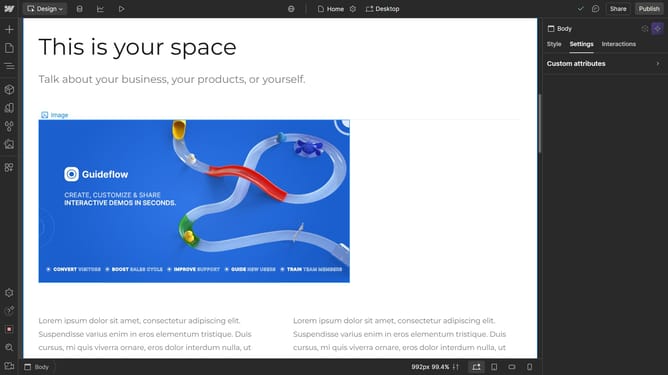
- First click on the "Lottie Animation" element in the main content area
- Then click on the "Navigator" button in the left sidebar
- Next right-click on the "Lottie Animation" item in the Navigator panel tree structure
- Finally click on the "Delete" option in the context menu to remove the Lottie Animation component
Why should you delete an animation in Webflow
Webflow is a powerful tool designed for creating visually stunning and responsive websites without writing code.
The ability to delete animations in Webflow provides a streamlined approach to managing your website's interactivity and performance. Adjusting or removing animations helps maintain a professional and polished look, ensuring the user experience remains seamless.
Simplifying animations can lead to faster loading times, improving site efficiency and reducing bounce rates. This feature empowers creators to continually refine and perfect their digital spaces with ease.
Last update