How to change the color of a button in Webflow
Here is how to change the color of a button in webflow
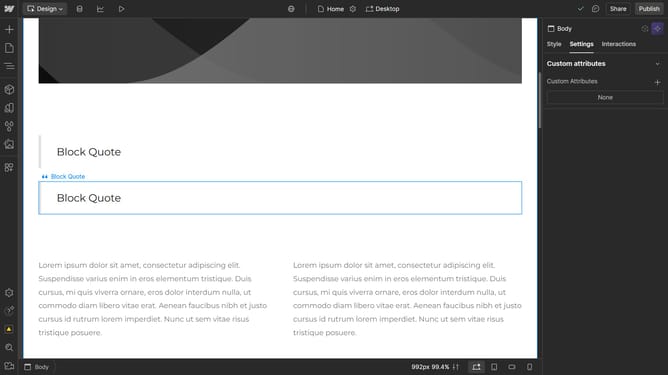
- First click on the button you want to edit
- Then click on the "Styles" tab in the right sidebar
- Next click on the "Backgrounds" section in the right sidebar settings panel
- Click on the color picker button showing in the Backgrounds section
- Select the desired color from the color picker gradient
Why should you change the color of a button in Webflow
Webflow is a powerful web design tool that allows users to create visually stunning websites without needing to code.
One of the customizable features in Webflow is the ability to change the color of a button easily. This feature helps enhance a website's design, aligning it with branding and improving user experience.
By adjusting button colors, users can make calls-to-action more eye-catching, ensuring visitors are drawn to important links and sections. This adaptability empowers designers to craft interactive, engaging web pages that resonate effectively with their audience.
Last update