How to add shadows to a box in Webflow
Here is how to add shadows to a box in webflow
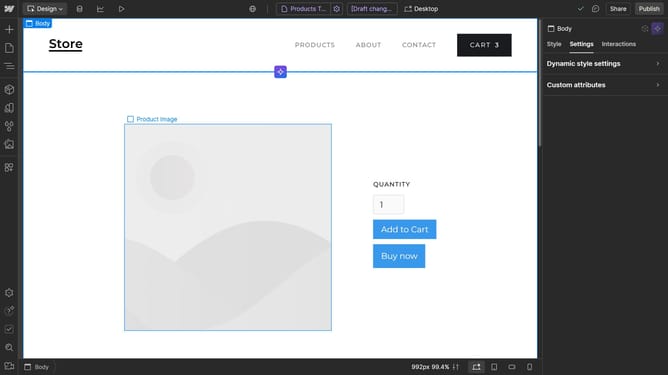
- First, click on the element you want to add a shadow to
- Then click on the "Style" tab in the right sidebar
- Next click on the "Effects" section in the right sidebar settings panel
- Then click the "+" button next to "Box shadows" to add a new shadow effect
- Next click the "Color picker" button
- Finally click in the color picker to adjust the shadow color
Why should you add shadows to a box in Webflow
Webflow is a powerful tool that enables designers to create professional websites visually without coding.
Adding shadows to a box in Webflow elevates the visual appeal of your design, offering a sense of depth and dimension.
This feature allows elements to stand out, helping guide users' attention to key areas and enhancing the overall user experience.
By using shadows creatively, you can create a more engaging and aesthetically pleasing design, simultaneously improving your website's functionality and appeal.
Last update