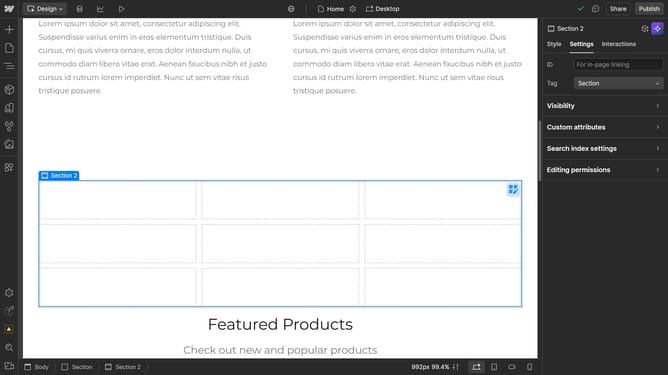
How to edit hamburger menu Webflow?
Here is how to edit hamburger menu webflow
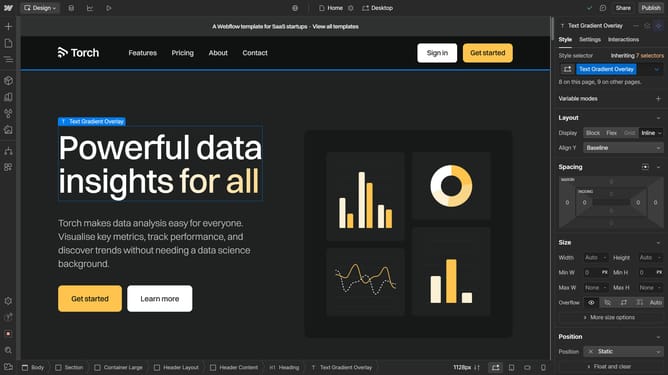
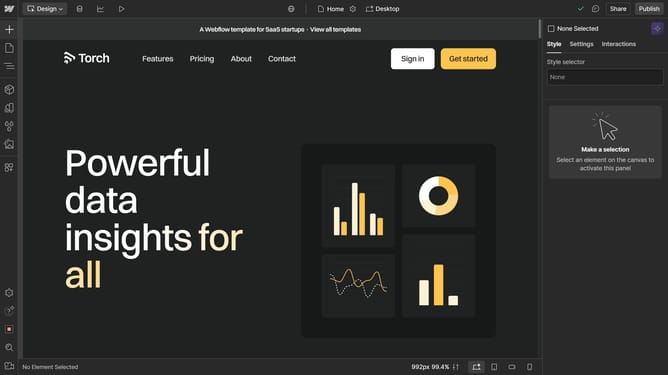
- First, click on the "Desktop" button at the top of the project editor
- Then switch to the mobile portrait view
- Next, the navbar will collapse into a hamburger menu (three horizontal lines)
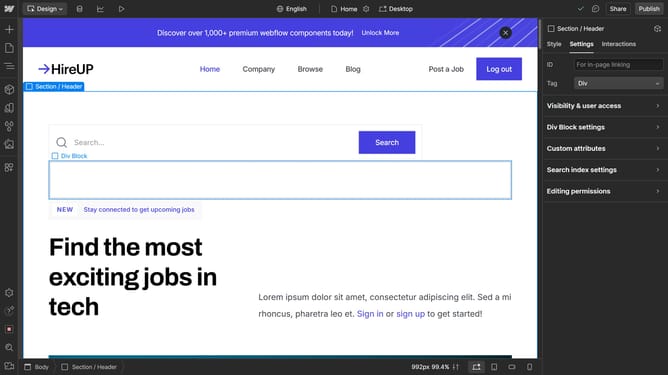
- In the right sidebar, go to the "Settings" tab
- FInd the "Navbar settings" section
- Change the Menu state option to "Show" to view the expanded menu
- You can edit the visible contents of the hamburger menu now
- Then toggle the state back to "Hide once you're done"
Why should you edit hamburger menu Webflow?
Webflow is a powerful web design tool that enables users to create visually stunning and responsive websites with ease.
Editing the hamburger menu in Webflow enhances your site's mobile navigation experience. This feature allows for intuitive customization of menu items, ensuring that your content is accessible and organized even on small screens. Easily change colors, typography, and animations to align with your brand’s aesthetic, delivering a cohesive user experience.
Leveraging Webflow's editing capabilities means a refined navigation that encourages longer site visits, leading to increased engagement and satisfaction. This tool is an asset for developers and designers aiming to optimize functionality while refining visual appeal without needing extensive coding knowledge.