How to resize columns in Webflow
Here is how to resize columns in webflow
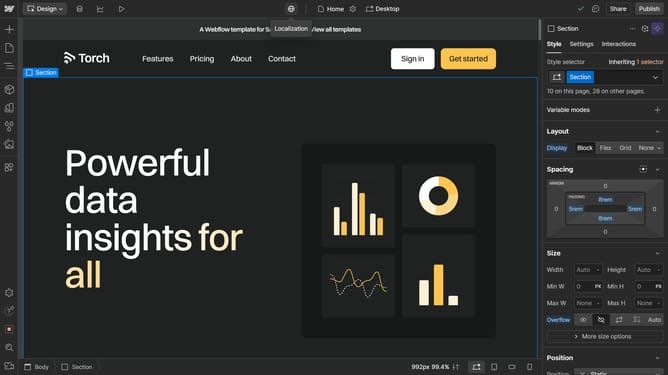
- First click the element with the grid layout to start editing
- In the right sidebar, click on the "Style" tab
- In the style panel, click on the "Layout" option
- In the Layout settings, click on the "Configure grid" button
- Click on the column header you want to resize
- Adjust the column's width using the sizing slider in the popup menu
Why should you resize columns in Webflow
Webflow empowers creators to design, build, and launch responsive websites visually.
Resizing columns in Webflow offers intuitive control over your page layouts, allowing seamless adjustments to better fit your design needs.
This feature is essential for ensuring a consistent and professional look across different screen sizes, enhancing user experience.
By easily adapting column widths, designers can maintain both aesthetic appeal and functional balance, which is crucial for dynamic and engaging web projects.
Last update