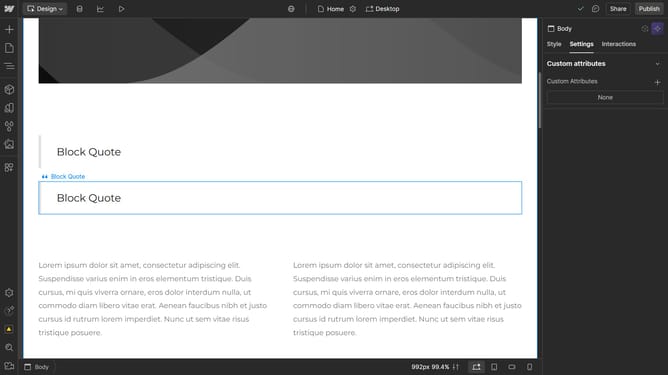
How to change the number of columns in a Webflow grid
Here is how to change the number of columns in a webflow grid
- First click the element with the grid layout
- Then click on "Style" tab in the right sidebar
- Next click on "Layout" option in the right sidebar style settings
- Finally, enter the desired column value in the Grid settings under Layout options
Why should you change the number of columns in a Webflow grid
Webflow is a powerful tool that empowers users to design, build, and launch responsive websites visually.
One of its standout features is the ability to effortlessly change the number of columns in a grid layout. This feature allows for flexibility in design, giving users the freedom to adjust the layout based on their content requirements and aesthetic vision.
By customizing the column count, designers can create a balanced visual experience and improve the overall user interface. This enhances the user's interaction with the website, providing a seamless browsing journey.
Adjusting the number of columns also enables effective use of space, optimizing the design for various devices and screen sizes. Embracing this feature can significantly elevate the functionality and appearance of any website.