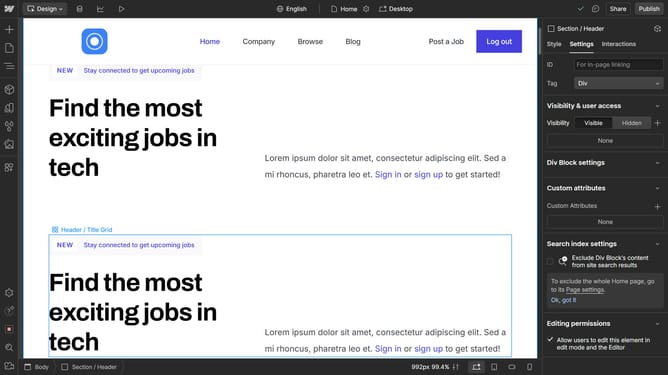
How to use the color dropper tool for texts in Webflow
Here is how to use the color dropper tool for texts in webflow
- First click on the element you want to edit
- Then click on the "Style" tab in the right sidebar
- Next click on the "Typography" section in the style settings panel
- Then click on the color picker icon next to the "Color" field
- Next click on the eyedropper tool in the color picker panel
- Next click on the eyedropper tool in the color picker panel
- Finally, click on the color you want to apply to your text
Why should you use the color dropper tool for texts in Webflow
Webflow is a leading tool for designers and developers to create unique, responsive websites without relying on code.
The color dropper tool for texts in Webflow enhances creativity by allowing seamless color harmonization across your site. It enables quick selection of colors directly from your workspace, ensuring uniformity and brand consistency.
Using the color dropper adds a professional touch to your designs, fostering a cohesive visual experience that captivates your audience. The intuitive interface makes color matching a breeze, elevating the overall quality of your project.
Last update