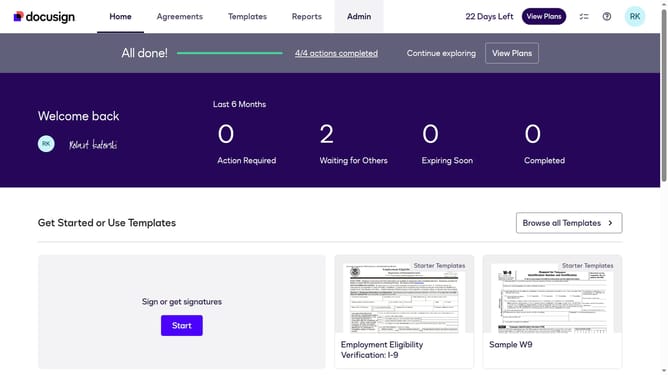
How to hide the status column under the users section in DocuSign
Here is how to hide the status column under the users section in docusign
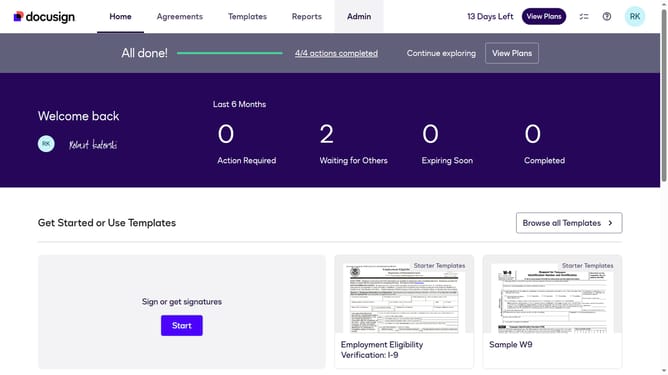
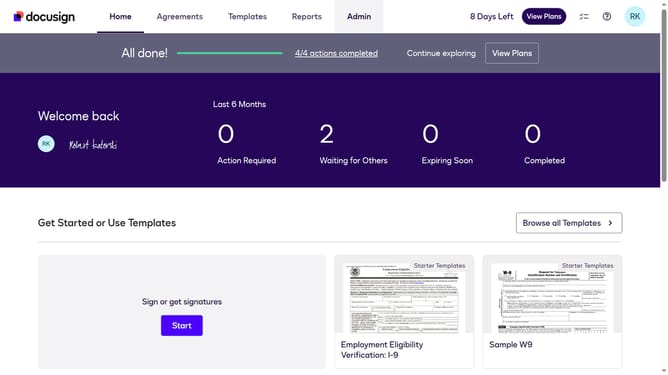
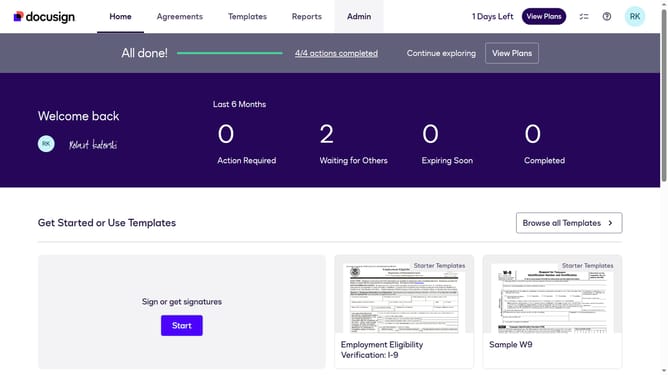
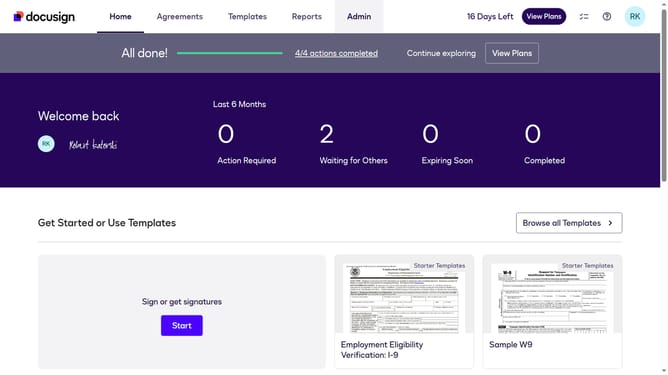
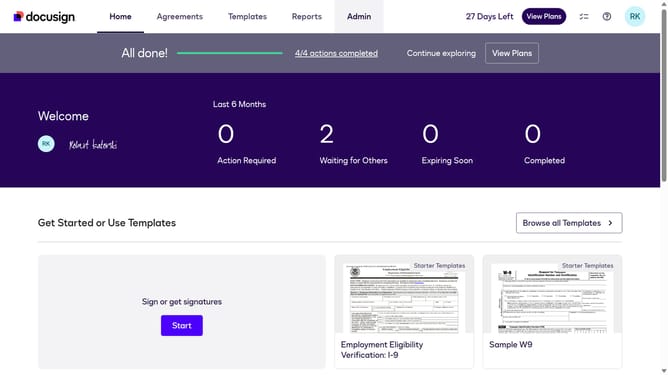
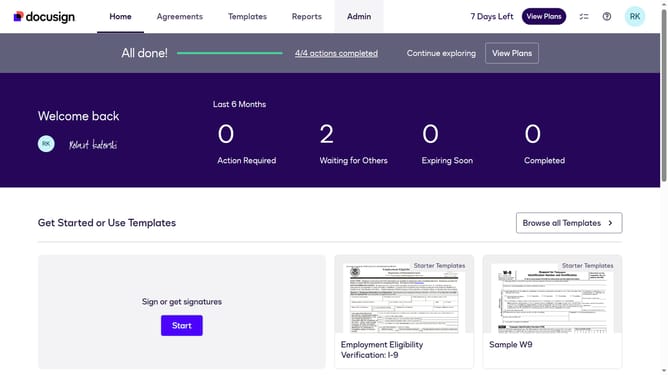
- First click on the "Admin" link in the top navigation menu
- Then scroll down to view more options
- Next click on the "Users" link in the left sidebar under the "USERS AND GROUPS" section
- Then click on the settings icon (gear icon) in the top right corner of the Users table
- Next click on the "Status" checkbox to deselect it in the Show/Hide Columns dialog
- Finally click on the "Apply" button to save the column visibility changes
Why should you hide the status column under the users section in DocuSign
DocuSign is a leading electronic signature platform designed to streamline the signing process for contracts and documents, making transactions more efficient.
The feature allowing you to hide the status column under the users section offers a tidy and streamlined view of user data.
By eliminating unnecessary information at times, users can focus on more relevant details, enhancing productivity and reducing visual clutter.
This feature is particularly beneficial for teams aiming to tailor their dashboard to specific needs, promoting a more organized workflow.
Last update