How to copy a permission profile in DocuSign
Here is how to copy a permission profile in docusign
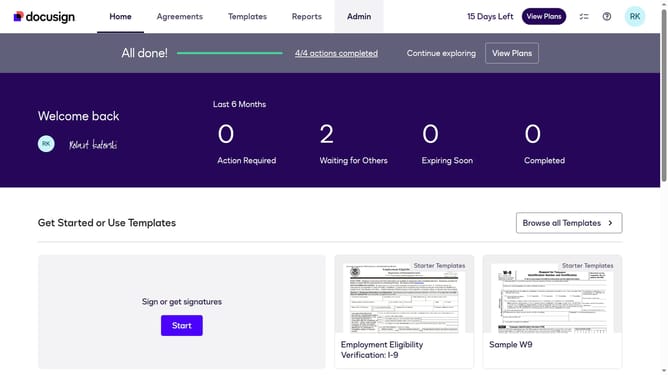
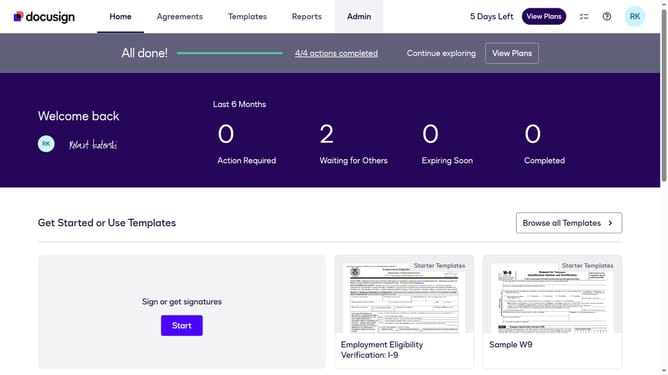
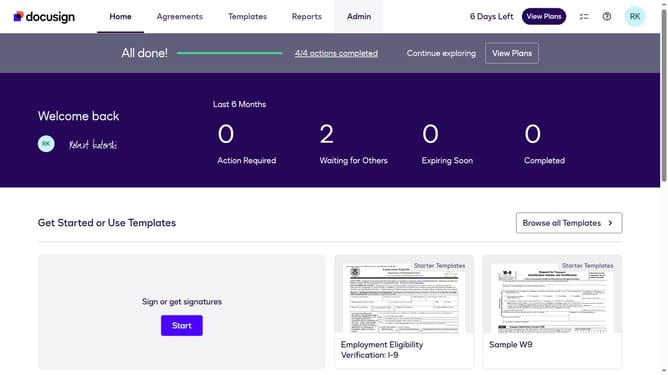
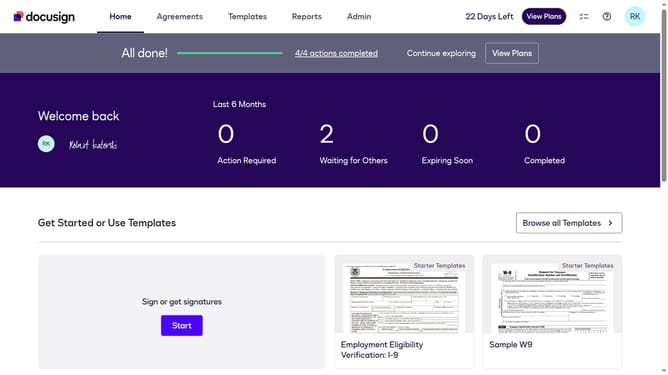
- First click on the "Admin" link in the top navigation menu
- Then scroll down the page to view the sidebar menu options
- Next click on "Permission profiles" under the USERS AND GROUPS section
- Next click on the "Actions" dropdown button for the "DS Admin" permission profile in the table
- Then select the "Copy" option from the dropdown menu that appears
- Then click on the "Name" text field in the "Copy Permission Profile" dialog box and change it to your preferred name
- Finally click on the "Add" button at the bottom right of the "Copy Permission Profile" dialog to create the new permission profile
Why should you copy a permission profile in DocuSign
DocuSign revolutionizes the world of document management by enabling seamless digital transactions and secure electronic signatures.
In the realm of administrative efficiency, copying a permission profile in DocuSign emerges as an invaluable feature. By swiftly duplicating permission settings from an existing profile, users can maintain consistency and streamline the onboarding process for new employees or departments.
This feature saves time and reduces errors, ensuring that everyone gains access to the appropriate documents and tools, enhancing productivity across the board.
Last update