How to enable AI sender message in DocuSign
Here is how to enable ai sender message in docusign
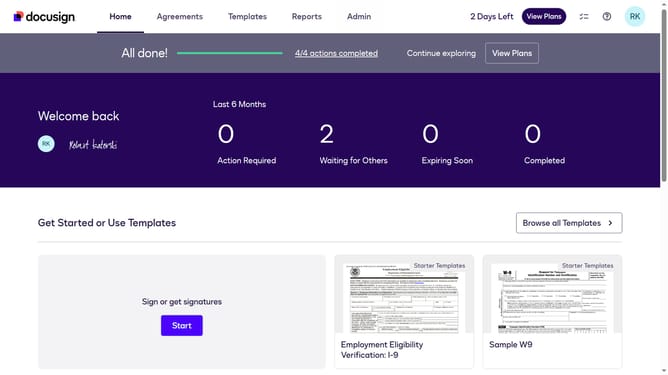
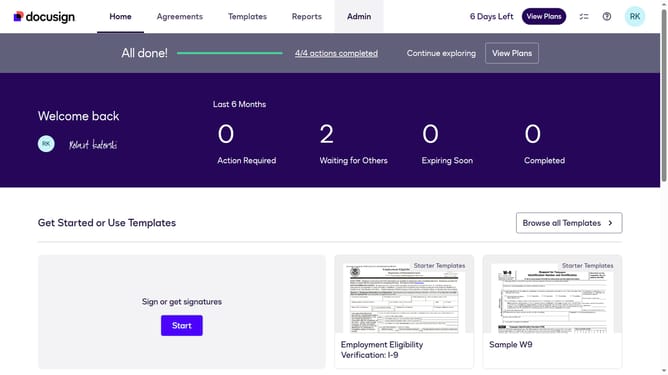
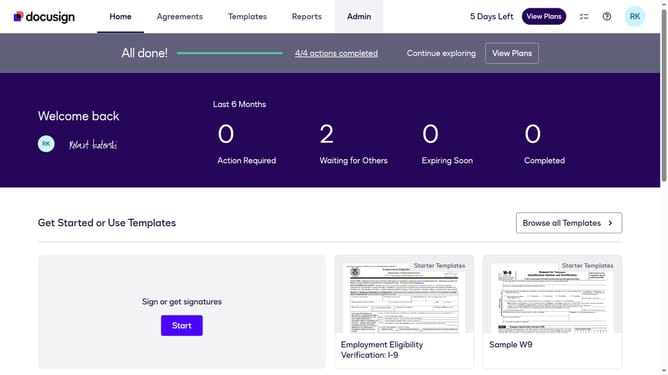
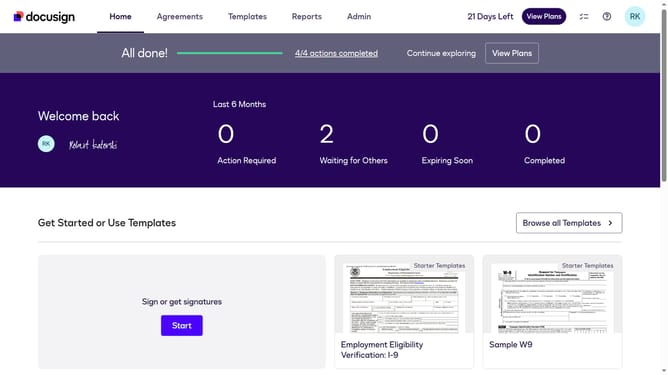
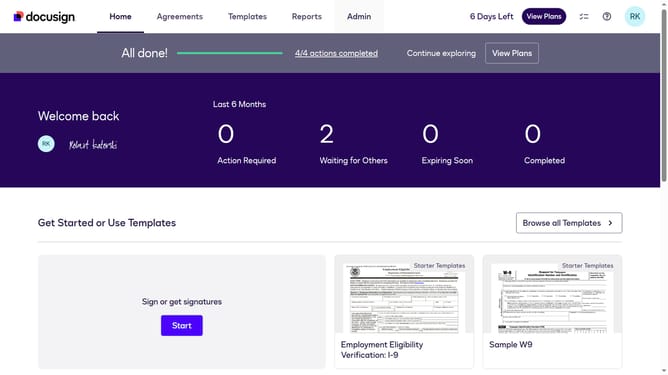
- First click on the "Admin" link in the top navigation menu
- Then scroll down the page to view more admin settings options
- Next click on the "Sending Settings" link in the left sidebar under the "SIGNING AND SENDING" section
- Then scroll down the page to view the "Recipient Roles" section
- Next click on the checkbox for "Enable Witness Signing (Allow sender to assign a witness for signers)" under the "Recipient Roles" section
- Then scroll down the page to view additional settings and the save button
- Finally click on the "Save Changes" button at the bottom of the page
Why should you enable AI sender message in DocuSign
DocuSign streamlines the signing process, facilitating secure and efficient digital transactions.
Enabling the AI sender message feature in DocuSign enhances communication by customizing messages with intelligent, relevant content. This feature personalizes interactions automatically, making the recipient experience more engaging and human.
By optimizing message relevance, users benefit from improved response rates and smoother document workflows. With AI's intuitive assistance, each communication becomes more meaningful and efficient in meeting business objectives.
Last update