How to draw your signature in PandaDoc
Here is how to draw your signature in pandadoc
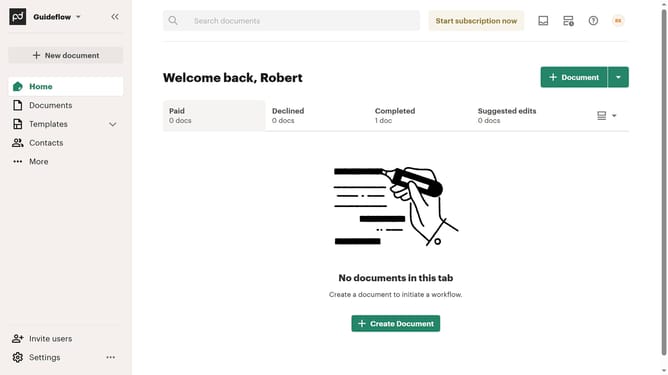
- First click on the profile button in the top right corner of the header
- Then click on "Account settings" option in the dropdown menu
- Next scroll down the page to view the signature section
- Then click on the "Set up signature" button in the signature section
- Next click on the "Draw" tab in the signature modal dialog
- Then draw your signature
- Finally click on the "Save" button to save the drawn signature
Why should you draw your signature in PandaDoc
PandaDoc is a powerful platform designed to streamline document management and enhance your workflow.
One of its standout features is the ability to easily draw your signature, adding a personal touch to your digital documents. This function eliminates the need for scanning, printing, or faxing, making the signing process more efficient and eco-friendly.
Using this feature not only speeds up transactions but also adds a layer of security, ensuring your documents remain both accessible and protected. The convenience of drawing your own signature in PandaDoc makes handling paperwork a seamless experience.
Last update