How to connect your Google Calendar with Zendesk Sell
Here is how to connect your google calendar with zendesk sell
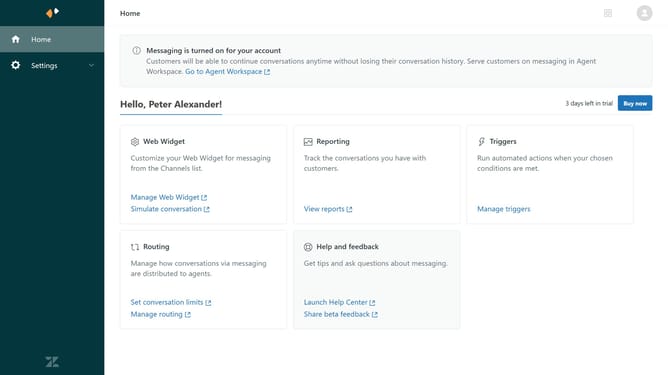
- First in Zendesk sell, click on the "Settings" icon in the left sidebar
- Then click on "Calendars" under the Integrations section
- Next click on the "Add Google Calendar" option in the Calendar Accounts section
- Select the google account you want to connect
- Click the "Continue" button to proceed with Google account authorization
- Then click the "Continue" button again to grant additional access permissions
- Next enter a name in the Display Name field of the Calendar Account Settings
- Finally click on the "Complete Account Setup" button to finish the calendar integration
Why should you connect your Google Calendar with Zendesk Sell
Zendesk is a versatile tool designed to enhance customer relationship management through seamless integration with various platforms.
Connecting your Google Calendar with Zendesk Sell streamlines your scheduling by syncing all your important appointments and client meetings.
This integration ensures you never miss a crucial interaction, making your sales processes more efficient.
Utilizing this feature enhances productivity by keeping your team informed and ready, ultimately leading to better customer interactions and business success.
Last update