How to design a custom page in Zendesk
Here is how to design a custom page in zendesk
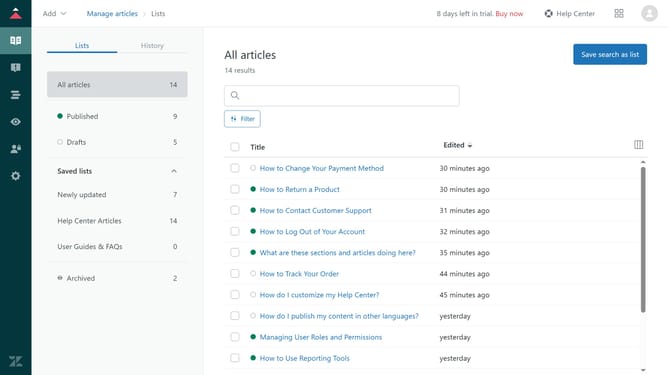
- First navigate to Guide and click on the "Customize design" in the left sidebar
- In the theme section, click "Customize" on the theme you want to edit
- Then, click on "Edit code" button in the theme customization interface
- Select the custom page you want to design in the left side under "Files" section
- Then for the Page Content, use HTML, CSS, and JavaScript to design the page layout and functionality
- Add various elements such as text, buttons, and forms to enhance the user experience and interactivity
- Once satisfied, click on "Publish" button in the top-right corner
- Next, click on the three dots menu icon next to the custom page file
- Finally, copy the custom page URL to preview it and check how the page looks
- Once you're in preview mode, you can review the page's design and functionality to ensure it meets your expectations
Why should you design a custom page in Zendesk
Zendesk is a leading customer service platform designed to foster better customer relationships.
Designing a custom page in Zendesk allows businesses to tailor the interface to their unique needs, ensuring an intuitive and engaging customer experience.
This feature empowers companies to incorporate brand elements and prioritize information that helps streamline support processes.
Utilizing custom pages not only enhances brand consistency but also promotes efficiency, ultimately leading to increased customer satisfaction and retention.
Last update