How to edit a draft article in Zendesk Guide Admin
Here is how to edit a draft article in zendesk guide admin
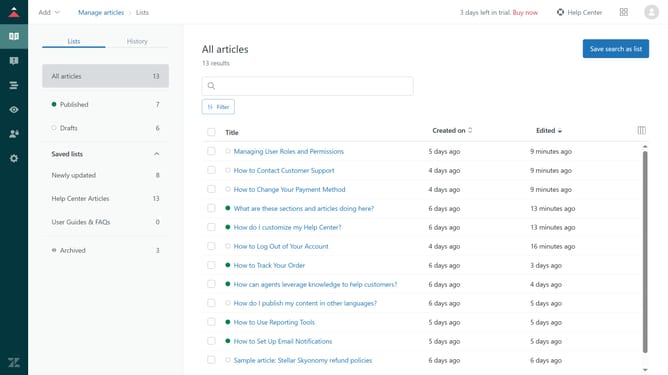
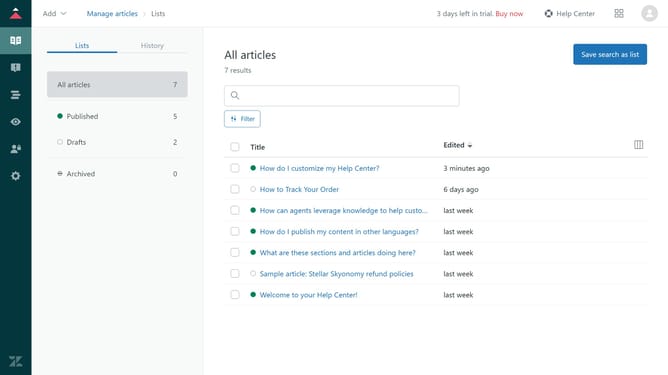
- First in Guide admin, click on the "Manage articles" icon in the left sidebar
- Then click on the "Drafts" tab in the left sidebar
- Find the draft article you want to edit and click on it from the drafts list
- The article will open in the editor. Make any necessary changes to the content using the text editor
- Next, in the Article settings panel locate the "Management permissions" to edit who has permission to access this article
- Locate the "Placement" section and click on it
- Click on "Manage Section" to edit the section where the article is located
- Click on the author selection dropdown and select a new author for the article
- Click the visibility dropdown menu
- Select your desired options to determine which users can view this article
- Then once you've made your changes, click "Update settings" button in the Article settings panel
- Finally, click "Save" button in the top-right corner of the editor to save all the changes
Why should you edit a draft article in Zendesk Guide Admin
Zendesk is a versatile platform designed to enhance customer support and streamline service operations.
One of its standout features is the ability to seamlessly edit draft articles within the Zendesk Guide Admin. This functionality empowers users to refine content, ensuring clarity and accuracy before publication.
Utilizing this feature can improve customer experience by providing up-to-date and helpful information. By allowing ample room for revisions, it helps maintain a high standard of consistency and professionalism in your support documentation.
Last update