How to change a document’s status to declined in PandaDoc
Here is how to change a document’s status to declined in pandadoc
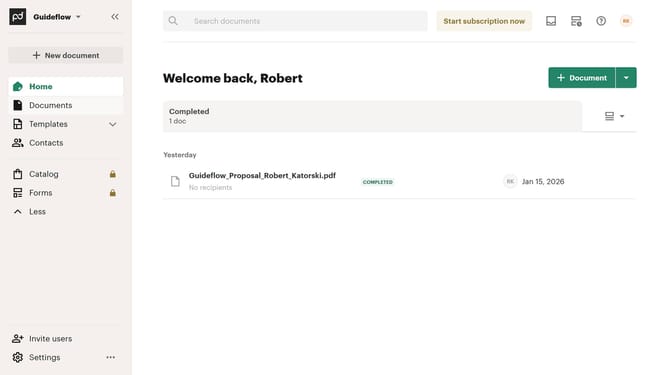
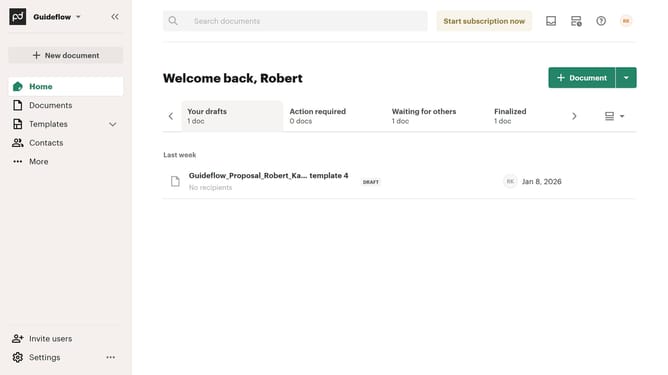
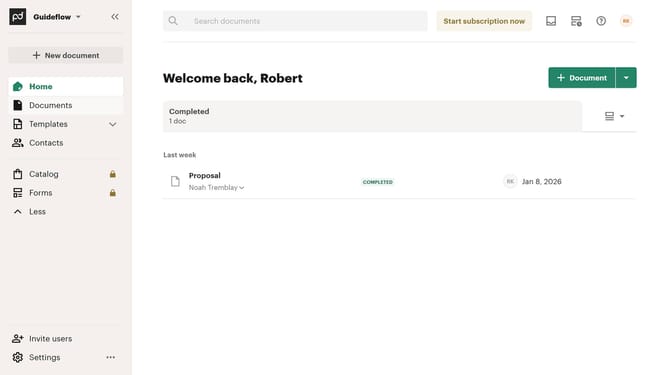
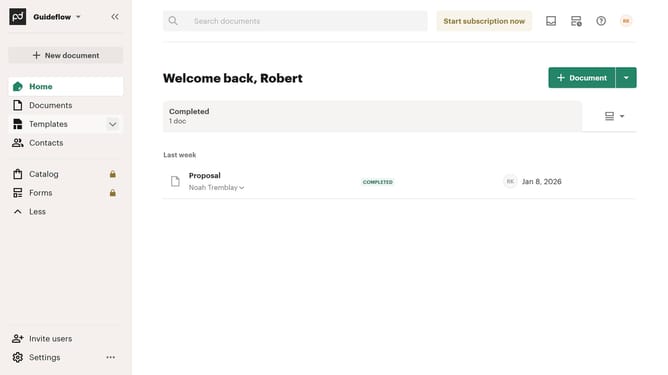
- First click on "Documents" in the left sidebar
- Then click on the three-dot menu button next to the document you want to change the status
- Next click on "Change status" option in the dropdown menu
- Then click on "Continue with change" button in the confirmation dialog
- Next click on the "TO" status dropdown to view available status options
- Then select "Declined" from the status dropdown menu
- Finally click on "Change status" button to confirm the status change
Why should you change a document’s status to declined in PandaDoc
PandaDoc is a powerful document automation software designed to streamline your paperwork processes.
Changing a document’s status to declined in PandaDoc is simple and offers clarity in managing your contracts or proposals.
When a recipient is unable to proceed, marking the document as declined ensures everyone involved is on the same page, reducing confusion and allowing for swift adjustments.
This efficient feature helps maintain an organized workflow, empowering teams to focus on active deals and drive productivity.
Last update