How to show the completed tab in PandaDoc
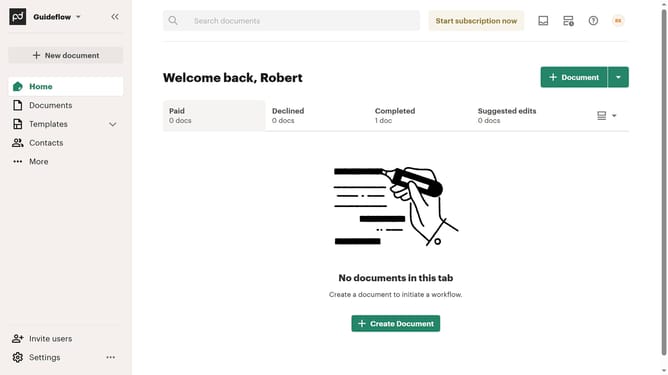
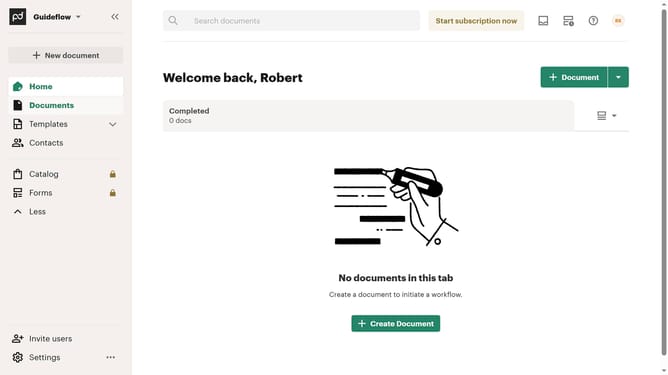
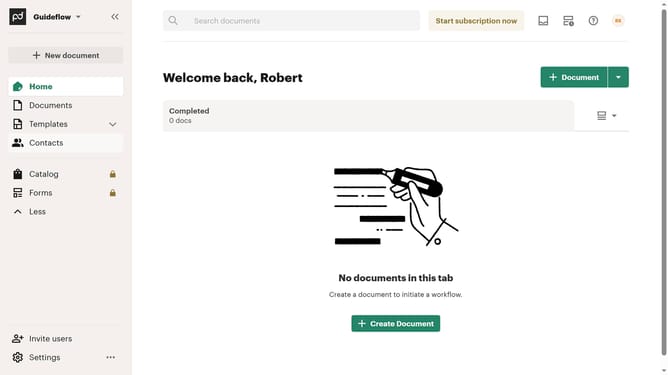
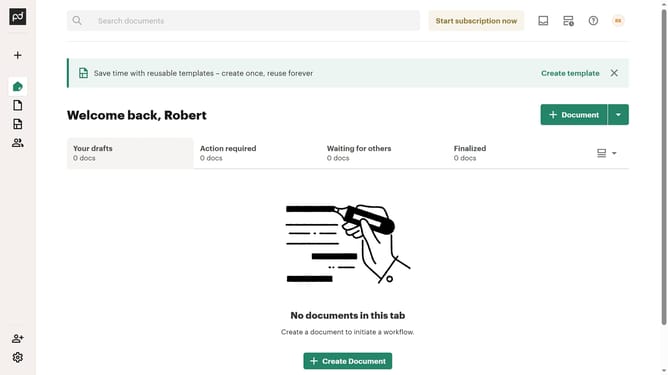
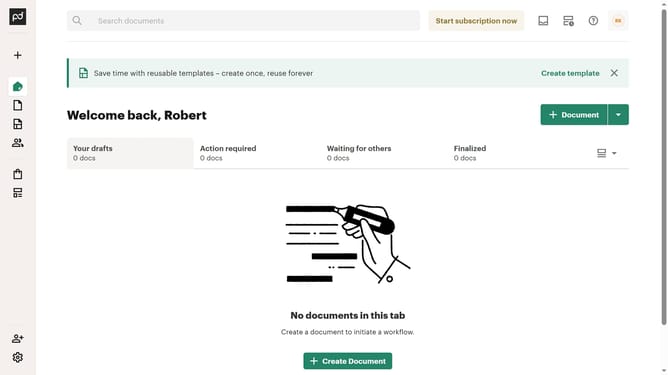
Here is how to show the completed tab in pandadoc
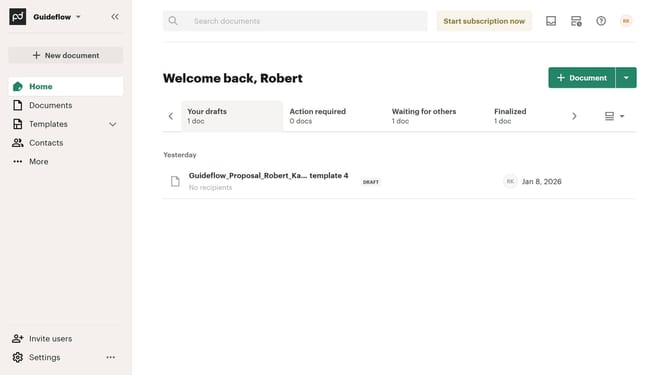
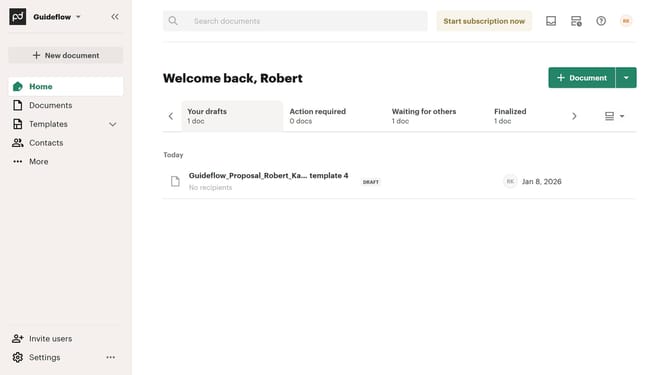
- First click on the view options button in the top right corner of the main content area
- Then click on the "Customize tabs" option from the dropdown menu that appears
- Next scroll down in the "Customize" modal dialog to view additional tab options
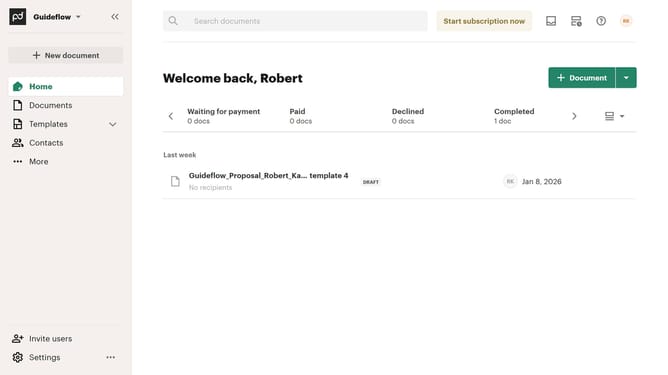
- Then click on the "Completed" checkbox to enable this tab option
- Finally click on the "Apply" button at the bottom right of the modal dialog to save the changes
Why should you show the completed tab in PandaDoc
PandaDoc simplifies document management for businesses with its comprehensive digital document capabilities.
A notable feature is its Completed Tab, which enhances workflow efficiency. Accessing this tab makes it easy to locate finalized documents without sifting through clutter.
This feature streamlines your document management process, ensuring clarity and organization by providing a centralized hub for all final files. It elevates productivity, enabling quick access to important documents for seamless operations.
Last update