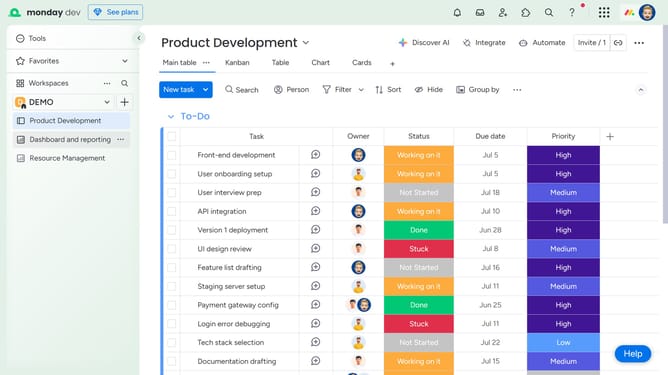
How to attach files or documents to an update in Monday.com
Here is how to attach files or documents to an update in monday.com
- First, locate the item where you want to add the update
- Next click on the item's name to open its detailed view
- In the Updates section, click inside the text box
- Then start writing your update in the update text field
- Next click on the "Attach file" icon in the formatting toolbar
- Then, select the file you would like to upload from your computer, Google Drive, Dropbox, Box, OneDrive or SharePoint
- The file will be successfully uploaded and attached to your update
- Finally click the "Update" button to publish the message with the attachment
Why should you attach files or documents to an update in Monday.com
Monday.com is a versatile work operating system designed to streamline project management and team collaboration.
One standout feature is the ability to attach files or documents directly to an update. This ensures that all essential information is stored in one centralized location, enhancing accessibility for team members.
Attaching files facilitates seamless communication by allowing users to share relevant documents, fostering a collaborative environment. This means less time spent searching for files, and more time dedicated to achieving project goals efficiently.
Last update