How to apply a filter to a dashboard in HubSpot
Here is how to apply a filter to a dashboard in hubspot
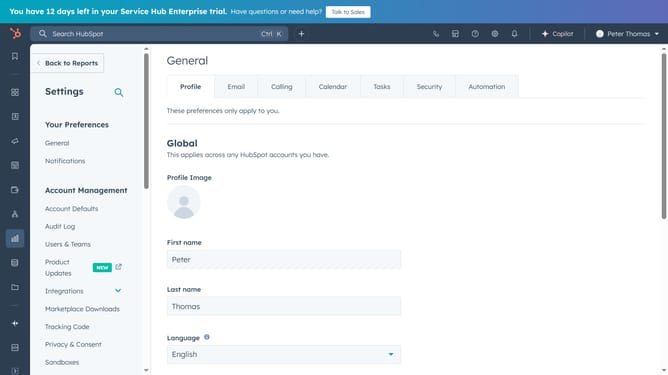
- First click on the "Reporting" icon in the left sidebar
- Then click on "Dashboards" in the reporting submenu
- Next click on the dashboard title dropdown in the top left corner
- Select the specific dashboard you want to add filter
- Click on "Advanced filters" button in the dashboard toolbar
- Click on "Add filter" button in the filters panel
- Next search for and select a property
- Then set the criteria for the filter and click "Apply filter"
- To apply additional filters, click "Add filter" button again
- Finally click "Close" button to close the filters panel. Your filters will save automatically
Why should you apply a filter to a dashboard in HubSpot
HubSpot is a dynamic platform designed to streamline inbound marketing, sales, and customer service efforts.
Applying a filter to a dashboard in HubSpot allows you to tailor data visualization, ensuring relevant metrics are front and center. By focusing on specific segments or timeframes, it enhances decision-making effectiveness.
This feature minimizes data clutter, driving clarity and enabling more strategic conversations. Refined data views help teams stay aligned with goals, fostering improved performance.
Last update