How to create a live chat in HubSpot
Here is how to create a live chat in hubspot
- First click on Automations in the left sidebar and select "Chatflows"
- Then click "Create chatflow" button in the top right corner
- Next select "Website" option in the channel selection screen
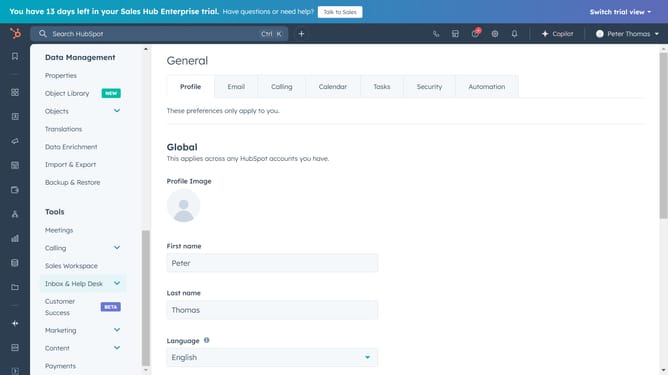
- Click the dropdown menu and select "Inbox" or "Help Desk" option
- To choose the language of your chatflow, click the dropdown menu and select your preferred language
- Next click on the "Next" button
- Select "Live Agent" as the chatflow type to allow visitors to start a chat with you and your team immediately
- Click on the pencil icon at the top of the current name of your chat
- Then give a name to your chat
- In the Build tab, you can configure the welcome message, enable the knowledge base search, and automatically assign conversations to specific team members
- Once done navigate to "Target" tab to set visibility rules
- Click on the "Display" tab to customize appearance
- Click "Choose chat avatar"
- Set the "Chat heading" to define the title visitors see and configure for when the primary assignee is unavailable
- Click on the "Chat display behavior" and control the widget's behavior on desktop or mobile screens
Why should you create a live chat in HubSpot
HubSpot is a comprehensive platform designed to enhance marketing, sales, and customer service efforts efficiently.
Creating a live chat in HubSpot allows businesses to engage instantly with website visitors, providing immediate assistance and building customer trust.
By utilizing HubSpot's live chat feature, companies can deliver personalized interactions, increase customer satisfaction, and ultimately drive sales.
This seamless integration into the customer journey supports continuous engagement, fostering stronger customer relationships and brand loyalty.
Last update