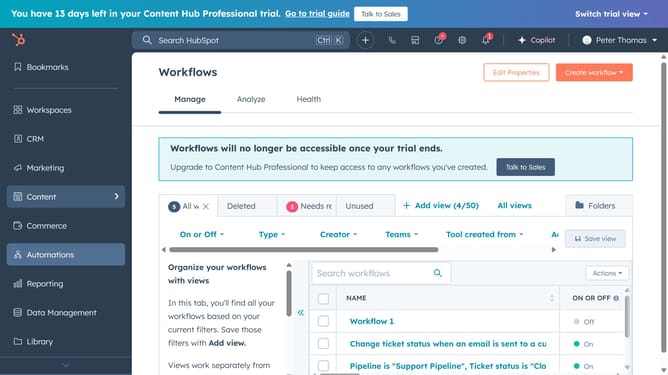
How to edit a saved view on an object in HubSpot
Here is how to edit a saved view on an object in hubspot
- First click on the CRM icon in the left sidebar
- Then navigate to the object where the view you want to edit is located (e.g., Contacts, Deals, Tickets)
- Next click on the view you want to edit in the top header
- Once the view loads, use the filters at the top to add, remove, or modify filter criteria
- To change the columns, click the "Edit columns" button at the top right
- In the dialog box, adjust the columns as needed
- Once done, click on the "Apply" button in the column selector
- Next click on the "Save" icon in the top right to save the changes
- For additional options, click on the "All views" dropdown menu
- Hover over the view you want to edit and click the "More" dropdown menu
- From the dropdown menu, you can manage sharing settings and rename the view as needed
Why should you edit a saved view on an object in HubSpot
HubSpot is a versatile platform designed to enhance your business operations and customer relationship management.
Editing a saved view on an object in HubSpot empowers you to customize your data display to match your current needs, ensuring that the most relevant information is always at your fingertips.
This feature allows for seamless adaptation, making it easier for teams to prioritize tasks and streamline workflows. By tailoring your views, you can improve efficiency and keep focus on what matters most to your business strategy.
Last update