How to add date custom field in Trello
Here is how to add date custom field in trello
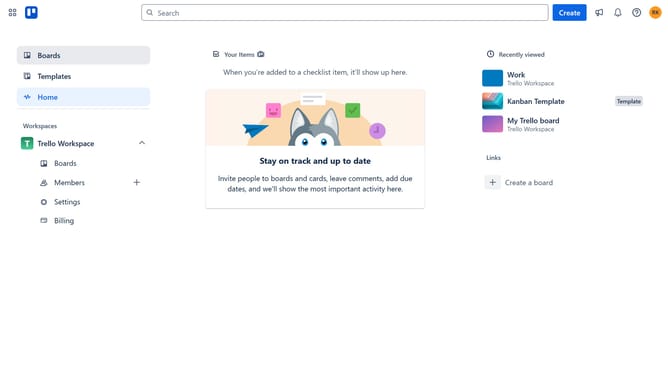
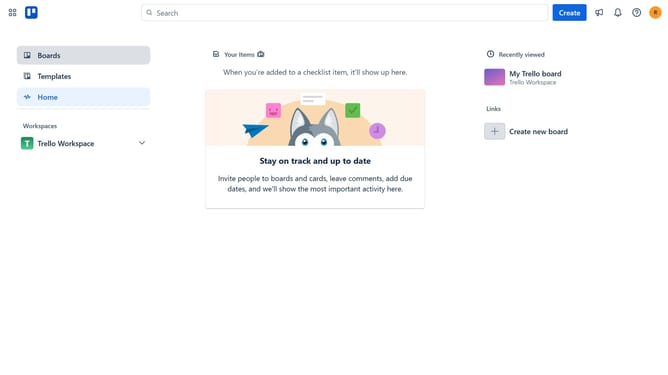
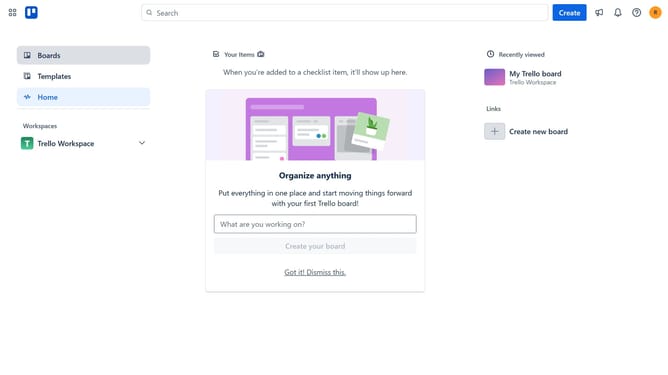
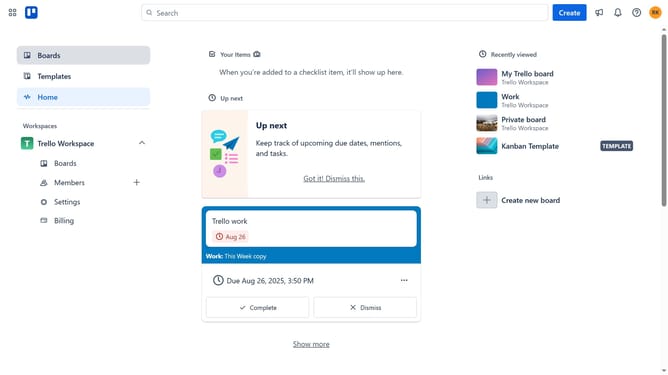
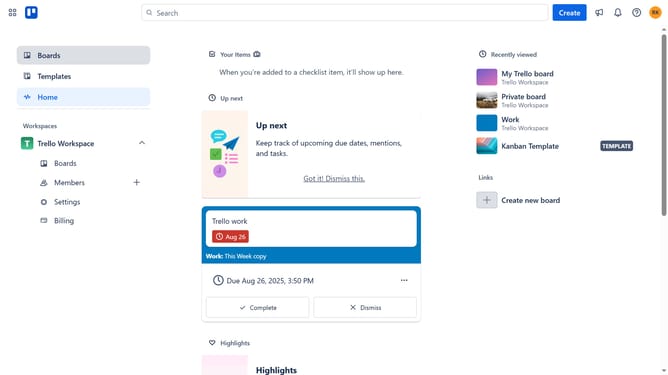
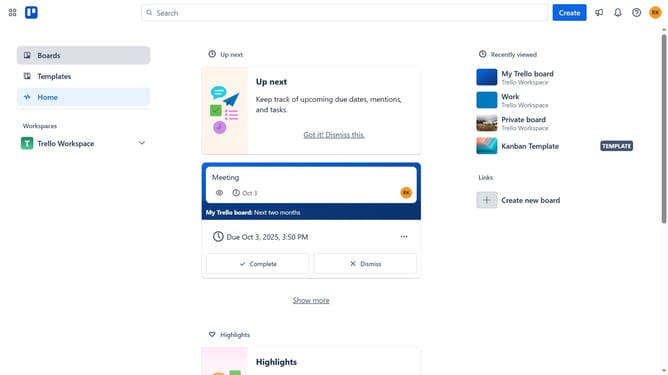
- First click on the "Boards" link in the left sidebar
- Then click on the board you want to add a date custom field in the workspace section
- Click on the menu icon (three dots) in the top-right corner of the board
- Select "Custom Fields" from the menu options
- Click on the "+ New field" button in the Custom Fields panel
- Click on the title input field and type in your desired title for your date custom field
- Click on the "Type" dropdown menu
- Select "Date" from the dropdown menu
- Finally click the "Create" button to add the new date field
Why should you add date custom field in Trello
Trello, a versatile project management tool, helps teams organize tasks efficiently with its customizable board system.
Adding a date custom field in Trello streamlines workflow by enabling users to track important deadlines directly within their cards. By personalizing cards with specific date fields, teams can easily monitor timelines, improving productivity and accountability.
Utilizing this feature ensures that critical tasks are not overlooked, fostering a more structured and manageable project environment. It empowers teams to stay on target and accomplish their goals with precision and clarity.
Last update