How to add advanced cards cover power-up in Trello
Here is how to add advanced cards cover power-up in trello
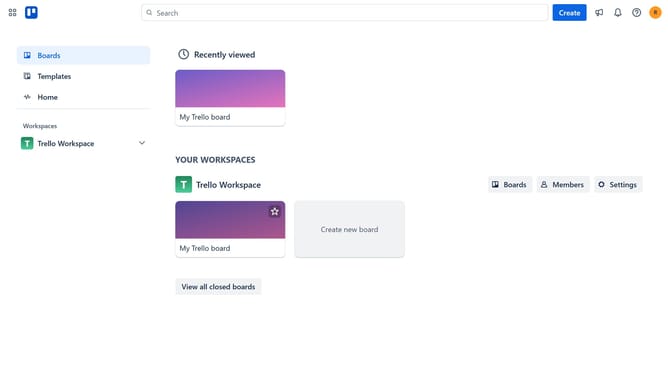
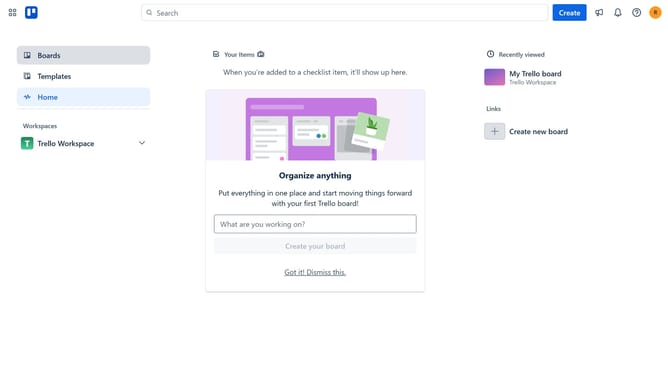
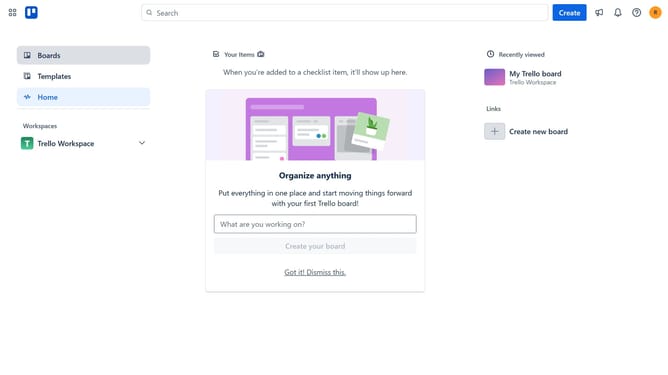
- First, click on the "Boards" option in the left sidebar menu
- Then click a board in the workspace section
- Next, click the "More" menu button (three dots) in the top-right corner of the board
- Click on "Power-Ups" option from the dropdown menu
- Scroll down in the power-ups menu
- Select the "Product & design" category from the left sidebar
- Scroll down to view more Product & design Power-Ups
- Click the "Add" button under the Advanced Card Covers Power-Up
- Finally, click the "Add" button to install the Power-Up
Why should you add advanced cards cover power-up in Trello
Trello is a versatile tool that streamlines project management through visual task organization.
By adding the Advanced Card Covers Power-Up in Trello, users can enhance their board's visual appeal and functionality. This feature allows for more detailed and colorful displays on each card, making important information easily recognizable at a glance.
Utilizing this Power-Up not only boosts the aesthetic of your workspace but also enhances efficiency. It provides a quick identification of task types, priorities, or statuses, optimizing workflow and improving team communication.
Last update