How to add a team page to a website in Calendly
Here is how to add a team page to a website in calendly
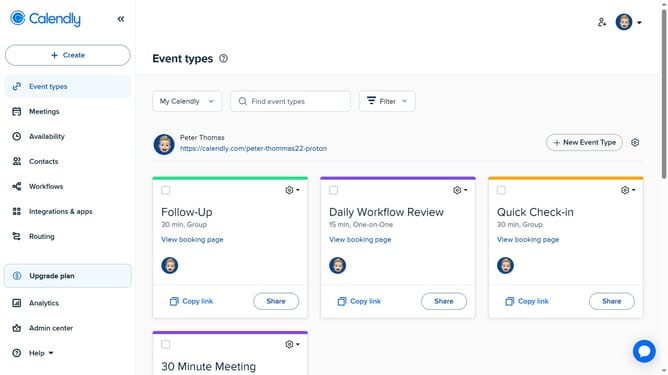
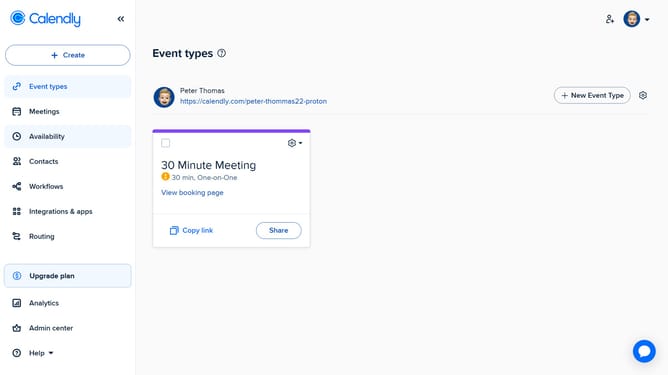
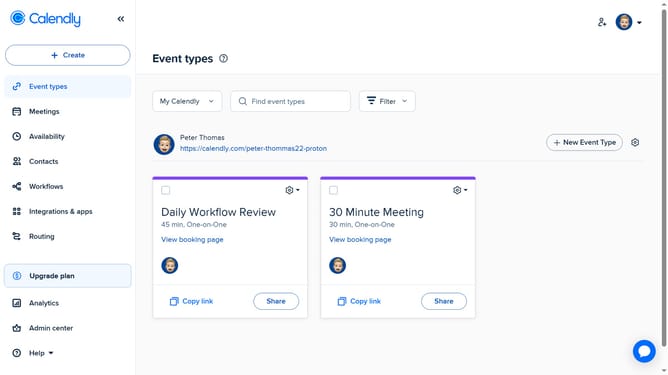
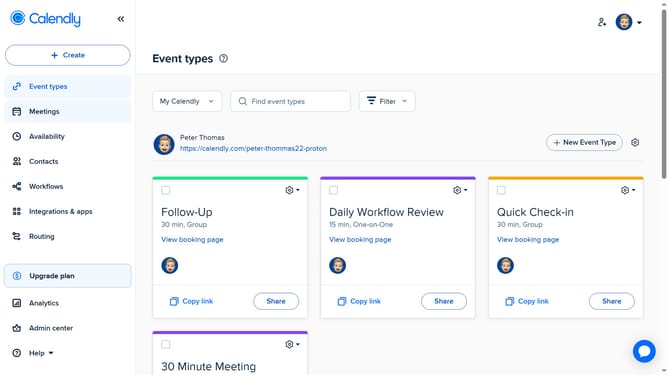
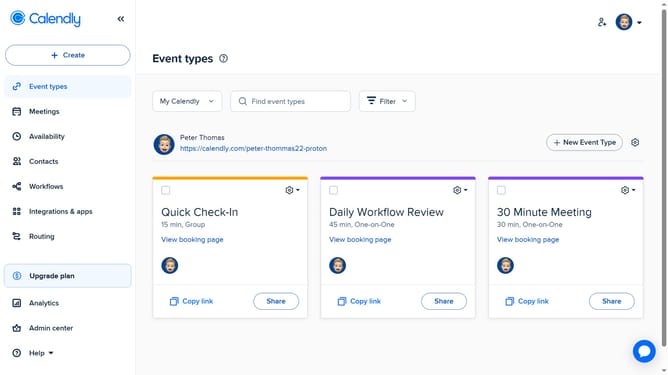
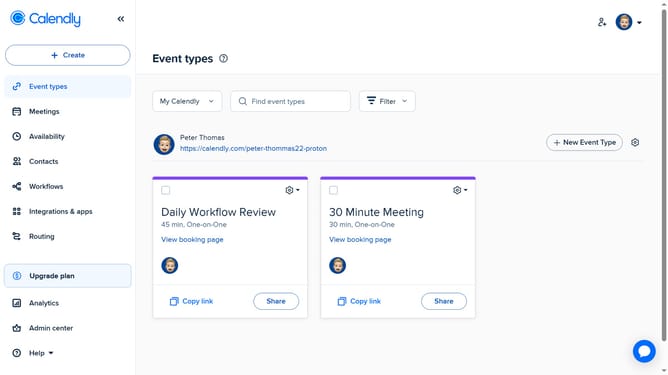
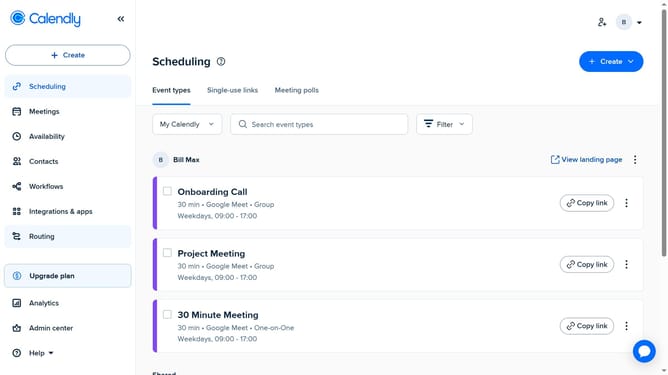
- First click on the "Event types" option in the left sidebar
- Next click on the "My Calendly" dropdown menu in the top navigation
- Select the team page you want to embed on your website from the dropdown list
- Then click on the settings icon (gear icon) in the top right corner
- Select "Add to Website" option from the settings menu
- Choose your embed type from the popup modal (Inline Embed, Popup Widget or Popup Text)
- Next click the "Continue" button to continue
- Customize the booking page and other settings to match your preferences (adjust layout, colors, buttons, text, and more)
- Then click the "Copy Code" button to copy the embed code for your website
- FInally once copied, paste the code into your website’s HTML where you want the booking flow to appear
Why should you add a team page to a website in Calendly
Calendly is a streamlined scheduling tool designed to simplify appointment bookings for businesses and individuals.
By adding a team page to your website in Calendly, organizations can present a unified front where clients can easily choose from available team members for meetings, enhancing the booking experience.
This feature fosters collaboration by allowing users to book appointments based on team availability, ensuring seamless coordination while minimizing manual scheduling tasks.
Establishing a team page enhances professionalism and helps foster trust and ease in client engagement.
Last update