How to add a link to an image in Webflow?
Here is how to add a link to an image in webflow
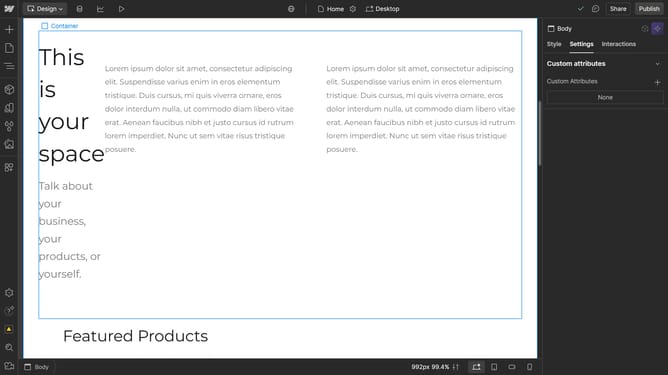
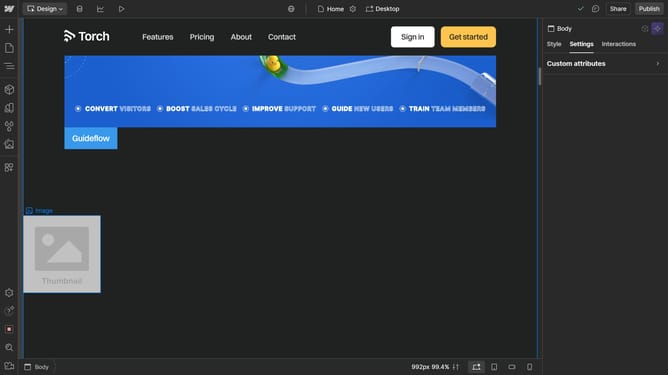
- First select the image you want to add a link on
- Then click on the "Add Elements" button in the left sidebar
- Scroll down to find the "Link Block", then drag and drop it next to the image
- Now you have your "Link Block"
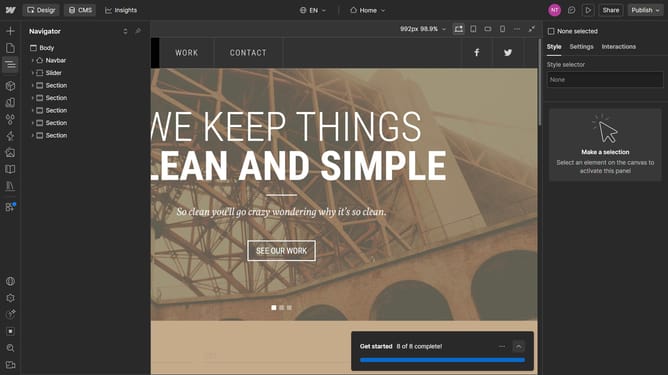
- Then click on the "Navigator" button in the left sidebar
- When the Navigator panel is opened, ensure that the image is nested inside the "Link Block"
- Then, if that's not the case, move the "Link Block" to nest the image inside it
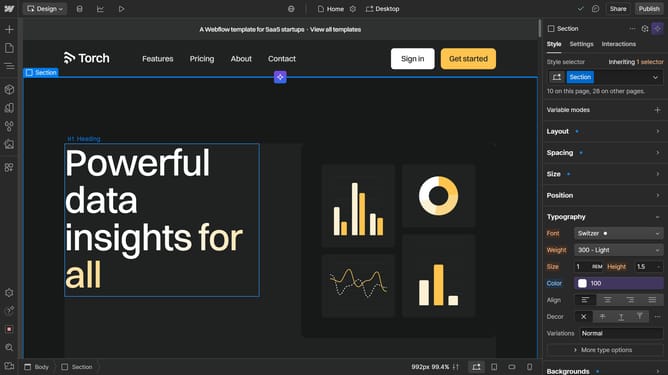
- Select the "Link Block" and navigate to the "Settings" tab in the right sidebar
- In the "Link setting" section, find the URL field
- Enter the URL you want the image to link to
- Preview your changes to test the link
- While in preview mode click, on the image and you'll see that it redirects you to the URL you specified
Why should you add a link to an image in Webflow?
Webflow is a powerful web design tool that enables seamless and creative site-building without coding.
Adding a link to an image in Webflow enhances user interactivity, making visuals not just attractive but functional. Whether it's guiding visitors to a relevant page or highlighting a featured product, linking images offers a fluid user experience.
This feature boosts engagement and navigation, as linked images can act as intuitive guideposts, enhancing the overall aesthetic and functionality of a website.
Last update