How to access libraries in Salesforce Lightning
Here is how to access libraries in salesforce lightning
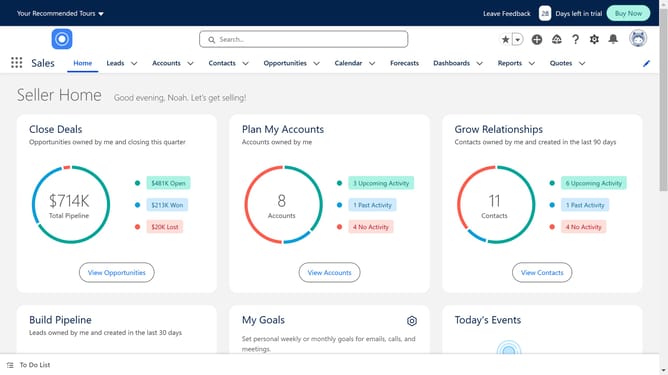
- First click on the "App Launcher" icon in the top-left corner of the screen
- Then click in the search box in the App Launcher menu and search "Files"
- Then click on "Files" in the search results
- Click on the "Down arrow" associated with the file
- Then click on the "Share" option from the dropdown menu
- In the share dialog, add the users you want to share the file with
- You can also share files with groups by clicking the drop down
- Then choose "Groups"
- Click on the "Share" button to complete sharing the file
- Back in the Files view, click on "Libraries" in the left sidebar
- Click on the "Down Arrow" button for the "Asset Library" item
- Select "Manage Members" from the dropdown menu
- You can select "Public Groups" or "People" to share access similar to file sharing
Why should you access libraries in Salesforce Lightning
Salesforce revolutionizes business operations by optimizing customer relationship management.
Accessing libraries in Salesforce Lightning is a breeze, allowing users to effortlessly manage and share content within their organization. This feature enhances collaboration and ensures that everyone has access to the latest documents and media.
The streamlined interface of Salesforce Lightning libraries supports efficient data organization and retrieval, ultimately boosting productivity. With easy access to essential resources, teams can focus more on strategic tasks rather than administrative duties.
Last update