How to connect Docusign with Salesforce
Here is how to connect docusign with salesforce
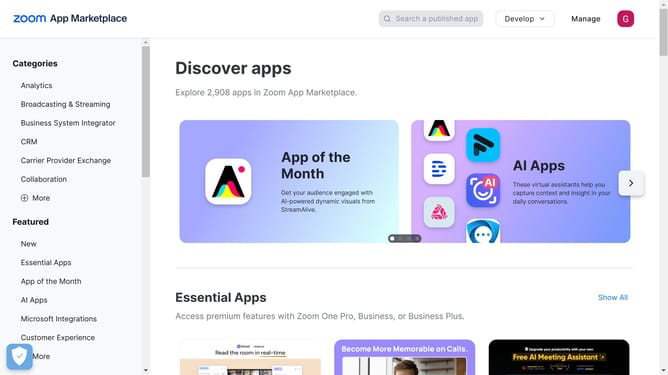
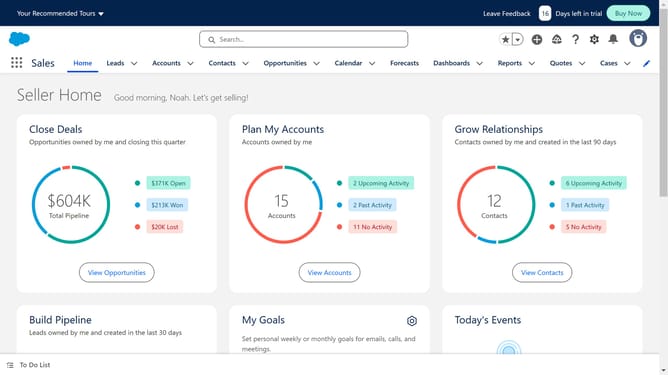
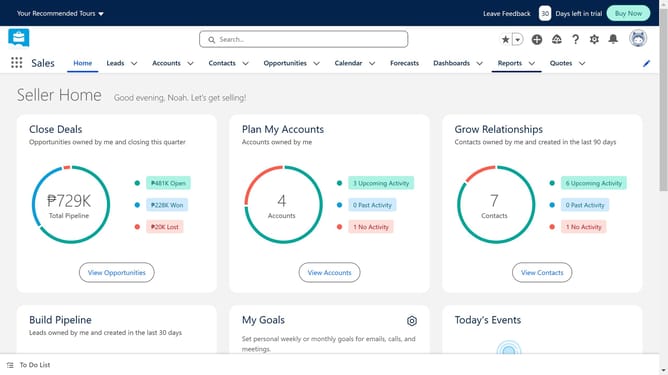
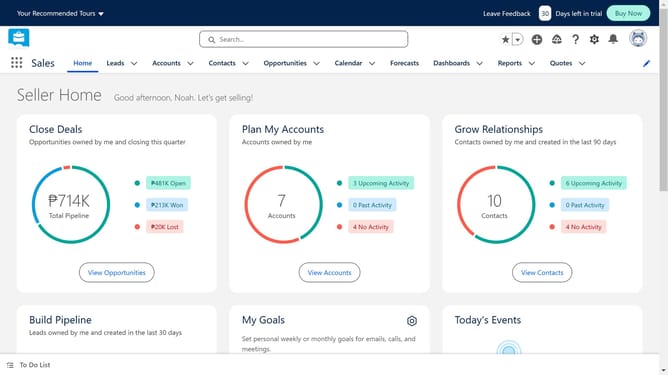
- First click on the search box in the top navigation bar
- Then type "Docusign" in the search field
- Click on the first "Docusign" suggestion in the search dropdown
- Click on the "Docusign eSignature for Salesforce" card in the search results
- Click on the "Try It Free" button on the app details page
- Click on the "Try in your sandbox" option in the trial type selection
- Click on the "Continue to Installation" button after filling out the contact form
- Click on the "Log In & Install" button on the installation confirmation page
- Click on the "Use Custom Domain" link on the login page
- Click inside the custom domain input field
- Click on the "Continue" button after entering the custom domain
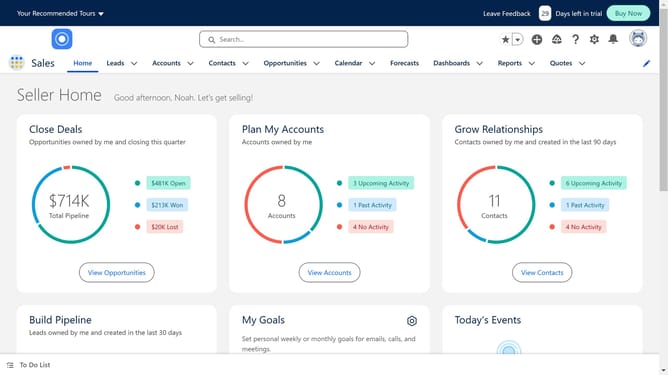
- Click on the "Install" button after choosing an installation option
- Click the checkbox to grant access to third-party websites
- Click the "Continue" button to approve third-party access
Why should you connect Docusign with Salesforce
Salesforce is a powerful customer relationship management platform that streamlines business operations.
Connecting DocuSign with Salesforce unlocks a seamless digital documentation process integrated directly within your CRM environment. This integration helps businesses manage contracts and agreements efficiently, reducing paperwork and enhancing productivity.
With DocuSign inside Salesforce, users can send, sign, and manage documents effortlessly without leaving the Salesforce interface, ensuring compliance and speeding up the sales cycle.
The blend of these platforms enhances customer satisfaction by enabling quick transaction finalization, ensuring security, and delivering superior client experiences.
Last update