How to deploy a list view button layout in Salesforce
Here is how to deploy a list view button layout in salesforce
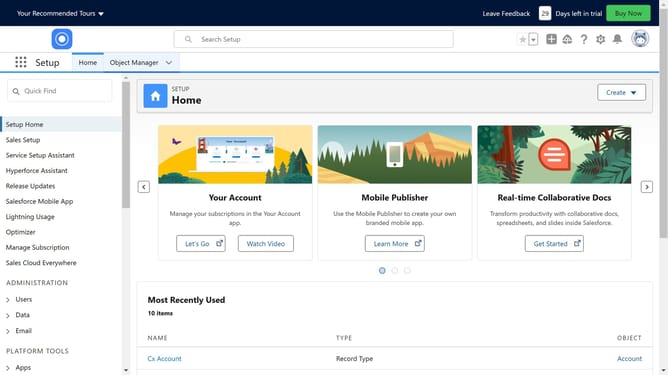
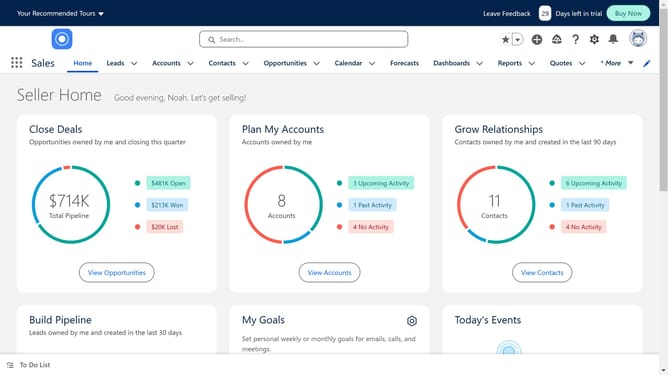
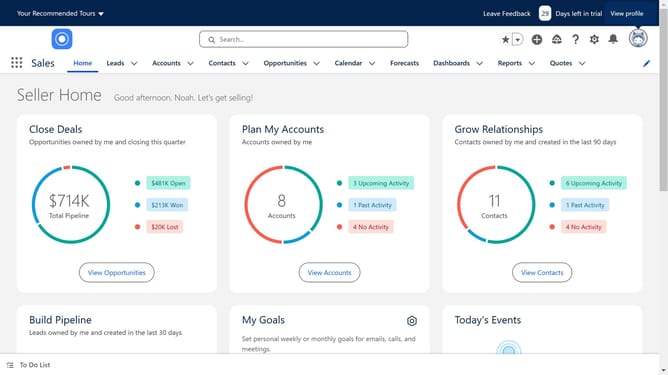
- First click on the settings gear icon in the top navigation bar
- Then click on the "Setup" option in the dropdown menu
- Next click on the "Object Manager" tab in the setup navigation menu
- Locate and click on the specific object where you want to add the button
- Next click on the "List View Button Layout" option in the left sidebar menu
- Then click on the dropdown arrow next to the List View layout
- Next click on the "Edit" button that appears in the dropdown menu
- Check or uncheck the buttons you want to see in the List view
- Finally click on the "Save" button at the bottom of the page
Why should you deploy a list view button layout in Salesforce
Salesforce is a dynamic platform designed to streamline customer relationship management with efficiency and innovation.
Deploying a list view button layout in Salesforce enhances user engagement by providing quick access to important actions directly from list views. This feature empowers users to efficiently manage tasks and data without navigating away from the current context.
Its benefits are clear: improved productivity, seamless workflow integration, and an intuitive user experience that supports smarter decision-making and greater organizational efficiency.
Last update