YouTube looks simple from the outside. Publish useful videos, stay consistent, measure what works. Inside a marketing team, it becomes a production queue with too many steps and not enough people to cover them.
Script drafts take days. Editing blocks the publishing calendar. Shorts repurposing is repetitive and manual. Captions add another round of production. Scheduling gets fragmented. Analytics sit in separate tabs you check on different days.
According to Wyzowl's State of Video Marketing 2026, 91% of businesses now use video as a marketing tool and 82% of video marketers use YouTube. The channel rewards consistency, but consistent production requires a system most teams don't have.
YouTube automation tools help at the workflow level. They reduce the time cost of scripting, editing, repurposing, localizing, publishing, and reporting. What they don't replace is your judgment on positioning, claims, brand tone, and what your audience actually cares about.
This guide compares 8 tools so you can find the one that removes your most expensive bottleneck.
What's inside
This guide compares 8 YouTube automation tools covering every major production stage.
- Who it's for: Growth marketers, content teams, creator teams, and agencies building YouTube into a consistent acquisition channel
- Selection criteria: Automation depth, workflow fit, human review controls, and measurement capability
- Coverage: AI video creation, professional editing, scripting, visual templates, captions and localization, scheduling, SEO, and native analytics
- Practical notes: Verified pricing and G2 ratings for every tool, plus honest fit guidance for each stage
TL;DR
- Best for AI video creation: invideo turns scripts, prompts, and URLs into YouTube-ready drafts fast
- Best free starting point for short videos: Pippit offers a free tier for prompt-based and product-focused video generation
- Best for professional editing: Adobe Premiere Pro for teams with editors; DaVinci Resolve for a capable free option
- Best for captions and localization: Maestra handles subtitles, dubbing, and translation at scale
- Best for YouTube SEO and growth: TubeBuddy for keyword research and optimization; YouTube Analytics for first-party performance data
What is YouTube automation software?
YouTube automation software helps creators and marketing teams reduce manual work across video ideation, scripting, editing, repurposing, publishing, optimization, and performance analysis.
The term covers a wide range of tools. Some generate complete video drafts from a text prompt. Others clip existing footage into Shorts, add captions, translate audio, schedule posts, or surface keyword data for search optimization. Automation doesn't mean a fully hands-off channel. Tools usually automate specific workflow stages, and human review remains necessary for brand accuracy, compliance claims, copyright, and audience fit.
Core workflow stages
A complete YouTube production workflow touches most of these stages:
- Research and scripting
- Prompt-to-video generation
- Editing and post-production
- Shorts repurposing
- Captions, subtitles, and dubbing
- Thumbnails and visual templates
- Scheduling and publishing
- SEO and performance analytics
Key features to look for
When evaluating YouTube automation tools, check for:
- AI script generation with brand voice controls
- Media generation or stock asset access
- Automated captions and transcript export
- Long-form to short-form clipping
- Brand kit and template controls
- YouTube-ready export settings and Shorts dimensions
- Scheduling across multiple social channels
- Channel analytics and keyword tracking
- Human review and approval workflows
When to use YouTube automation tools
Scale video output without adding headcount
Automation tools let marketers draft scripts, assemble first cuts, and prepare captions faster without hiring dedicated video staff. The time savings are real, but every output still needs a human review pass for positioning accuracy and brand tone. Use these tools to get to a reviewable draft faster, not to skip review entirely.
Turn long-form content into YouTube Shorts
Webinars, podcasts, recorded demos, and interview recordings contain usable Shorts material. AI clipping tools identify the strongest segments, reframe for vertical formats, add captions, and package clips for publishing. This workflow converts one recording session into more channel assets without additional filming time.
Measure and improve channel growth
Scheduling, SEO, and analytics tools close the loop between publishing and performance. Understanding which thumbnails drive clicks, which topics hold retention, and where viewers drop off lets you improve cadence and content quality over time. For growth marketers under CAC pressure, connecting video output to pipeline and conversion data is what turns YouTube from an experiment into a defensible channel.
YouTube automation tools comparison
The right tool depends on which part of your workflow creates the most friction. Some tools generate videos from prompts. Others edit existing footage. The rest handle scheduling, localization, SEO, or analytics. Pricing and G2 ratings below are sourced from each vendor's live pricing page and G2 listing.
| # | Product | Best for | Key differentiator | Pricing | G2 rating |
|---|---|---|---|---|---|
| 1 | invideo | AI video creation | Prompt-to-video workflow with AI script and scene generation | From $10/seat/mo (annual) | 4.2/5 |
| 2 | Pippit | Free AI-assisted short videos | Prompt, URL, and media-based video generation with free tier | Free tier available | 4.3/5 |
| 3 | Premiere Pro | Professional editing | Full editing suite with AI-assisted captions and Frame.io review | From $22.99/mo | 4.5/5 |
| 4 | DaVinci Resolve | Editing, color, and audio | Professional post-production with a capable free version | Free; Studio $295 one-time | 4.6/5 |
| 5 | Placeit | Thumbnails and templates | Ready-made YouTube visual assets without design software | From $7.47/mo | 4.3/5 |
| 6 | Maestra | Captions and localization | AI subtitles, dubbing, and translation in 125+ languages | From $12 per 60 credits | 4.8/5 |
| 7 | TubeBuddy | YouTube SEO | Keyword research, thumbnail testing, and channel optimization | From $8/mo (annual) | 4.6/5 |
| 8 | YouTube Analytics | Native performance reporting | First-party channel and video metrics inside YouTube Studio | Free | 4.7/5 |
Best 8 YouTube automation tools for 2026
1. invideo
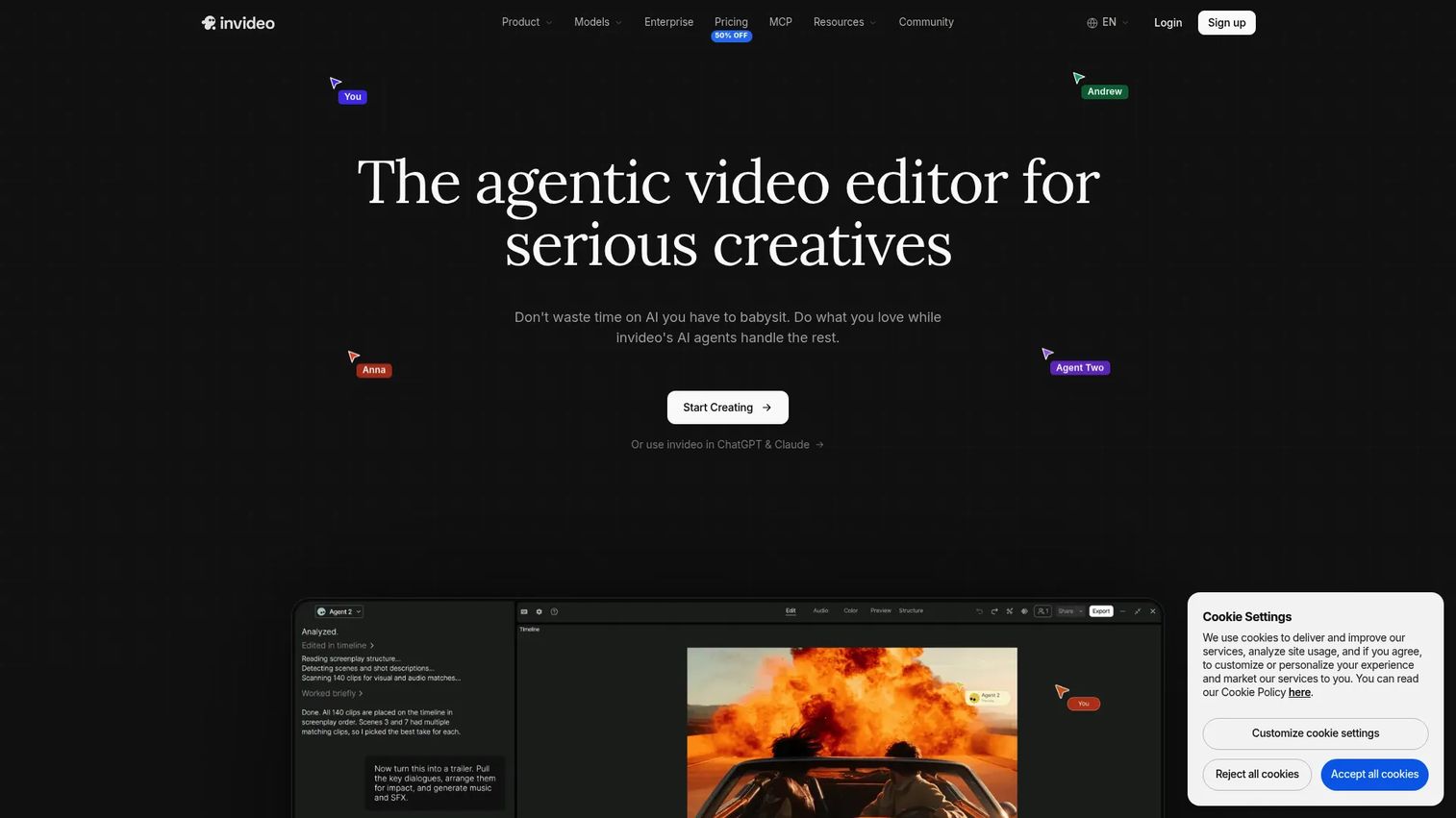
invideo is a browser-based AI video platform that turns prompts, scripts, URLs, and uploaded assets into YouTube-ready video drafts. It suits marketers who need to produce explainers, list videos, narrated stories, and campaign content without a dedicated video editor on the team. The platform combines AI generation with a multitrack timeline, so teams can review and refine the first cut without switching tools.
Best for: Marketers who need faster video drafts from a brief or script, without manual assembly from scratch.
Key features
- Prompt-to-video and text-to-video creation
- AI script and scene generation
- Stock footage and media library access
- Captions, voiceovers, and voice cloning
- YouTube-ready export formats
Why choose invideo: Choose invideo when the bottleneck is producing a usable first cut from a brief. It suits teams that want AI assistance on the generation side but still want editing control before publishing.
invideo pricing: Plans start at $10 per seat per month (Starter, billed annually) and go up to $30 (Plus) and $75 (Max). Pricing shown includes a 50% annual discount; credit allocations increase with each tier.
G2 rating: 4.2/5
2. Pippit
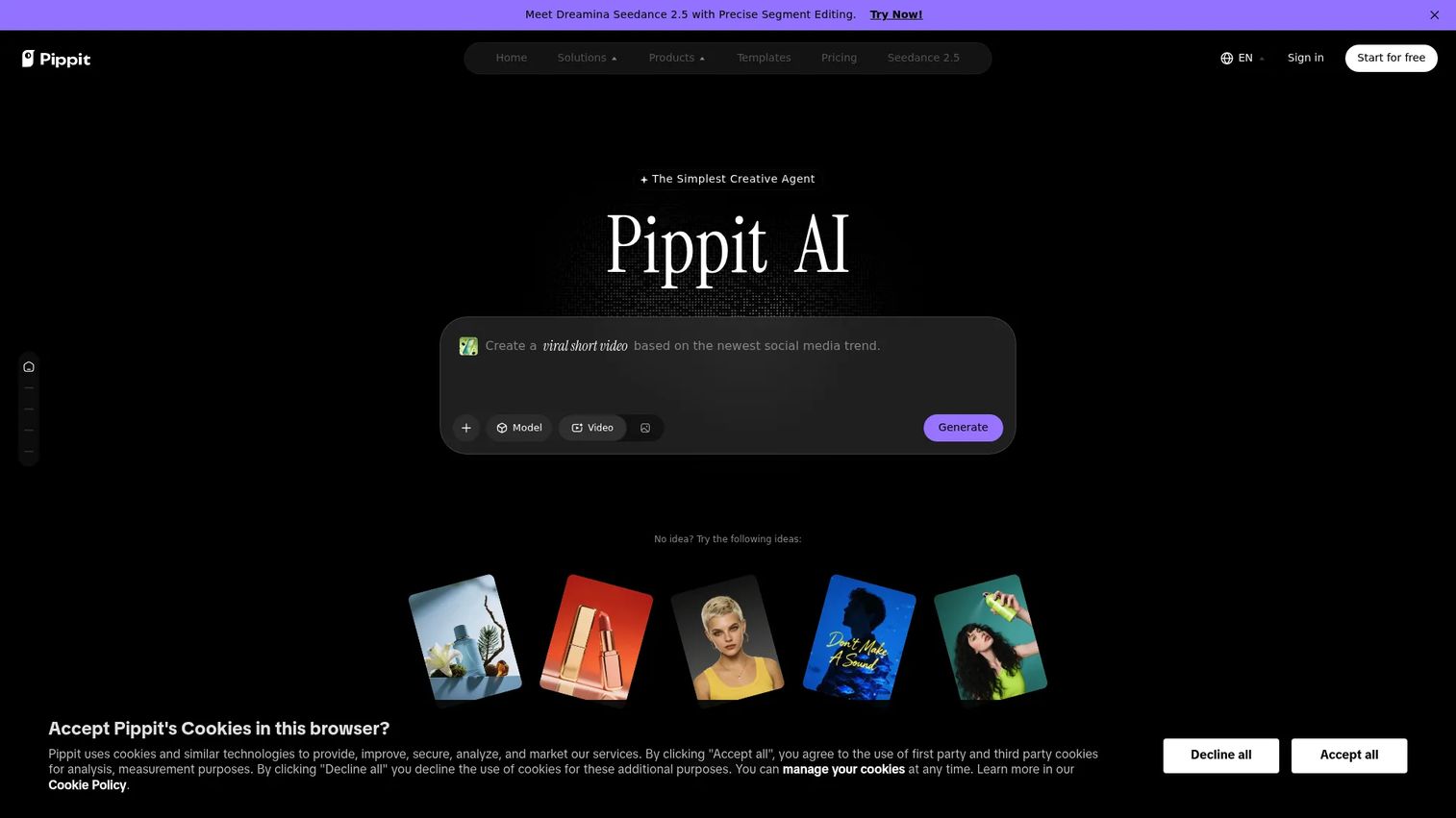
Pippit is an AI creative platform that generates marketing videos, images, and social content from prompts, product URLs, uploaded files, and templates. It suits e-commerce marketers, creators, and growth teams testing short-form concepts quickly. The platform covers product-focused content, viral video remixing, talking photo formats, and multi-platform publishing in a single workflow.
Best for: Marketers and creators producing product-focused short videos at speed, particularly for e-commerce or social campaigns.
Key features
- Video generation from prompts, URLs, and media
- AI avatars, custom voices, and talking photos
- AI templates with captions and cropping
- Brand asset management
- Content scheduling and multi-platform publishing
Why choose Pippit: Choose it when the goal is fast production of short, product-led video content. The free tier makes it a low-risk starting point for testing AI-assisted video before committing to a paid plan.
Pippit pricing: A free plan is available with daily credits. Paid plans are displayed in PLN on the pricing page; USD pricing was not confirmed at time of research. Check the current pricing page for your region before purchasing.
G2 rating: 4.3/5
3. Premiere Pro
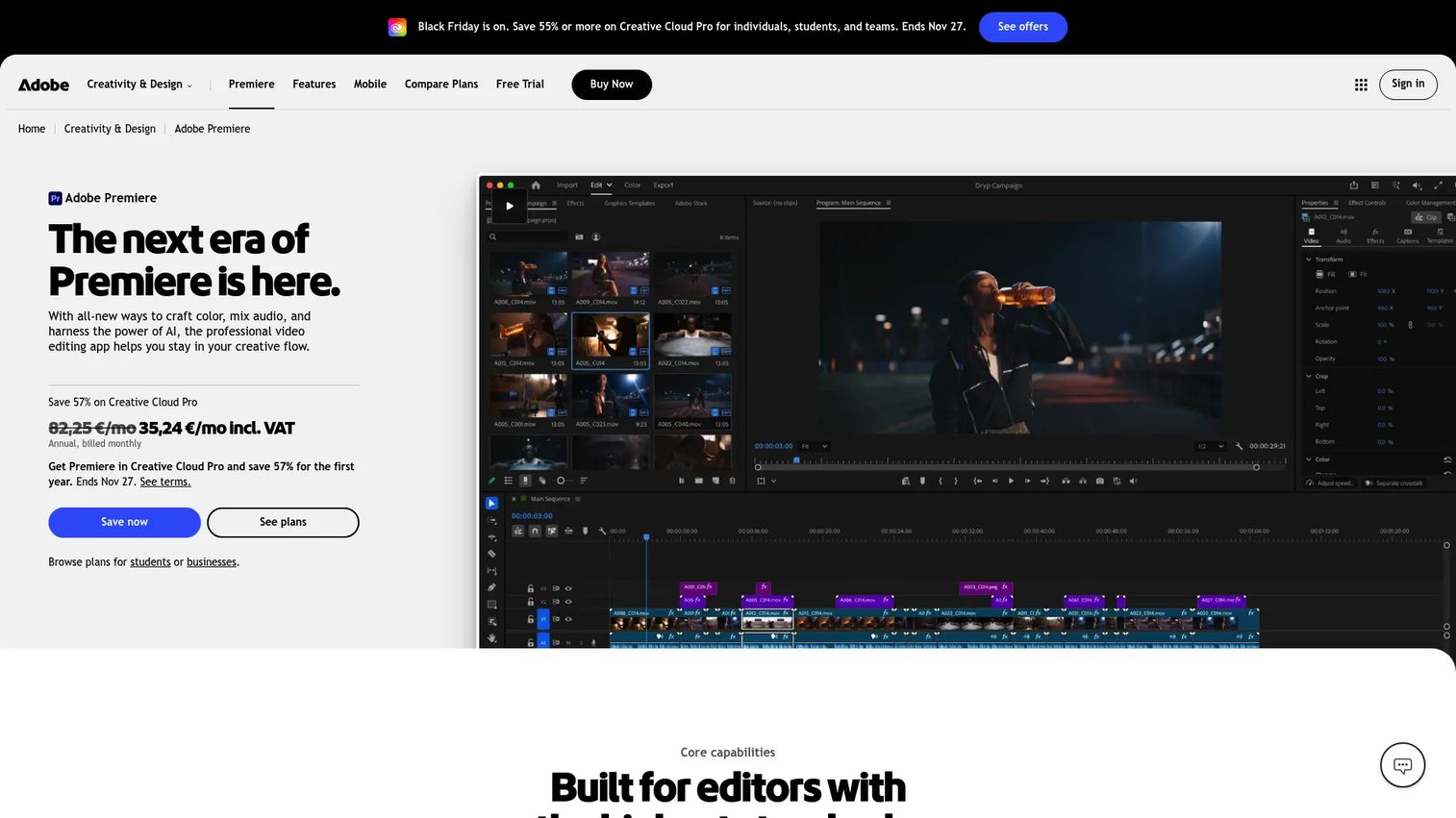
Adobe Premiere Pro is a professional video editor used by broadcast teams, agencies, and content studios. Its value for YouTube production comes from deep editing control, AI-assisted transcription and captions, color grading, motion graphics templates, and Frame.io for collaborative review. It's not a YouTube-only automation tool, but for teams with video editors or marketers comfortable with professional software, it covers more of the post-production workflow than most.
Best for: Teams that prioritize production quality and need repeatable editing workflows with approval and collaboration support.
Key features
- Professional timeline editing with text-based edit
- AI transcription, captions, and Color Match
- Motion graphics templates and effects
- Enhance Speech audio processing
- Frame.io collaboration and social export
Why choose Premiere Pro: Choose it when brand quality and editing control matter more than speed of generation. It fits well-resourced teams with editors, not solo marketers looking for one-click video output.
Premiere Pro pricing: The single-app plan costs $22.99/month (billed annually). Creative Cloud Pro is $34.99/month. Team licenses start at $37.99/month per seat. A seven-day free trial is available.
G2 rating: 4.5/5
4. DaVinci Resolve
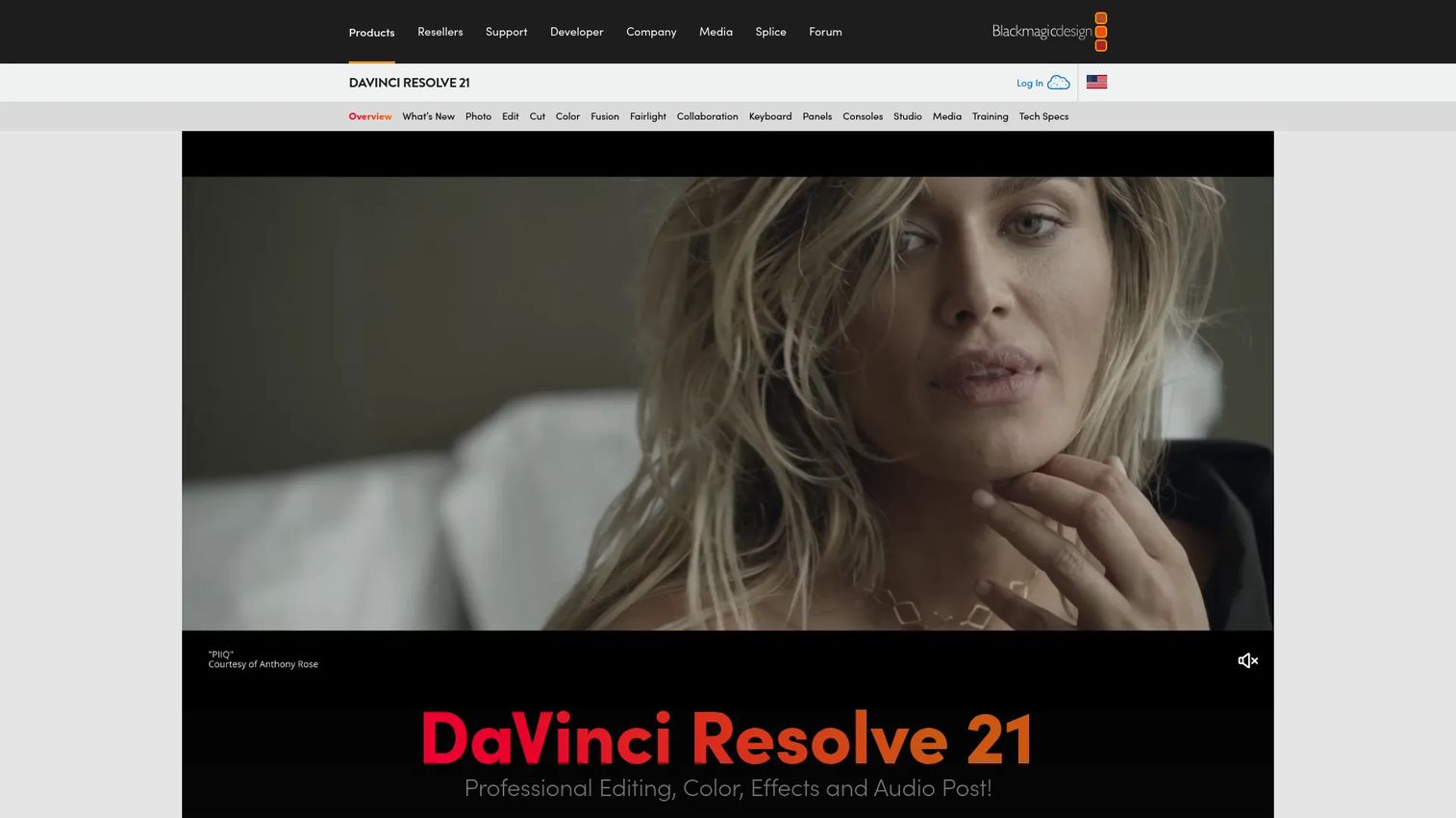
DaVinci Resolve from Blackmagic Design is an all-in-one post-production environment covering editing, color correction, visual effects, motion graphics, and audio. The free version is a genuinely capable option for creators and teams that need professional output but can't justify a monthly subscription. It's used by independent filmmakers and production houses with high technical requirements.
Best for: Teams that want advanced editing and color without a subscription, and are comfortable with a more complex toolset.
Key features
- Non-linear editing with Cut and Edit pages
- Color correction and HDR grading
- Fairlight audio post-production
- Fusion visual effects and motion graphics
- AI Neural Engine tools in the Studio version
Why choose DaVinci Resolve: Strong fit when production quality is a priority and the team can handle a steeper learning environment. The free version removes the cost barrier that makes Premiere Pro inaccessible for smaller teams.
DaVinci Resolve pricing: DaVinci Resolve 21 is free. DaVinci Resolve Studio 21 is a one-time purchase of $295, adding AI tools, advanced noise reduction, and higher resolution support.
G2 rating: 4.6/5
5. Placeit
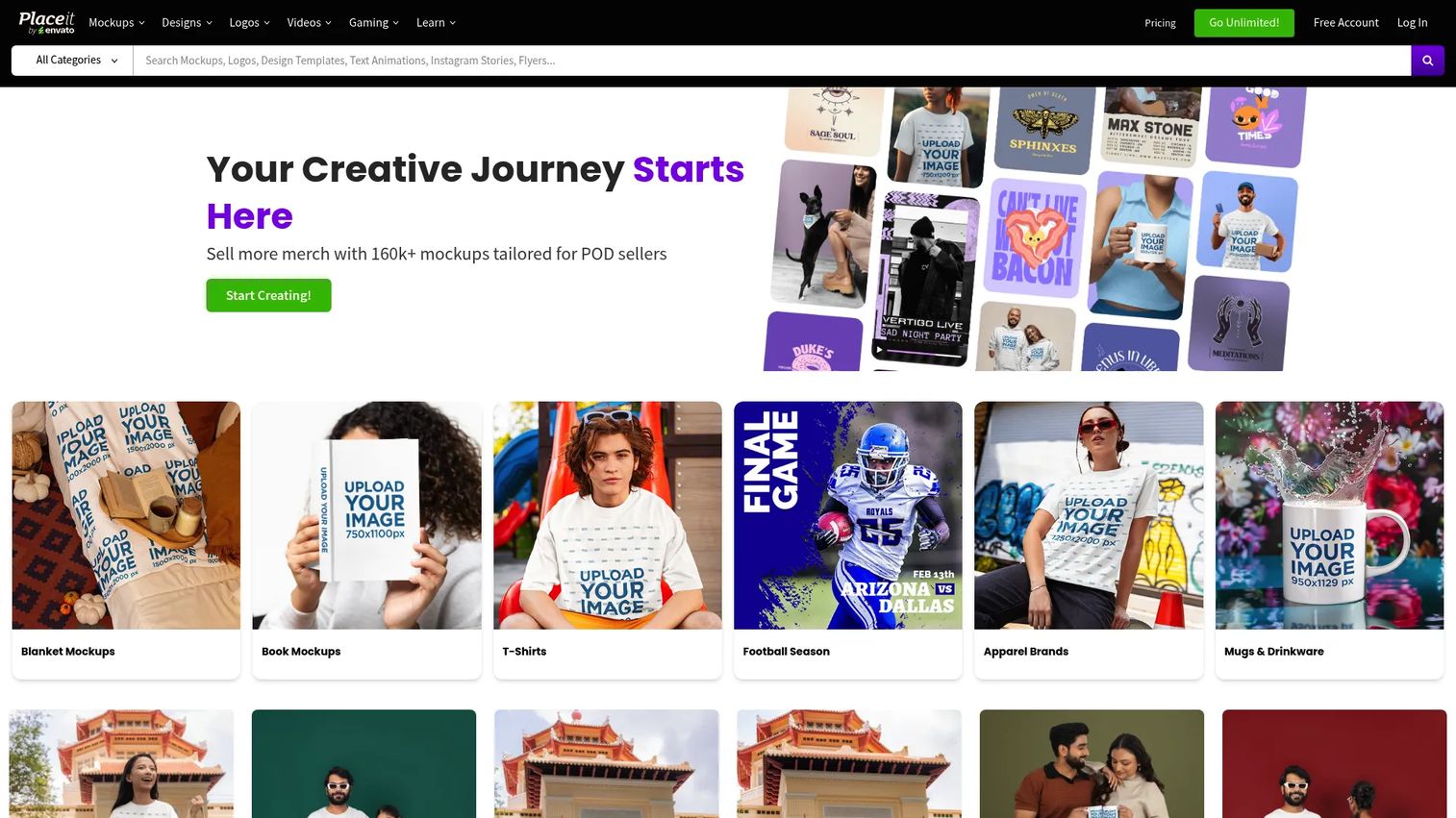
Placeit is an online design platform for mockups, videos, logos, and customizable templates. For YouTube teams, it covers thumbnails, video intros, channel art, and branded visual assets without requiring design software. The template library is large and category-specific, so marketers can produce channel-consistent visuals quickly across multiple content types.
Best for: Scrappy marketing teams and solo creators who need consistent YouTube visuals without a designer.
Key features
- YouTube thumbnail templates
- Logo maker with commercial licensing
- Video intro and outro templates
- Mockup library for product promotion
- Brand-consistent design exports
Why choose Placeit: It's a design support tool, not a full YouTube automation platform. Use it when visual consistency is breaking down across thumbnails and channel assets, but adding a design hire isn't an option.
Placeit pricing: Subscriptions start at $7.47/month. Annual billing shows an effective rate of $8.33/month. The main pricing page was intermittently unavailable during verification; check the current page for active plan options and any free trial availability.
G2 rating: 4.3/5
6. Maestra

Maestra is an AI transcription, captioning, subtitling, translation, dubbing, and voiceover platform. For YouTube teams, it handles the localization layer that often creates the longest delays between recording and publishing. The platform supports 125+ languages, voice cloning, real-time captions, and team collaboration, making it useful for teams publishing content across regions or accessibility-focused channels.
Best for: Teams localizing YouTube videos at scale or adding captions and subtitles across a large back-catalogue.
Key features
- AI subtitles and transcript generation
- Video dubbing and voice cloning
- Translation in 125+ languages
- Real-time captions
- Team collaboration and API access
Why choose Maestra: Use it when captions and localization are the production step that consistently delays publishing. It's especially strong for teams expanding content into new markets or serving audiences that prefer subtitled content.
Maestra pricing: A pay-as-you-go option starts at $12 per 60 credits. Subscription plans run from $23/month (Lite) through $39 (Basic), $79 (Premium), $159 (Business), and $359 (Business Plus) per month. Enterprise pricing requires contacting the team.
G2 rating: 4.8/5
7. TubeBuddy
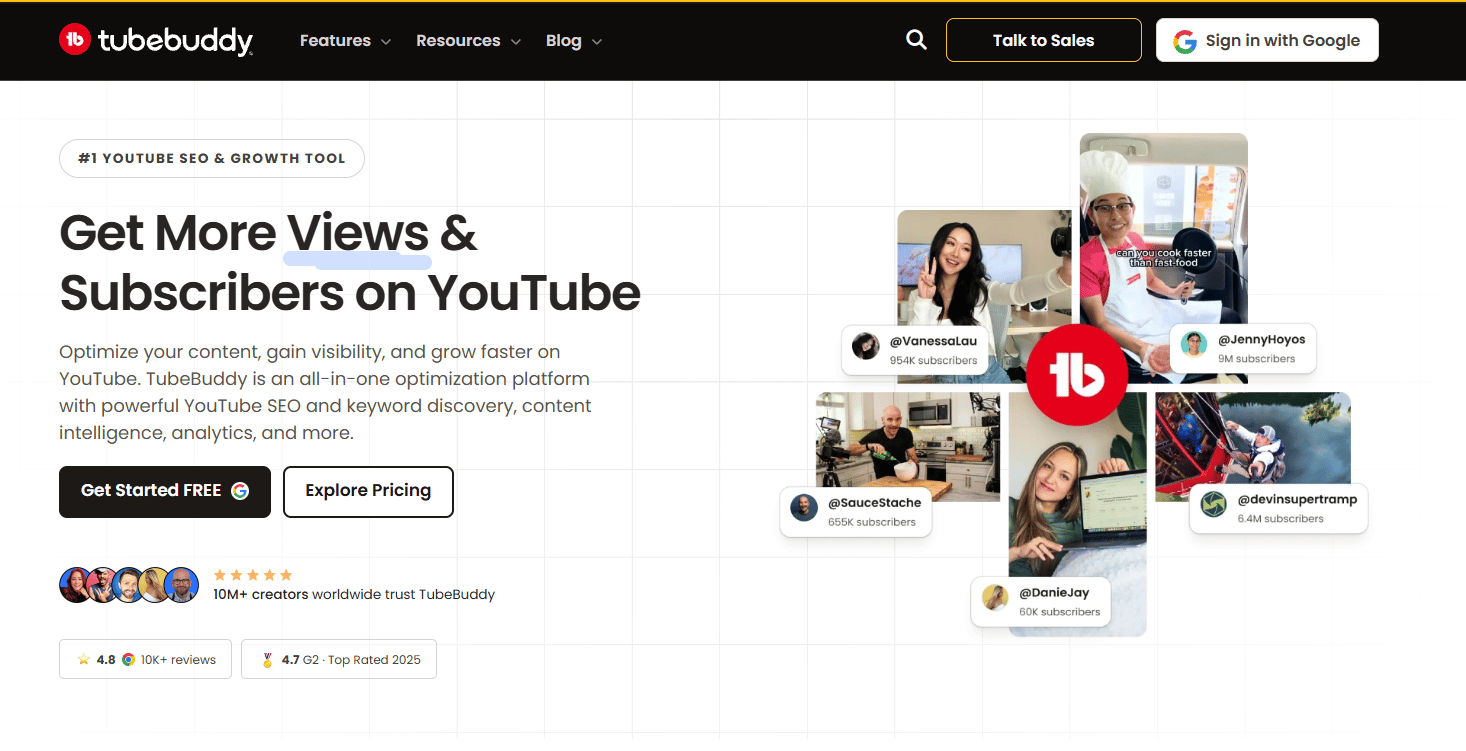
TubeBuddy is a YouTube growth tool that sits inside YouTube Studio as a browser extension. It supports keyword research, tag suggestions, SEO scorecards, thumbnail A/B testing, channel analytics, and competitor insights. For marketers who are already publishing consistently but seeing inconsistent performance, it surfaces the optimization gaps that hold back discoverability and click-through rate.
Best for: Creators and marketers optimizing existing YouTube content for search performance and channel growth.
Key features
- Keyword research and tag suggestions
- Thumbnail A/B testing and CTR analysis
- SEO scorecards per video
- Competitor channel insights
- Channel productivity and bulk tools
Why choose TubeBuddy: Use it when videos are going live but performance is flat or inconsistent. It's most valuable after you've established a publishing cadence and want data-driven guidance on what to improve.
TubeBuddy pricing: Pro starts at $8/month (billed annually at $96/year). Legend is $17/month (billed at $204/year). Enterprise pricing is custom. Promotional pricing was active on the pricing page at time of research; check current plans before purchasing.
G2 rating: 4.6/5
8. YouTube Analytics
YouTube Analytics is the native reporting layer built into YouTube Studio. It provides channel and video performance data across views, impressions, click-through rate, audience retention, traffic sources, subscriber behavior, and revenue where applicable. Advanced Mode enables more detailed comparisons and data exports. No integration setup or additional cost is required.
Best for: Every YouTube team that needs first-party channel and video performance data.
Key features
- Channel and video performance reporting
- Audience retention and engagement metrics
- Traffic source and impression analysis
- Thumbnail CTR data
- Revenue reporting for monetized channels
Why choose YouTube Analytics: This is the baseline measurement tool for any YouTube workflow. Paid tools like TubeBuddy can add planning and optimization layers, but YouTube Analytics is where first-party performance truth starts. Use it before evaluating any other analytics tool.
YouTube Analytics pricing: Free inside YouTube Studio with any Google account.
G2 rating: 4.7/5
Considerations when choosing YouTube automation tools
Map the tool to your workflow bottleneck
Before adding any tool, name the specific step that blocks your publishing cadence. If scripting is slow, start with a generation tool like invideo or Pippit. If analytics are unclear, start with YouTube Analytics before adding TubeBuddy. Buying a generation tool when the problem is distribution won't move your output metrics.
Keep human review in the loop
Automated scripts, AI-clipped videos, translated captions, and generated thumbnails all need a review pass before publishing. Brand claims, copyright, accuracy, and audience tone can all drift when AI handles the first draft. Build review into the workflow rather than treating automation as the final step.
Check export and publishing requirements
Confirm that the tool exports in the right formats for your channels: YouTube Shorts dimensions, caption file types, resolution requirements, and upload workflows. Some tools export to YouTube directly; others require a manual upload step. Shorts specifically needs vertical framing and correct aspect ratios.
Protect brand consistency
Look for brand kit controls, reusable templates, logo and font management, and approval workflows before committing to a tool. Brand consistency breaks down when multiple people produce assets without shared guardrails. This matters most at mid-market and above, where content volume increases across more contributors.
Measure impact beyond publishing volume
Tie tool selection to the metrics that matter: Retention, click-through rate, watch time, subscriber growth, leads, and pipeline contribution. Growth marketers need proof of channel impact, not just a faster publishing queue. YouTube Analytics and TubeBuddy give you the data layer. Build your reporting baseline before scaling production volume.
Conclusion
The 8 tools in this guide cover every major stage of a YouTube production workflow. No single tool covers all of them, so the selection decision comes down to where your team loses the most time.
If ideation and production drafts are slow, start with invideo or Pippit. If production quality is the priority and you have editors, compare Premiere Pro and DaVinci Resolve on fit and budget. When localization delays publishing, Maestra handles captions, dubbing, and translation at scale. For channel optimization and growth, TubeBuddy adds the data layer that YouTube Analytics doesn't provide natively.
The practical step is to map your workflow, name the stage with the highest friction, and test one tool against that specific problem. Adding tools before identifying the bottleneck compounds tool sprawl without improving output quality.
Pick the stage that costs you the most time. Start there.
FAQs
YouTube automation tools are software products that reduce manual work at specific stages of the YouTube production workflow, including scripting, video creation, editing, Shorts repurposing, captions, localization, scheduling, SEO, and analytics. They don't automate a channel end to end. Human judgment on content quality, brand voice, and audience fit remains necessary regardless of which tools you use.
Some tools, including invideo and Pippit, can generate a full video draft from a text prompt, a URL, or an uploaded script. The output is a usable starting point, not a finished product. AI-generated scripts, scenes, voiceovers, and transitions still need a review pass for accuracy, brand compliance, and tone before publishing.
For teams starting from a prompt or brief rather than recorded content, invideo and Pippit both generate short-form video directly. Choose based on whether your starting point is a product URL, a script, or a blank idea.
Automation tools are legal when used to create original or properly licensed content. What creates risk is using them to republish others' content without permission, generate fake engagement, make misleading product claims, or mass-produce low-quality videos that violate YouTube's spam and deceptive practices policies. Review YouTube's creator policies before building an automated production workflow at volume.
Yes. Faceless channel workflows can combine AI-generated scripts, synthetic voiceovers, stock media, animated visuals, captions, and branded templates to produce videos without on-camera talent. Tools like invideo, Pippit, and Maestra support elements of this workflow. The same quality rules apply: Originality, editorial accuracy, and audience value still determine whether the channel builds an audience.
YouTube Analytics is free inside YouTube Studio for all channel owners. Pippit offers a free tier with daily credits. DaVinci Resolve's full desktop version is free, with the Studio upgrade available as a one-time purchase. Check each tool's current pricing page before committing, as free tier limits change.
Start with the step that blocks your publishing cadence most. For teams stuck before production begins, script drafting and video generation with invideo or Pippit often removes the first bottleneck. For teams publishing inconsistently, caption production through Maestra can close gaps. For teams already publishing but seeing weak performance, TubeBuddy and YouTube Analytics come first. Fix the production constraint before adding the optimization layer.
They help indirectly by improving publishing consistency, search discoverability, caption coverage, content repurposing, and measurement clarity. Tools don't generate subscribers, watch time, or pipeline on their own. Channel growth follows content that serves an audience well. Automation increases the rate at which you can produce, optimize, and distribute that content, which creates the conditions for growth rather than guaranteeing it.