Your next call starts in 12 minutes. The buyer asked for proof that your platform handles SSO, audit logs, and a specific data-retention policy. You know the answer exists. You sent it three months ago as a PDF attachment. The problem is finding it before the call timer hits zero.
Employees spend an average of 1.8 hours per day searching for and gathering information, according to McKinsey (2012, cited by ASA). For presales teams running POCs, answering RFP questions, and pulling technical evidence under time pressure, that number feels conservative. The real cost is a deal stalling because you rebuilt documentation that already existed somewhere on your machine or a shared drive.
Dedicated desktop search software changes that equation. The right tool turns a desperate filename hunt into a three-second query. This guide covers 15 Windows desktop search tools, from free instant file finders to business-grade platforms that index emails and attachments.
What's inside
This guide compares 15 desktop search tools for Windows in 2026, chosen by presales teams who need to retrieve deal assets, RFP answers, security documentation, and technical files fast. Selection criteria:
- Search speed: How quickly results appear for filenames and content queries
- Content coverage: Whether the tool searches inside documents, emails, and attachments
- Filter depth: Boolean, wildcard, regex, date, and attribute filtering options
- Presales fit: Usefulness for retrieving deal artifacts, POC evidence, and old attachments under time pressure
Pricing and G2 ratings in this guide reflect values verified at generation time. Confirm current figures before purchasing.
TL;DR
- Best overall free filename search: Everything, for near-instant file and folder lookup by name
- Best business desktop search: Copernic Desktop Search, for indexed search across files, emails, and attachments
- Best for enterprise email-heavy teams: X1 Search, for dense email archives and connector-based business search
- Best open-source document search: DocFetcher, free full-text search across local document collections
- Best for technical filters and regex: Agent Ransack and FileLocator Pro, for precise content matching across logs and evidence folders
- Best portable utilities: SearchMyFiles, SwiftSearch, and CSearcher, for no-install search on any Windows machine
What is desktop search software?
Desktop search software is a local search tool that indexes or scans files, folders, document content, emails, attachments, and storage locations on a computer so users can find information faster than native operating-system search.
Core search types
Desktop search tools cover different retrieval jobs:
- Filename search: Locating files and folders by name or partial name
- Full-text document search: Finding content inside PDFs, Word files, spreadsheets, text files, and archives
- Email and attachment search: Indexing Outlook messages, PST files, and embedded attachments
- Metadata search: Filtering by size, date, file type, and attributes
- Network and external drive search: Extending queries to mapped drives, USB volumes, and shared folders
Indexed search versus index-free search
Indexed tools build a database of your content before any query runs. This makes searches fast once the index is built, and it supports deep content and email search. The tradeoff is disk space, CPU cycles during indexing, and potential privacy concerns if the index is stored in an accessible location.
Index-free tools scan the filesystem directly or read NTFS metadata without building a database. These are often faster to set up, lighter on resources, and more useful for portable workflows. Filename search benefits most from this approach. Document content search, however, generally requires indexing.
Key features to look for
When evaluating desktop search software for Windows, consider:
- Filename and folder path search
- Full-text document indexing across common office formats
- Email and attachment indexing (Outlook PST, OST, Exchange)
- Boolean, wildcard, and regular expression support
- Date, size, and attribute filters
- External drive and network folder support
- Portable mode with no installation required
- Indexing controls: Folder exclusions, scheduling, resource limits
- Privacy settings: Local-only index, no telemetry
When to use desktop search software
Find deal evidence before a live call
A prospect emails 20 minutes before a call asking whether your platform supports a specific encryption standard. You answered this question six weeks ago for a different deal. The answer lives in a PDF or email attachment somewhere on your machine. A desktop search tool finds it by partial filename or keyword inside the document, before the call starts.
Search inside documents and old attachments
Filenames are often useless. The strongest technical answer in your folder is probably named something like "notes_v3_FINAL_reallyfinal.docx." Full-text search tools index the content, not just the name. You search for the phrase "data residency" and get results across every document on the drive.
Replace slow native search on Windows
Native Windows search is adequate for simple folder lookups in well-organized directories. When you need speed across an entire drive, advanced filters, portable operation across machines, or email and attachment coverage, dedicated desktop search tools handle the job more reliably.
Desktop search software comparison
The table below is a shortlist for practical decision-making, not a universal ranking. G2 ratings and pricing are verified at time of writing. Several smaller utilities have no G2 listing, shown as N/A. Verify current pricing at each vendor's official page before purchasing.
| # | Product | Best for | Key differentiator | Pricing | G2 rating |
|---|---|---|---|---|---|
| 1 | Everything | Free instant filename search | Extremely fast NTFS filename indexing | Free | N/A |
| 2 | Copernic Desktop Search | Business file and email search | Indexed search across files, emails, and attachments | From $28.99/year | N/A |
| 3 | X1 Search | Enterprise email and business search | Deep email, attachment, and connector coverage | From $79/year | 4.6/5 |
| 4 | Listary | Keyboard-driven search and launching | Search-and-launch from any Windows context | Free / $19.95 one-time | 4.3/5 |
| 5 | DocFetcher | Open-source full-text document search | Portable full-text search with powerful query syntax | Free | 4.3/5 |
| 6 | Agent Ransack | Advanced content and regex search | Precise filters without enterprise packaging | Free / from $79 | 4.6/5 |
| 7 | UltraSearch | Fast NTFS file search with enterprise options | Direct master file table search on Windows | Free / from €24/year | 4.7/5 |
| 8 | WizFile | Fast file and folder lookup | Lightweight NTFS search with real-time updates | Free / from $20 one-time | N/A |
| 9 | AnyTXT Searcher | Free full-text document search with OCR | Searches content and scanned PDFs | Free | N/A |
| 10 | SearchMyFiles | Portable advanced file search | No-install filtering by size, date, and attributes | Free | N/A |
| 11 | Wise JetSearch | Simple free file search | Clean interface with wildcard and drive selection | Free | 4.5/5 |
| 12 | Lookeen | Outlook and desktop search | Strong email and attachment indexing | From €9/month/user | 4.0/5 |
| 13 | FileLocator Pro | Professional file-content search | Enterprise-grade content search with OCR and export | From $79 one-time | N/A |
| 14 | SwiftSearch | Portable NTFS filename search | Small utility for quick filename discovery | Free | N/A |
| 15 | CSearcher | Portable filtering with file hashing | Search, hash, duplicate detection, and text filtering | Free | N/A |
Best 15 desktop search software tools for Windows in 2026
Speed and depth are different jobs. Everything finds a filename in a second. DocFetcher searches what is inside the file. For presales, you often need both: Instant retrieval when you remember the name, and content search when you don't. Match the tool to the retrieval job before you install anything.
1. Everything
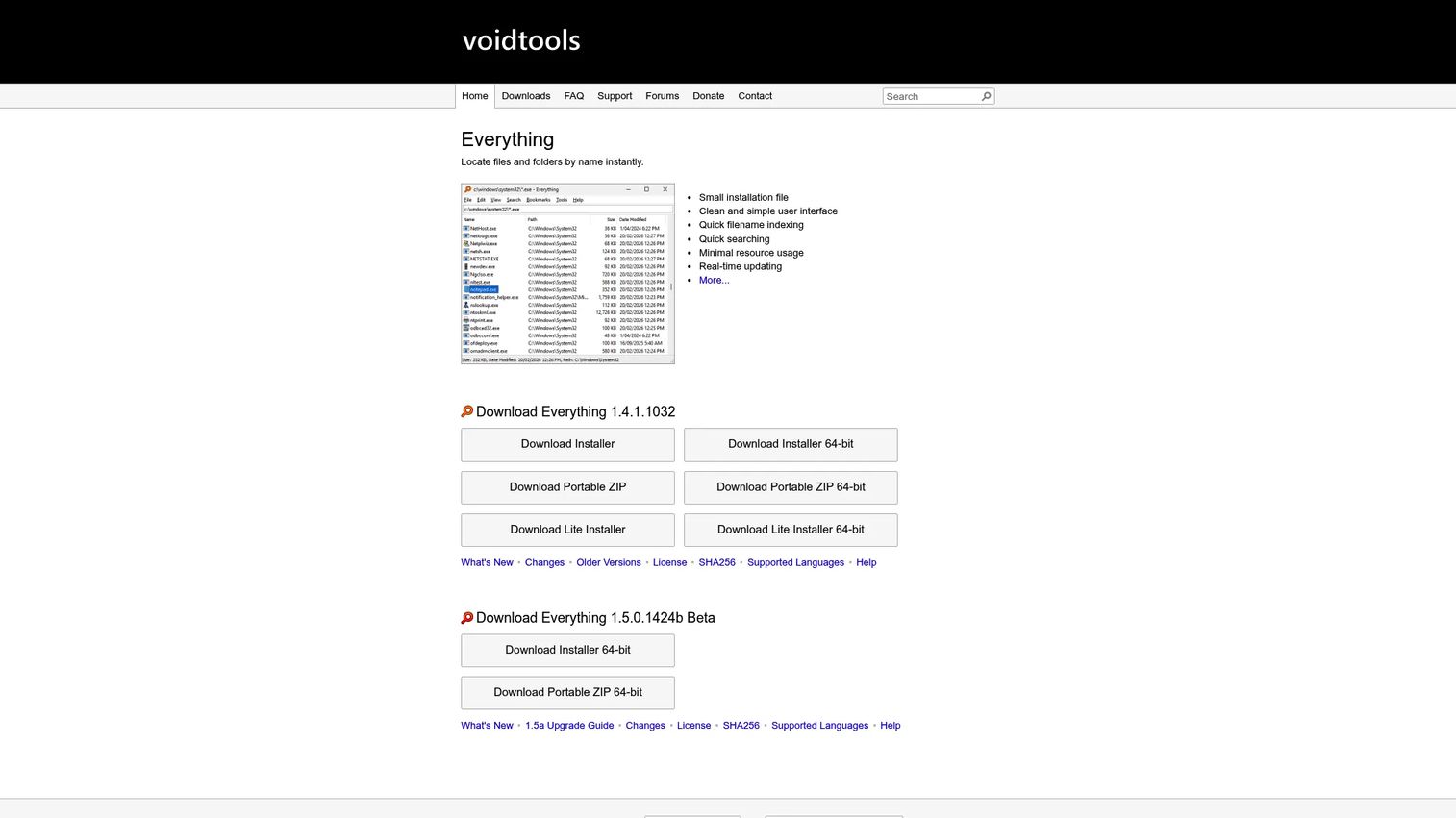
Everything by voidtools is a Windows file-search engine that locates files and folders by name almost instantly. It reads the NTFS master file table directly rather than crawling folders, which is why results appear as you type. For presales work, it is the fastest path to a known file when you remember part of the name.
Best for: Windows users who need near-instant local filename and folder search.
Key features
- Instant filename indexing via NTFS volume scanning
- Real-time index updates as files change
- Boolean and wildcard search syntax
- HTTP and ETP server options for remote file access
- Lightweight footprint with no telemetry
Why choose Everything: Choose it when retrieval speed matters more than content parsing. It pairs well with a heavier full-text tool: Everything gets you to the right folder, the other tool finds the phrase inside the document.
Everything pricing: Everything is freeware for personal use. Business and enterprise use requires a site license. Contact voidtools for site license terms.
2. Copernic Desktop Search
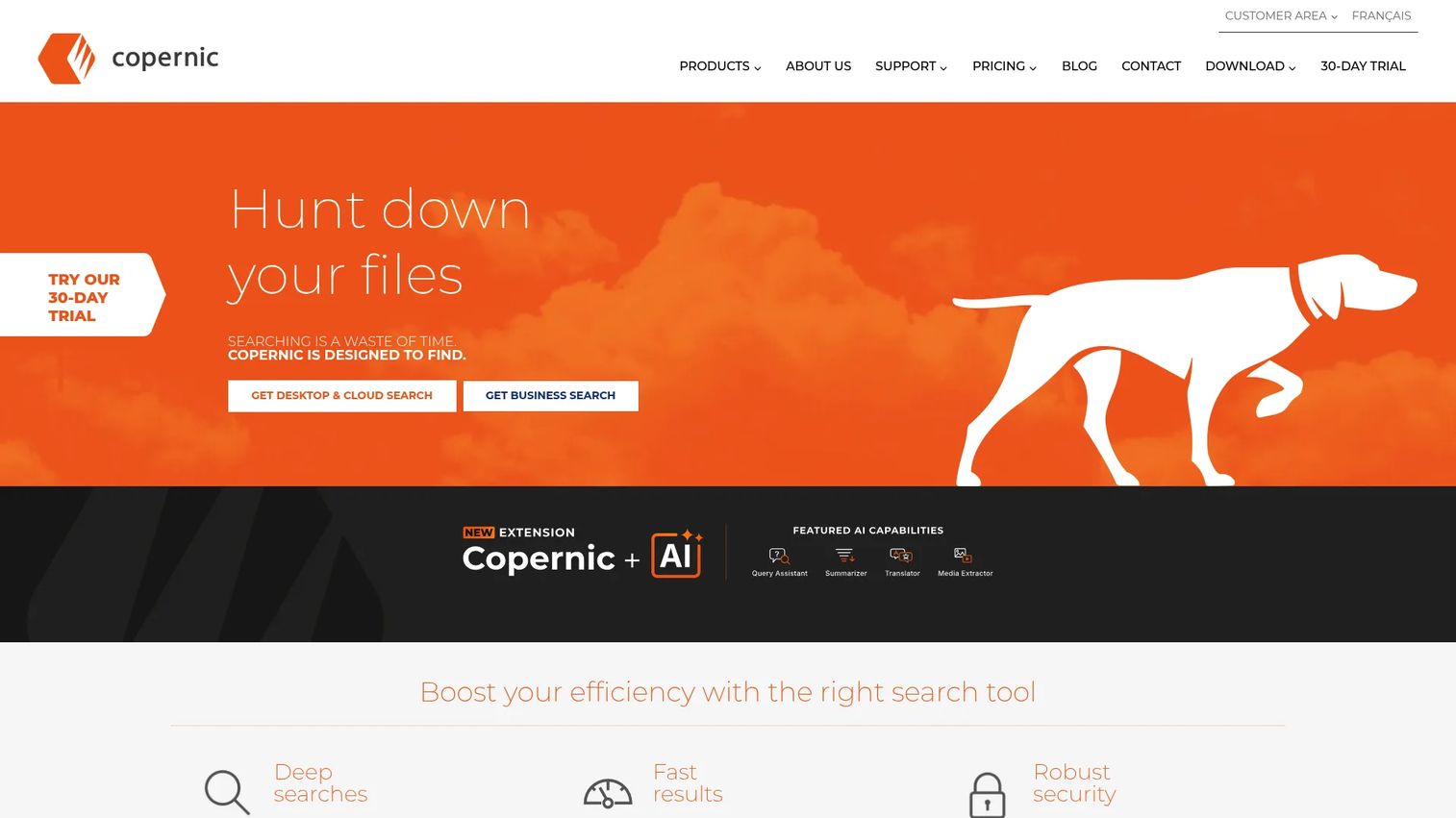
Copernic Desktop Search is a Windows search platform that indexes files, emails, attachments, and cloud or network locations from one interface. It supports hundreds of file formats including Office files, PDFs, and multimedia content. For presales teams whose most valuable evidence lives in old Outlook threads and downloaded proposals, Copernic covers the ground that filename-only tools miss.
Best for: Business users who need indexed search across documents, emails, and attachments in a single workflow.
Key features
- File and document indexing across Office formats, PDFs, and more
- Email and attachment search across desktop mail clients
- As-you-type search with Boolean operators and filters
- Network and cloud source support
- Preview pane for indexed content
Why choose Copernic Desktop Search: Choose it when your deal evidence spreads across local files, old email threads, and downloaded attachments. It is better suited to knowledge workers and business users than to developers searching code repositories.
Copernic Desktop Search pricing: Plans are billed annually. Basic starts at $28.99/year, Advanced at $44.99/year, and Elite at $95.99/year. Copernic's pricing page notes that live checkout prices may vary.
3. X1 Search

X1 Search is a unified desktop and enterprise search platform covering emails, files, chats, Microsoft 365, Google Workspace, and cloud repositories. Its search is fast-as-you-type with over 50 metadata filters. Legal and compliance teams use it for eDiscovery-style retrieval. For enterprise presales running long deal cycles with dense email history, it is the most thorough option on this list.
Best for: Enterprise users who search large email archives and business repositories across cloud and local sources.
Key features
- Unified search across Microsoft 365, Gmail, Slack, Google Drive, and local files
- 50+ metadata filters with hit highlighting
- Full-fidelity content previews and post-search actions
- AI-powered classification and tagging
- Microsoft Teams chat and channel search including attachments
Why choose X1 Search: Choose it when the search problem extends into business communication history across cloud platforms and local archives. It may be more than a solo user or small team needs.
X1 Search pricing: A 1-year single-user license costs $79. A 3-year license costs $189. Enterprise and volume licensing requires a sales conversation. A 14-day free trial is available.
G2 rating: 4.6/5 on G2.
4. Listary
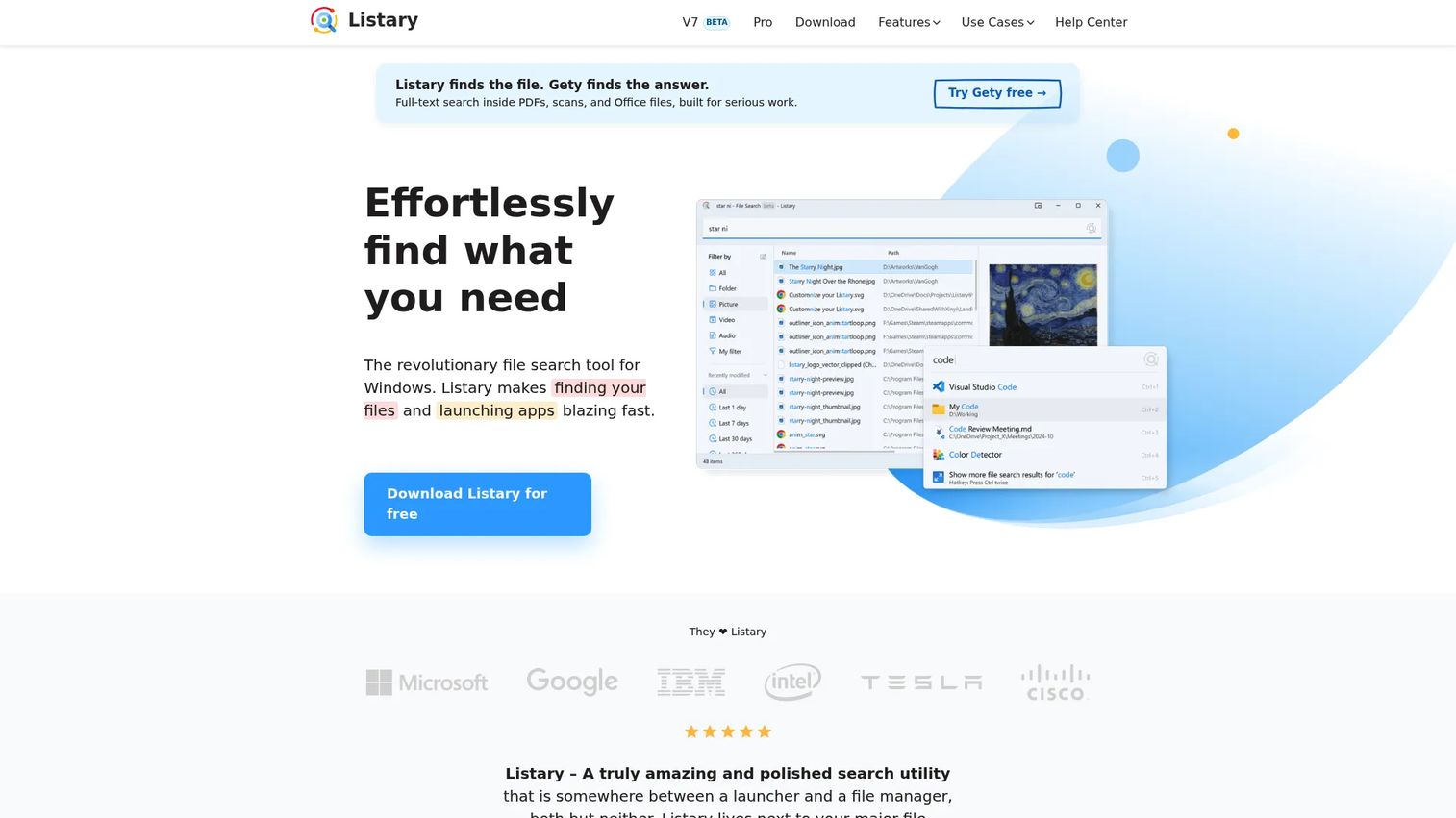
Listary is a Windows search utility built for keyboard-driven file access, application launching, and folder navigation. It appears in any file dialog or Windows Explorer window, which makes it fast for jumping between folders during demo prep or retrieving commonly used assets without breaking focus.
Best for: Power users who want keyboard-driven file access and launcher-style navigation integrated into their existing Windows workflow.
Key features
- Instant file and folder search with filter support
- Application launcher with fuzzy matching
- Quick Switch for jumping to folders in any file dialog
- Search across cloud storage, network drives, and external volumes
- Custom commands, actions, and advanced search syntax on Pro
Why choose Listary: Choose it when desktop search is part of a broader productivity workflow rather than a dedicated retrieval task. It is not built for full-text document content search, so pair it with a content search tool for deep RFP work.
Listary pricing: Free for personal use. Listary Pro is a one-time payment of $19.95 and adds commercial use, custom filters, network-drive indexing, and advanced syntax.
G2 rating: 4.3/5 on G2.
5. DocFetcher
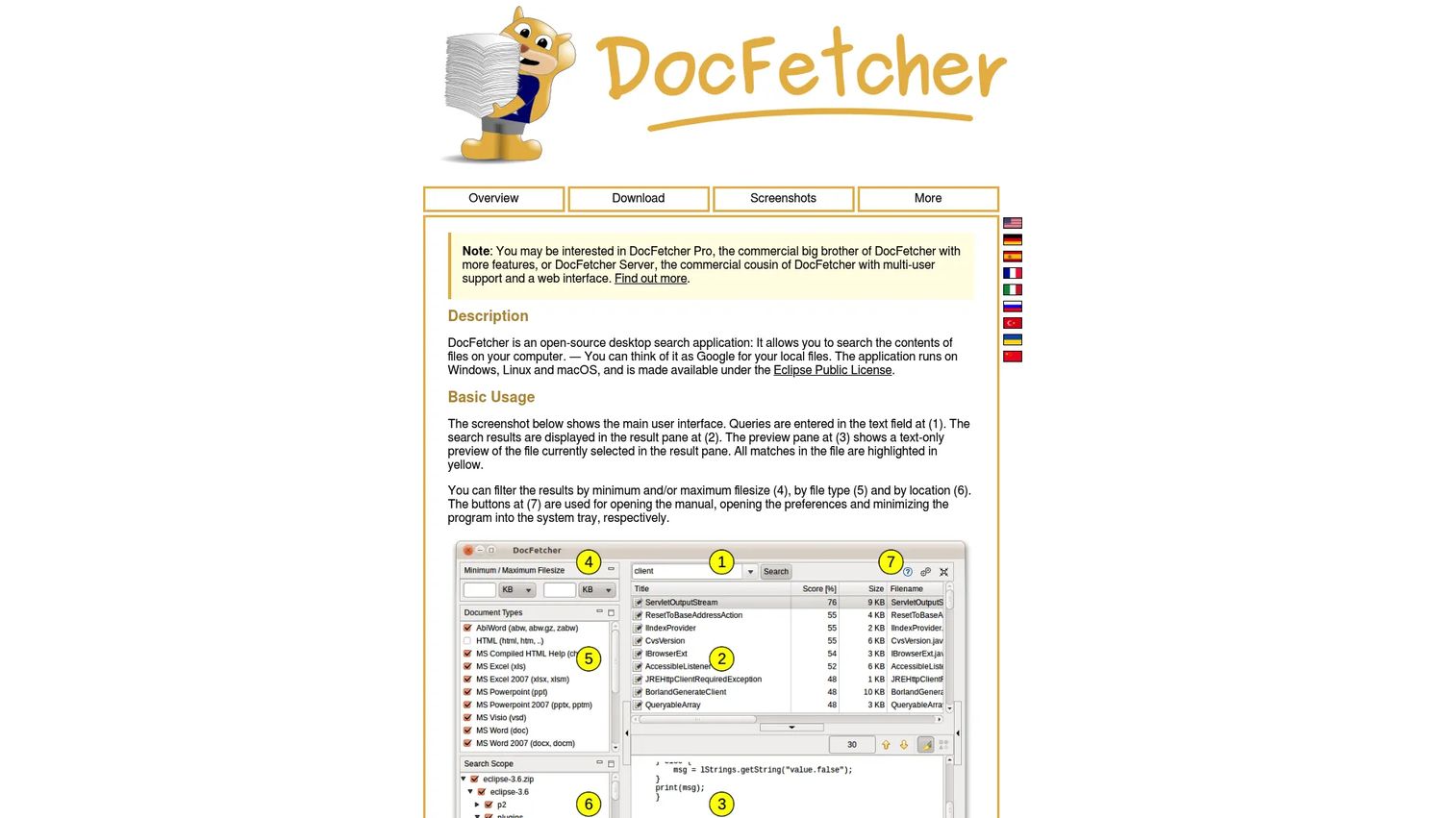
DocFetcher is an open-source desktop search application for finding content inside local files on Windows, Linux, and macOS. It indexes folders you select, supports portable indexes that travel with your files, and handles Microsoft Office documents, PDFs, EPUB, HTML, Outlook PST files, and archives. For presales teams with a curated folder of proposals, RFP responses, and security documents, it is the strongest free full-text option.
Best for: Users who need free full-text search across local document collections without buying a business platform.
Key features
- Full-text indexing with wildcard, phrase, fuzzy, and proximity queries
- Outlook PST search and archive support
- Portable index: Runs from USB with no installation
- Configurable file exclusion and automatic index updates
- Preview pane for matched documents
Why choose DocFetcher: Choose it when content inside documents matters more than filename speed. It works best against curated folders rather than entire messy drives, so organize your evidence folder first.
DocFetcher pricing: DocFetcher is free and open source under the Eclipse Public License.
G2 rating: 4.3/5 on G2.
6. Agent Ransack
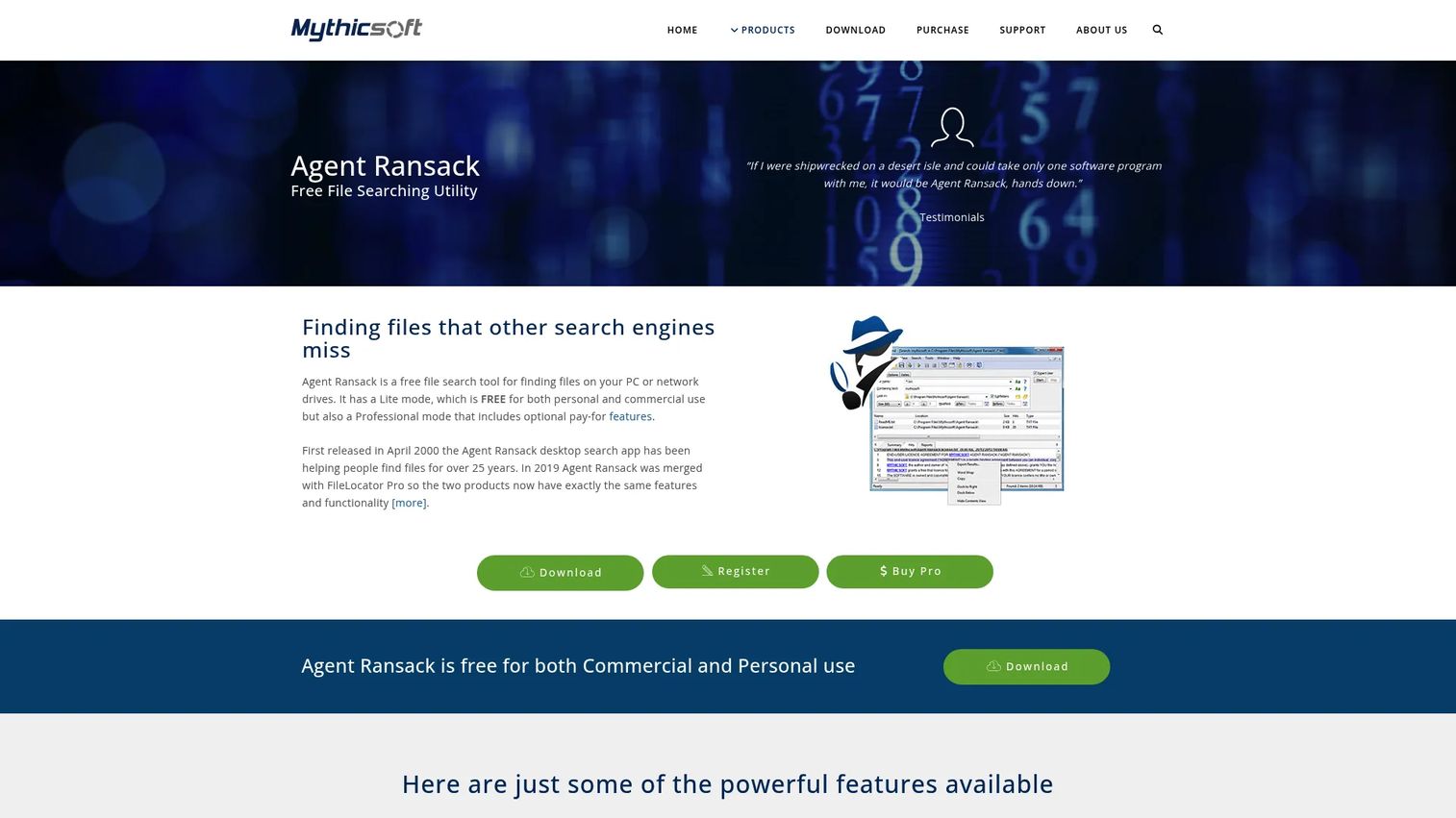
Agent Ransack is a free Windows file-search utility with strong content search and precise filtering. It supports Boolean and regular expression search, Office and PDF content search, and exportable results, all without requiring a business license for the free Lite mode. Technical SEs who search logs, text exports, code snippets, and RFP folders will find it more capable than Windows Search and lighter than a full enterprise platform.
Best for: Technical users who need precise content and filename search with Boolean and regex support across local or network drives.
Key features
- File content search across Office formats, PDFs, and archives
- Regular expression and Boolean search syntax
- Date, size, and attribute filters
- Exportable search results
- Indexing available via Pro upgrade
Why choose Agent Ransack: Choose it when you need more control than native Windows search offers but don't want a full enterprise platform. The free Lite mode handles most presales retrieval jobs without a license purchase.
Agent Ransack pricing: The Lite mode is free for personal and commercial use. Pro licensing, which also applies to FileLocator Pro, starts at $79 for a Standard License and $124 for a Technician License (one-time).
G2 rating: 4.6/5 on G2.
7. UltraSearch
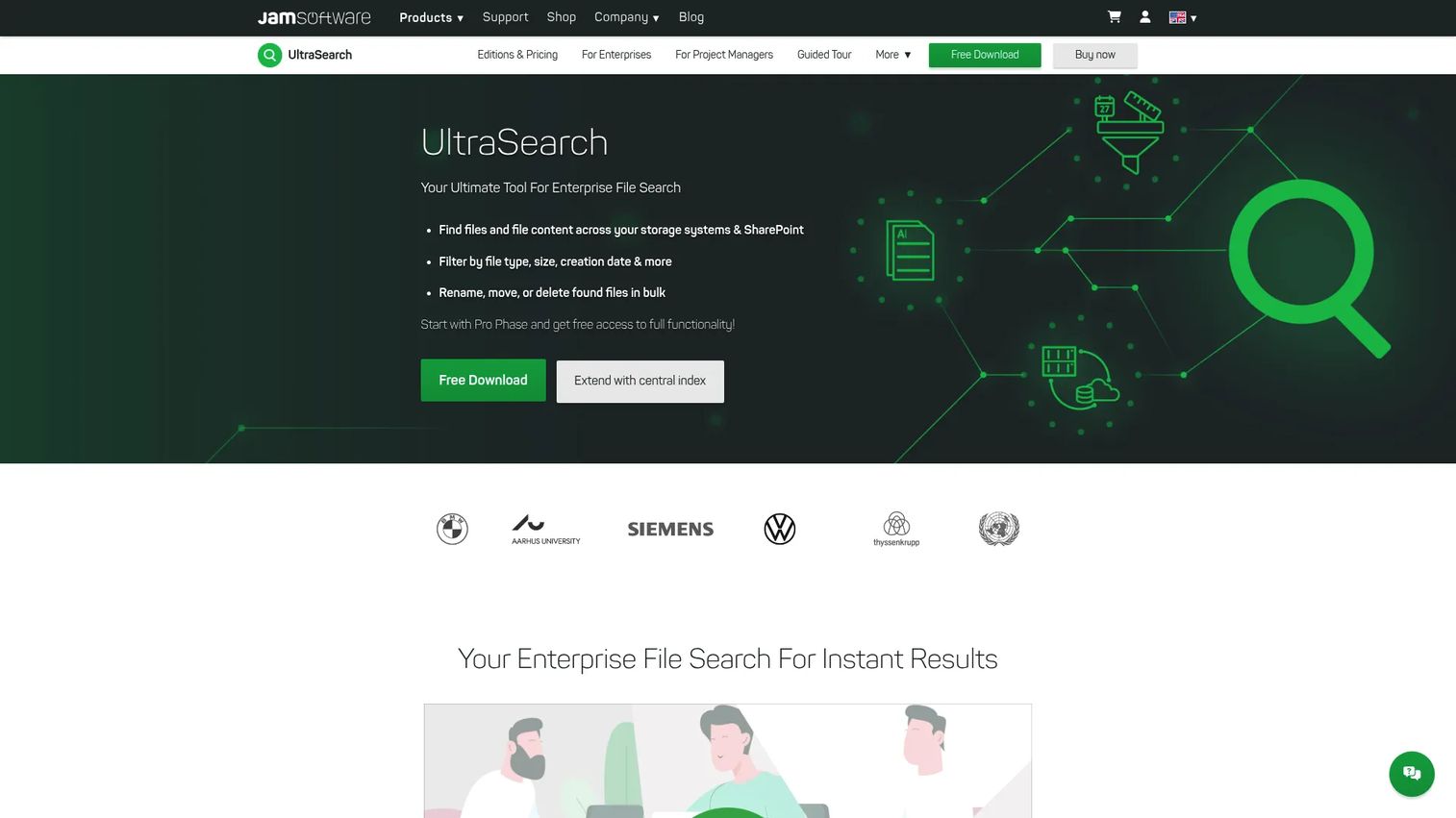
UltraSearch from JAM Software is a Windows file-search tool that reads the NTFS master file table directly for fast filename results without waiting on a large index. Its Professional edition adds content search across SharePoint and Google Drive, bulk file operations, and centralized index integration. For teams searching local drives and mapped network folders, it covers both individual and enterprise deployment scenarios.
Best for: Windows users who want fast NTFS-based search across local and network drives, with optional enterprise features on the Professional edition.
Key features
- Direct NTFS master file table search
- Filters for file type, size, and date
- Search across local drives, network shares, SharePoint, and Google Drive (Professional)
- Bulk move, archive, delete, and rename operations
- Centralized search index support
Why choose UltraSearch: Choose it when speed and a clean Windows interface are the primary requirements. Users who need to extend search to SharePoint or Google Drive will need the Professional edition.
UltraSearch pricing: The Free edition is available for private, non-commercial Windows use. The Professional edition starts at €24 per user per year, with a 30-day free trial.
G2 rating: 4.7/5 on G2.
8. WizFile
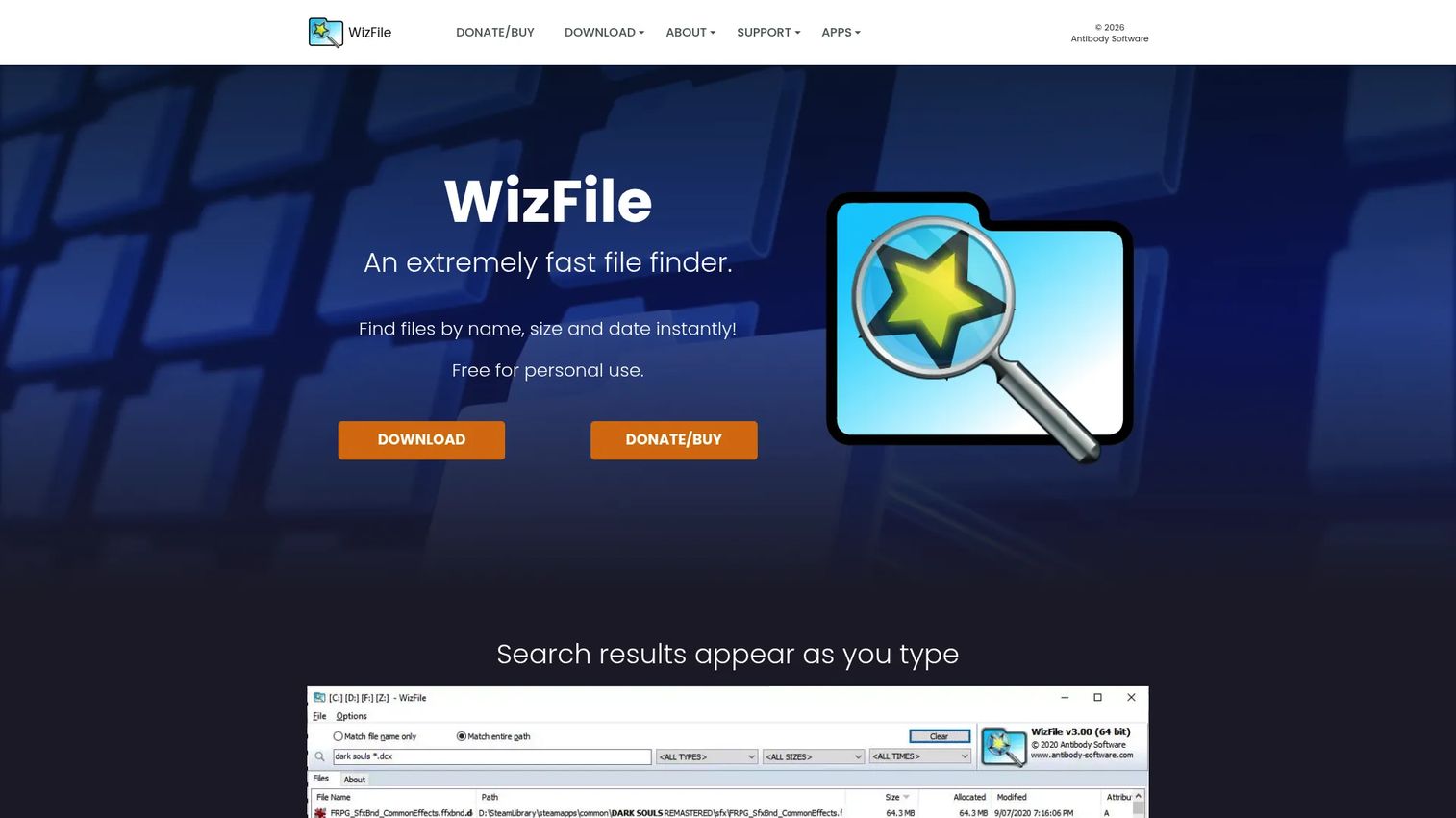
WizFile is a lightweight Windows file finder that searches files and folders by name, path, size, and date. It supports NTFS, non-NTFS, network, and USB drives, and updates results in real time as files change. Its portable operation mode means no external database file is needed. For presales teams who want a fast daily companion without managing index files, WizFile is a practical choice.
Best for: Users who want a small, fast utility for filename and folder searches across local, network, and USB storage.
Key features
- Instant file search with real-time result updates
- Multi-term path search across the full file path
- Filters for file type, size, and date
- NTFS, non-NTFS, network, and USB drive support
- Portable operation without an external database
Why choose WizFile: Choose it when speed and simplicity are the priority and you don't need full-text content search. It works well as a lightweight daily utility alongside a document search tool for deeper retrieval.
WizFile pricing: Free for personal use. Commercial use requires a one-time supporter code: $20 for individuals, $80 for micro businesses (up to 5 staff), $150 for small businesses (up to 20 staff), and up to $600 for enterprise single-site licenses.
9. AnyTXT Searcher
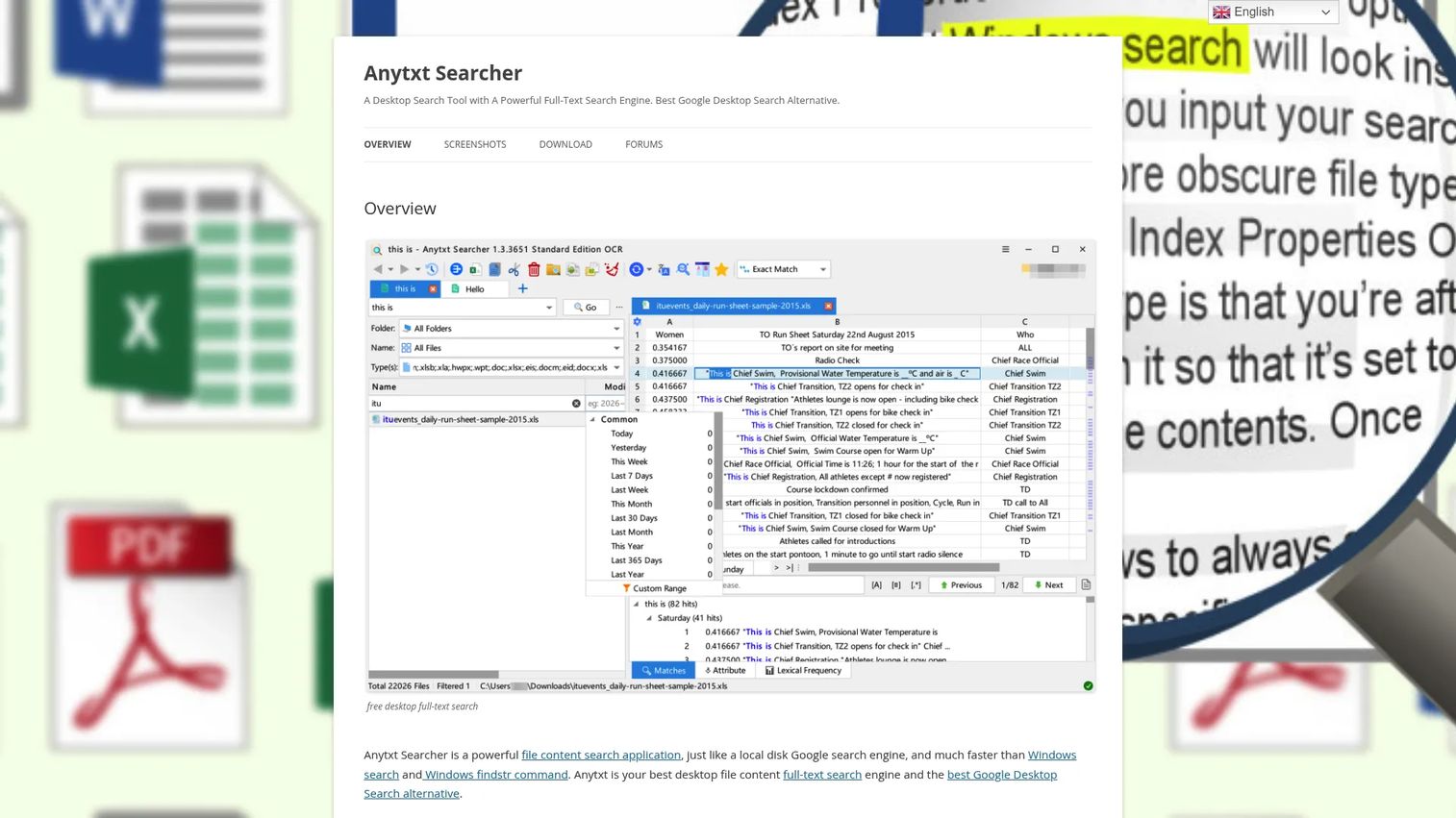
AnyTXT Searcher is a desktop full-text search application that indexes document content across Windows, macOS, and Linux. It supports Microsoft Office files, PDFs, eBooks, WPS files, OneNote, mind-map formats, archives, and binary files. Its OCR engine searches inside images and scanned PDFs, which is useful for presales teams who receive scanned contracts, compliance documents, or signed NDAs.
Best for: Users who need free document-content search across diverse formats including scanned PDFs and image files.
Key features
- Full-text indexing across Office, PDF, eBook, WPS, and OneNote formats
- OCR-based search inside images and scanned PDFs
- Real-time index synchronization
- HTTP search service for local network access
- Multilingual OCR support
Why choose AnyTXT Searcher: Choose it when filename search is not enough and you need to find phrases inside documents, including scanned files. It handles a broader format range than DocFetcher, including OCR, which makes it useful when your document archive includes image-based PDFs.
AnyTXT Searcher pricing: The official site provides free downloads.
10. SearchMyFiles
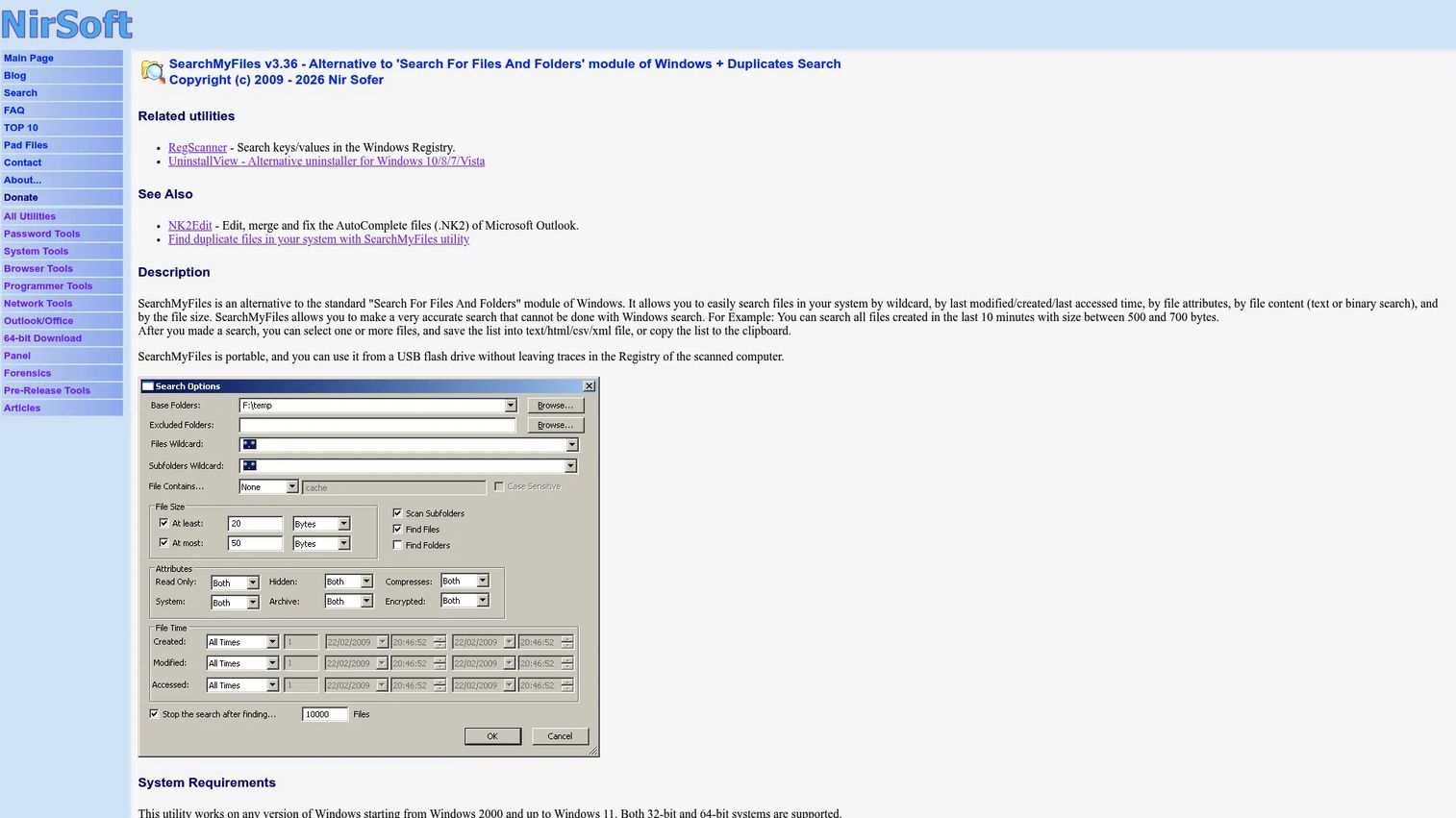
SearchMyFiles by NirSoft is a portable Windows utility for advanced file searching and duplicate detection. It runs without installation, leaves no registry traces, and exports results to text, HTML, CSV, or XML. For IT-adjacent SEs who troubleshoot test machines, audit external drives, or need granular filters on a machine where they can't install software, it covers ground that most tools don't.
Best for: Users who need portable search with deep file attribute and timestamp filters, including duplicate detection.
Key features
- Portable executable, no installation required
- Filters by file size, attributes, and created, modified, or accessed dates
- Wildcard and binary content search inside files
- Duplicate and non-duplicate file detection
- Export to text, HTML, CSV, or XML
Why choose SearchMyFiles: Choose it when portability and granular attribute filtering matter more than polished UI. It is particularly useful for one-off troubleshooting sessions or environments where you can't install tools permanently.
SearchMyFiles pricing: SearchMyFiles is freeware and may be freely distributed without charge.
11. Wise JetSearch
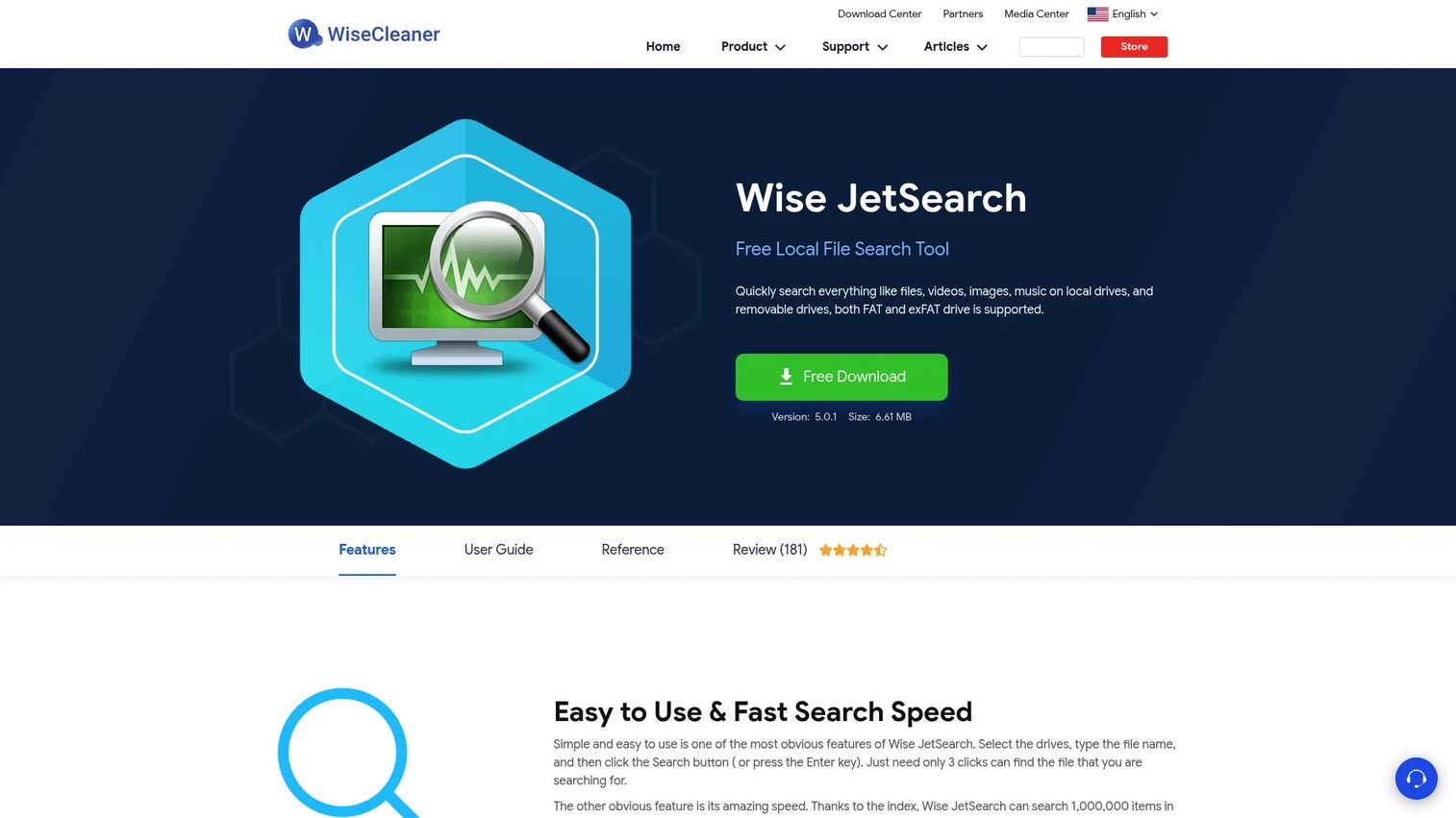
Wise JetSearch is a free Windows file-search tool from WiseCleaner that searches local and removable drives. It supports NTFS, FAT, and exFAT file systems, includes a quick-search slide-down panel, a file preview pane, and wildcard search. A portable version is available. For users who want something cleaner than the Windows Explorer search bar without configuring a full-text index, Wise JetSearch is an easy starting point.
Best for: Windows users who want a simple free file search utility with minimal setup and clean results.
Key features
- Fast indexed search across local and removable drives
- NTFS, FAT, and exFAT filesystem support
- Wildcard search with * and ? patterns
- Quick-access slide-down search panel
- Portable version available
Why choose Wise JetSearch: Choose it when ease of use matters more than advanced syntax. It doesn't support full-text content search, so it's best for users who search by filename and know roughly where the file lives.
Wise JetSearch pricing: Wise JetSearch is completely free, including updates.
G2 rating: 4.5/5 on G2
12. Lookeen
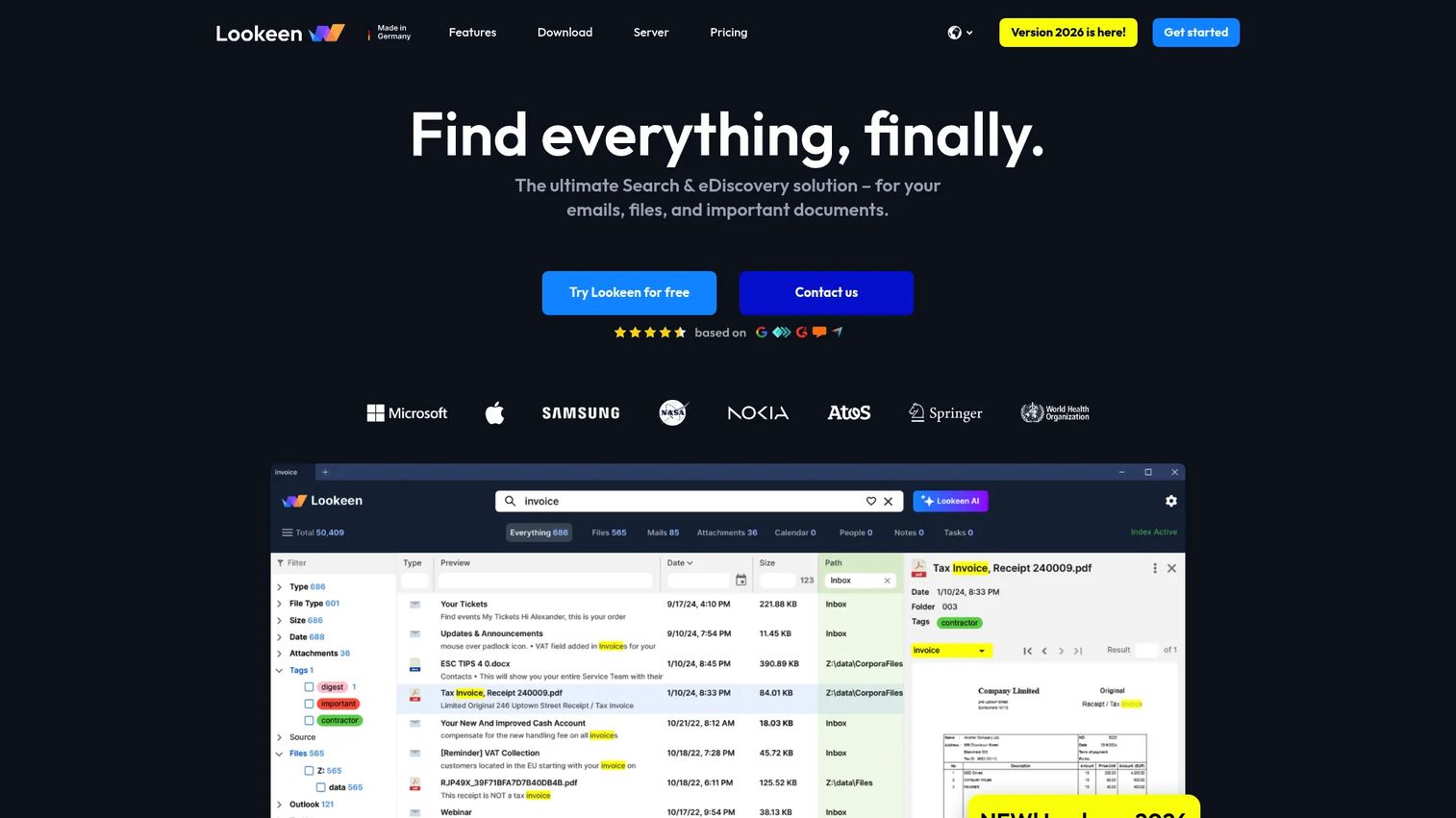
Lookeen is a Windows and Outlook search solution that indexes emails, attachments, documents, calendars, tasks, contacts, PDFs, and Exchange public folders. Its higher tiers add Group Policy deployment, OCR, shared indexes, and a centralized enterprise server. For presales teams whose critical deal context lives in Outlook, Lookeen gives more retrieval control than the built-in search without requiring an enterprise platform switch.
Best for: Outlook-heavy users and teams who need stronger email, attachment, and desktop file search in one tool.
Key features
- Outlook email, attachment, calendar, and contact indexing
- Exchange and public folder support
- Advanced filters, Boolean operators, and saved queries
- AI-assisted summaries and key-point extraction (higher tiers)
- Group Policy deployment and shared index (Business and Premium)
Why choose Lookeen: Choose it when Outlook is where your deal evidence actually lives. Teams managing large Outlook archives across multiple accounts will see the clearest benefit.
Lookeen pricing: Plans are billed annually. Basic is €9 per user per month. Business is €12 per user per month. Premium is €25 per user per month. Server pricing is custom. A 14-day free trial is available.
G2 rating: 4.0/5 on G2.
13. FileLocator Pro
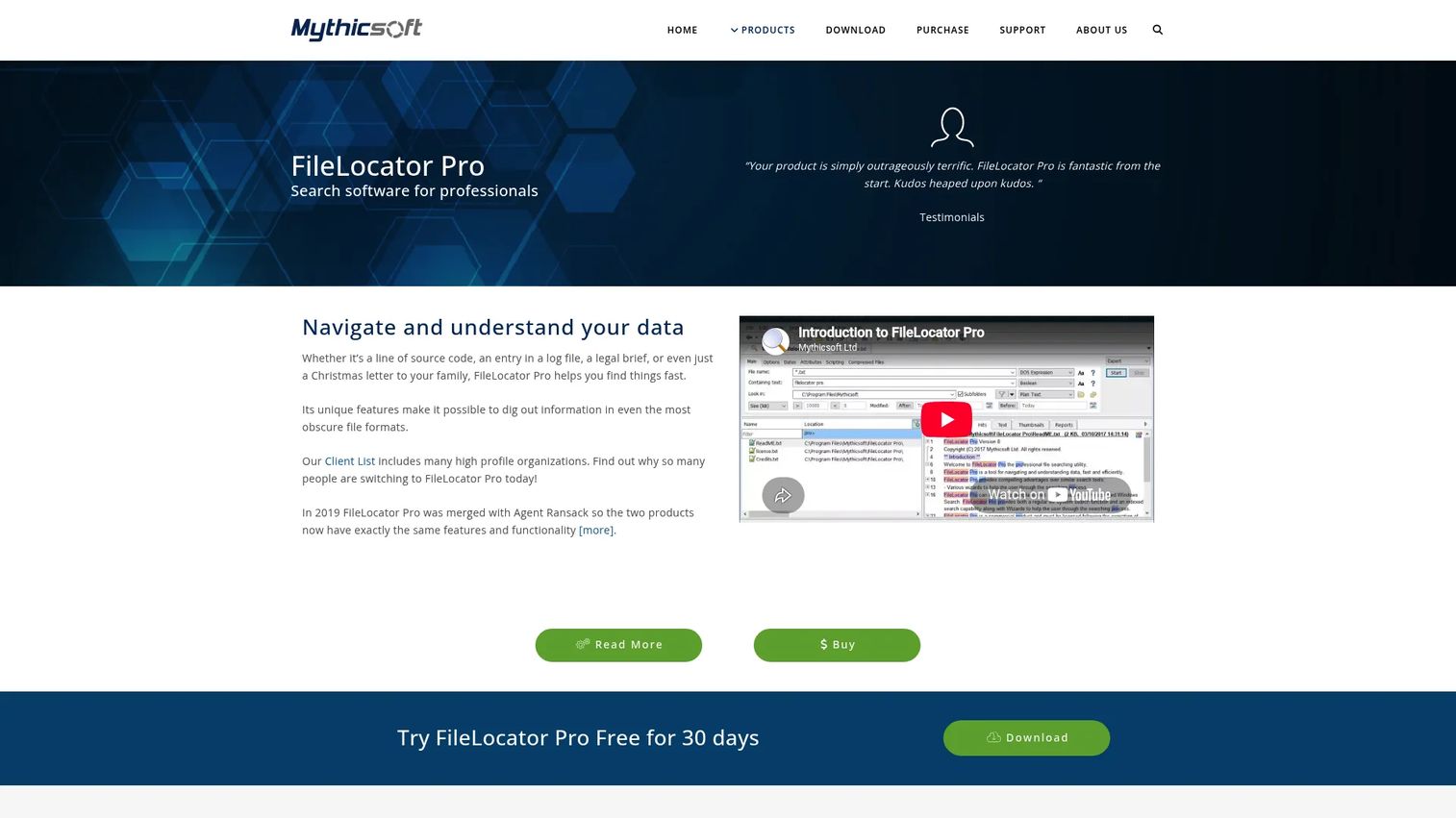
FileLocator Pro from Mythicsoft is a professional Windows content search tool from the same developer as Agent Ransack. It extends Agent Ransack's core capabilities with multi-threaded search, indexed and non-indexed modes, shared network indexes, OCR for scanned documents, Outlook PST and MSG search, command-line support, and .NET and COM integration. For presales teams that regularly search large evidence folders, technical document sets, or network drives for specific content, it is the most complete Windows content search tool on this list.
Best for: Technical teams and power users who need professional-grade content search across large document sets, archives, and network folders.
Key features
- Fast multi-threaded file and content search
- Indexed and non-indexed search modes with shared network indexes
- Office, PDF, Outlook PST and MSG, and archive format support
- OCR for scanned documents and images
- Command-line, .NET, and COM integration for automation
Why choose FileLocator Pro: Choose it when Agent Ransack's free mode handles most searches but your team needs indexing, OCR, or automation. The shared network index is useful for presales teams who maintain a shared evidence library on a mapped drive.
FileLocator Pro pricing: A Standard License is $79 (one-time). A Technician License is $142 (one-time). A Floating License is $206 (one-time). A free Lite mode and a 30-day Pro trial are available.
14. SwiftSearch
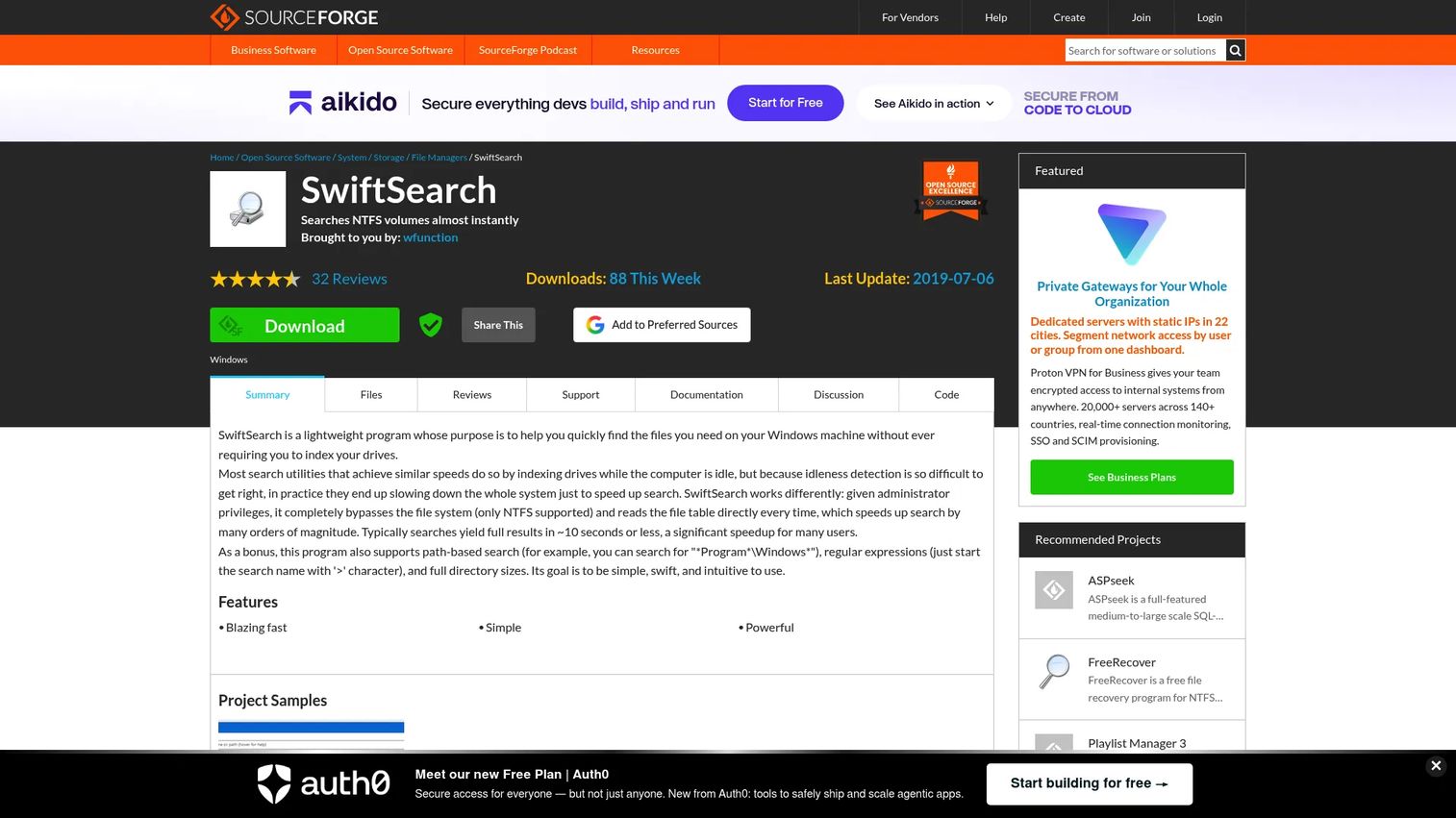
SwiftSearch is a lightweight Windows utility that searches NTFS volumes quickly without building an index first. It reads the NTFS file table directly and supports path-based search and regular expressions. The installer is minimal and the tool starts fast. For a presales engineer who needs a quick filename lookup on a machine that doesn't have Everything installed, SwiftSearch is a practical fallback.
Best for: Users who want a small portable filename search utility for NTFS volumes with no index and minimal setup.
Key features
- Direct NTFS file table search without indexing
- Path-based and regular expression search
- Full directory size reporting
- Minimal installer footprint
- Simple, focused interface
Why choose SwiftSearch: Choose it for simple, quick filename discovery on NTFS drives when you don't want to install a full search platform. It doesn't support full-text document content search.
SwiftSearch pricing: SourceForge lists SwiftSearch as a free project download.
15. CSearcher
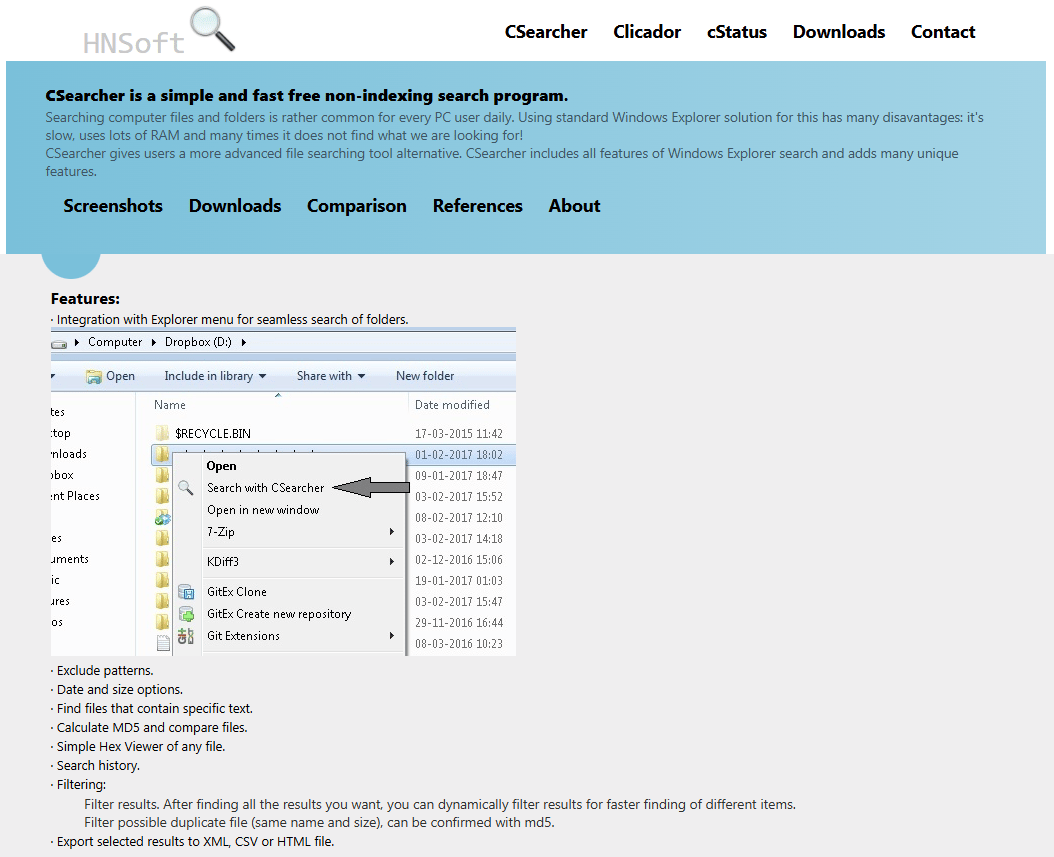
CSearcher is a Windows file-search utility with capabilities beyond standard Windows Explorer search. It supports advanced filtering, text search inside files, MD5 hash comparison for file verification, duplicate detection, result export, and Windows Explorer integration. For technical SEs who manage evidence folders, compare files across machines, or verify document integrity, it adds utility that pure filename search tools don't cover.
Best for: Individuals and technical users who want portable search combined with file hashing and duplicate detection.
Key features
- Advanced file search with exclude patterns and filters
- Text search inside files
- MD5 hash comparison for file verification
- Duplicate file detection
- Export results and Windows Explorer integration
Why choose CSearcher: Choose it when your search workflow overlaps with file cleanup, duplicate removal, or verification tasks. It fits technical users more than general information workers.
CSearcher pricing: Capterra lists CSearcher as free software.
Considerations when choosing desktop search software
Search depth: Filename versus content
Filename search and content search are different jobs. A tool that finds files instantly by name won't help when the filename is meaningless. Before selecting a tool, identify which retrieval scenario happens most often: Searching for a file you remember naming, or searching for a phrase you remember writing.
Indexing behavior and system impact
Indexed tools consume disk space, CPU, and battery during initial build and scheduled updates. Check whether the tool lets you exclude folders, limit indexing hours, and cap resource use. On a laptop running a demo environment, indexing at the wrong moment is a real problem.
Email and attachment coverage
Long B2B deal cycles generate years of email history. If your most valuable deal artifacts are in Outlook attachments rather than local files, choose a tool that indexes PST files, OST files, or Exchange folders directly. Filename-only search won't surface content inside an attachment.
Security and privacy of the index
A local index can surface files you forgot existed. Understand where the index is stored, whether it is encrypted, and whether any data leaves the machine. For presales teams handling customer data, architecture diagrams, and signed NDAs, the index itself is a sensitive asset.
Team workflow fit
A solo SE may need a lightweight portable utility. An enterprise presales team managing a shared RFP library on a network drive needs indexing, governance, and possibly shared index support. Match the tool to the team's actual retrieval workflow rather than choosing by brand recognition alone.
Conclusion
Desktop search software is not a glamorous tool category. But the 20 minutes you spend rebuilding a security answer before a stakeholder call is time that should have gone into preparation, not recovery.
For instant filename search, Everything remains the strongest free starting point on Windows. Copernic Desktop Search covers business file and email retrieval for teams with indexed workflows. X1 Search handles enterprise email archives and cross-platform connectors. DocFetcher and AnyTXT Searcher give you full-text content search at no cost. Agent Ransack and FileLocator Pro add precision filtering and regex support for technical evidence folders. Lookeen fits teams where Outlook is the primary evidence repository.
The best way to evaluate any of these tools is with two test queries: Find a file by partial name, then find a phrase inside a document you know exists. The results will tell you more than any feature list.
For teams exploring related enterprise-scale retrieval, the guide on enterprise search software and the roundup on site search software cover adjacent territory worth reviewing alongside local desktop options.
FAQs
Desktop search software is a local tool that finds files, folders, document content, emails, and attachments stored on a computer or connected drive. It works faster and with more precision than the native OS search by building an index, reading filesystem metadata, or scanning content directly.
The answer depends on what you are searching. Everything is the fastest free option for filename search. Copernic Desktop Search and X1 Search cover business files and email archives. DocFetcher and Agent Ransack handle full-text content search in local document collections.
Windows search is adequate for simple queries in well-organized folders. Dedicated tools add speed, full-text content search, email and attachment indexing, portable operation, and advanced filters that native Windows search doesn't provide.
For filename search, Everything, WizFile, UltraSearch, and SwiftSearch are consistently fast because they read NTFS metadata or the master file table directly rather than crawling folders. Full-text content search takes longer regardless of tool because it requires reading file contents.
Yes, but only tools with full-text indexing or content scanning support this. DocFetcher, AnyTXT Searcher, Agent Ransack, FileLocator Pro, Copernic Desktop Search, and X1 Search all search inside documents. Filename-only tools like Everything and WizFile do not.
Some tools index Outlook messages and attachments. Copernic Desktop Search, X1 Search, and Lookeen are the strongest options for Outlook-heavy workflows. DocFetcher also supports Outlook PST files. Verify that the tool supports your specific mail format (PST, OST, or Exchange folders) before purchasing.
Safety depends on the source, the tool's permissions, and whether indexed data leaves the machine. Download only from official vendor pages or maintained project repositories. Check whether the tool creates a local-only index, what permissions it requests, and whether it sends any telemetry. Tools like Everything and DocFetcher are well-maintained with transparent open-source histories.
Indexed tools can consume CPU, memory, and disk during initial index creation and scheduled updates. Most tools include controls for scheduling, resource limits, and folder exclusions. Configure these before running the index on a machine used for live demos or customer calls. Index-free tools like Everything and WizFile have minimal ongoing resource impact.