You picked a drawing app that looked powerful in the demo videos. Then you tried to lay out a real page. No panel tools. No speech balloons. Screentones that fight you at every step. The blank canvas is fine, but a manga page is not a blank canvas. It is a production job with panels, lettering, rulers, and export rules.
Most creators pick on brush feel alone, then hit a wall the moment they need page structure. That is the wrong first question. The digital format is set to hold over 70% of the worldwide manga market share by 2030, according to Mordor Intelligence (2025). If your art ships digital, your software has to handle the page, not just the sketch.
So the real question is not which app draws the prettiest line. It is which one moves you from sketch to finished page without manual busywork at every step.
What's inside
This guide covers the top free and paid manga drawing software for 2026, from beginner apps to production-grade tools. We ranked each option on the factors that actually decide whether a page ships.
- Manga workflow fit: Panels, speech balloons, screentones, rulers, and multi-page export
- Beginner friendliness: How fast a new artist reaches a finished page
- Pricing: Free tiers, one-time licenses, and subscription cost
- Platform support: Windows, Mac, iOS, and Android coverage
Every pricing figure and rating here traces to the vendor's own page or a live G2 listing.
TL;DR
- Best overall: Clip Studio Paint carries the deepest manga toolkit, from panel frames to screentones to 3D reference.
- Best for manga production workflow: Manga Studio 5, the legacy name for Clip Studio Paint's comic-first feature set.
- Best free option: JUMP PAINT gives you unlimited pens and tones plus editorial tutorials at zero cost.
- Best for beginners: MediBang Paint pairs free manga assets with cloud sync across every device.
- Best budget powerhouse: Krita is free, open source, and strong on brushes.
- Best for fast line work: Paint Tool SAI stays lightweight and quick for sketching.
- Best for Adobe users: Photoshop finishes, edits, and colors inside a stack you already run.
What is manga software
Manga software is drawing and page-production software built for comic, manga, and webtoon workflows, combining art tools with layout features like panels, lettering, and screentones. A general drawing program helps you make a picture. Manga software helps you make a page, then a chapter, then a finished book.
The category exists because comic pages carry structure a single illustration does not. You need to divide a page into panels, place dialogue in balloons, apply tone patterns for shading, and export the whole thing to print or web specs. Doing that by hand in a generic editor burns hours per page.
Core features that define manga drawing software:
- Panel tools: Frame borders, gutters, and auto-splitting for page layouts
- Speech balloons and lettering: Text tools, balloon shapes, and effect lines
- Screentones: Dot patterns and gradient tones for shading without color
- Rulers and perspective guides: Straight lines, curves, and vanishing-point assists
- Layer support: Vector and raster layers for editable linework and separation
- Reference tools: 3D models and pose figures for consistent angles
- Multi-page management: Story files that hold a full chapter
- Export options: Print-ready resolution plus webtoon vertical formats
Beginner tools focus on guided onboarding and free asset libraries. Advanced tools add vector linework, deep screentone control, and 3D reference. Anime drawing software often overlaps here, since anime-style illustration uses the same brush and line tooling even without panel layouts.
For a founder-brain read: Think of this as the difference between a tool that does one task and a system that runs a repeatable pipeline. The comic software worth paying for is the one that removes the manual steps between draft and delivery.
When to use manga software
Create manga pages with panels and lettering
Reach for a full manga drawing program when you are producing finished pages, not just sketches. Panel builders divide the page in seconds. Balloon and text tools place dialogue cleanly. Screentone libraries handle shading without color. If your output is a chapter with consistent layout, generic art apps cost you time on every page.
Draw anime-style art and webtoons
Anime drawing software and webtoon drawing software cover a slightly different job. Webtoons scroll vertically, so you need long-canvas support and export presets that match platform specs. Anime-style single illustrations lean on brush quality and line stabilization more than panel tooling. Pick the tool that matches your output format, not just the art style.
Move from sketching to production with fewer manual steps
Some artists sketch in one app and finish in another. That handoff creates friction. A tool with vector layers, rulers, and clean export lets you carry a piece from rough draft to print-ready file without rebuilding it. Fewer manual steps means faster turnaround, which matters whether you ship weekly or hit a publisher deadline.
Comparison table
Here is the shortlist side by side. Pricing reflects each vendor's live page as of August 2026, and ratings come from current G2 listings. Sort order runs from deepest manga tooling to general-purpose.
| # | Product | Best for | Key differentiator | Pricing | G2 rating |
|---|---|---|---|---|---|
| 1 | Clip Studio Paint | Deepest manga toolkit | Panel, tone, and 3D reference in one app | From $0.99/mo, free trial | 4.4/5 |
| 2 | Manga Studio 5 | Manga production workflow | Comic-first feature set, now Clip Studio Paint | From $0.99/mo, free trial | 4.4/5 |
| 3 | JUMP PAINT | Free official manga app | Editorial tutorials plus free pens and tones | Free | Not rated |
| 4 | Paint Tool SAI | Fast, lightweight line work | Simple UI, quick sketching | 5,500 JPY one-time, 31-day trial | 4.3/5 |
| 5 | Krita | Free open-source power | Strong brush engine, no cost | Free | 4.4/5 |
| 6 | MediBang Paint | Cross-device beginners | Cloud sync with free manga assets | Free | Not rated |
| 7 | Photoshop | Finishing and color work | Advanced editing plus generative tools | From $22.99/mo | 4.6/5 |
The pattern is clear. The top of the list wins on manga-specific structure. The bottom wins on general editing muscle. Where you land depends on whether you need page production or finishing power.
Best 7 tools for manga drawing
1. Clip Studio Paint
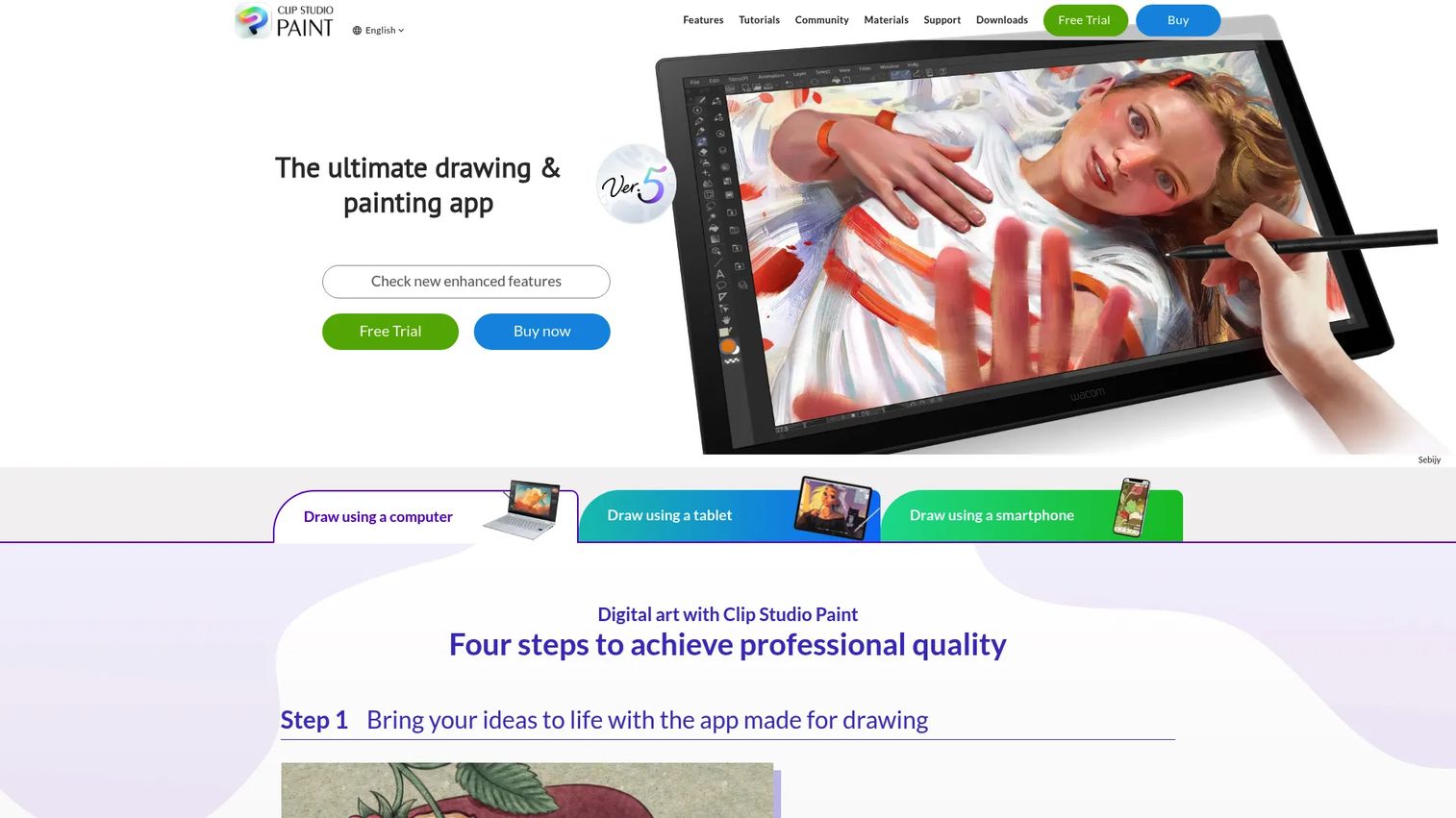
Clip Studio Paint is digital art software for drawing, painting, comics, and animation. It leads this list because no other tool packs the full manga pipeline this tightly, from panel frames to screentones to 3D pose reference. Illustrators, comic artists, and animators use it as a single workspace rather than stitching together separate apps.
The product covers both raster and vector layers, so your linework stays editable after you draw it. Pen stabilization smooths shaky strokes. Multi-page comic support holds a full chapter in one story file, which matters when you are producing at volume.
Best for: Illustrators and comic artists who want the deepest manga toolkit in one program.
Key features
- Brushes with adjustable pen stabilization
- Vector layers and editable linework
- 2D animation tools and multi-page comic support
- Panel frames, speech balloons, and effect lines
- Screentones and customizable 3D reference models
Why choose Clip Studio Paint: If you need one app that carries a page from sketch to print-ready file, this is the depth pick. The trade-off is a learning curve steeper than beginner apps, so budget a week to get comfortable.
Clip Studio Paint pricing: Subscription plans start from $0.99/month, with a 12-month single-payment license at $63.00 and an annual Update Pass at $10.99. A free trial is available on the homepage.
Reviewers on G2 give Clip Studio Paint 4.4/5, and Capterra shows a similar score. Both point to strong illustration and comic tooling as the recurring theme.
2. Manga Studio 5
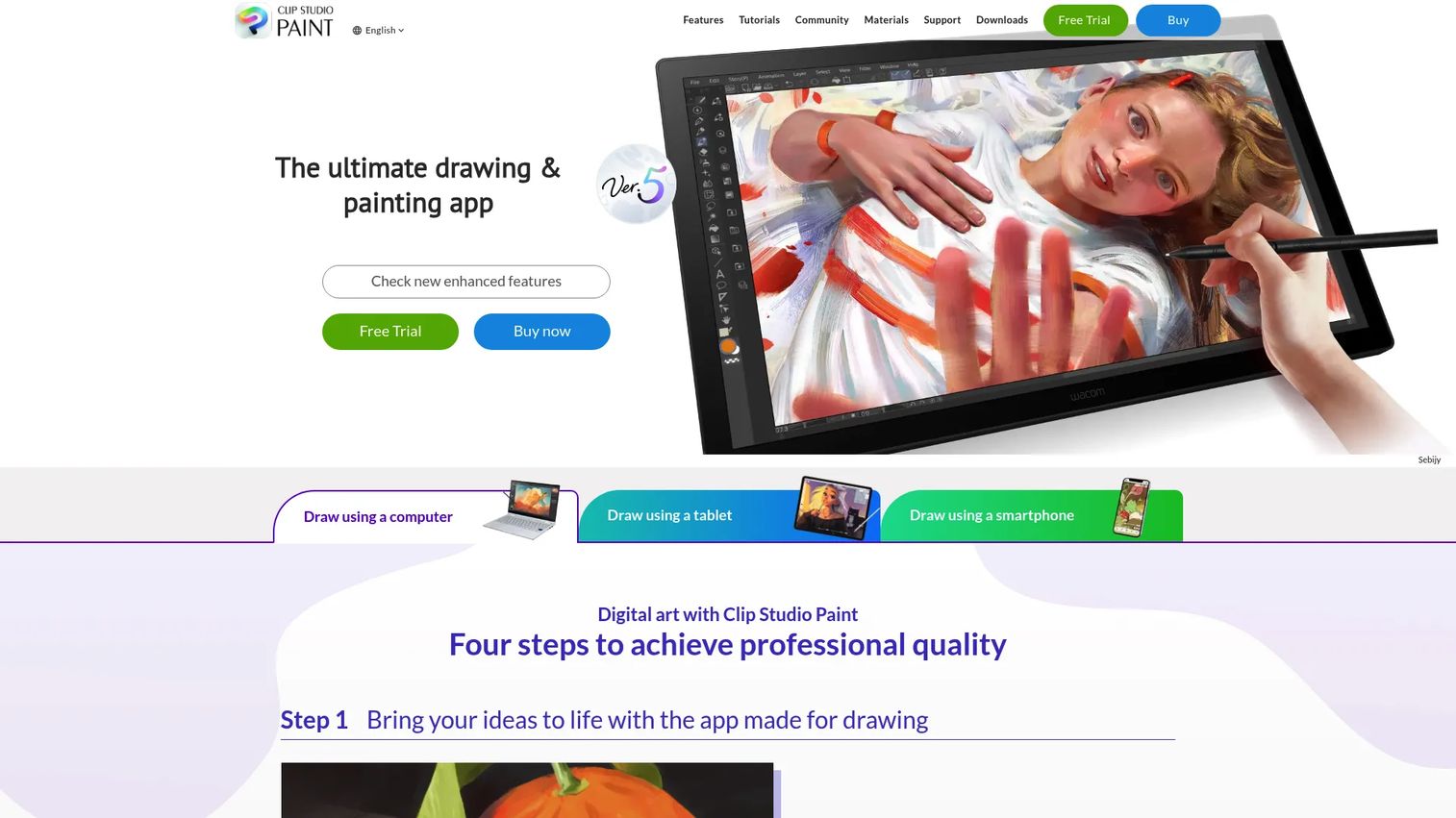
Manga Studio 5 is the legacy name for the comic-first feature set that now ships as Clip Studio Paint. If you searched for Manga Studio expecting a separate product, you are looking at the same lineage under a current brand. It packs illustration, manga, and animation tools into one app.
The comic-specific tooling is why the name persists in artist circles. Panel frames, speech balloons, text placement, effect lines, and screentones all live in the manga feature set. The distinction between the Manga Studio 5 and EX generations maps to today's PRO and EX tiers, where EX adds multi-page and heavier production features.
Best for: Comic creators who want manga, illustration, and animation tools under one roof.
Key features
- Panel frames, speech balloons, and text tools
- Effect lines and screentone patterns
- Customizable 3D reference models
- Vector and raster layers
- Animation tools with light table and onion-skin
Why choose Manga Studio 5: Choose it when your priority is comic page production over general painting. The naming can confuse newcomers, so know you are buying into the current Clip Studio Paint product line.
Manga Studio 5 pricing: Since it is now Clip Studio Paint, subscription plans start from $0.99/month, with PRO and EX perpetual licenses available as one-time purchases and a 12-month license option. A free trial covers evaluation.
G2 reviewers rate the current product 4.4/5, citing the comic and manga tooling as the standout across the feature set.
3. JUMP PAINT
JUMP PAINT is a free manga-making app from MediBang built with Shueisha's Jump editorial team. It stands out for pairing production tools with actual manga tutorials from Jump editors, which few free apps offer. That makes it a strong first pick for anyone learning the craft without a budget.
The app runs on Windows, Mac, iOS, and Android, so you can sketch on a tablet and finish on a desktop. Over 90 free brushes and more than 800 free tones and materials come included, which removes the usual paywall on shading assets.
Best for: Manga creators who want a free app with guided learning and comic-making tools.
Key features
- Over 90 free brushes
- Over 800 free tones and materials
- Manga tutorials and Jump editorial lessons
- Panel and comic layout tools
- Cross-platform on desktop and mobile
Why choose JUMP PAINT: Pick it when you are starting from zero and want editorial guidance alongside the toolset. The trade-off is a lighter feature ceiling than paid production apps as your work gets more complex.
JUMP PAINT pricing: JUMP PAINT is free to download with no paid tier specific to the app. Broader MediBang Premium options exist on the parent platform, but the manga app itself costs nothing.
No G2 rating is published for JUMP PAINT specifically, so treat peer reviews on app stores and manga forums as your reference point.
4. Paint Tool SAI
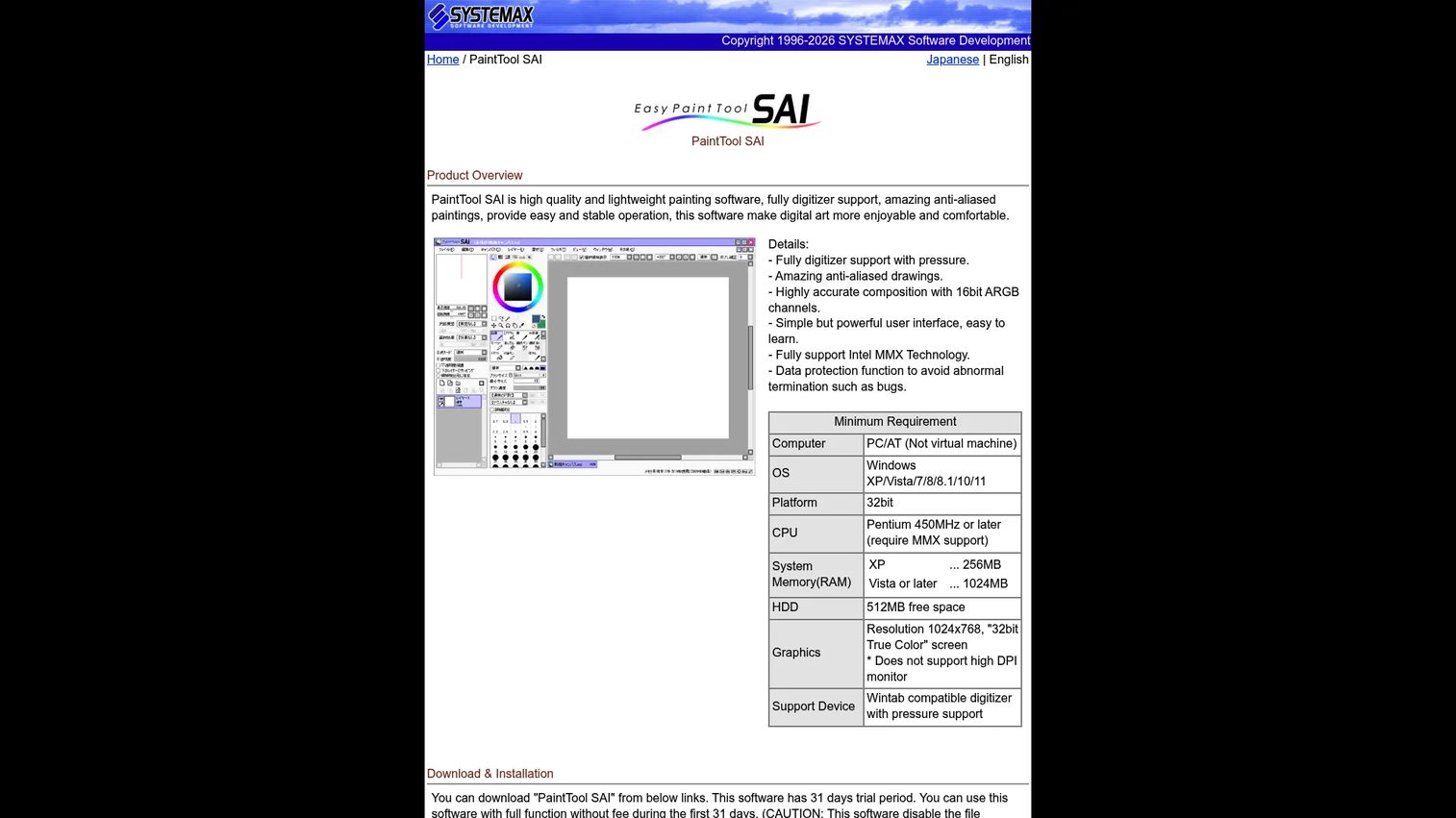
Paint Tool SAI is lightweight digital painting software for Windows with pen-tablet support. It earns its spot on speed. The simple UI and fast, responsive brushes make it a favorite for sketching and clean line work, especially among artists who find full production suites heavy.
The program supports full digitizer and pen-pressure input, anti-aliased drawing, and 16-bit ARGB composition. A built-in data protection function guards against lost work. What it does not carry is a deep manga page pipeline, so it fits the draw-and-ink stage more than full page assembly.
Best for: Individual digital artists who want lightweight Windows painting software for line work.
Key features
- Full digitizer and pen-pressure support
- Anti-aliased drawing
- 16-bit ARGB composition
- Simple, fast interface
- Data protection function
Why choose Paint Tool SAI: Reach for it when you want speed over page tooling and prefer a small, focused app. The limit is clear: For panels, lettering, and screentone-heavy pages, you will pair it with another tool.
Paint Tool SAI pricing: A 31-day free trial is available, and a Ver.1 software license costs 5,500 JPY (tax included) as a one-time purchase.
G2 reviewers rate Paint Tool SAI 4.3/5, with the lightweight speed cited as the main draw.
5. Krita
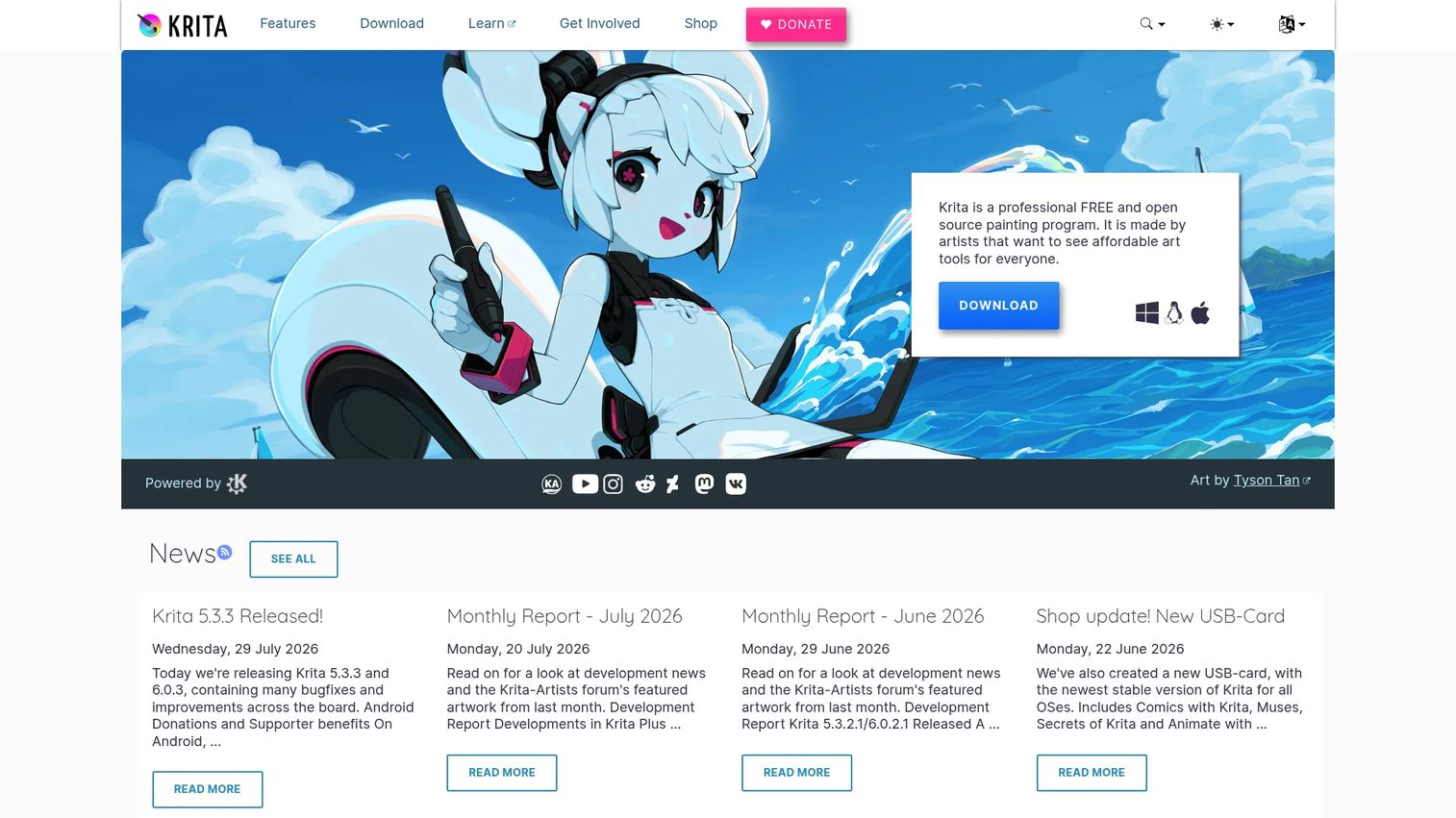
Krita is free and open-source digital painting and 2D animation software. It stands out for delivering a professional brush engine at zero cost, which makes it the budget power pick. Artists who want serious painting flexibility without a subscription gravitate here.
The tool ships with a wide range of brush types, layers, drawing assistants, and stabilizers. Animation tools come built in. Comic-related templates and features exist, though the manga-specific tooling is lighter than a dedicated comic app. The trade-off shows up as a learning curve and a workflow that favors painting over structured page production.
Best for: Artists needing a free, professional digital painting and animation tool.
Key features
- Multiple brush types
- Layers, drawing assistants, and stabilizers
- Animation tools
- Comic templates
- Cross-platform desktop support
Why choose Krita: Choose it when budget is the constraint and painting flexibility is the priority. Expect to invest time learning the interface, and plan for lighter dedicated manga tooling than the top of this list.
Krita pricing: The core download from the official site is free and open source. Store versions on some platforms carry a separate price, but the direct download costs nothing.
G2 reviewers rate Krita 4.4/5, with the brush engine and no-cost model driving the praise.
6. MediBang Paint
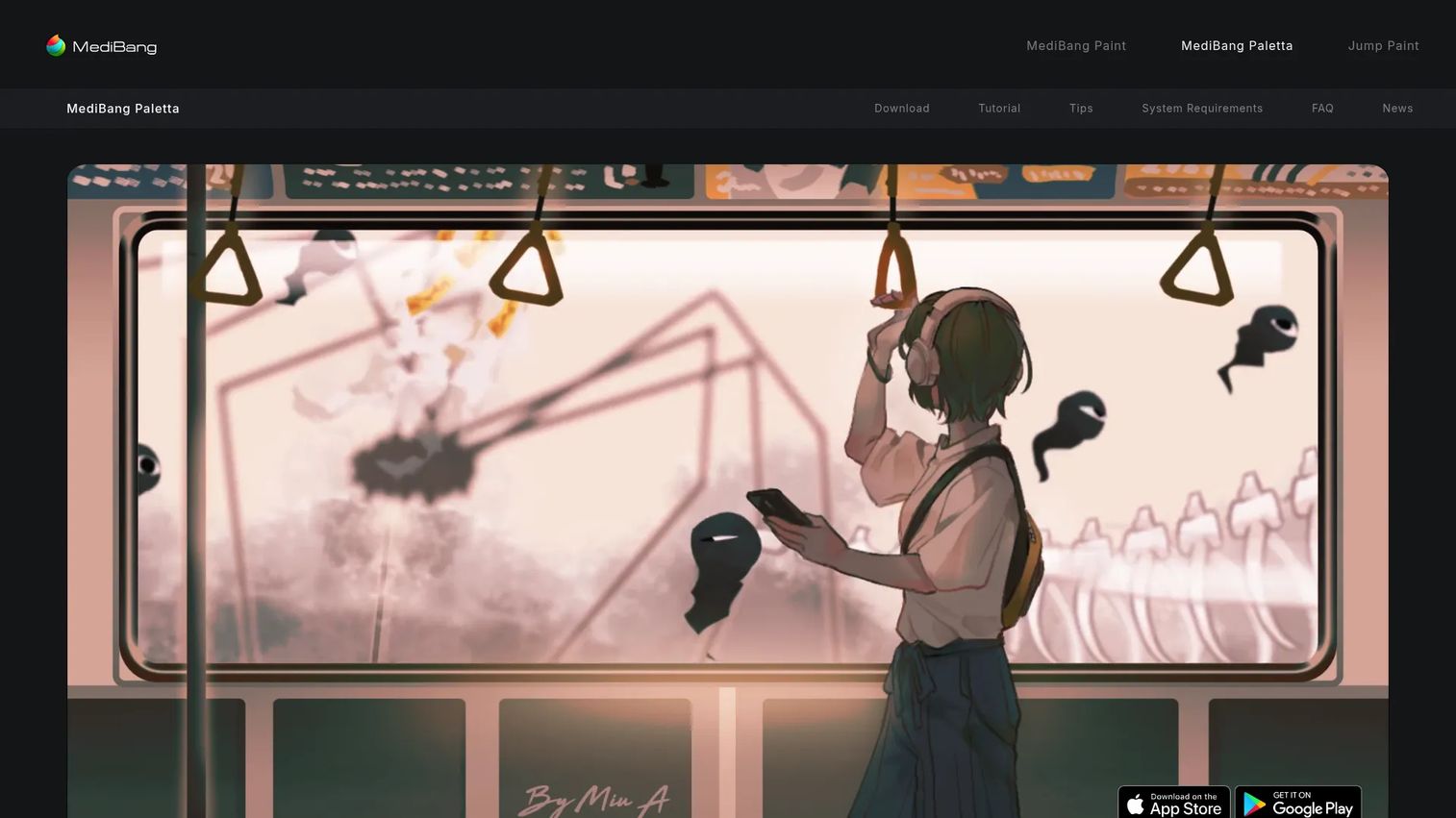
MediBang Paint is a free manga and comic drawing app with cloud features across devices. It stands out for cross-device convenience: Sync a project through the cloud and pick it up on a phone, tablet, or desktop without exporting files by hand. That makes it a strong fit for creators who work in more than one place.
The app is beginner-friendly but carries real manga tooling, including panel and screentone support plus a large library of free brushes and materials. Cloud storage keeps assets and projects in one place, which cuts the manual file-shuffling that slows multi-device work.
Best for: Creators who want cross-device convenience with free manga assets.
Key features
- Cloud sync across devices
- Panel and screentone support
- Free brushes and materials
- Beginner-friendly interface
- Windows, Mac, iOS, and Android support
Why choose MediBang Paint: Pick it when you move between devices and want your work to follow you. The trade-off against paid suites is a shallower ceiling on advanced production features as projects scale.
MediBang Paint pricing: MediBang Paint is free to use, with an optional Premium tier on the parent platform that lifts cloud and asset limits. The base app covers most beginner and intermediate needs at no cost.
No dedicated G2 rating is published for MediBang Paint, so lean on app-store reviews and manga community feedback when weighing it.
7. Photoshop
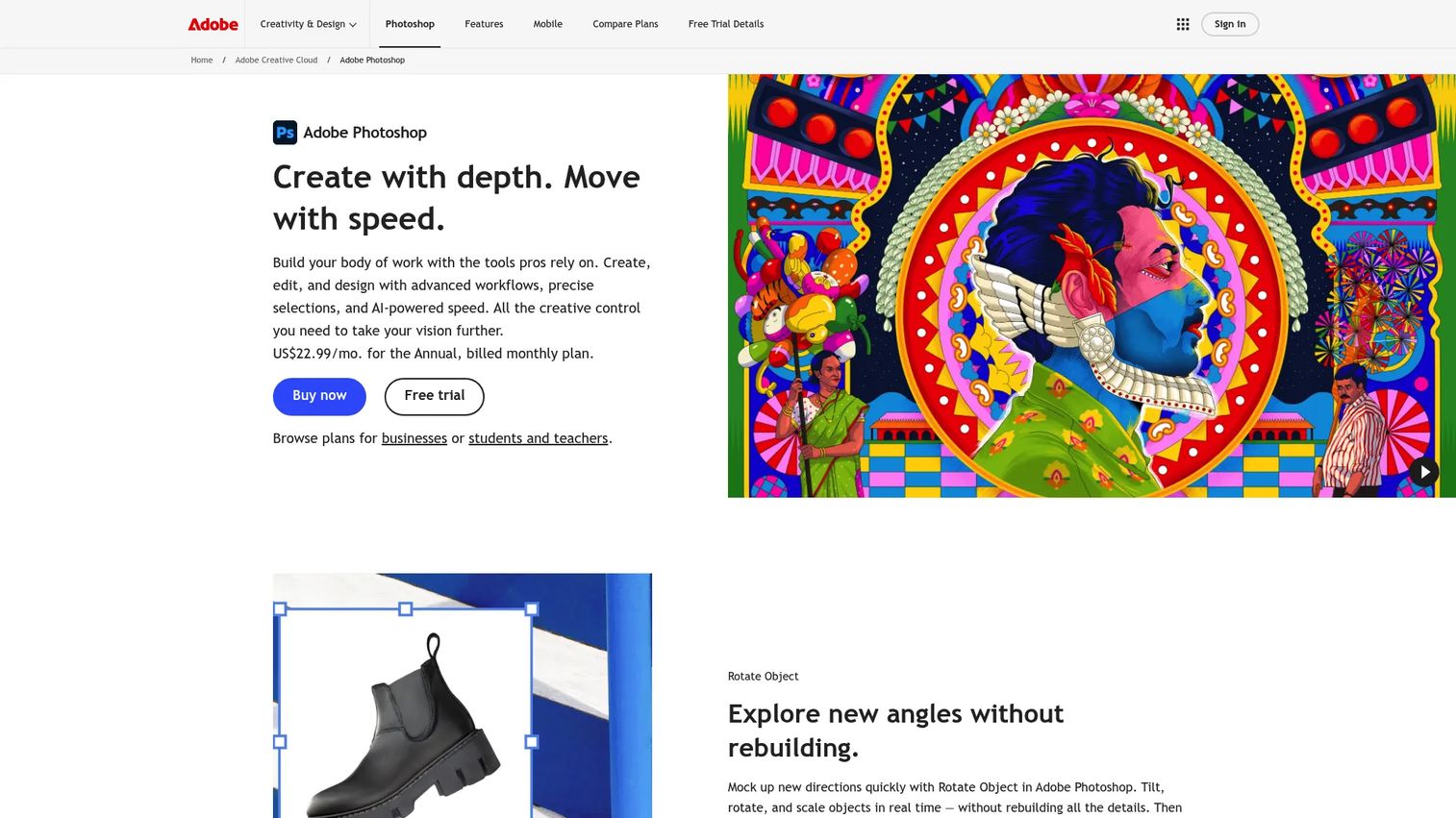
Photoshop is Adobe's image editing and design software with desktop, web, mobile, and AI-powered workflows. It is not manga-specific, and it earns its place on finishing power. Many artists draw pages elsewhere, then bring them into Photoshop for color, correction, and effects. It stands out for editing depth and generative tools that dedicated manga apps do not match.
The program carries advanced image editing, Generative Fill and Generative Expand, plus access across desktop, web, and mobile. The cost is higher than the rest of this list, and the learning curve leans toward photo and design rather than panel-based comics.
Best for: Professionals and teams already working inside the Adobe stack.
Key features
- Advanced image editing and design tools
- Generative Fill and Generative Expand
- Desktop, web, and mobile access
- Deep color and correction control
- Broad file-format support
Why choose Photoshop: Choose it when finishing, color, and editing matter more than native panel tooling, or when you already run Adobe apps. The trade-off is cost and the lack of built-in manga page structure.
Photoshop pricing: The Photoshop individual plan is $22.99/month (annual, billed monthly), with student and teacher rates at $19.99/month and team licenses at $37.99/month. A free mobile version and a free trial are available.
G2 reviewers rate Photoshop 4.6/5, the highest score on this list, driven by its editing depth and format support.
Considerations
Before you commit, run the shortlist against the criteria that actually decide whether a page ships. A tool that draws well but stalls at page assembly costs you time you will not get back.
Manga workflow depth
Check whether the app carries panel tools, speech balloons, screentones, and multi-page export. General art apps can draw, but they leave you assembling pages by hand. If you produce chapters, treat native page tooling as a hard requirement, not a nice-to-have.
Platform and device fit
Confirm the software runs where you work. Some tools are Windows-only, while others cover Mac, iOS, and Android with cloud sync. If you sketch on a tablet and finish on a desktop, prioritize apps that carry projects across devices without manual exports.
Total cost over a year
Compare a one-time license against a monthly subscription across your actual usage window. A free tool wins on cash, but a paid suite may save enough hours to pay for itself. Map the price to time saved per page, not just the sticker.
Learning curve versus output
Match the tool to your deadline reality. Beginner apps get you to a finished page fast with guided tutorials. Deep production suites reward the time you invest but demand a ramp. Pick based on how soon you need shippable work.
Conclusion
The right manga software comes down to what you are shipping and how fast. Clip Studio Paint is the depth pick for serious page production, carrying panels, screentones, and 3D reference in one app. Manga Studio 5, its comic-first lineage, suits creators who prioritize production workflow above all.
Starting without a budget? JUMP PAINT gives you free pens, tones, and editorial tutorials, while MediBang Paint adds cloud sync across every device. Krita brings open-source painting power at no cost, and Paint Tool SAI stays fast and light for line work. Already in the Adobe stack? Photoshop handles finishing, color, and editing better than any dedicated comic app.
Your next step is simple. Match your output format to the tool, then use the free trials to test page assembly on a real project before you pay. The best manga drawing program is the one that removes manual steps between your draft and your finished page.
If your work involves showing a digital product rather than drawing pages, the same principle applies to demo tooling. Teams use Guideflow to capture a product flow, edit and personalize it, share it anywhere, and analyze engagement, with AI assistance, team collaboration, and CRM integrations built in.
Start your journey with Guideflow today!
FAQs
MediBang Paint and JUMP PAINT are the strongest starting points. Both are free, run across desktop and mobile, and include manga assets and tutorials. JUMP PAINT adds editorial lessons from Jump editors, which helps new artists learn craft alongside the tools.
Yes. JUMP PAINT and MediBang Paint are free manga apps with panel and screentone support. Krita is free and open source with a strong brush engine. All three cover most beginner and intermediate needs without a subscription.
Yes, though it is not manga-specific. Photoshop lacks built-in panel and screentone tools, so many artists draw pages in a dedicated app, then finish color and editing in Photoshop. Its editing depth and generative features make it a common finishing step, not a full page-production tool.
Clip Studio Paint is the most common professional choice, carrying panels, screentones, and 3D reference in one app. Beginners often start with MediBang Paint or JUMP PAINT for free access. Some artists sketch in Paint Tool SAI and finish in Photoshop.
They serve different needs. Clip Studio Paint offers deeper manga tooling and vector layers but costs money after the trial. MediBang Paint is free with cloud sync across devices and solid panel and tone support. Choose Clip Studio Paint for production depth, MediBang Paint for free cross-device convenience.
Clip Studio Paint, JUMP PAINT, and MediBang Paint all run on iOS and Android. MediBang Paint and JUMP PAINT add cloud sync so you can move between tablet and desktop. Paint Tool SAI is Windows-only, and Photoshop offers a mobile version alongside desktop.
Panel tools, speech balloons, screentones, rulers, and multi-page export decide whether a page ships cleanly. Layer support (vector and raster) keeps linework editable. For anime-style illustration, brush quality and line stabilization matter more than panel tooling.
The name lives on, but the product is now Clip Studio Paint. Its comic-first feature set (panels, balloons, screentones, and 3D reference) remains strong and actively updated. If you search for Manga Studio 5, you are looking at the current Clip Studio Paint lineup under a legacy name.