You recorded the onboarding tutorial last month. The product shipped a UI update. Now customers are following the wrong screen, and your ticket queue is filling up with the same question you thought you'd already answered.
The real problem is not that you lack content. It's that the content you have goes stale the moment engineering ships. And when customers can't find their way through the product on their own, they stop trying, churn risk climbs, and your calendar fills up with calls that shouldn't need to happen.
The global screen-recording software market hit $2.1 billion in 2025 and is projected to reach $4.62 billion by 2030, according to Mordor Intelligence (2026). That growth reflects how many teams now depend on tutorial content to scale education without scaling headcount. The question is which format, and which tool, actually closes the gap between a customer who's stuck and one who gets it.
What's inside
This guide compares 14 tutorial creation software tools for 2026, selected to cover the full range of formats CS teams actually use.
- Who it's for: Customer Success Managers, onboarding managers, support leaders, and SaaS teams reducing repetitive education
- How tools were chosen: Best-fit use case, update speed after product changes, customer onboarding value, pricing and G2 rating
- Pricing and G2 ratings were verified at drafting time against each vendor's live pricing page and G2 listing
TL;DR
- Best overall for interactive product tutorials: Guideflow, because it lets customers click through the product at their own pace and gives CS teams completion and step-level drop-off data
- Best for quick async video replies: Loom, for one-off customer explanations with a human voice
- Best for polished screen-recorded training: Camtasia, when production quality matters
- Best free setup: OBS Studio (recording) or Kdenlive (editing), for teams with technical users and no software budget
- Best for LMS-ready training: iSpring Suite or ActivePresenter, when compliance or quiz-based learning is required
- Best for AI avatar videos: Synthesia, for scalable multilingual training content
What is tutorial creation software?
Tutorial creation software helps teams produce instructional content that teaches users, employees, or customers how to complete a task, use a product feature, or follow a workflow.
The category is broader than most people expect. Video tutorial software is one subset, covering screen recording, editing, and AI-generated video. But the category also includes interactive tutorials that users click through, step-by-step workflow documentation, LMS-ready training modules, and presentation-based instruction. Each format answers a different question about how the learner engages.
Key features to look for
- Workflow or screen capture: Records product flows directly from the browser or desktop
- Post-capture editing: Lets teams update steps without restarting from scratch
- Voiceover and caption support: Adds narration, text, or AI-generated audio
- Interactive steps or practice modes: Lets users click through the product rather than watch
- Brand customization: Applies logos, colors, and templates
- Sharing options: Publishes by link, embed, or LMS package
- Analytics on completion and drop-off: Shows where customers finish, hesitate, or abandon
- Team collaboration: Supports multiple editors, version control, and access controls
Understanding the category breadth matters because the right tool depends on a specific question: Does your customer need to watch the tutorial, or do they need to do it? A passive video tells the story. An interactive demo lets the customer practice the actual flow. For CS teams dealing with product adoption problems, that distinction often determines whether the tutorial changes behavior.
When to use tutorial creation software
Onboard customers without repeating the same call
Repetitive onboarding calls are a time problem disguised as a process problem. When a CS team can share a reusable tutorial that customers complete at their own pace, those calls drop. The right tool lets customers hit a decision point in the product, refer to the tutorial without asking for help, and move forward on their own timeline.
Teach product changes before tickets spike
Every UI update is a tutorial staleness problem. If the tutorial shows the old screen, customers follow the wrong path and open tickets. Choosing a tool that allows fast recapture or step-level editing means a product change triggers a ten-minute update, not a full re-recording cycle. That gap between "product shipped" and "tutorial updated" is where churn quietly builds.
Train teams on repeatable workflows
Internal tutorial creation matters too. Enablement content, compliance training, SOP documentation, and new hire onboarding all benefit from structured formats. Tools that export to SCORM or xAPI formats connect to LMS platforms for tracked completion. The format choice depends on whether the training needs practice, assessment, or just clear visual instruction.
Tutorial creation software comparison
The table below covers all 14 tools with verified pricing and G2 ratings. Use it as a starting filter, then read the item sections for format-specific guidance.
| # | Product | Best for | Key differentiator | Pricing | G2 rating |
|---|---|---|---|---|---|
| 1 | Guideflow | Interactive product tutorials for SaaS CS teams | Completion and step drop-off data for customer education | Free plan; paid from $35/user/month (annual) | 5.0/5 |
| 2 | Loom | Quick async video explanations | Screen and camera recording with instant share links | Free plan; Business from $18/user/month | 4.7/5 |
| 3 | Camtasia | Polished screen-recorded training videos | Multi-track editing with cursor effects and quizzes | From $39/year (Starter) | 4.6/5 |
| 4 | OBS Studio | Free screen recording with advanced configuration | Open-source, scene-based capture with no cost | Free | 4.6/5 |
| 5 | ScreenPal | Lightweight screen recording and tutorial videos | Approachable recorder with built-in cloud hosting | Free plan; Deluxe from $4/month | 4.5/5 |
| 6 | Synthesia | AI avatar-based training videos | Script-to-video with AI avatars and translation | Free plan; Starter from $29/month | 4.6/5 |
| 7 | ActivePresenter | eLearning tutorials with software simulations | SCORM and xAPI export with quiz authoring | Free edition; Standard from $249/license | 4.6/5 |
| 8 | Kdenlive | Free editing of recorded tutorial footage | Open-source multi-track editor, no license fees | Free | 4.5/5 |
| 9 | iSpring Suite | PowerPoint-based LMS-ready training courses | PowerPoint-native authoring with SCORM publishing | From $970/author/year | 4.6/5 |
| 10 | DaVinci Resolve | Advanced tutorial video editing on a low budget | Professional editing, color, and audio in a free version | Free; Studio at $295 (one-time) | 4.0/5 |
| 11 | Adobe Premiere Pro | Professional tutorial video editing in Adobe workflows | AI-powered editing with Creative Cloud integration | From $22.99/month (annual) | 4.5/5 |
| 12 | Microsoft PowerPoint | Slide-based tutorials and lightweight internal training | Familiar authoring with built-in screen recording | Free web version; Microsoft 365 from $69.99/year | 4.6/5 |
| 13 | Vidyard | Business video tutorials with hosting and viewer analytics | AI-powered video with CRM integrations | Free plan; Starter pricing on request | 4.5/5 |
| 14 | Guidde | AI video documentation from captured workflows | AI-generated narration from screen captures | Free plan; Pro from $19/creator/month (annual) | 4.8/5 |
Best 14 tutorial creation software tools for 2026
1. Guideflow
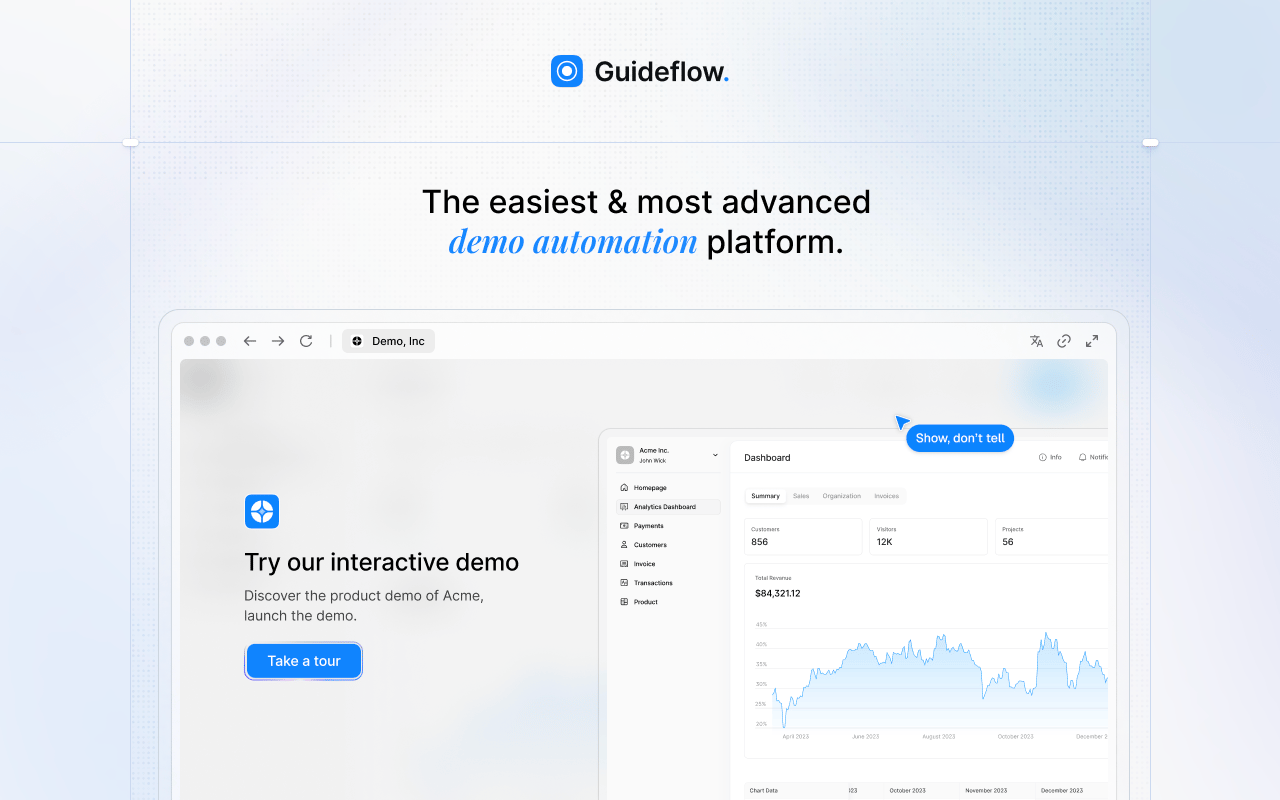
Guideflow is a demo automation platform that turns product flows into interactive tutorials users click through at their own pace. Instead of recording a video someone has to watch, Guideflow captures your product interface and builds a clickable path customers can follow in real time. It's built for SaaS customer onboarding, feature adoption, support documentation, customer education, and product training.
Best for: SaaS CS, onboarding, support, and product teams that need interactive product tutorials that customers can complete without a live call.
Key features
- Browser-based product capture with screenshot, HTML, and video modes
- Clickable interactive tutorial paths with branching options
- No-code editing and personalization for text, images, and variables
- Completion and step-level drop-off analytics
- Share by link, embed, or organized Demo Center
Why choose Guideflow: The critical advantage for CS teams is update speed. When a product flow changes, the team can recapture or edit specific steps in minutes rather than re-recording an entire video. The step-level analytics show exactly where customers complete, hesitate, or drop off, so CS leaders can fix the specific point where adoption breaks down. Guideflow's suite also includes sandboxes for free-form product exploration, live demos for presenter-led sessions, and mobile demos for mobile product experiences, so the platform covers the full range of interactive education formats across a customer lifecycle.
Guideflow pricing: Free plan available. Solo plan is $35/user/month on annual billing ($40/month on monthly billing). Growth plan starts at $499/month annually. Advanced at $1,499/month annually. Enterprise pricing is custom.
G2 rating: 5.0/5
Start your journey with Guideflow today!
2. Loom
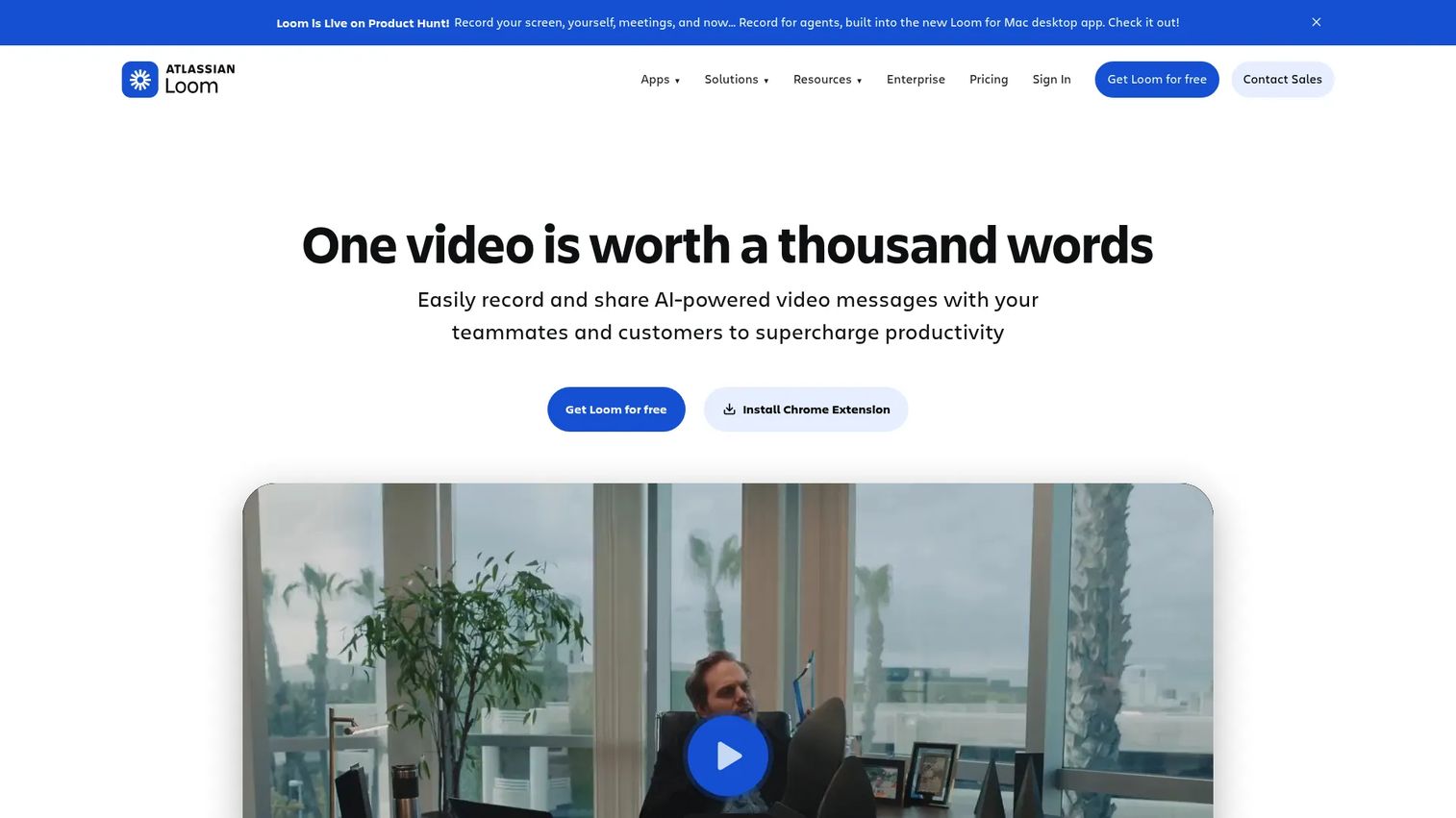
Loom is a video communication platform for recording screen and camera video and sharing it instantly with a link. CS teams use it for quick one-off customer explanations, support replies, onboarding snippets where a human voice helps, and internal team updates. It's the tool you reach for when a text reply isn't enough but scheduling a call is too much.
Best for: Quick async tutorial videos where a personal screen-and-voice explanation serves the moment better than a formal tutorial.
Key features
- Screen and camera recording with instant share links
- AI-generated titles, summaries, and chapters (Business + AI plan)
- Viewer engagement insights and watch-time data
- Transcript and closed caption support
- Comments, emoji reactions, and in-video tasks
Why choose Loom: Choose it when the tutorial needs personality or immediate context from a CSM, particularly for one-on-one explanations. It's not built for tutorials that need to be practiced or updated after a product release; the video is static once recorded.
Loom pricing: Starter plan is free with limited video and recording quotas. Business plan is $18/user/month. Business + AI is $24/user/month. Enterprise pricing requires contacting sales.
G2 rating: 4.7/5
3. Camtasia
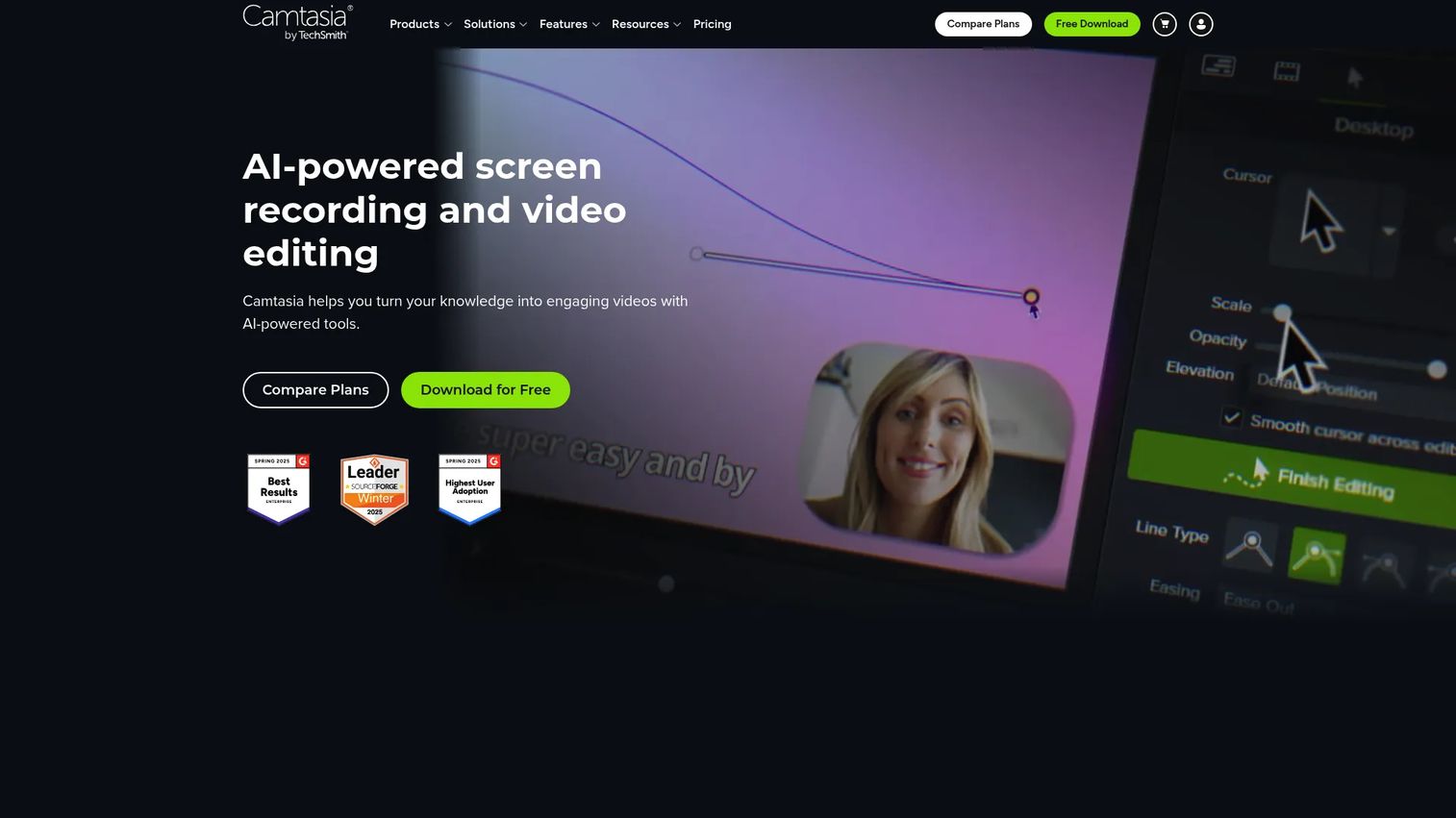
Camtasia is a mature screen recording and video editing tool built for polished training content. It records up to 4K at 60 fps and offers multi-track editing with annotations, cursor effects, and transitions. Training teams use it for software how-to videos, product demos, and educational modules where production quality matters.
Best for: Training teams and educators creating polished screen-recorded tutorials and software demonstrations.
Key features
- Screen recording up to 4K at 60 fps
- Multi-track video editing with annotations and transitions
- Cursor effects and callout tools
- Quizzes and interactive elements
- AI-assisted text-based editing and voiceover (Create and Pro plans)
Why choose Camtasia: Choose it when the tutorial is meant to be watched by many people and production quality reflects on the brand. For CS teams, consider the maintenance cost: When the product UI changes, the video needs re-recording, and that cycle adds up quickly on a frequent release schedule.
Camtasia pricing: Starter plan is $39/year. Essentials is $179.88/year. Create is $249/year. Pro is $599/year. All plans are billed annually.
G2 rating: 4.6/5
4. OBS Studio
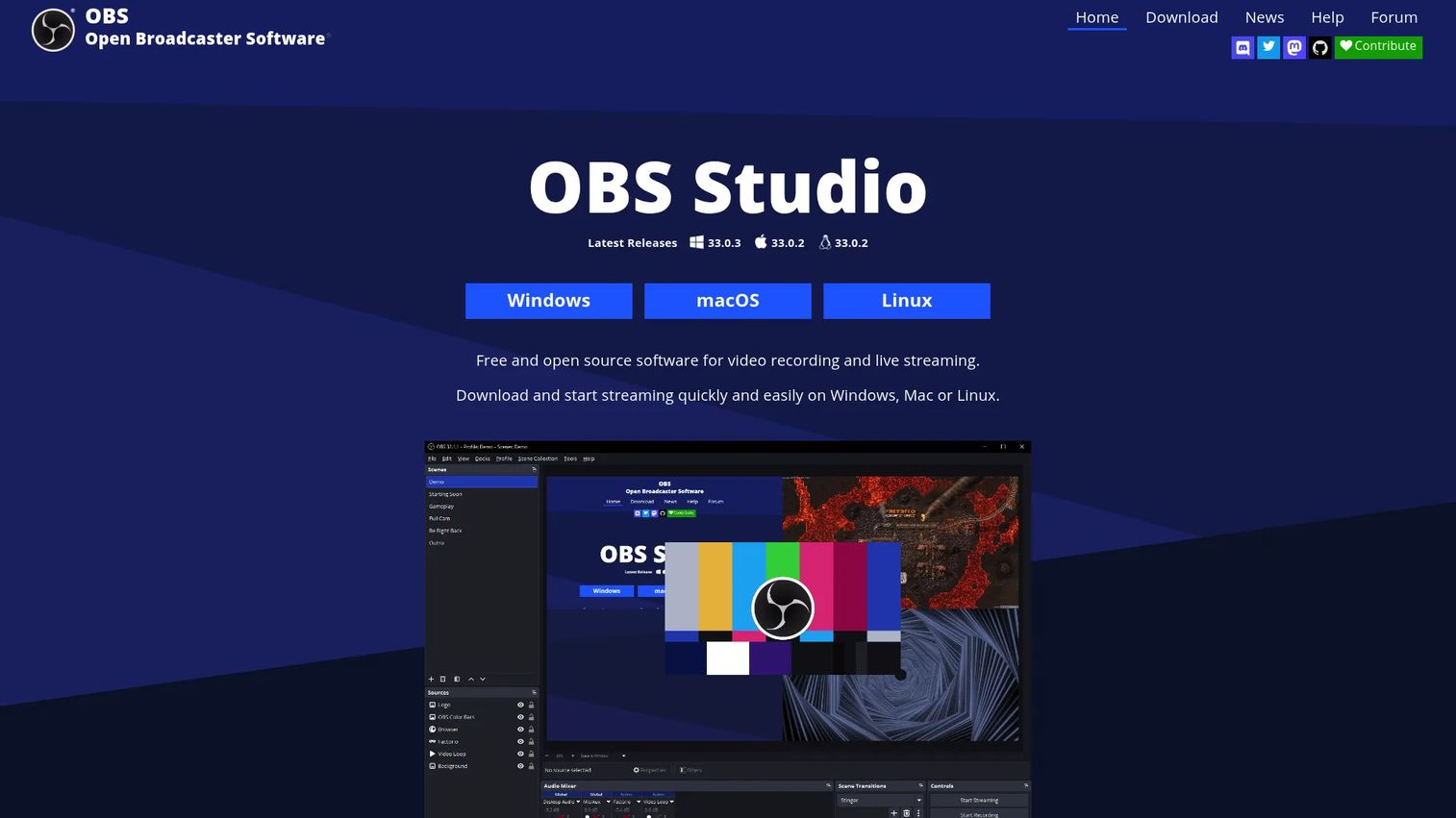
OBS Studio is free, open-source software for screen recording and live streaming. It offers scene-based capture, audio source mixing, and an extensive plugin ecosystem. Teams with technical users and no software budget often start here when they need a recording setup without a subscription.
Best for: Free screen recording with advanced configuration options for technically comfortable users.
Key features
- Free open-source recording with no license fees
- Scene-based capture with multiple source types
- Audio mixer with per-source filters and VST plugin support
- Streaming support for live sessions
- Active plugin ecosystem for extended capability
Why choose OBS Studio: The draw is the cost: Zero. Someone on the team needs to configure scenes, sources, and audio, so it's not a one-click recorder. OBS also does not include editing or hosting, so most teams pair it with a separate editing tool and hosting platform.
OBS Studio pricing: Free.
G2 rating: 4.6/5
5. ScreenPal
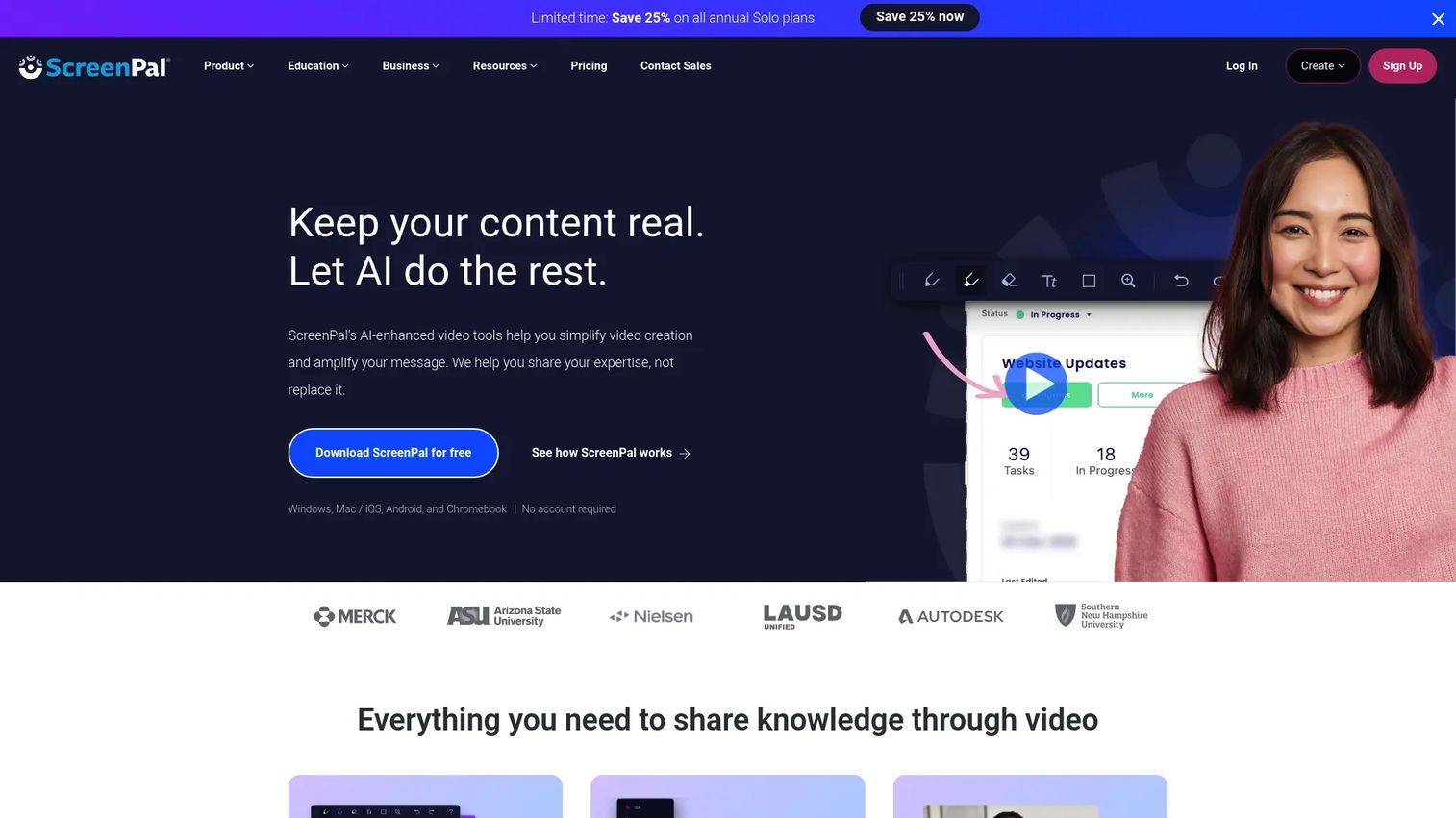
ScreenPal is an AI-enhanced platform for screen recording, light video editing, cloud hosting, and interactive video. It suits individuals and small teams who want an approachable recorder without the production overhead of a full editing suite. CS teams use it for support clips, quick feature explanations, and simple customer education videos.
Best for: Simple screen recordings and quick tutorial videos for customer support and lightweight onboarding.
Key features
- Screen and webcam recording
- Basic video editing with overlays, text, and annotations
- AI-generated captions, transcripts, and voiceovers
- Interactive quizzes, polls, and buttons
- Cloud hosting and secure sharing
Why choose ScreenPal: It strikes a good balance between ease and capability at a low price. The interactive quiz feature on paid plans adds a layer of engagement that basic recorders skip. For teams that need LMS authoring or step-level product interaction, though, it's not the right fit.
ScreenPal pricing: Free plan available. Deluxe plan is $4/month. Max is $10/month. Business plan is $8/user/month.
G2 rating: 4.5/5
6. Synthesia
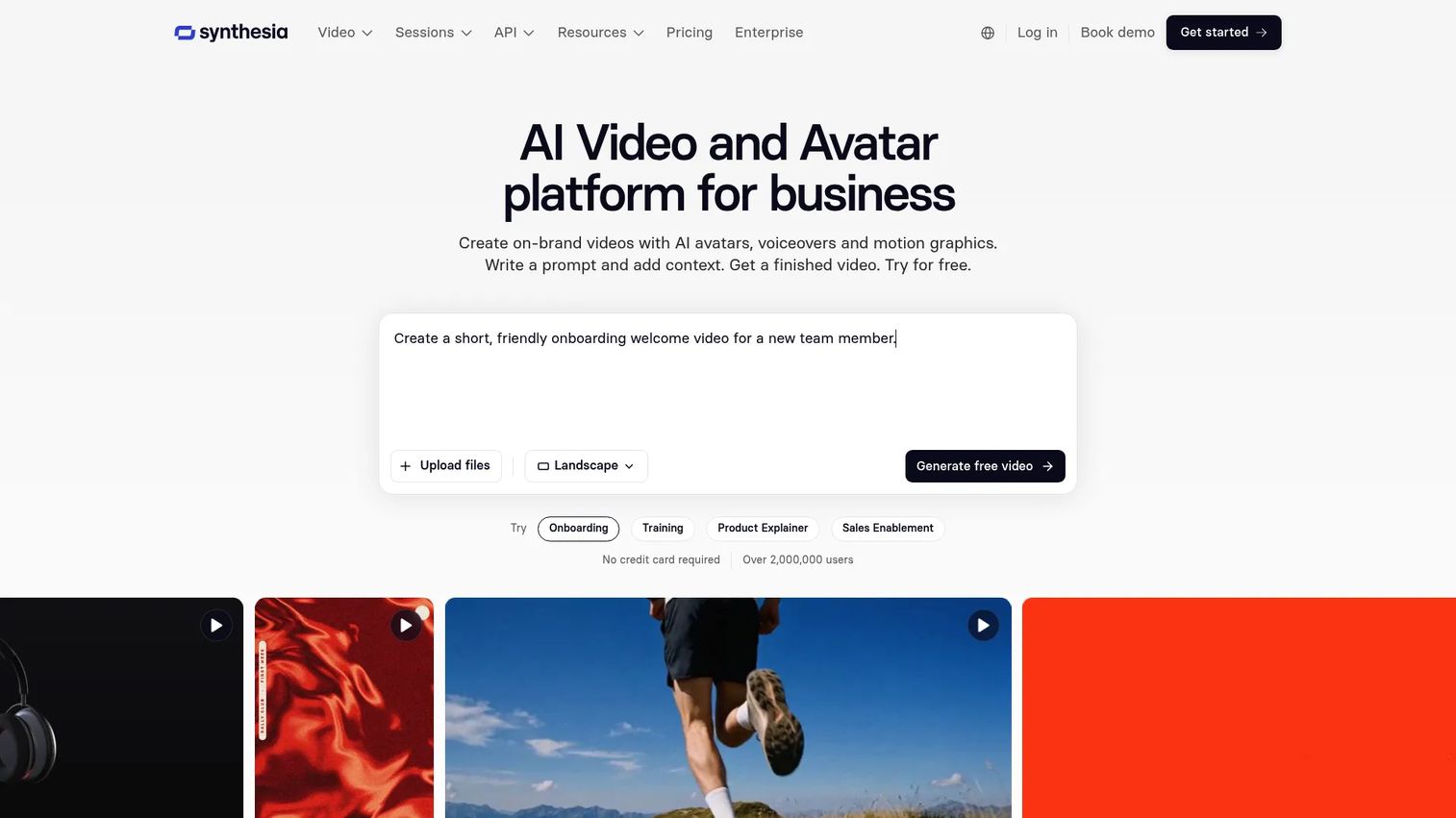
Synthesia is an AI video platform that creates professional training videos from text scripts, with AI avatars, voiceovers, and multilingual dubbing. CS and training teams use it for scalable onboarding content, policy videos, and multilingual customer education where filming people is impractical.
Best for: AI avatar-based training and tutorial videos, particularly when multilingual delivery or presenter-free production matters.
Key features
- AI avatars with text-to-video generation
- AI voice generation and voice cloning
- Video dubbing and translation into multiple languages
- PowerPoint-to-video conversion
- Branded templates and AI video editing
Why choose Synthesia: Strong when you need polished presenter-led content at scale without studio costs. The translation capability makes it useful for teams serving customers in multiple regions. It's less suited to tutorials where the customer needs to interact with the actual product flow, since the output is a passive video.
Synthesia pricing: Basic plan is free. Starter is $29/month. Pro is $89/month. Enterprise pricing is custom.
G2 rating: 4.6/5
7. ActivePresenter
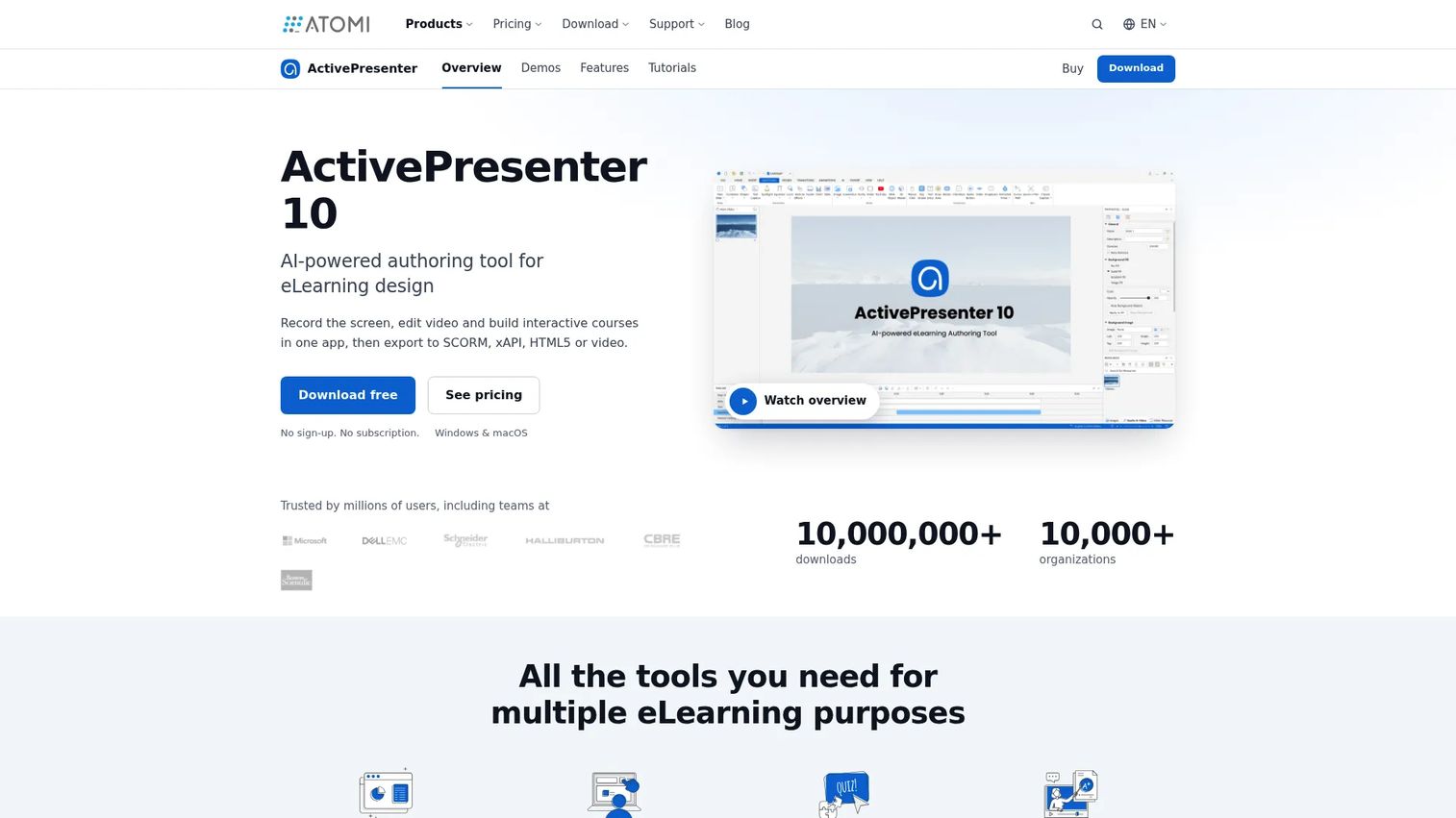
ActivePresenter is an AI-powered screen recorder, video editor, and eLearning authoring tool. It supports software simulations, quiz authoring, branching scenarios, and export to SCORM, xAPI, and HTML5. Training teams building structured learning content with tracked completion use it to deliver courses to an LMS.
Best for: Organizations creating interactive eLearning tutorials, software simulations, and LMS-ready training content.
Key features
- Screen, webcam, and audio recording
- Interactive eLearning with quizzes and branching scenarios
- AI writing, auto captions, and translation tools
- SCORM and xAPI export for LMS publishing
- Responsive design and PowerPoint import
Why choose ActivePresenter: Choose it when the tutorial needs practice modes, assessments, or tracked completion inside an LMS. It's more training-authoring oriented than customer-facing SaaS onboarding, so CS teams building structured certification programs or compliance training get more from it than those building quick product education assets.
ActivePresenter pricing: Free edition for personal and non-commercial use. Standard license is $249 (one-time). Pro license is $249 for education, $499 for commercial use (one-time, perpetual). AI credits are sold separately.
G2 rating: 4.6/5
8. Kdenlive
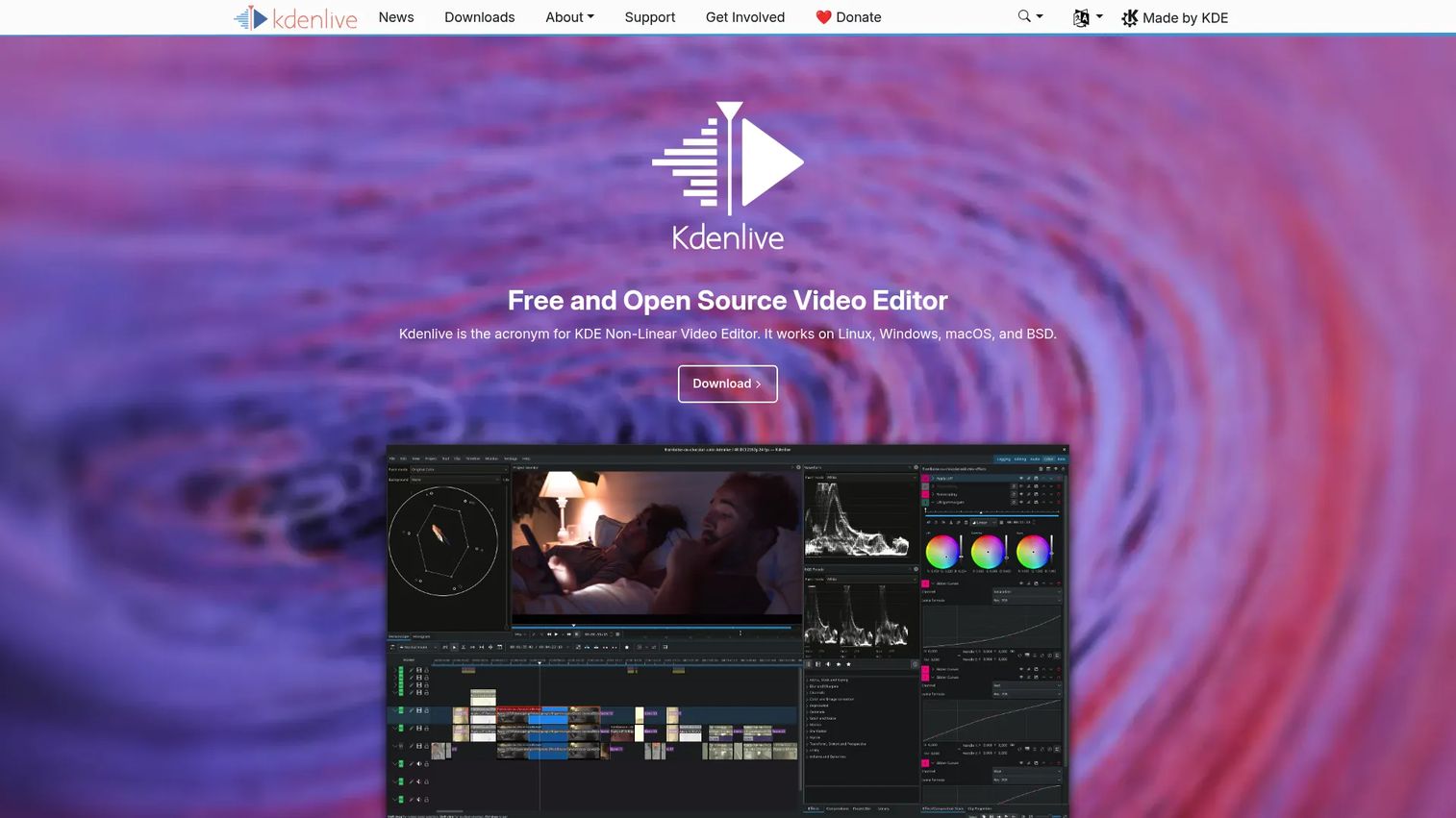
Kdenlive is free, open-source, cross-platform video editing software. It handles multi-track editing, effects, transitions, color tools, and automatic subtitle generation. Teams that already record footage elsewhere and need a free editor to cut and assemble tutorial videos reach for it.
Best for: Free editing of recorded tutorial footage for teams with video production skills and no editing budget.
Key features
- Multi-track video and audio editing
- Effects, transitions, and keyframe animation
- Color correction and grading tools
- Automatic subtitle generation and translation
- Built-in title editor
Why choose Kdenlive: The cost is the argument: No license fees, no subscriptions. It requires more manual work than purpose-built tutorial tools and does not include screen capture or hosting. Plan for a more hands-on editing workflow compared to tools like Camtasia.
Kdenlive pricing: Free, with no paid tiers or premium features.
G2 rating: 4.5/5
9. iSpring Suite
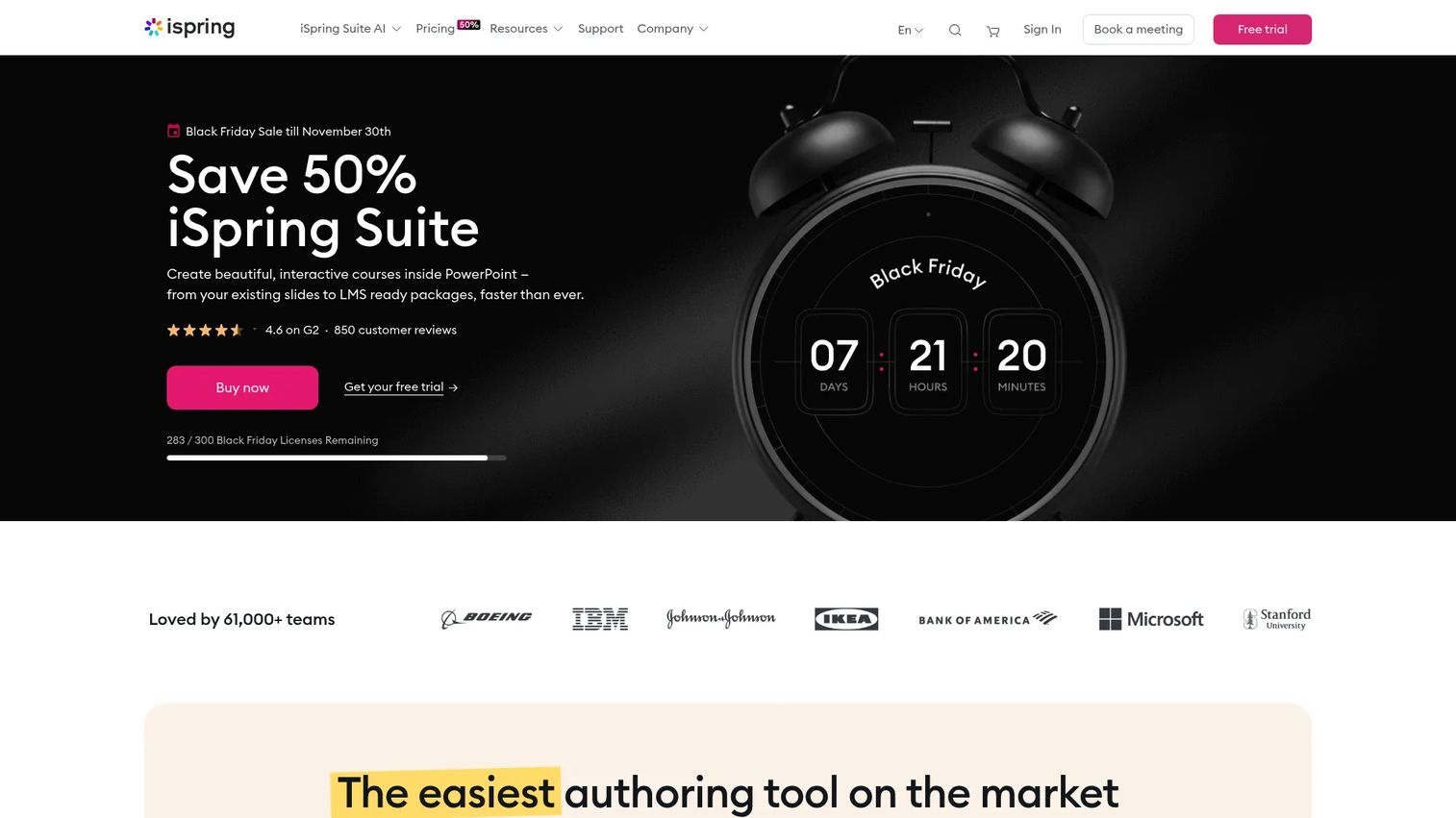
iSpring Suite is a PowerPoint-based eLearning authoring toolkit used by instructional designers and corporate trainers. It converts PowerPoint presentations into interactive online courses, adds quizzes and dialogue simulations, and publishes to SCORM, xAPI, cmi5, and HTML5 for LMS delivery.
Best for: Instructional designers and corporate trainers building LMS-ready courses from PowerPoint, with tracked completion and quiz results.
Key features
- PowerPoint-based course authoring with native integration
- Quiz builder with multiple question types
- Branching scenarios and dialogue simulations
- Screen recording and video lectures
- SCORM, xAPI, cmi5, and HTML5 publishing
Why choose iSpring Suite: Teams that already build training in PowerPoint and need LMS compatibility without learning a new authoring environment. The annual per-author pricing is higher than many options on this list, so it makes most sense when the training output is extensive and the LMS integration is a hard requirement.
iSpring Suite pricing: iSpring Suite is $970/author/year. iSpring Suite AI is $1,290/author/year. Custom pricing is available for education and nonprofit organizations.
G2 rating: 4.6/5
10. DaVinci Resolve
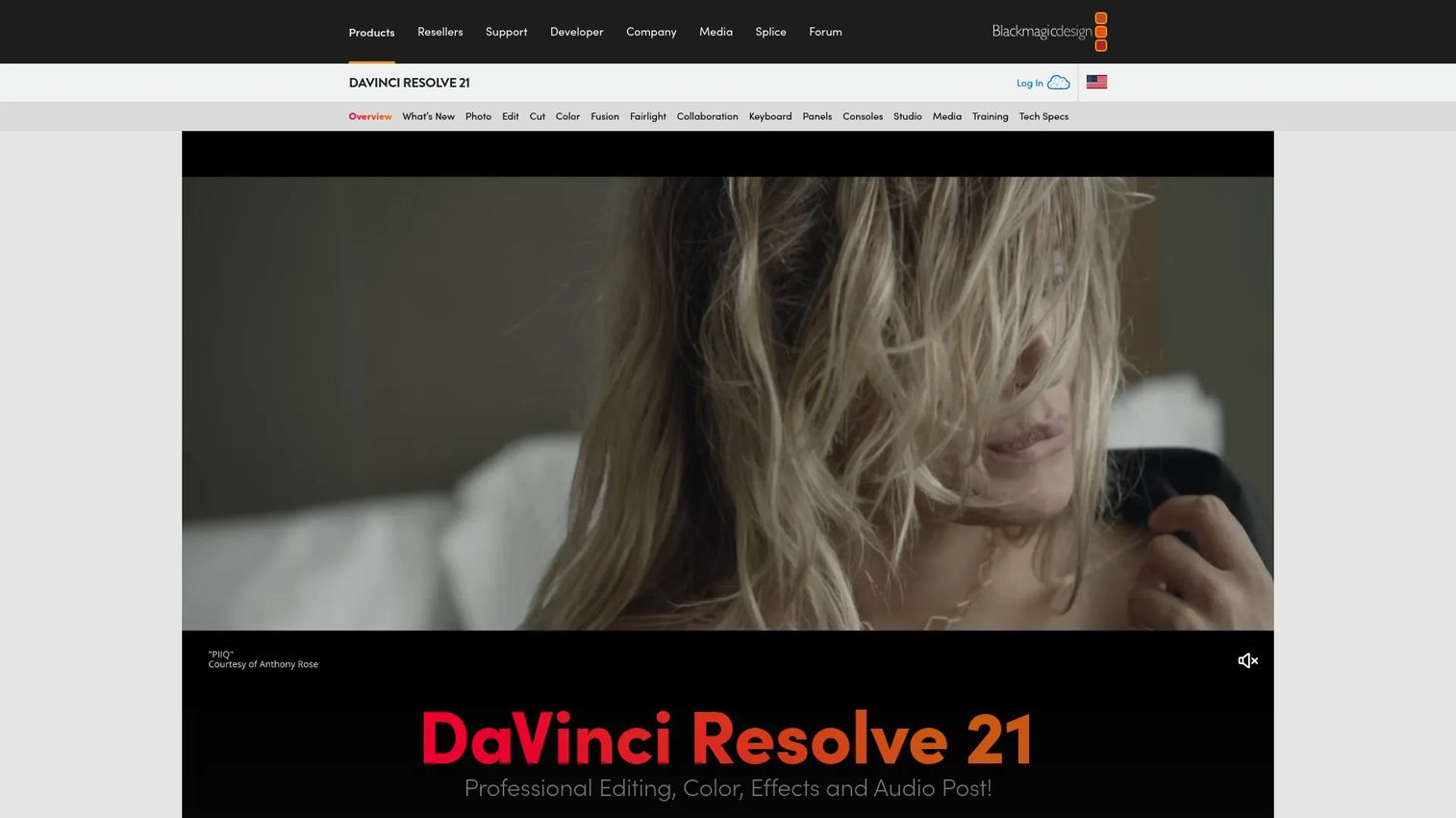
DaVinci Resolve is professional video editing, color correction, visual effects, and audio post-production software with a generous free version. Teams producing high-quality tutorial videos with serious editing requirements use it to get professional-grade output at low software cost.
Best for: Advanced tutorial video editing and post-production on a low software budget, for teams with video editing expertise.
Key features
- Professional video editing with multi-track timeline
- Color correction and advanced grading tools
- Audio post-production and mixing
- Motion graphics and visual effects
- Studio version adds AI-powered noise reduction and additional effects
Why choose DaVinci Resolve: Strong for teams where tutorial quality is a production priority and an editor already knows the tool. It requires a separate recording workflow and hosting setup, and it has significantly more complexity than a CS team needs for quick onboarding assets.
DaVinci Resolve pricing: DaVinci Resolve 21 is free. DaVinci Resolve Studio 21 is a one-time purchase of $295.
G2 rating: 4.0
11. Adobe Premiere Pro
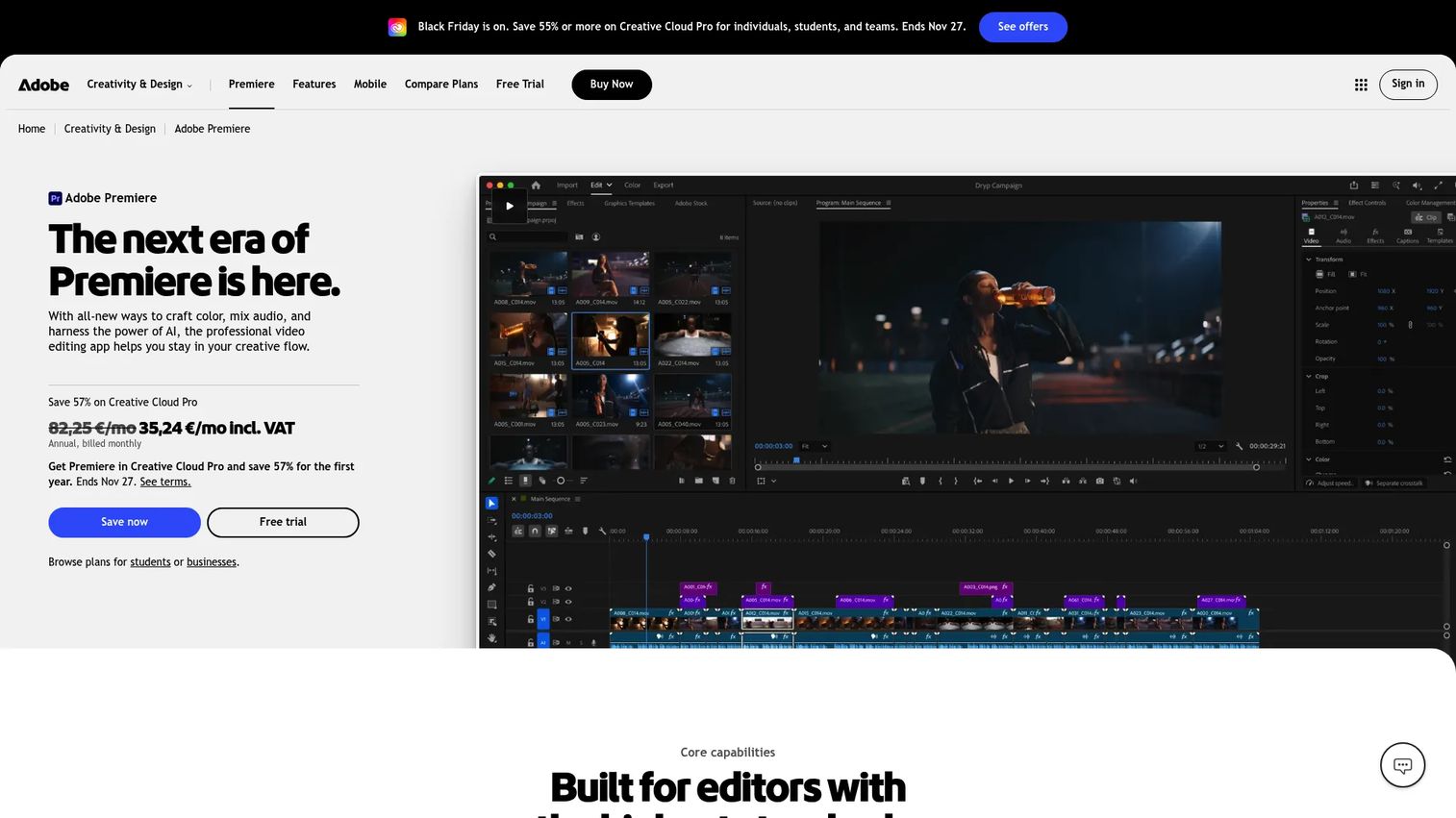
Adobe Premiere Pro is professional video editing software with AI-powered tools, timeline editing, caption workflows, color grading, and Creative Cloud integration. Organizations with video production teams already in the Adobe ecosystem use it for branded tutorial content that needs high production quality.
Best for: Professional tutorial video editing for teams with Creative Cloud access and video production staff.
Key features
- Timeline video editing with AI-powered tools
- Text-Based Editing and automatic transcription
- Caption and subtitle workflows
- Color correction and audio mixing tools
- Creative Cloud and Frame.io integration
Why choose Adobe Premiere Pro: Choose it when the team has video production talent, needs brand-level editing control, and already pays for Creative Cloud. The production overhead is significant for quick CS onboarding assets, and the subscription cost adds up for teams that only need occasional tutorial updates.
Adobe Premiere Pro pricing: Single-app Premiere plan is $22.99/month (annual, billed monthly). Creative Cloud Pro is $34.99/month. Teams plans start at $37.99/license/month. A seven-day free trial is available.
G2 rating: 4.5
12. Microsoft PowerPoint
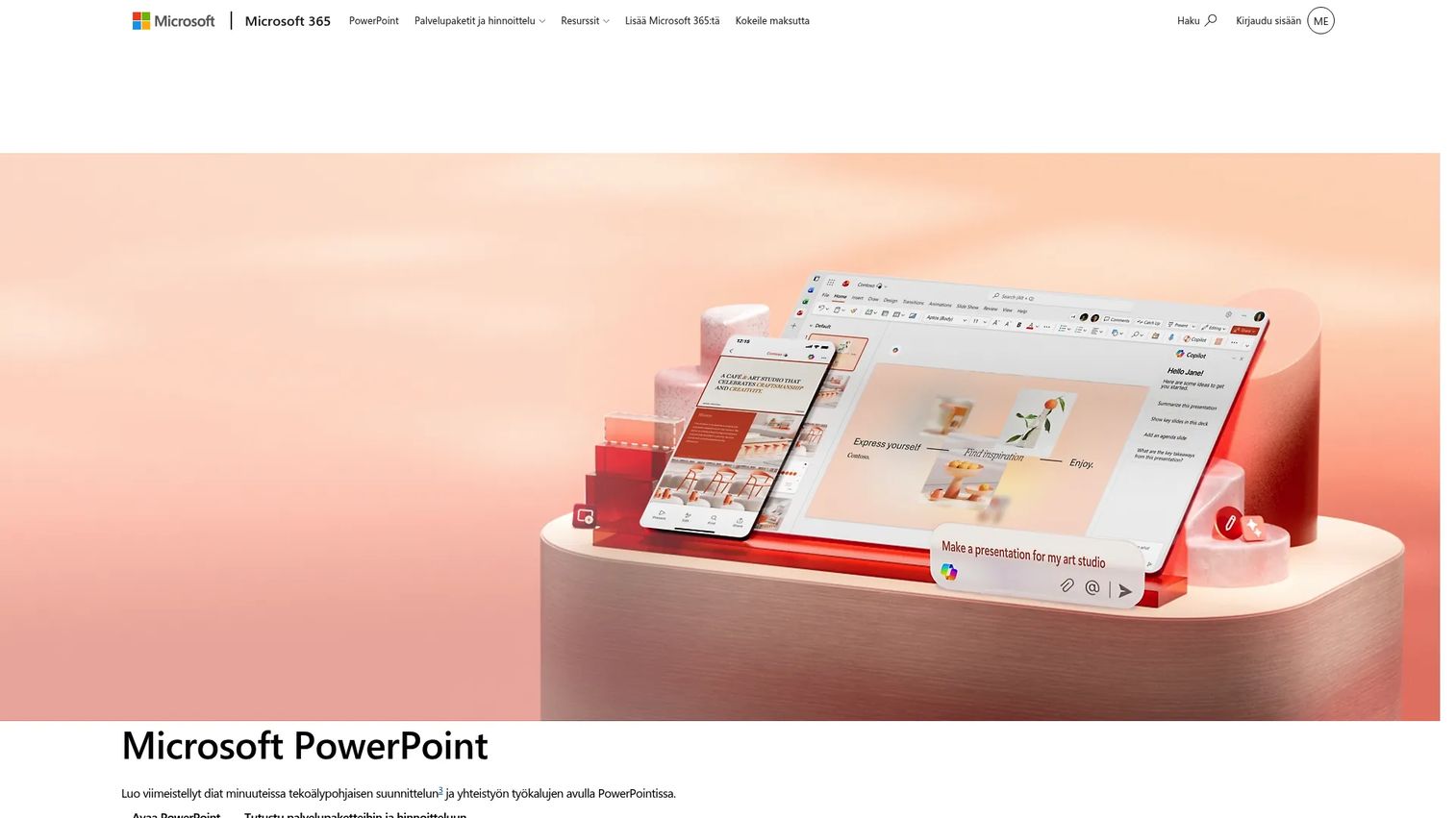
Microsoft PowerPoint is presentation software that most organizations already have, with built-in screen recording, narration, and video export. Training and enablement teams use it for slide-based tutorial content, process walkthroughs, and lightweight internal training when familiarity with the tool is more important than production capability.
Best for: Slide-based tutorials and lightweight internal training where the team already works in Microsoft 365.
Key features
- Slide-based authoring with templates
- Built-in screen recording
- Narration recording and timing controls
- Copilot-assisted slide generation (Microsoft 365 plans)
- Export to video format
Why choose Microsoft PowerPoint: The case for PowerPoint is that many organizations already pay for Microsoft 365, so the marginal cost to create training content is zero. It's weaker when customers need to practice a real product flow or when the tutorial needs to be updated quickly after a product release without rebuilding slides.
Microsoft PowerPoint pricing: Free web version available. Microsoft 365 Personal is $69.99/year (promotional first-year price). Microsoft 365 Family is $129.99/year. Microsoft 365 Premium is $139.99/year (promotional first-year price).
G2 rating: 4.6/5
13. Vidyard
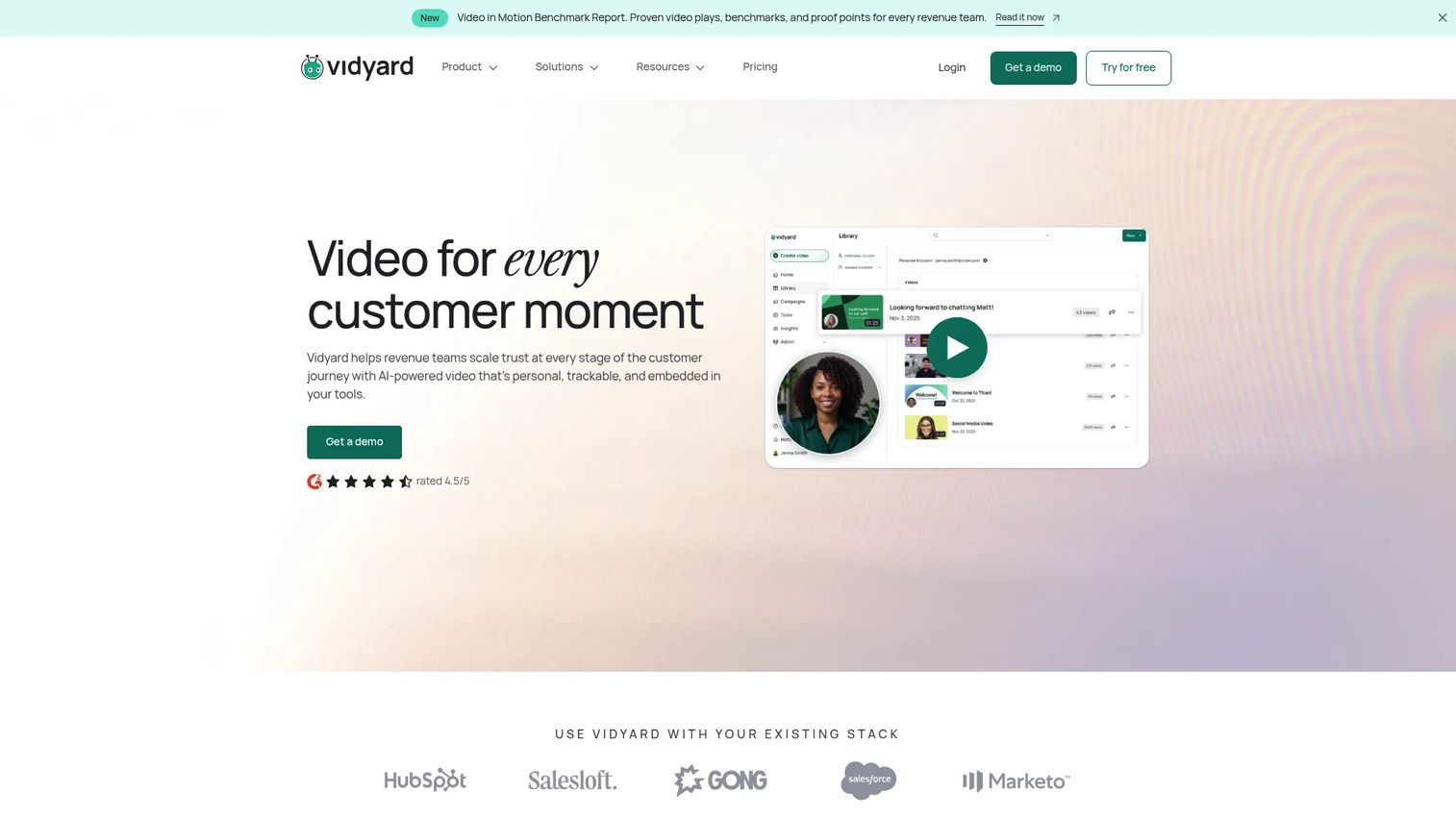
Vidyard is an AI-powered video platform for recording, hosting, sharing, and analyzing business video. Revenue teams use it for personalized video outreach, customer education content, and video libraries. For CS teams, the engagement analytics and CRM integrations make it useful when video distribution and viewer data matter as much as the recording itself.
Best for: Business video tutorials where hosting, viewer engagement tracking, and CRM integration are priorities alongside recording.
Key features
- Screen and webcam recording
- Personalized video messaging with AI avatars
- Video hosting and branded sharing pages
- Viewer analytics and engagement tracking
- CRM and marketing automation integrations
Why choose Vidyard: Good when a CS team needs to know who watched, how much of the video they completed, and how that activity connects to CRM data. Use a more interactive platform when customers need to click through a product path rather than watch a recording.
Vidyard pricing: Free plan available. Teams and Enterprise plans use custom pricing. Contact Vidyard for paid plan details.
G2 rating: 4.5/5
14. Guidde
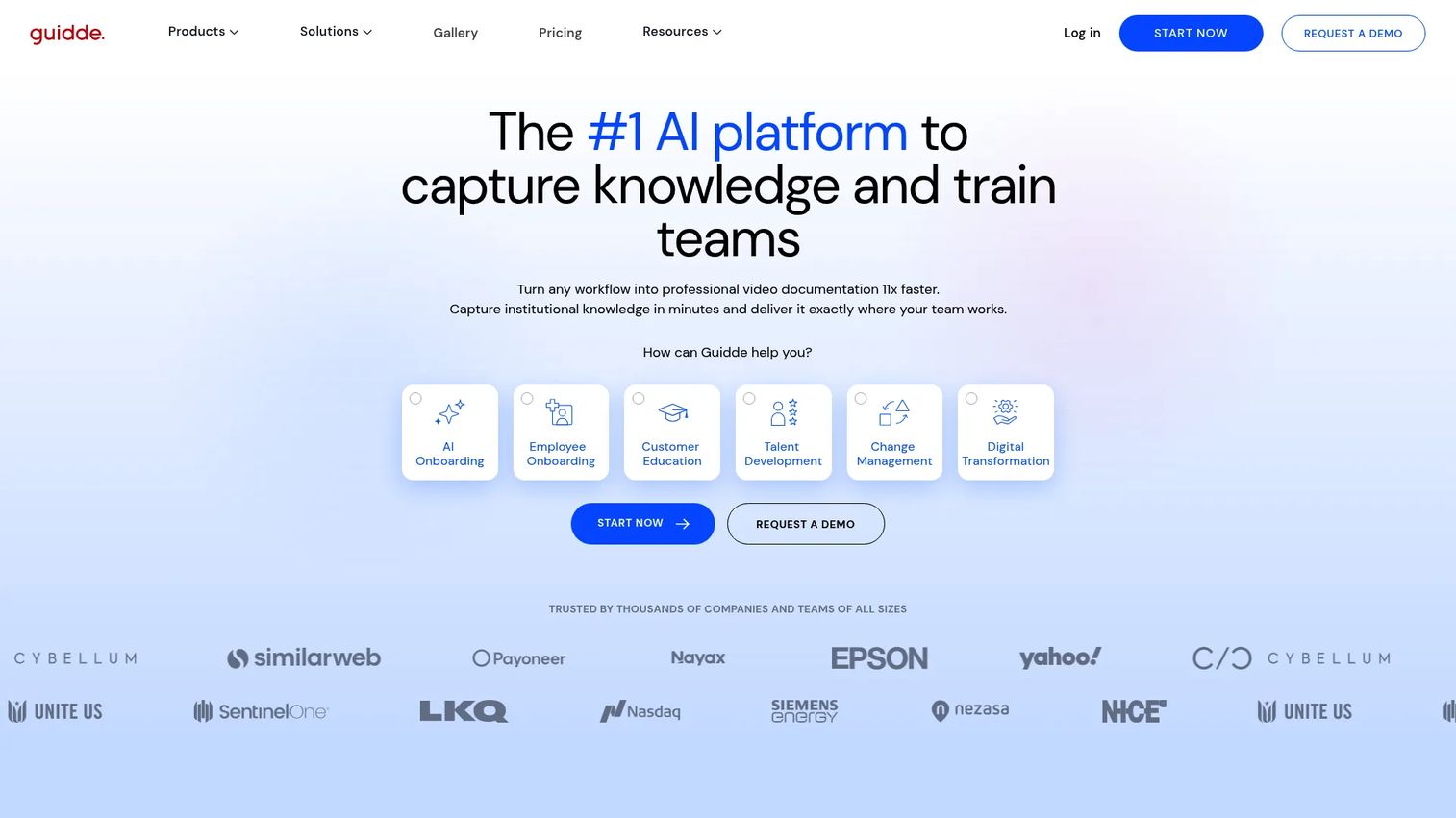
Guidde is an AI-powered platform for creating video documentation and step-by-step guides from captured workflows. It records a workflow, generates AI narration, adds captions and highlights, and produces shareable video guides. Support teams, CS teams, and documentation writers use it for SOPs, onboarding videos, and customer education content.
Best for: Teams turning captured workflows into AI-narrated video documentation for support, onboarding, and training.
Key features
- Workflow capture with cursor effects and highlights
- AI-generated voiceovers and narration
- Captions and text-to-voice generation
- Export to video, PDF, PPT, and DOCX formats
- Advanced privacy controls and PII redaction
Why choose Guidde: The speed from capture to shareable video documentation is the differentiator. For product tutorials that require step-level completion data or customer interaction with a live product flow, Guideflow remains the stronger fit. Guidde's sweet spot is producing clean AI-narrated documentation quickly.
Guidde pricing: Free plan for up to 25 how-to videos. Pro plan is $19/creator/month on annual billing ($29/month on monthly billing). Business plan is $39/creator/month annually ($59/month on monthly billing). Enterprise pricing is custom.
G2 rating: 4.8/5
Considerations when choosing tutorial creation software
Choose the right tutorial format first
The format decision matters more than any feature list. If customers need to practice a product flow, an interactive tutorial beats a video every time. If the goal is conceptual explanation or presenter-led instruction, video works. Match the format to what the learner has to do, not to what the creator prefers.
Check how updates work after a product release
This is the question most teams skip during evaluation. A weekly release schedule makes video re-recording expensive. Ask whether you can edit individual steps, recapture specific flows, or update embedded assets without rebuilding the tutorial from scratch. Tools that require full re-recording after UI changes create a maintenance debt that compounds over time.
Look for engagement data beyond view counts
Views tell you that someone started watching. They don't tell a CS manager where the customer got stuck. Completion rate, step-level drop-off, repeat views, and viewer identity give the data needed to improve a tutorial rather than just replace it. If adoption is the goal, that data is what connects tutorial performance to retention and time-to-value metrics.
Match the tool to the audience and delivery method
Customer onboarding tutorials need clarity and self-serve access. Internal compliance training may need LMS tracking with SCORM. Partner enablement content may need white-labeling. These requirements narrow the field significantly before price or feature comparisons become relevant.
Confirm pricing by team size and editor seat count
Several tools on this list price per author or per creator seat. For CS teams where multiple people need to build or update tutorials, the per-seat model scales quickly. Check whether viewer access, embed hosting, and analytics cost extra before committing to a plan.
Conclusion
The choice comes down to what the tutorial needs to do. For CS teams whose core problem is product adoption, staleness, and repeat support questions, the format matters more than production quality.
Guideflow is the pick when customers need to click through the product and when the team needs to know where they dropped off. Loom or ScreenPal work for quick async video replies. Camtasia fits polished screen-recorded training with an editing step. Synthesia handles AI presenter videos at scale. ActivePresenter and iSpring Suite cover LMS-ready training with assessments. Guidde converts captured workflows into AI-narrated documentation fast.
If your tutorials are mostly watched once, a video tool covers the job. If customers need to learn your product by doing, choose a tool that lets them click through the flow and shows where they stop completing it.
Start your journey with Guideflow today!
FAQs
Tutorial creation software helps teams produce instructional content that teaches users, employees, or customers how to complete a task or use a product. The category includes interactive product tutorials, screen recordings, edited tutorial videos, AI-generated video, step-by-step workflow documentation, and LMS-ready training modules. Each format serves a different learning context.
For SaaS customer onboarding, the right format depends on what customers need to do. Interactive product tutorials work better when customers must complete a real workflow at their own pace. Video works better for conceptual explanations or introductions that don't require product practice. For CS teams, tools that also show completion and drop-off data help connect tutorials directly to adoption outcomes.
Video tutorial software is a subset of the broader category. Tutorial creation software also includes clickable product experiences, step-by-step workflow documentation, software simulations, quiz-based assessments, and LMS packages. The distinction matters when deciding whether the learner needs to watch or practice.
SaaS teams should prioritize three things: Fast updates after product releases, product interaction capability, and engagement analytics. A product that ships weekly makes video re-recording expensive. Tools that allow step-level editing, interactive product paths, and completion data connect tutorial performance to actual product adoption metrics rather than just view counts.
Yes, for basic recording and editing. OBS Studio covers free screen recording with strong configuration options. Kdenlive handles free multi-track video editing. Microsoft PowerPoint's free web version supports slide-based training with narration. Free tools typically require more manual assembly and lack hosting, analytics, or interactive features that paid platforms include.
CS teams benefit most from fast update capability after product releases, self-serve sharing options customers can access without a login, step-level completion and drop-off data, and tools that fit into the existing CRM and analytics stack. Collaboration features and version control also matter when multiple CSMs maintain the same tutorial library.
Some do. eLearning authoring tools like ActivePresenter and iSpring Suite commonly support SCORM, xAPI, cmi5, and HTML5 export for LMS deployment, including quiz results and tracked completion. Screen recording tools and interactive demo platforms generally do not export to LMS formats. Verify the specific export standard your LMS requires before purchasing.
Keep tutorials short and scoped to single flows so each one is cheaper to update. Assign ownership by product area rather than leaving tutorials unowned. Set a review trigger tied to your release calendar. Choose tools that allow step-level edits or fast recapture rather than requiring full re-recording. Centralizing tutorials in one library means a single update applies everywhere the tutorial is shared.