Pick the wrong sprite tool and you feel it three weeks in. The animation timeline fights you, exports come out at the wrong dimensions, and a five-frame walk cycle turns into an afternoon of redraws. The tool was supposed to speed up asset production. Instead it added a bottleneck you now have to route around.
That friction compounds. The global game engines and development software market reached USD 6.33B in 2026, per Business Research Insights (2026), and more creators are shipping 2D games than ever. The editor sitting at the front of that pipeline decides how fast frames go from idea to engine.
This is a buying guide, not a definition dump. Read it to choose a sprite editor by workflow depth, access model, and export needs, so you commit to a tool that fits how you actually work.
What's inside
This guide is for anyone choosing a sprite editor in 2026: Indie developers, pixel artists, and product people evaluating creative tooling for a team.
Here is what it covers and how the four picks were chosen:
- Four sprite tools compared: Desktop, browser-based, open-source, and effects-heavy options.
- Selection criteria: Animation depth, export formats, access model, and cost.
- Practical framing: When each tool fits, and when a free option is enough.
- A comparison table: Best for, key differentiator, pricing, and rating in one view.
Every tool here earns its place on relevance to real sprite creation, animation, and export work.
TL;DR
- Best overall paid editor: Aseprite. The deepest timeline, layer, and export workflow for serious pixel art.
- Best free browser-based option: Piskel. A free online sprite editor with live preview and GIF export.
- Best open-source choice: LibreSprite. A free, community-maintained sprite maker with no license cost.
- Best for advanced sprite effects: SpriteMancer. Node-graph particles and fluids for FX-heavy animation.
Short version: Aseprite if you want depth, Piskel if you want zero setup, LibreSprite if you want open source, SpriteMancer if you need effects.
What is sprite software?
Sprite software is a tool for creating, editing, and animating 2D sprites and pixel art assets used in games and visual projects. A sprite editor gives you frame-by-frame control over small raster images, then exports them in formats a game engine or design pipeline can read.
The category overlaps with the term pixel art editor, and many tools serve both jobs. The distinction is emphasis: A pixel art editor focuses on drawing individual images, while sprite animation software adds the timeline, playback, and export layers that turn frames into motion.
Core capabilities you should expect:
- Frame-based animation: A timeline where each frame is a discrete drawing.
- Layers and onion skin: Stacked drawing surfaces plus ghosted neighboring frames for reference.
- Palette and pixel tools: Color management, precise pixel brushes, and dithering.
- Sprite sheet export: Output to GIF, PNG, and packed sprite sheets or texture atlases.
- Access models: Desktop app, browser tool, or open-source build.
Here is how the category breaks down at a glance:
| Capability | What it means | Why it matters |
|---|---|---|
| Timeline and frames | Sequenced drawings played in order | Controls animation quality |
| Onion skin | Ghosted adjacent frames | Reduces redraw guesswork |
| Layers | Stacked, editable surfaces | Keeps edits non-destructive |
| Export formats | GIF, PNG, sprite sheets | Determines engine handoff |
| Access model | Desktop, browser, open source | Shapes team adoption and cost |
For a Product Manager evaluating creative tooling, treat this like any other buying decision: What is the time to first usable asset? How much upkeep does it add? Will the export pipeline drop cleanly into the engine your team already ships with? Those questions matter more than feature-count bragging.
When to use sprite software
Create game-ready 2D assets
Reach for sprite software when you need character animations, enemies, UI icons, or environmental tiles built at the pixel level. Frame control lets you time a jump or an explosion precisely. Export formats decide whether those assets drop into Unity, Godot, or a custom engine without a conversion step. If the final destination is a game, the export pipeline is not optional.
Move faster on pixel art iterations
Onion skin, live preview, and organized layers cut the redraw tax. When you can see the previous frame ghosted behind the current one, you stop guessing at motion arcs. For anyone thinking about turnaround and maintainability, this is where a tool earns back its cost: Fewer wasted passes per animation, faster iteration when a design changes.
Choose the right export pipeline
Match the export format to the handoff. GIF works for quick previews and social posts. PNG sequences and packed sprite sheets feed game engines and asset pipelines. Texture atlas support with JSON metadata matters when a programmer needs frame coordinates. Decide the destination before you draw, because it shapes how you set up the file.
Sprite software comparison table
The four tools split cleanly by workflow and cost. Aseprite is the paid desktop standard for depth. Piskel runs free in a browser with no install. LibreSprite gives you an open-source build at zero license cost. SpriteMancer adds an effects engine for VFX-heavy work. None publishes a verified G2 rating, so that column reads "Not listed" rather than a guessed number.
| # | Product | Best for | Key differentiator | Pricing | G2 rating |
|---|---|---|---|---|---|
| 1 | Aseprite | Serious pixel art and animation | Deep timeline, layers, and export | $19.99 one-time | Not listed |
| 2 | Piskel | Quick browser-based sprites | Free online editor with live preview | Free | Not listed |
| 3 | LibreSprite | Open-source users | Free and open source, no license | Free | Not listed |
| 4 | SpriteMancer | Effects and particle animation | Node graph, particles, and fluids | $22.46+ one-time | Not listed |
Read the table as a starting shortlist, then use the sections below to match a tool to your workflow depth and export needs.
Best 4 tools for sprite software in 2026
1. Aseprite
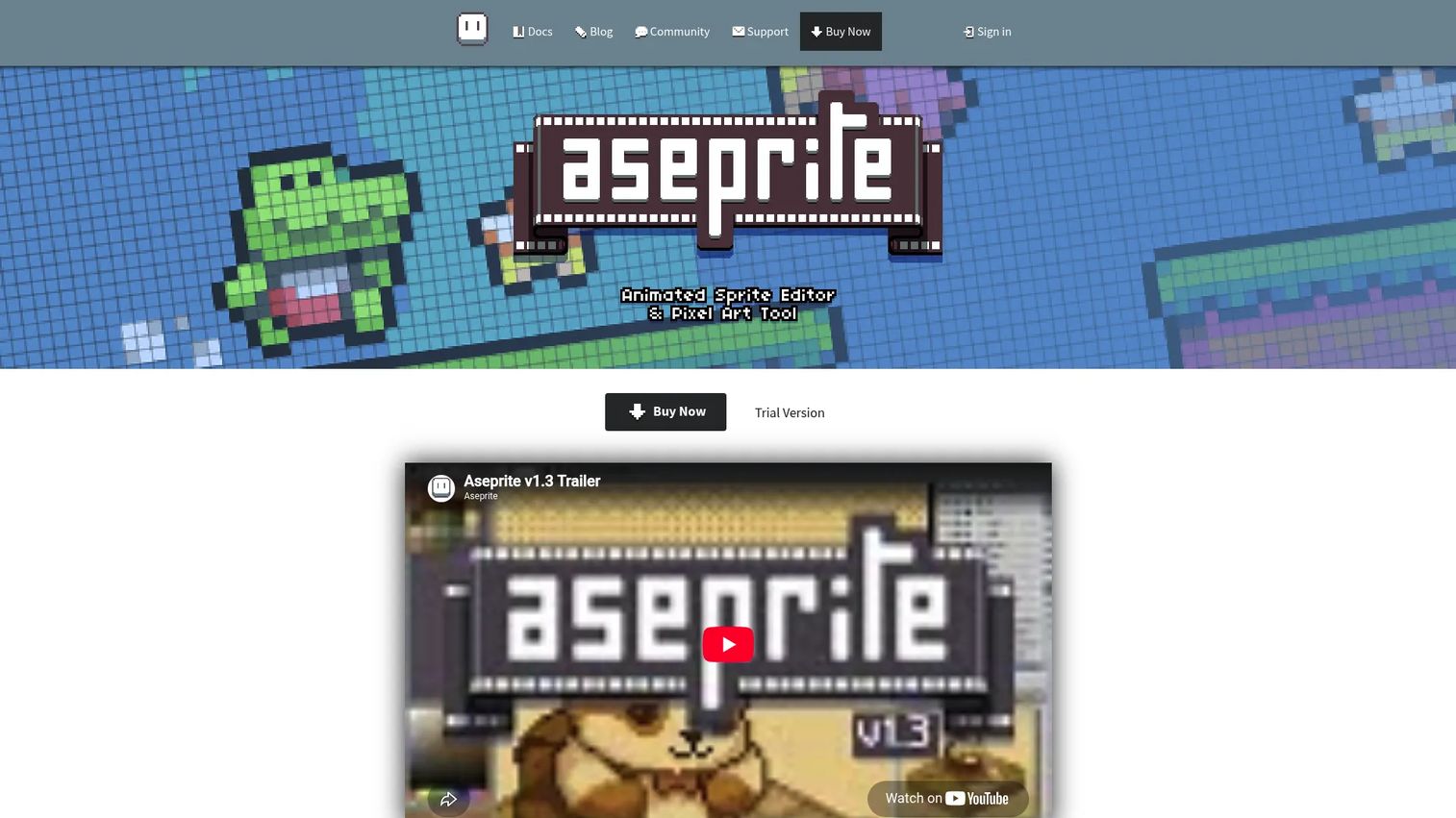
Aseprite is a 2D animation and pixel art editor built for frame-by-frame work. It pairs a full timeline with layers, cels, and onion skinning, so you can build motion and keep every edit non-destructive. Export covers GIF, PNG sequences, and packed sprite sheets with JSON or texture atlas metadata, plus a command-line interface for automated builds.
Best for: Pixel artists and indie game creators making frame-by-frame animations they intend to ship.
Key features
- Timeline with layers and cels
- Onion skinning for motion reference
- Sprite sheet and JSON/texture atlas export
- RotSprite rotation and tiled mode
- Command-line interface for automation
Why choose Aseprite: Choose it when animation depth and clean engine handoff outrank a zero-dollar price. It is the most complete option here for anyone doing pixel art as real production work rather than a one-off.
Aseprite pricing: Aseprite costs a one-time $19.99, per its FAQ, with no separate free tier for the downloadable builds. A free trial version and the open-source code are available for those who want to compile it themselves.
Aseprite does not carry a verified G2 rating at the time of writing, so treat community reputation on forums and marketplaces as your reference point instead.
2. Piskel
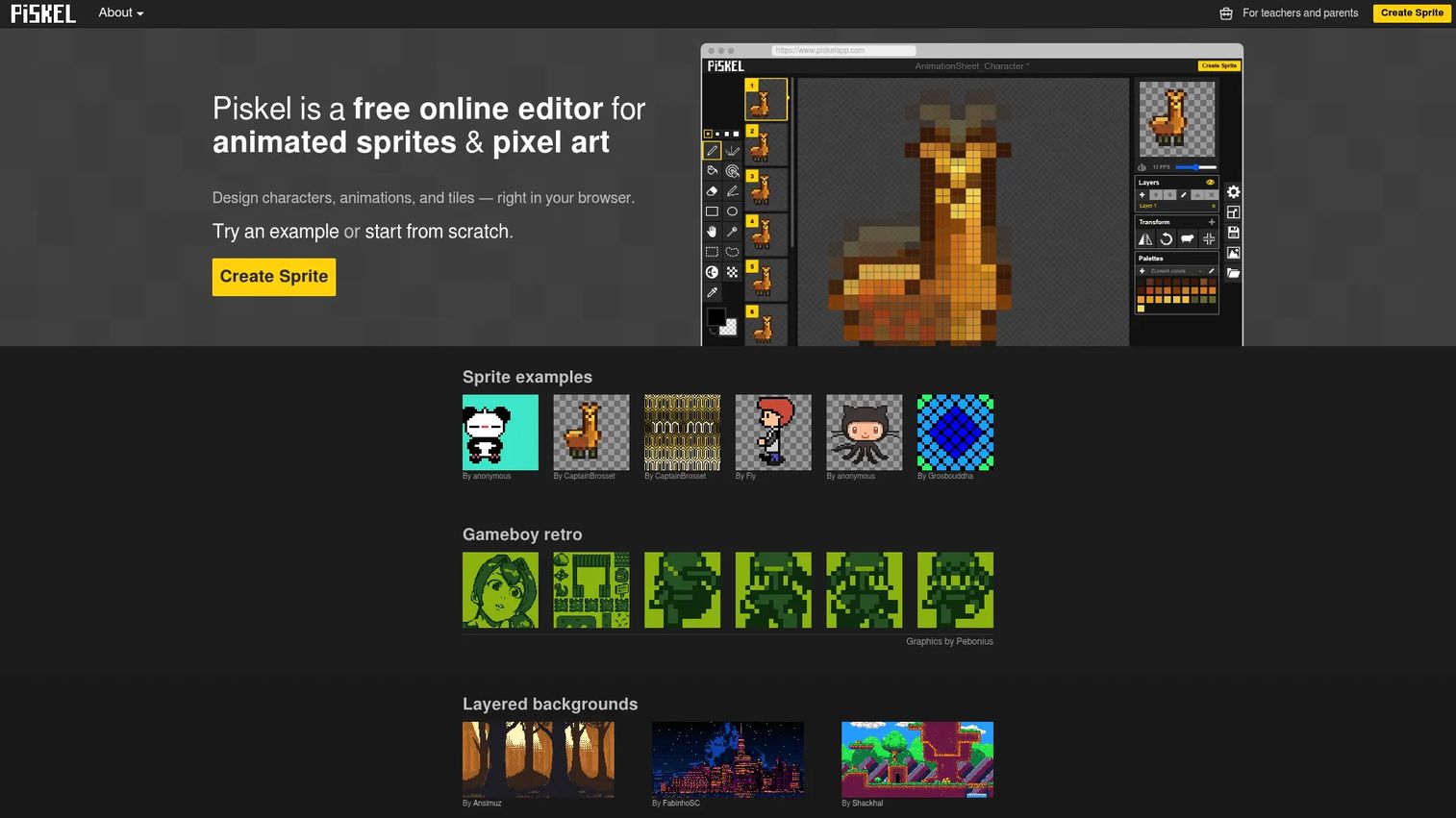
Piskel is a free browser-based pixel art and animated sprite editor. You draw directly in the browser with a live preview running beside the canvas, so you watch the animation update as you edit. Export options cover GIF, PNG, and packed sprite sheets, and offline desktop apps exist for those who prefer a local install.
Best for: Individuals or educators making simple pixel art and sprite animations without any setup.
Key features
- Animated sprite editing in the browser
- Live preview while drawing
- GIF, PNG, and sprite sheet export
- Adjustable frame delay per animation
- Offline desktop apps available
Why choose Piskel: Pick Piskel when speed to first sprite matters more than deep tooling. There is nothing to buy and nothing to install, which makes it a low-friction way to validate an idea or teach the basics.
Piskel pricing: Piskel is free, per its own terms and FAQ, with no paid ad-free version. A separate Piskel For Kids version is also free.
No verified G2 listing exists for Piskel, so lean on its long-running open-source reputation rather than a review score.
3. LibreSprite
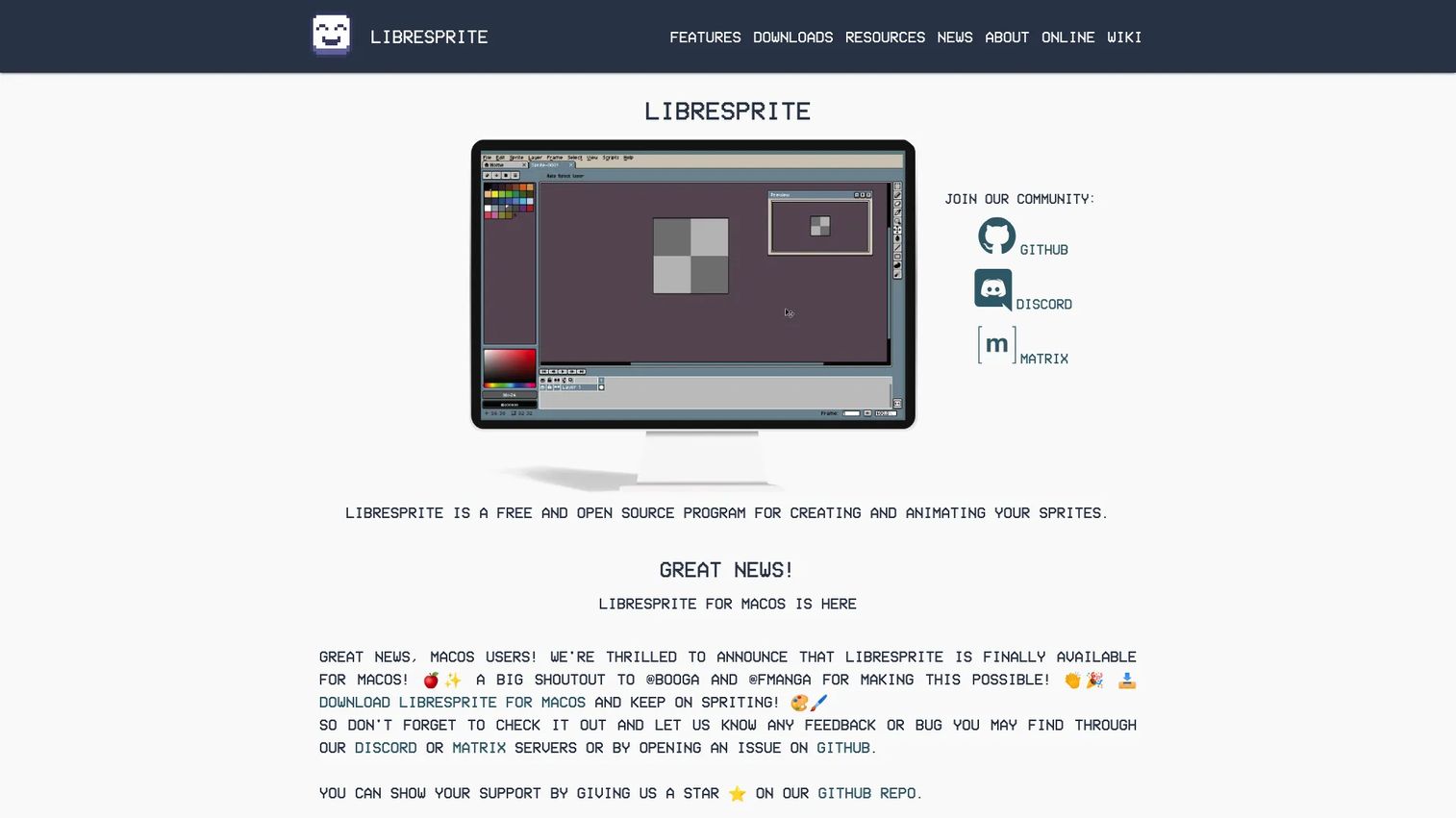
LibreSprite is a free and open-source program for creating and animating sprites. It forked from an earlier open build of Aseprite, so the drawing and animation surface feels familiar to anyone who has used that tool. Community channels handle support, and builds are available across platforms including macOS.
Best for: Pixel artists and game developers who want a free open-source sprite editor with no license attached.
Key features
- Sprite creation and editing
- Frame-based sprite animation
- Cross-platform builds including macOS
- Open-source codebase
- Community-driven support
Why choose LibreSprite: Reach for LibreSprite when open source and zero license cost are the deciding factors. The surface area is leaner than the paid tools, and that trade is the point for users who value transparency and free access.
LibreSprite pricing: LibreSprite is free and open source, with no paid tiers listed on its official site. You download the build and use it at no cost.
There is no verified G2 rating for LibreSprite, so its GitHub activity and community forums are the better signal of health.
4. SpriteMancer
SpriteMancer is sprite animation software for creating visual effects, particles, fluids, and animations. It leans past pure pixel editing into FX generation, with a node graph for building effects and engines for particles and fluids. That makes it a fit when your assets are explosions and magic rather than walk cycles.
Best for: Game developers and artists making 2D sprite-based effects and animations.
Key features
- Particle engine for effects
- Fluids engine for dynamic visuals
- Node graph for building FX
- Sprite animation output
- Free updates on the paid build
Why choose SpriteMancer: Choose it when your workflow goes beyond sprite editing into effects-heavy asset creation. It complements a frame-by-frame editor rather than replacing one, so many teams run it alongside a drawing tool.
SpriteMancer pricing: SpriteMancer sells on itch.io for a one-time $22.46 or more, per its store page, with a separate free demo download. The purchase includes free updates.
SpriteMancer has no verified G2 rating, so its itch.io reviews and community feedback are the reference points to check.
Considerations
Animation workflow depth
Confirm the tool supports the frame and layer control your real production needs. A timeline with onion skin and non-destructive layers matters more for a 20-frame boss animation than for a static icon. Match the depth to the most demanding asset you plan to ship, not the simplest.
Export formats and engine handoff
Check the export list against your destination. If the final home is a game engine, you need packed sprite sheets and metadata, not just a GIF. Ask whether the tool outputs JSON frame data or a texture atlas your programmers can read without manual rework.
Access model and collaboration
Weigh browser versus desktop versus open source against how your team adopts tools. Browser tools skip installs and IT approval. Desktop apps offer depth but add setup per person. Open-source builds cut license cost while shifting support to community channels.
Cost and licensing
Read the license, not just the price. A one-time purchase like Aseprite or SpriteMancer differs from an open-source or free tool in how it scales across a team. For a paid tool, confirm whether the fee covers everyone or every seat.
Visual proof and preview
Prioritize live preview and onion skin to cut rework. Seeing motion update as you draw catches timing errors early, which is the cheapest place to fix them. This single feature often decides how fast iterations move.
Conclusion
The four picks sort by a simple set of decisions. Aseprite is the deepest paid desktop editor for serious pixel art and animation. Piskel is the fastest way to make a free sprite in a browser. LibreSprite is the open-source choice when license cost and transparency drive the call. SpriteMancer is the tool when your assets need particles, fluids, and node-graph effects.
Your next step depends on the job in front of you. If you are shipping frame-by-frame character work, start a trial of Aseprite and test its export against your engine. If you just need a sprite fast, open Piskel and draw one in the next ten minutes. If open source is the constraint, pull down LibreSprite and see if its surface covers your needs. If your work is FX-heavy, grab the SpriteMancer demo before you buy.
Whatever you build sprites for, showing your own product in action is a different job. When you need to demo software instead of draw it, Start your journey with Guideflow today!
FAQs
Piskel is the easiest starting point because it runs free in a browser with no install and shows a live preview as you draw. Beginners who prefer a desktop app and want room to grow often start with Aseprite, since its interface stays useful as skills deepen.
Yes. Piskel is free and browser-based, and LibreSprite is free and open source with a desktop build. Both handle pixel art and basic sprite animation at no cost, which makes them a low-risk way to test the workflow before you consider paying for anything.
A pixel art editor focuses on drawing individual images at the pixel level. A sprite editor adds a timeline, playback, and export tools that turn those frames into animation. Many tools do both, so the labels overlap, but sprite software emphasizes the animation and export layers.
Yes, and it is a core feature to check for. Aseprite, Piskel, and LibreSprite all export packed sprite sheets alongside GIF and PNG. If you feed a game engine, also confirm the tool outputs frame metadata like JSON or a texture atlas so a programmer can map coordinates.
Prioritize animation depth, clean export to your engine, and the access model that fits your team. Onion skin and layers control animation quality, packed sprite sheets and metadata control handoff, and cost or licensing shapes adoption. Match these to the most demanding asset you plan to ship.
For simple sprites and quick iterations, yes. Piskel handles frame animation, live preview, and sprite sheet export directly in the browser. For deep production work with heavy layer stacks and automated builds, a desktop tool like Aseprite gives you more room and a command-line pipeline.
Aseprite leads on pure animation workflow, with a full timeline, cels, onion skin, and playback modes built around frame-by-frame work. For animation that is really effects generation, particles, and fluids, SpriteMancer covers ground a standard frame editor does not.
They can. LibreSprite is free, open source, and capable of real sprite creation and animation, and its lineage traces back to an open build of Aseprite. The trade is a leaner feature surface and community-based support rather than a paid support channel, which some professional teams accept and others do not.