Last updated: 2026
Snagit is a solid screen capture tool, but plenty of teams renew it year after year while using only a fraction of what it offers. Others hit a wall when static screenshots stop being enough for internal training, employee onboarding, or campaign SOPs. When either of those things happens, the search for Snagit alternatives begins.
This list covers 20 options across five categories: Interactive guide platforms, screen capture and annotation tools, video recorders and editors, GIF tools, and built-in OS utilities. Guideflow is the top pick for interactive guides and internal training, ShareX leads the free Windows picks, Camtasia is the go-to for edited video, and Shottr is the strongest dedicated Mac screenshot option. The 20 tools below span free, paid, open-source, and built-in workflows, labeled by category so you can tell a like-for-like swap from a category upgrade.
TL;DR
- Best for internal training and interactive guides: Guideflow turns captured software flows into step-by-step interactive demos for onboarding, SOPs, and training. Free plan available; paid plans from $35/user/month (annual).
- Best free all-around Windows alternative: ShareX is free, open-source, and handles screenshots, screen recording, GIF capture, OCR, and upload automation. 20 tools reviewed in total.
- Best lightweight annotation tool: Greenshot is free and covers region capture plus annotation without installing anything heavy.
- Best for polished tutorial video: Camtasia offers multi-track editing, cursor effects, and AI tools. Essentials plan from $179.88/year.
- Best built-in option: Windows Snipping Tool for Windows users, macOS Screenshot for Mac users. Both come free with the OS.
- Best Mac screenshot option: Shottr covers scrolling capture, OCR, and pixel measurement. Free to try; $12 one-time to unlock full commercial use.
- The list spans two categories: Screen capture and recording tools (like-for-like Snagit swaps) and interactive demo tools (category upgrade when screenshots are no longer enough).
What's inside
- Why teams replace or supplement Snagit.
- How all 20 tools compare by category, pricing, and G2 rating.
- Best picks by use case: Interactive guides, free Windows tools, polished video, cheapest options, and Mac.
- When to stay with Snagit.
- FAQs covering free, Mac, Windows, video, and interactive guide questions.
What is Snagit?
Snagit is a screen capture and screen recording tool built by TechSmith. It captures screenshots, scrolling pages, regions, windows, and full screens, then lets you annotate the output with arrows, callouts, shapes, and text. It also records short screen videos, creates GIFs, extracts text via OCR, and organizes captures in a searchable library. Snagit's Step Capture feature can automatically build visual step-by-step guides from a recorded workflow.
Snagit fits best when a team needs polished annotated screenshots, quick screen recordings, and a single app for the whole visual documentation workflow. It integrates with the broader TechSmith ecosystem, including Camtasia for more serious video editing. Teams already standardized on TechSmith tools, or those who rely on Snagit's library and scrolling capture, rarely need to leave.
The decision to look elsewhere is about workflow fit, subscription cost, or output format, not any fundamental flaw in the product. Snagit costs $39 per user per year for individuals and $48 per user per year for the Business plan.
Why teams look for Snagit alternatives
Teams look for Snagit alternatives when the renewal cost, the platform constraint, or the output format no longer matches the job.
Subscription cost feels hard to defend
For marketers who primarily grab quick campaign screenshots, paying an annual subscription for a full visual documentation suite is a hard sell at budget review. G2 reviewers frequently cite cost as a friction point, particularly for small teams or solo users whose capture needs are covered by free tools. When the team only uses one or two Snagit features, the per-seat renewal is easier to cut than to justify.
Static screenshots do not train people by themselves
A screenshot shows one state of the interface. A video shows a sequence. An interactive demo lets the viewer click through the process step by step, at their own pace, with analytics showing where they dropped off. When the goal is to help an employee follow a software process rather than simply see a screen, a captured interactive guide is a materially different output from an annotated PNG. Teams running employee onboarding, internal SOPs, or software training programs often reach this ceiling before they realize what they are missing.
Video needs a different tool than screenshot capture
Snagit records screen video, but its editing capabilities are limited compared with dedicated video editors. Teams producing tutorial libraries, marketing demo videos, or training courses typically end up needing Camtasia or a separate editing tool. Keeping capture and editing in separate, purpose-built tools often produces a cleaner workflow than forcing one tool to do both.
Cloud sharing and privacy need clearer control
Screenshots taken with Snagit stay local by default, but some workflows push captures to cloud destinations. For marketing teams working with product dashboards, CRM screens, or customer data, upload behavior and redaction control matter. Snagit's Smart Redact feature helps, but teams managing sensitive data often want more granular control over what can and cannot appear in a shared capture.
Learning curve and workflow friction add up
Snagit is powerful, but the library, templates, and scrolling capture options add complexity for users who want a fast regional screenshot and nothing else. G2 reviewers on the more critical end note that the full feature set can feel like overhead for occasional capture tasks.
How we picked these Snagit alternatives
Each tool was evaluated on real capability overlap with what Snagit does: Screenshot annotation, scrolling capture, screen recording, GIF export, and document generation. Pricing was taken from each vendor's own pricing page. G2 ratings were sourced from live G2 listings; tools with no verifiable G2 profile show N/A. The list spans both like-for-like screen capture replacements and interactive demo tools, labeled by category so a like-for-like swap is distinct from a category upgrade. According to Mordor Intelligence (2026), the global screen-recording software market is valued at $2.10 billion and growing at a 17.08% CAGR through 2030, which explains why the field has expanded well beyond basic annotation tools.
Snagit alternatives at a glance
Guideflow leads as the interactive upgrade pick. ShareX leads for free Windows capture. For every other job, the right answer depends on category, OS, and whether you need video editing or just annotated screenshots. The table below labels each tool so you can skip to the right section.
| # | Tool | Category | Best for | G2 rating | Free plan | Starting price |
|---|---|---|---|---|---|---|
| 1 | Guideflow | Interactive guide platform | Internal training, SOPs, onboarding | 4.8/5 | Yes | $35/user/month (annual) |
| 2 | ShareX | Screen capture and recording | Free Windows power users | 4.8/5 | Yes | Free |
| 3 | Greenshot | Screenshot annotation | Lightweight Windows annotation | 4.8/5 | Yes | Free |
| 4 | Camtasia | Video recording and editing | Polished tutorial videos | 4.6/5 | Trial | $179.88/year (Essentials, annual) |
| 5 | PicPick | Screen capture and editing | Windows capture plus image editing | N/A | Yes (personal use) | $79 one-time (single user) |
| 6 | Windows Snipping Tool | Built-in screen capture | Basic Windows screenshots and recording | N/A | Yes | Free (included with Windows) |
| 7 | Flameshot | Open-source screenshot tool | Linux and cross-platform annotation | N/A | Yes | Free |
| 8 | OBS Studio | Screen recording and streaming | Free advanced screen recording | N/A | Yes | Free |
| 9 | FastStone Capture | Screen capture and recording | One-time-license Windows capture | 4.7/5 | Trial | $29.95 one-time |
| 10 | Lightshot | Screenshot capture | Fast simple screenshots | 4.7/5 | Yes | Free |
| 11 | Screenpresso | Screen capture and documentation | Windows visual documentation | 4.6/5 | Yes | Free (PRO price by quote) |
| 12 | Monosnap | Screenshot and screen recording | Cloud-friendly capture | 4.3/5 | Yes | Free |
| 13 | Clipchamp | Video editing | Editing screen recordings in browser | 4.1/5 | Yes | Free (Premium via Microsoft 365) |
| 14 | Shottr | Mac screenshot tool | Mac annotation and OCR | N/A | Yes | $12 one-time (Basic) |
| 15 | ScreenToGIF | GIF screen recording | Short GIF software clips | N/A | Yes | Free |
| 16 | Skitch | Screenshot markup | Simple Mac annotation for Evernote users | N/A | Yes | Free |
| 17 | macOS Screenshot | Built-in screen capture | Basic Mac screenshots and recording | N/A | Yes | Free (included with macOS) |
| 18 | Preview | Built-in Mac markup | Marking up screenshots and PDFs on Mac | N/A | Yes | Free (included with macOS) |
| 19 | FFmpeg | Media processing | Technical video conversion and automation | 4.6/5 | Yes | Free |
| 20 | IrfanView | Image viewer and light editor | Fast image review and batch editing | 4.6/5 | Yes (non-commercial) | $18 one-time (commercial) |
The best Snagit alternatives in 2026
1. Guideflow (interactive guide platform)
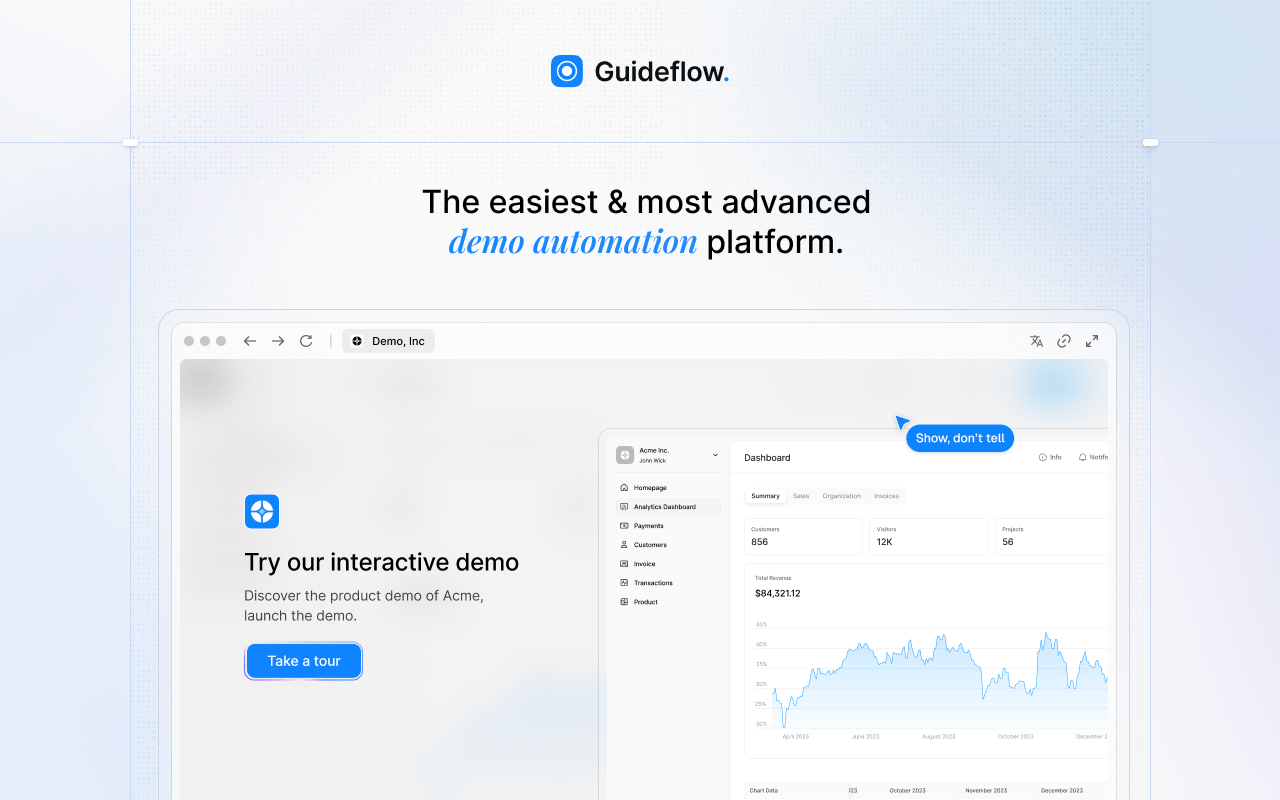
Guideflow occupies a different category than every other tool on this list. Where Snagit captures a moment, Guideflow turns a captured software flow into a step-by-step interactive demo that employees, customers, or partners can follow on their own. For marketing teams building campaign SOPs, training teams documenting software processes, and growth teams reducing onboarding friction, that output difference matters more than any annotation feature comparison.
Best for: Internal training teams, growth marketers, enablement and operations teams that need people to follow software processes, not just see a screenshot.
What it is: Guideflow is a demo automation platform. It supports six formats: Interactive demos, demo pages, demo centers, sandboxes, live demos, and mobile demos. For the internal training use case, teams capture their software flows through the Chrome extension or the native app using screenshot, HTML, or video capture modes. Step content is generated automatically. The editor supports text, images, graphs, and branching, and analytics cover step-level completion, drop-off, and viewer flow. More than 500,000 guideflows have been created.
Key features:
- Step-by-step interactive demos from captured software flows, with step content generated automatically
- Demo centers to organize guides by team, process, or role
- Sandboxes for free exploration when users need hands-on validation
- Personalization with editable text, images, and graphs
- Analytics for completion, drop-off, and viewer behavior per step
Where Guideflow falls short: Look elsewhere if you need a single static annotated screenshot and nothing more. Look elsewhere if your main job is polished talking-head video editing. For simple one-off image markup, a lightweight screenshot tool adds less structure and gets the job done.
Pricing: Free plan available. Solo is $35/user/month (annual). Growth is $499/month (annual). Advanced is $1,499/month (annual). Enterprise starts at $2,999/month (annual) and adds SSO, advanced governance, and enterprise security.
G2 rating: 4.8/5
How it compares to Snagit: Snagit captures and annotates visuals. Guideflow turns captured software flows into interactive step-by-step demos that viewers follow and interact with. The jobs are related but different.
2. ShareX (screen capture and recording)
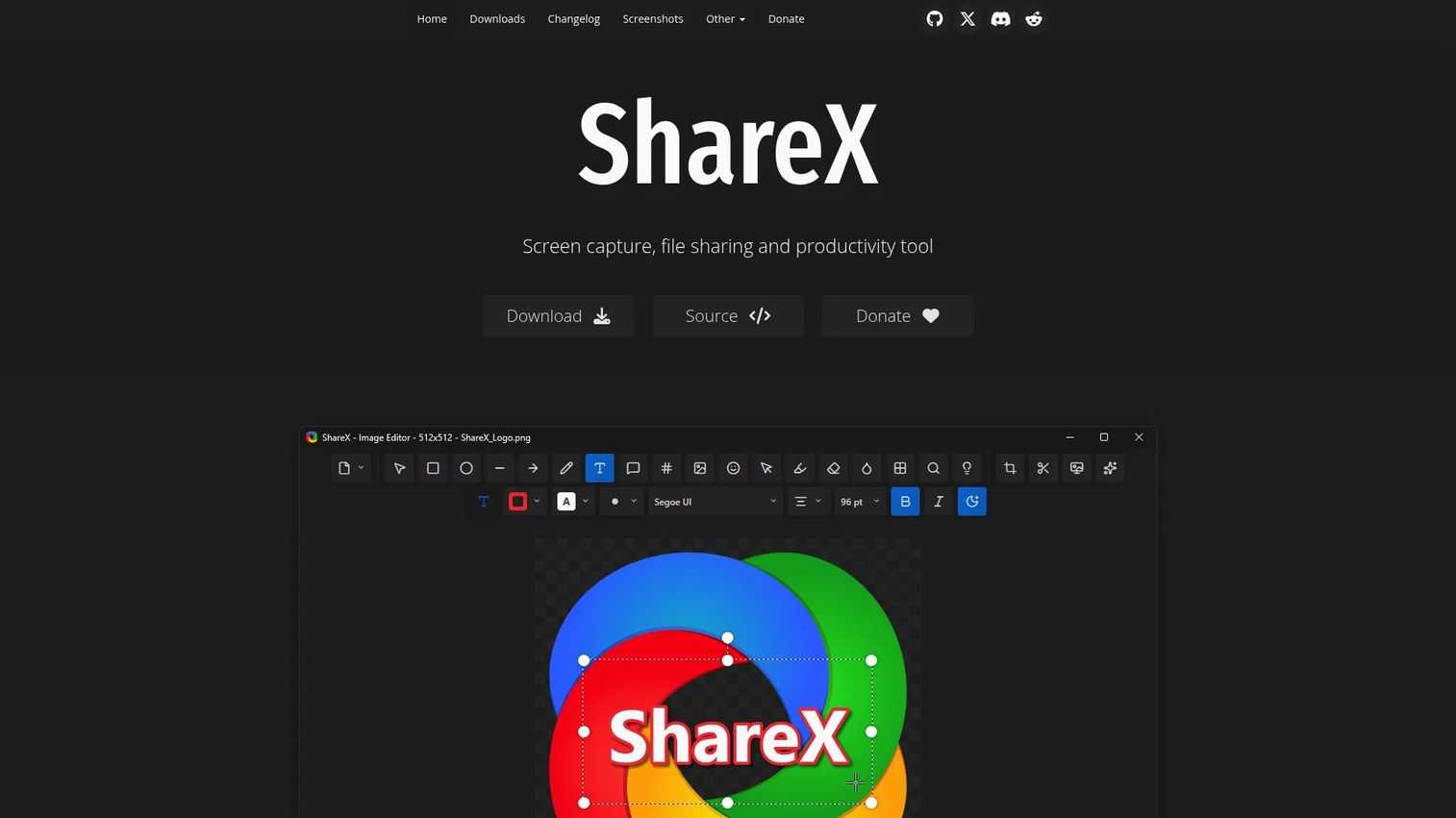
ShareX is the most capable free alternative to Snagit for Windows users who want to capture, annotate, and automate without paying anything. It is open-source, ad-free, and requires no account.
Best for: Free Windows power users who want capture automation and many export options.
What it is: ShareX is a free, open-source Windows application for screenshots, screen recording, GIF capture, OCR, and upload automation. It supports fullscreen, region, active window, scrolling page, and monitor capture modes. G2 rates it 4.8/5.
Key features:
- Region, window, fullscreen, and scrolling capture modes
- Screen recording and animated GIF recording
- Image annotation with redaction, blur, pixelation, and OCR
- Upload automation to configurable destinations
- Hotkey-driven workflow for fast repeatable capture
Where ShareX falls short: G2 reviewers note the interface is dense and can overwhelm users who want a minimal tool. Setup takes more time than a commercial app, and the experience is Windows-only. Teams wanting a guided, polished editor rather than a configurable toolkit tend to find the learning curve steep.
Pricing: Free forever. No paid tier.
G2 rating: 4.8/5
How it compares to Snagit: More flexible and completely free, but less polished for teams that want a guided editor and an organized capture library.
3. Greenshot (screenshot annotation)
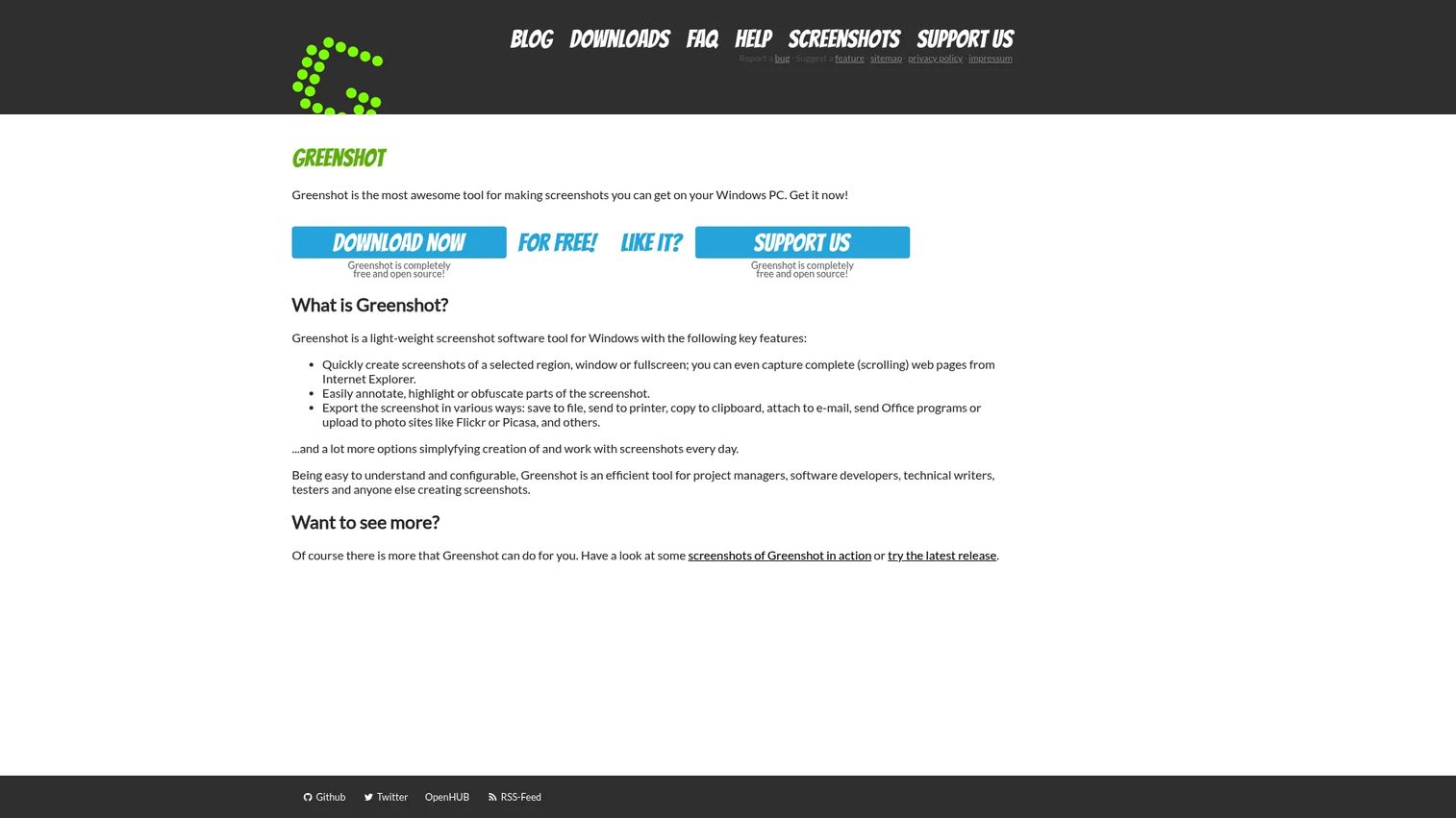
Greenshot is a lightweight free screenshot tool for Windows users who want region capture and annotation without installing a heavy application. No subscription, no account, no learning curve.
Best for: Individuals and teams needing a lightweight free screenshot capture and annotation tool on Windows.
What it is: Greenshot is free, open-source Windows software for capturing selected regions, windows, fullscreen, and scrolling pages. It annotates, highlights, obfuscates, and crops screenshots, then exports to files, clipboard, printer, or email. G2 rates it 4.8/5.
Key features:
- Region, window, fullscreen, and scrolling page capture
- Annotation with arrows, highlights, shapes, and text
- Export to files, clipboard, email, and Office programs
- Obfuscation and crop tools
Where Greenshot falls short: Greenshot has no serious video recording capability and no interactive training output. Its Windows-first development means macOS support is limited. Teams needing video or advanced documentation workflows will outgrow it.
Pricing: Free under the GNU General Public License for private and commercial use.
G2 rating: 4.8/5
How it compares to Snagit: Strong for fast annotated screenshots, but it does not cover scrolling capture depth, screen recording, or the library and template features that make Snagit a documentation platform.
4. Camtasia (video recording and editing)
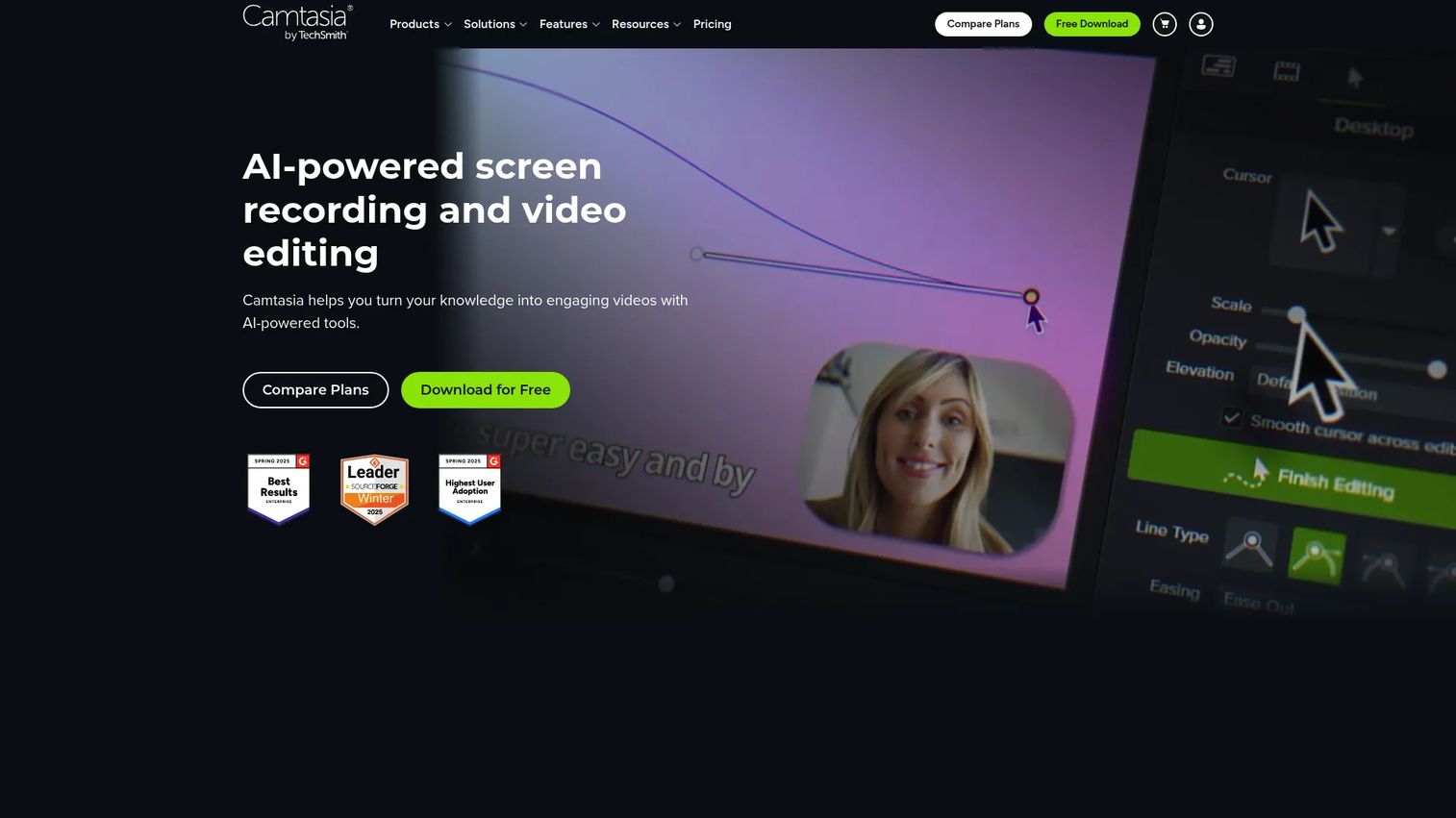
Camtasia is TechSmith's dedicated video tool. For teams whose main output is polished tutorial videos or training courses, Camtasia does the job Snagit's screen recording cannot do alone.
Best for: Organizations and creators producing screen-based training videos, tutorials, and software demonstrations.
What it is: Camtasia is an AI-powered screen recording and video editing application from TechSmith. It records up to 4K at 60 fps and provides multi-track editing with transitions, animations, annotations, captions, and cursor effects. AI tools include text-based editing, background-noise removal, AI voices, and translation. G2 rates it 4.6/5.
Key features:
- Multi-track video editing with transitions, animations, and annotations
- AI tools for text-based editing, noise removal, and auto-captions
- Cursor effects and callouts for software demonstrations
- 4K recording at 60 fps
- Export and sharing via Screencast
Where Camtasia falls short: Camtasia costs more than Snagit and exceeds the needs of teams whose primary output is annotated screenshots. G2 reviewers note the file sizes can be large and the rendering time slow. The video output is passive; viewers watch rather than interact with the content.
Pricing: Starter plan at $39/year (includes Snagit, watermarked Camtasia Editor). Essentials at $179.88/year (annual). Create at $249/year (annual). Pro at $599/year (annual).
G2 rating: 4.6/5
How it compares to Snagit: Stronger for edited video training. Snagit is the better pick for fast annotated screenshots and shorter recordings.
5. PicPick (screen capture and editing)
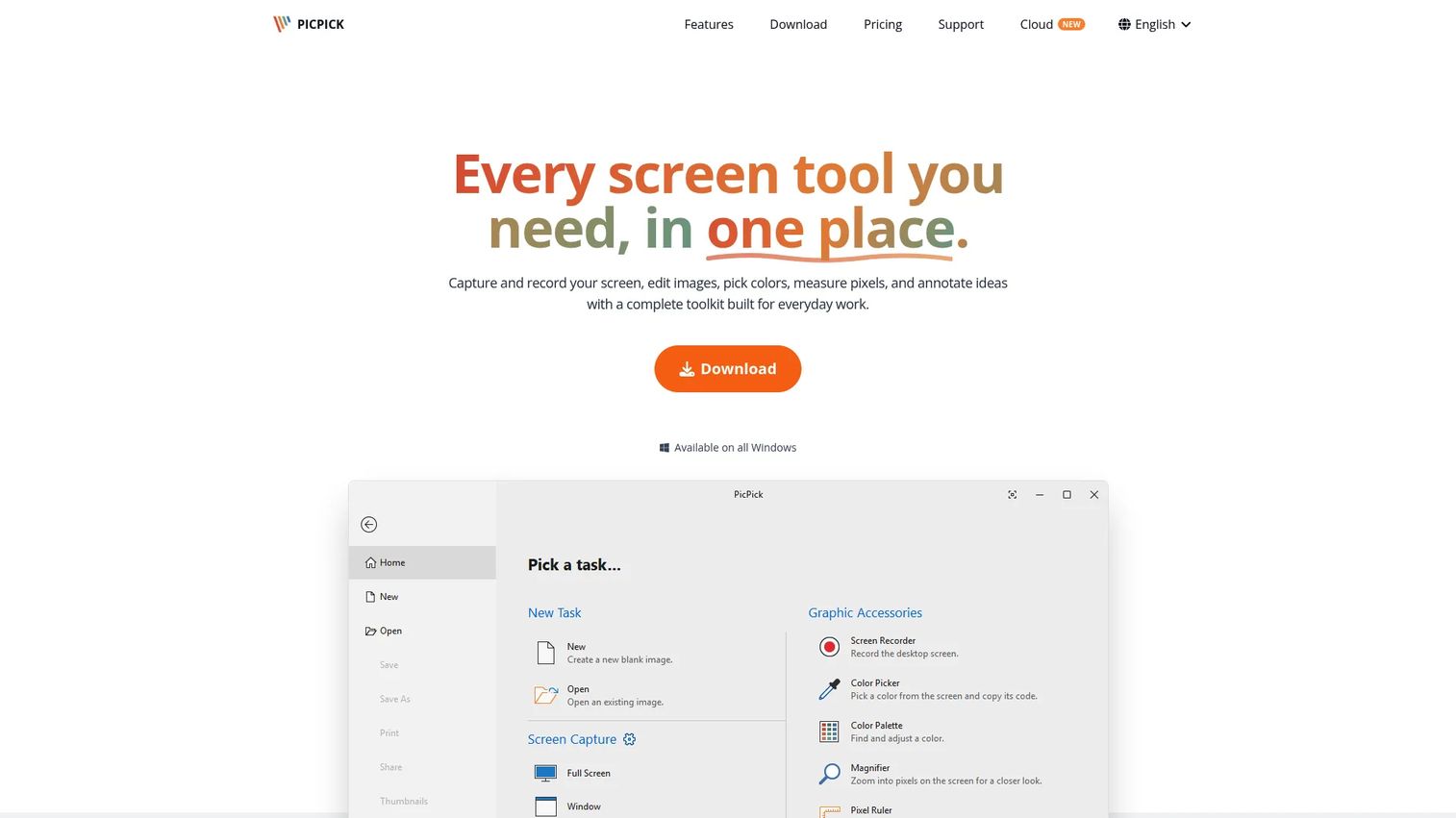
PicPick is an all-in-one Windows tool for capture, image editing, and design utilities. Its free personal version covers most screenshot needs, and the Pro lifetime license is a one-time cost rather than a recurring fee.
Best for: Windows users who want screen capture plus a built-in image editor and design tools.
What it is: PicPick is a Windows application for screenshots, screen recording, image annotation, sharing, and design utilities including a color picker, pixel ruler, magnifier, and whiteboard. The free version is limited to personal, non-commercial use.
Key features:
- Full-screen, window, scrolling, region, and freehand capture
- Screen recording with system audio and microphone
- Image editor with annotations, shapes, callouts, and effects
- Color picker, pixel ruler, magnifier, and crosshair
Where PicPick falls short: PicPick is Windows-only. It is not built for interactive training or cloud-first team workflows.
Pricing: Free for personal, non-commercial use. Single-user lifetime license at $79 one-time. Team license (5 users) at $295 one-time. Enterprise (unlimited users) at $2,900 one-time.
G2: 4.6
How it compares to Snagit: A strong budget-friendly option for image-focused Windows users, but it does not match Snagit's recording depth or library organization for documentation teams.
6. Windows Snipping Tool (built-in screen capture)
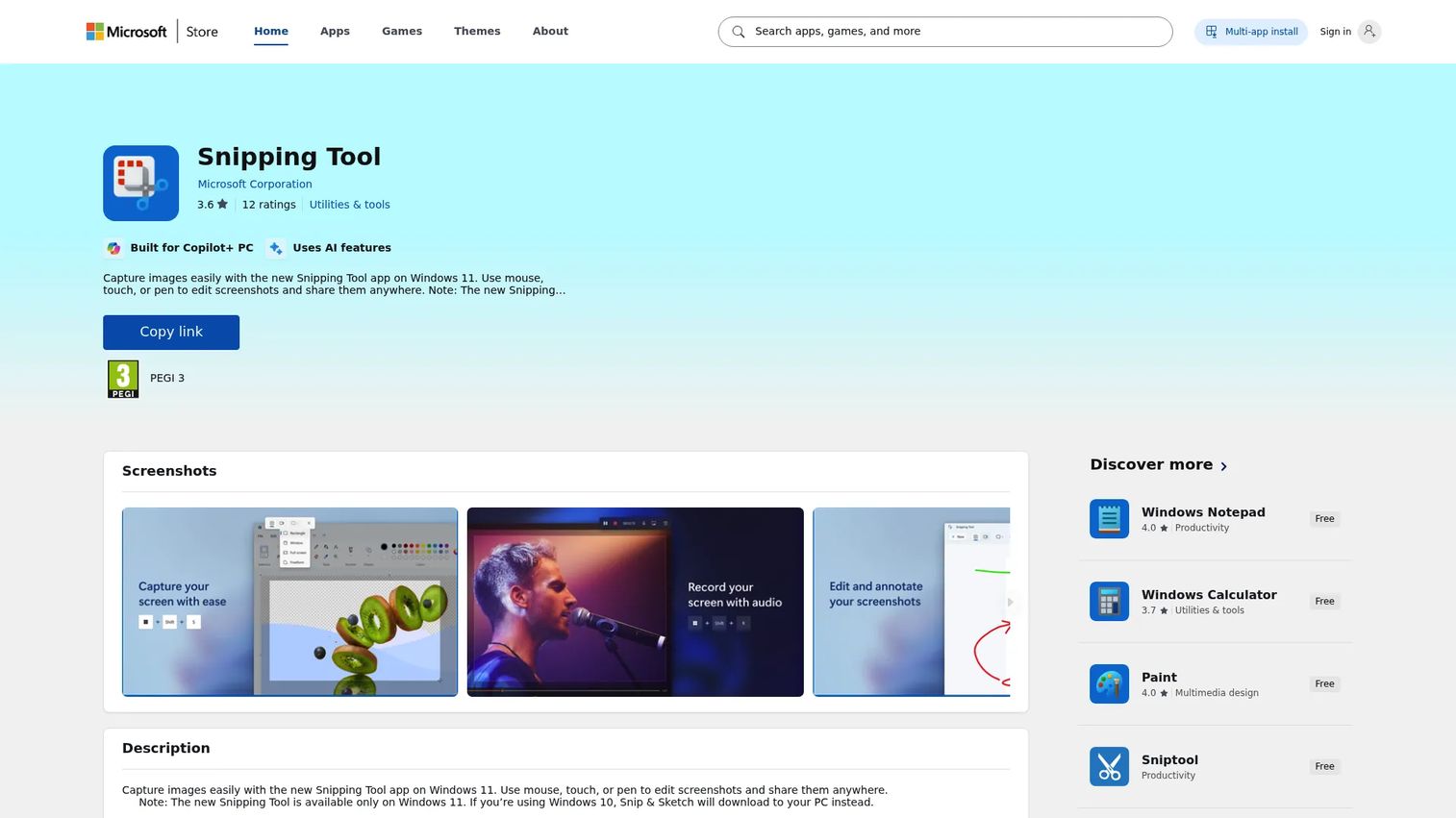
If the job is a quick screenshot and you do not want to install anything, Windows Snipping Tool is already on the machine. It has improved substantially since Windows 10 and now covers basic screen recording alongside screenshot capture.
Best for: Windows users who need quick screenshots, annotations, OCR, and basic screen recording without third-party software.
What it is: A Windows application built into Windows 11 for capturing, annotating, saving, sharing, and recording screen content. Supports freeform, rectangular, window, and full-screen screenshots, plus video screen recording. OCR and quick redaction are available. Copilot+ PC features add Perfect Screenshot and Color Picker.
Key features:
- Freeform, rectangle, window, and full-screen capture modes
- Video screen recording
- OCR text extraction and quick redaction
- Annotation with pen, highlighter, and shapes
Where Windows Snipping Tool falls short: Limited editing compared to dedicated capture tools. No advanced automation, upload destinations, or team library. Not suitable for repeatable documentation or interactive training workflows.
Pricing: Free. Included with Windows 11.
G2: 4.7
How it compares to Snagit: Good for basic capture at no cost. Snagit adds a stronger annotation editor, scrolling capture, library, and documentation workflow.
7. Flameshot (open-source screenshot tool)
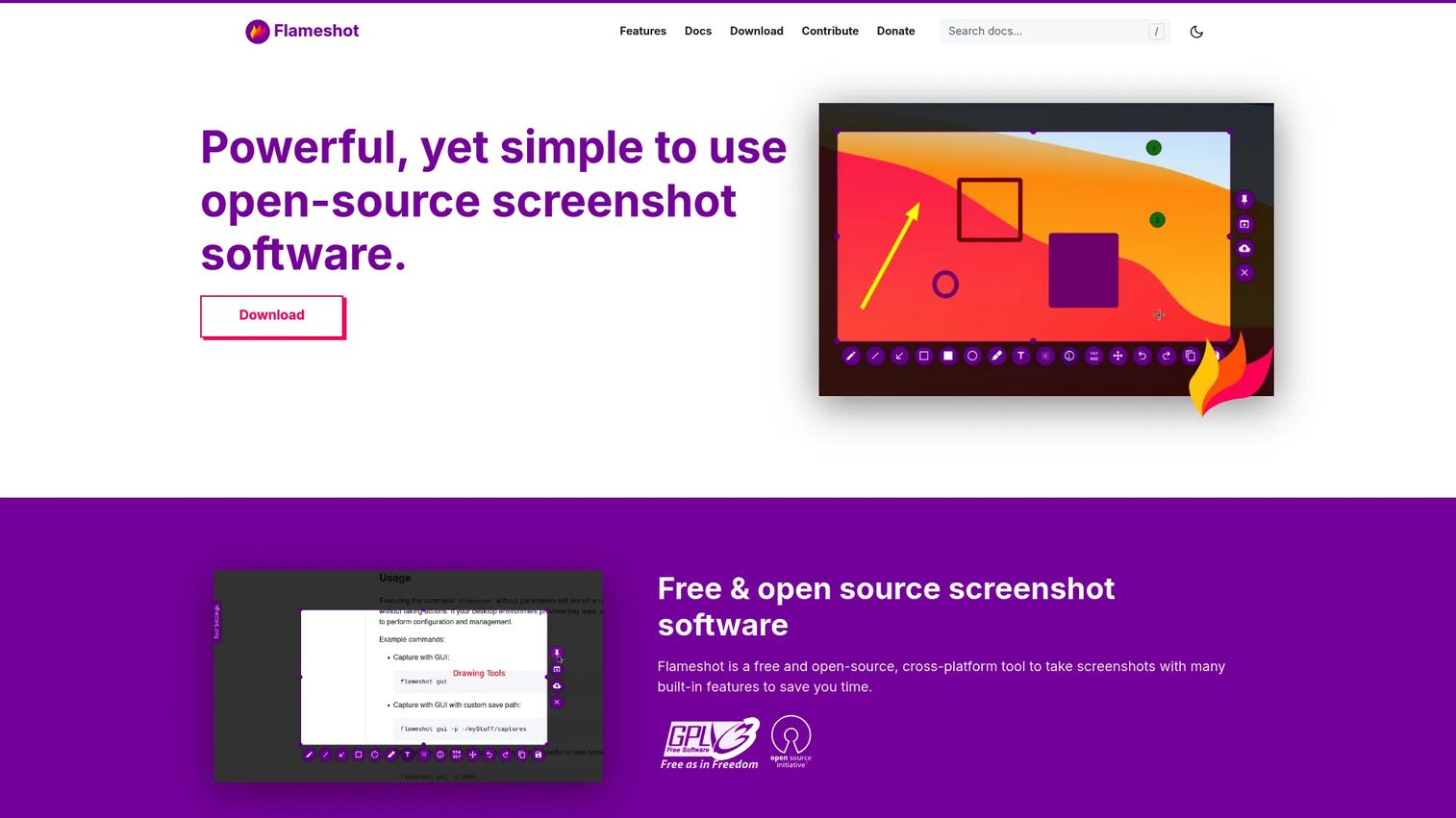
Flameshot is the go-to free screenshot tool for Linux users and anyone who prefers a cross-platform open-source option with command-line flexibility.
Best for: Individuals and teams on Linux, macOS, or Windows who need a free, customizable screenshot and annotation tool.
What it is: Flameshot is free, open-source, cross-platform screenshot software with built-in annotation and editing tools. It supports a command-line interface for scripting and key bindings, a DBus interface, and Imgur upload. Features include customizable interface, buttons, shortcuts, and save settings.
Key features:
- In-app screenshot annotation with shapes, arrows, and text
- Command-line interface for scripting workflows
- Customizable shortcuts and save destinations
- Imgur upload support
Where Flameshot falls short: No video editing or interactive training output. Wayland and desktop-environment behavior can vary depending on Linux configuration, which requires some setup troubleshooting.
Pricing: Free and open-source. No paid tier.
G2: 4.4
How it compares to Snagit: Strong for free annotated screenshots across platforms, particularly Linux. Not a substitute for Snagit's recording, library, or documentation suite.
8. OBS Studio (screen recording and streaming)
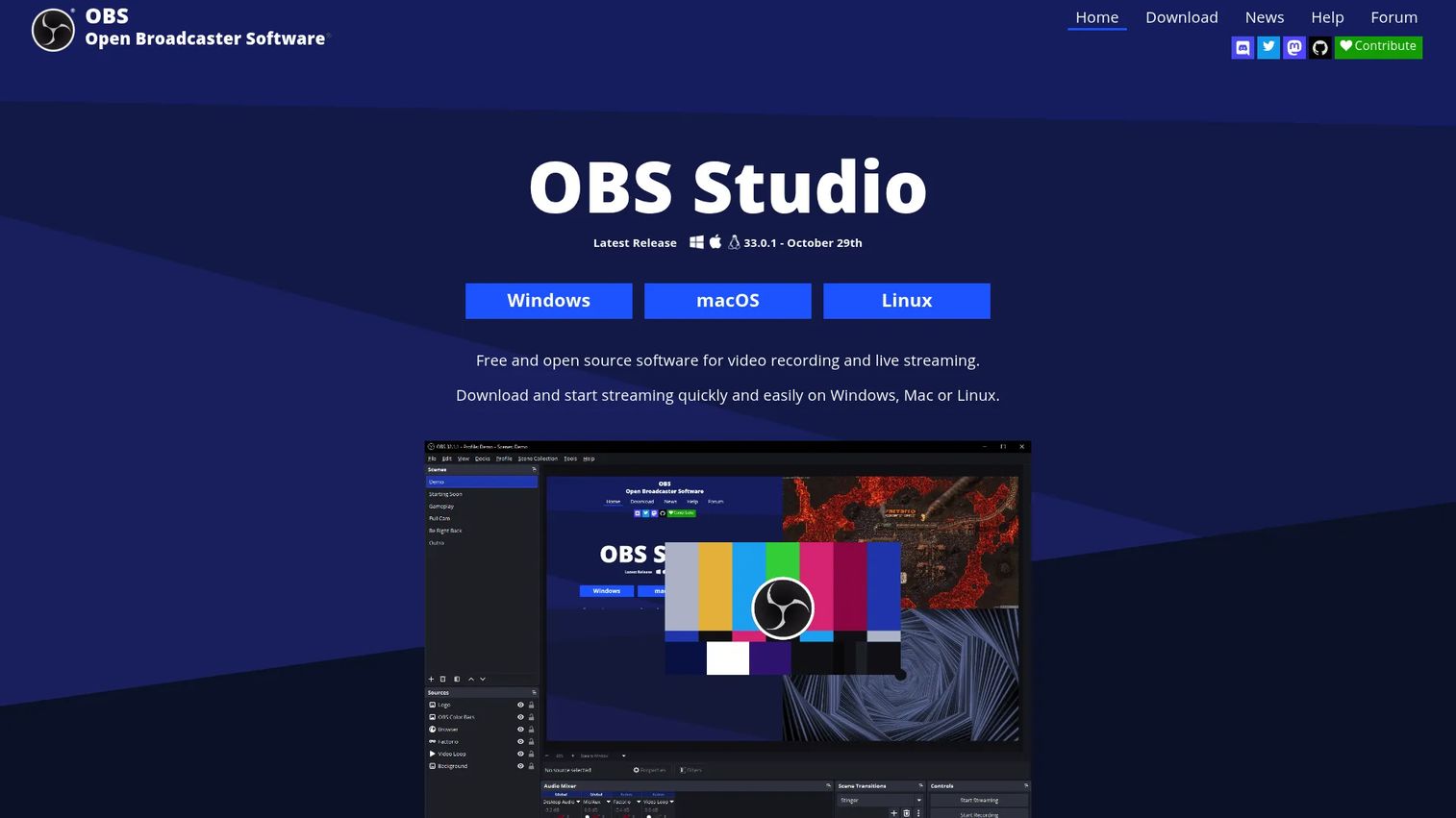
OBS Studio covers the advanced recording and streaming jobs that Snagit's video mode cannot touch. For teams producing webinars, multi-source recordings, or live streams, it is the standard free option.
Best for: Content creators, streamers, educators, and teams needing customizable live production or screen recording.
What it is: OBS Studio is free, open-source software for video recording and live streaming. It supports scenes with multiple sources including displays, windows, webcams, capture cards, images, text, and browser windows. An audio mixer with per-source filters and VST plugin support, plus API access for plugins and scripts, make it one of the most configurable recording tools available.
Key features:
- Scene-based recording with multiple simultaneous sources
- Audio mixer with per-source filters and VST plugins
- Streaming to external destinations
- API and plugin support for custom integrations
Where OBS Studio falls short: OBS is designed for recording and streaming, not screenshot annotation. The setup and configuration learning curve is higher than any tool on this list. It has no built-in step-by-step documentation workflow and no screenshot editing.
Pricing: Free and open-source. No paid tier.
G2: 4.6
How it compares to Snagit: Much stronger for advanced recording and multi-source production. Snagit is the better pick for annotated screenshots and quick visual documentation.
9. FastStone Capture (screen capture and recording)
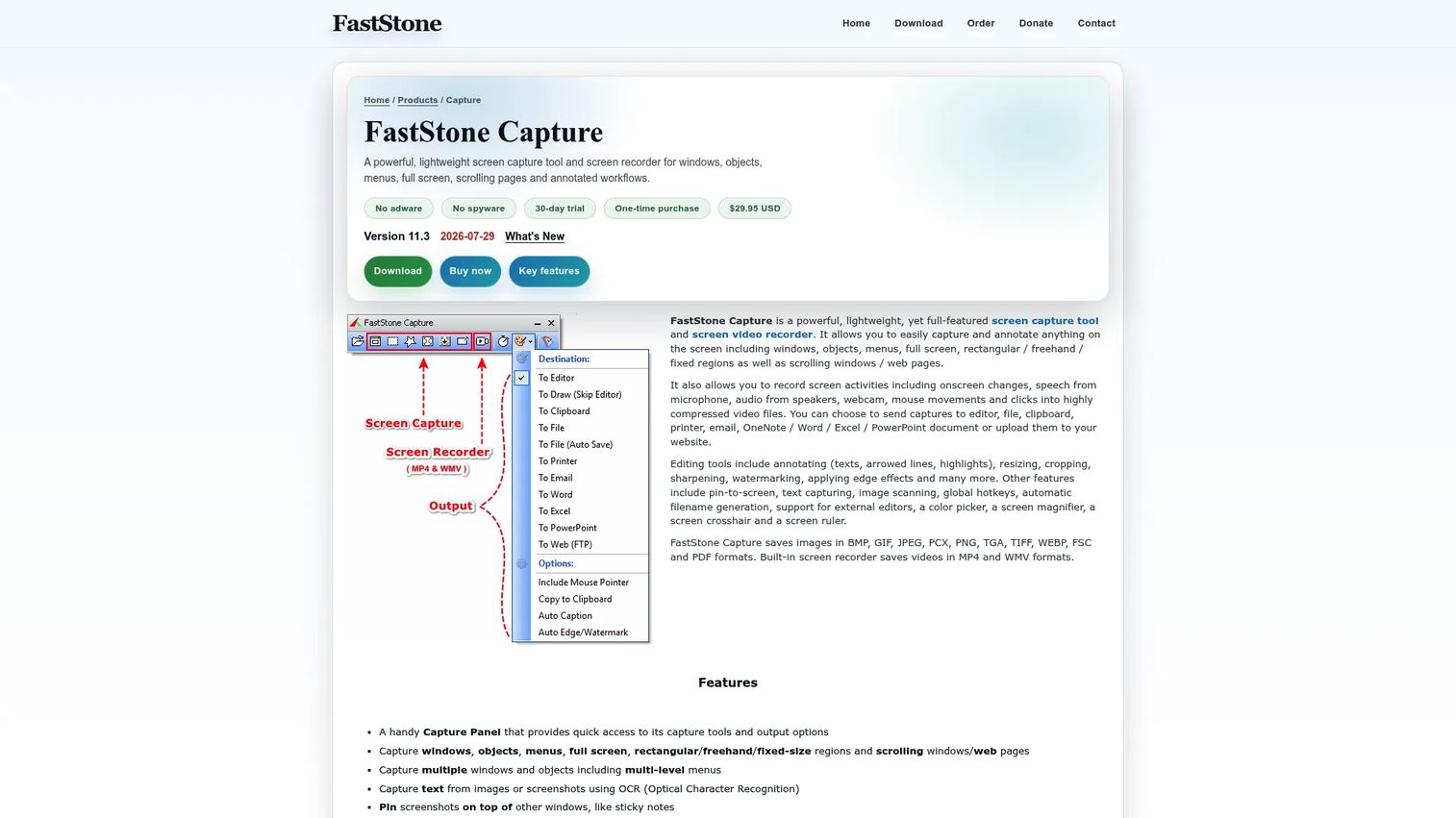
FastStone Capture is a compact Windows capture tool with a one-time lifetime license, which appeals to teams tired of annual subscription renewals for screenshot work.
Best for: Individuals and teams needing lightweight Windows screenshot capture, annotation, and screen recording.
What it is: FastStone Capture is a Windows screen-capture and screen-recording application supporting window, menu, full-screen, region, and scrolling page capture. It annotates screenshots with text, arrows, highlights, and watermarks, records screen activity with microphone and webcam, and includes a built-in video editor with animated GIF conversion and OCR.
Key features:
- Scrolling-page and region capture
- Screen recording with microphone, speaker, and webcam
- Built-in video editor with GIF conversion
- OCR text capture from images
Where FastStone Capture falls short: FastStone is Windows-focused and may feel dated compared with more modern capture tools. The interface is functional rather than polished. It is not suited to cloud-based team workflows or interactive training.
Pricing: $29.95 one-time lifetime license. Family license (up to 5 home-use computers) at $69.95 one-time. 30-day trial available.
G2 rating: 4.7/5
How it compares to Snagit: A strong pick for users who prefer a one-time purchase. Covers most of Snagit's capture and annotation features with a leaner interface.
10. Lightshot (screenshot capture)
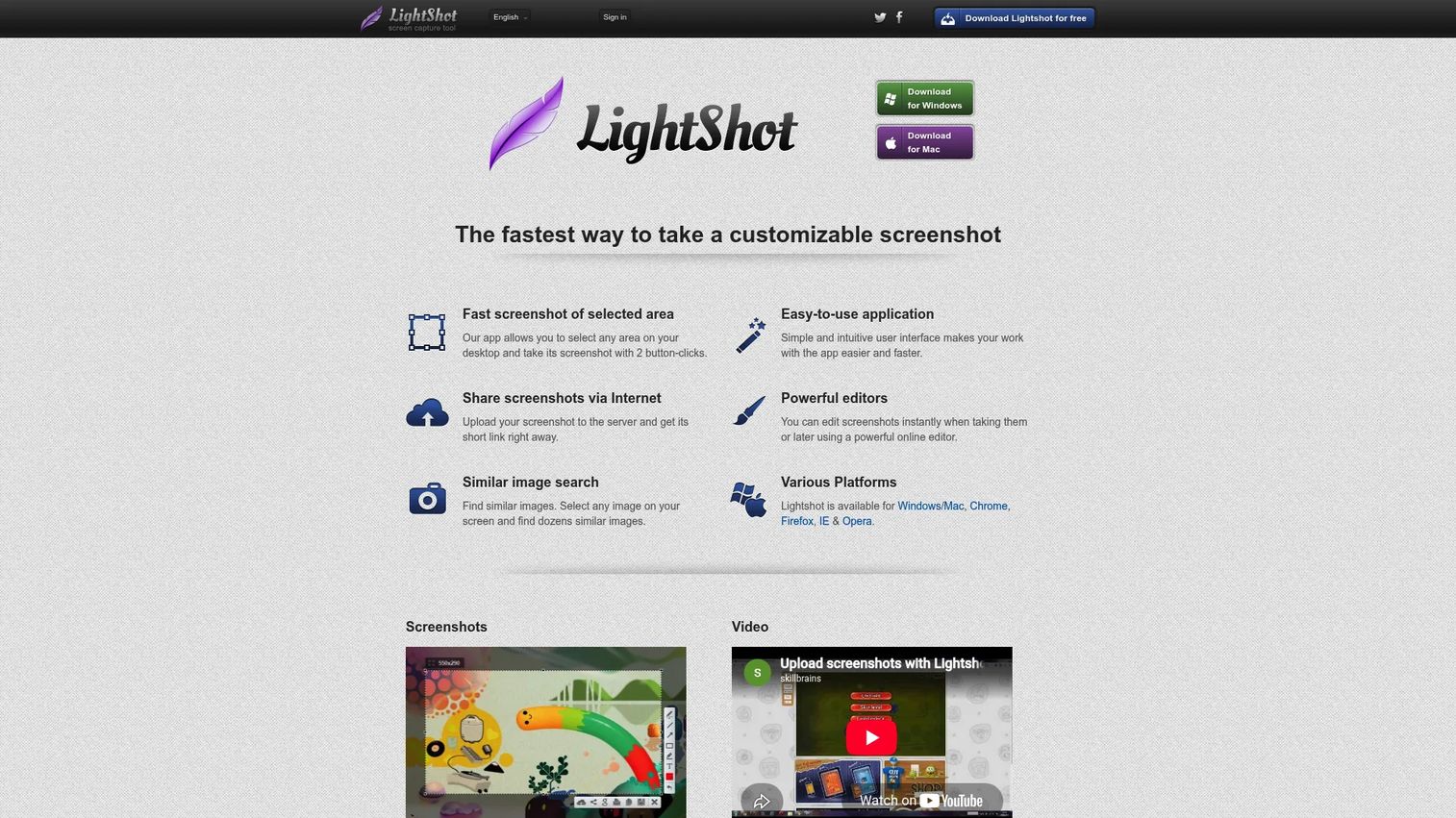
Lightshot is free, fast, and built for users who want to select a region, annotate it quickly, and share a link with minimal friction.
Best for: Individuals and teams needing fast, lightweight screenshot capture and sharing.
What it is: Lightshot is a free screenshot tool for capturing selected screen areas, adding basic annotations, uploading to prnt.sc for a shareable short link, and saving to common image formats. It includes a screenshot history and similar-image search.
Key features:
- Region selection with one-click capture
- Basic annotation tools including arrows, text, and shapes
- Upload and shareable short link
- Screenshot history
Where Lightshot falls short: The upload behavior sends captures to prnt.sc by default, which is a privacy concern for sensitive product screenshots. G2 reviewers note the editing tools are basic. No video capability or SOP workflow.
Pricing: Free. No paid tier.
G2 rating: 4.7/5
How it compares to Snagit: Much lighter and faster for casual screenshots. Not a substitute for business documentation, library organization, or video features.
11. Screenpresso (screen capture and documentation)
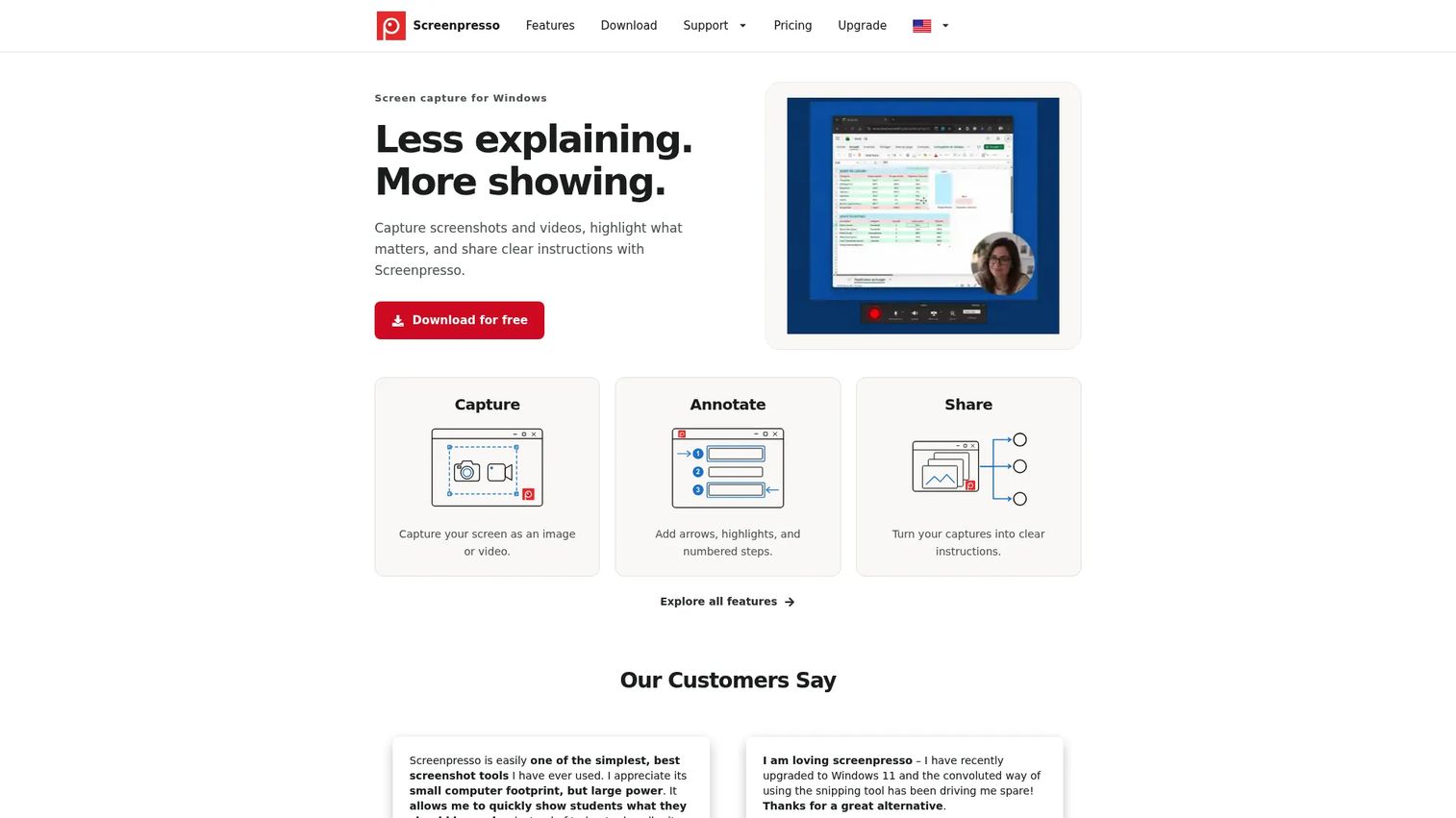
Screenpresso targets a similar audience to Snagit: Windows teams creating visual instructions, IT support materials, and step-by-step documentation. Its free tier is functional enough for many documentation jobs.
Best for: Windows-based teams creating screenshots, visual documentation, and training materials.
What it is: Screenpresso is Windows screen-capture software for creating screenshots and videos, annotating captures, and generating visual documentation. It includes scrolling capture, a workspace for organizing captures, and sharing integrations. G2 rates it 4.6/5.
Key features:
- Screenshot and scrolling-window capture
- Built-in image annotation editor
- Screen recording and video capture
- Document generation from captures
- Workspace organization and sharing
Where Screenpresso falls short: Screenpresso is Windows-only. The PRO tier price is not publicly listed and requires contacting the vendor. G2 reviewers note the interface can feel dated compared with newer tools.
Pricing: Free tier available. PRO price by quote (single-user). Enterprise at $2,190 one-time (unlimited users).
G2 rating: 4.6/5
How it compares to Snagit: Similar documentation intent and feature set. A strong Windows-focused option for teams that want free-tier capture without a subscription commitment.
12. Monosnap (screenshot and screen recording)
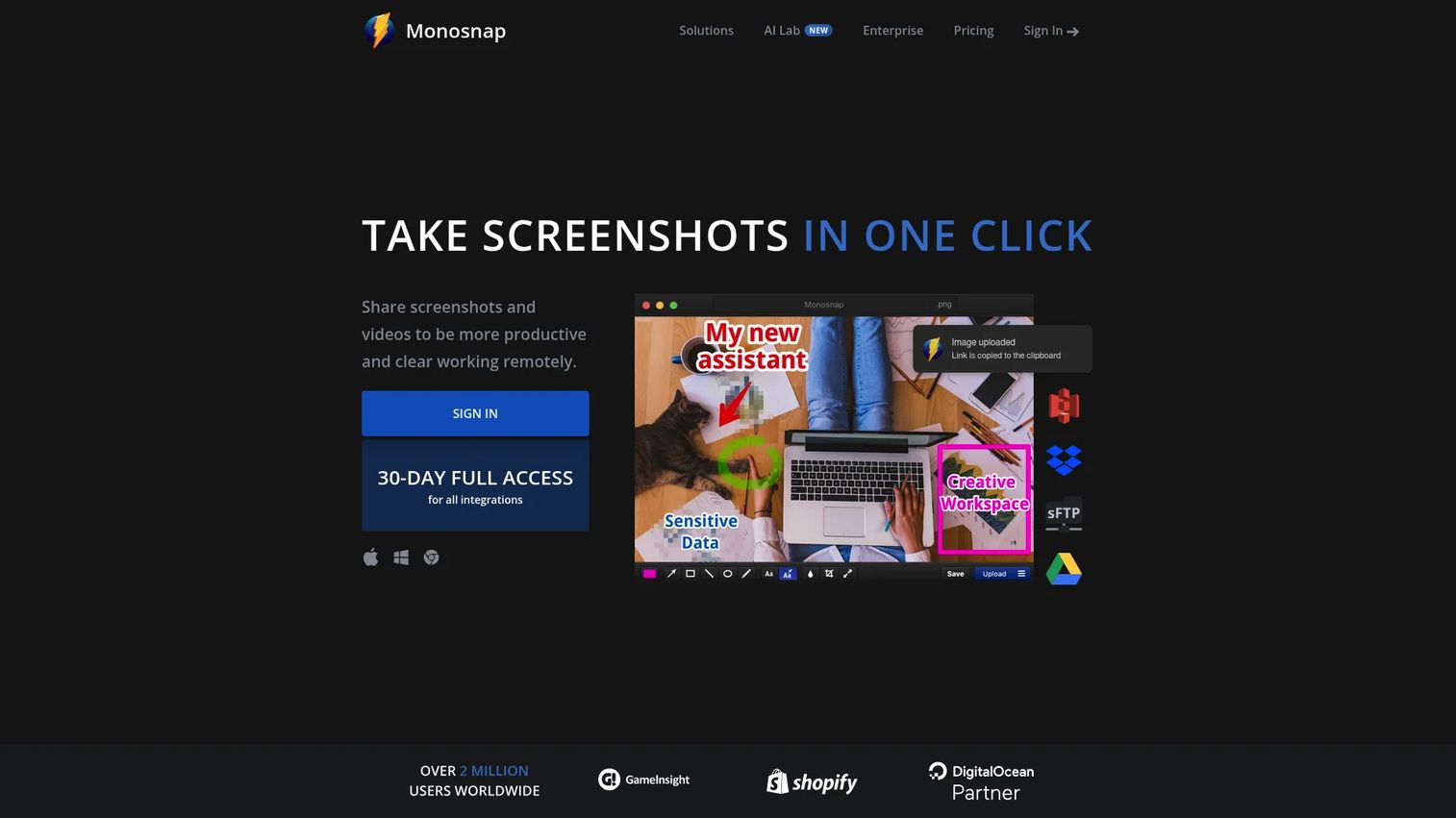
Monosnap combines capture with cloud storage and integrations to make sharing screenshots and short recordings frictionless. The free plan covers unlimited screenshots.
Best for: Teams and individuals needing quick screenshots, screen recordings, annotations, and cloud sharing.
What it is: Monosnap is screenshot and screen-recording software with annotation, cloud storage, and integrations with Google Drive, Dropbox, Box, Amazon S3, FTP, and SFTP. G2 rates it 4.3/5.
Key features:
- Fullscreen, area, and window screenshots
- Video and GIF recording
- Annotations, highlighting, and blur tool
- Cloud storage with configurable integration destinations
Where Monosnap falls short: Cloud reliance may not fit privacy-sensitive teams. G2 reviewers note the feature set for advanced documentation is limited compared with dedicated documentation tools. The 4.3/5 G2 rating is the lowest among rated tools on this list.
Pricing: Free plan at $0/month (unlimited screenshots, 2 GB storage). Non-Commercial at $2.50/month. Commercial at $5/month. Enterprise by quote.
G2 rating: 4.3/5
How it compares to Snagit: Better for quick cloud sharing workflows. Snagit is stronger for local editing, templates, and established documentation processes.
13. Clipchamp (video editing)
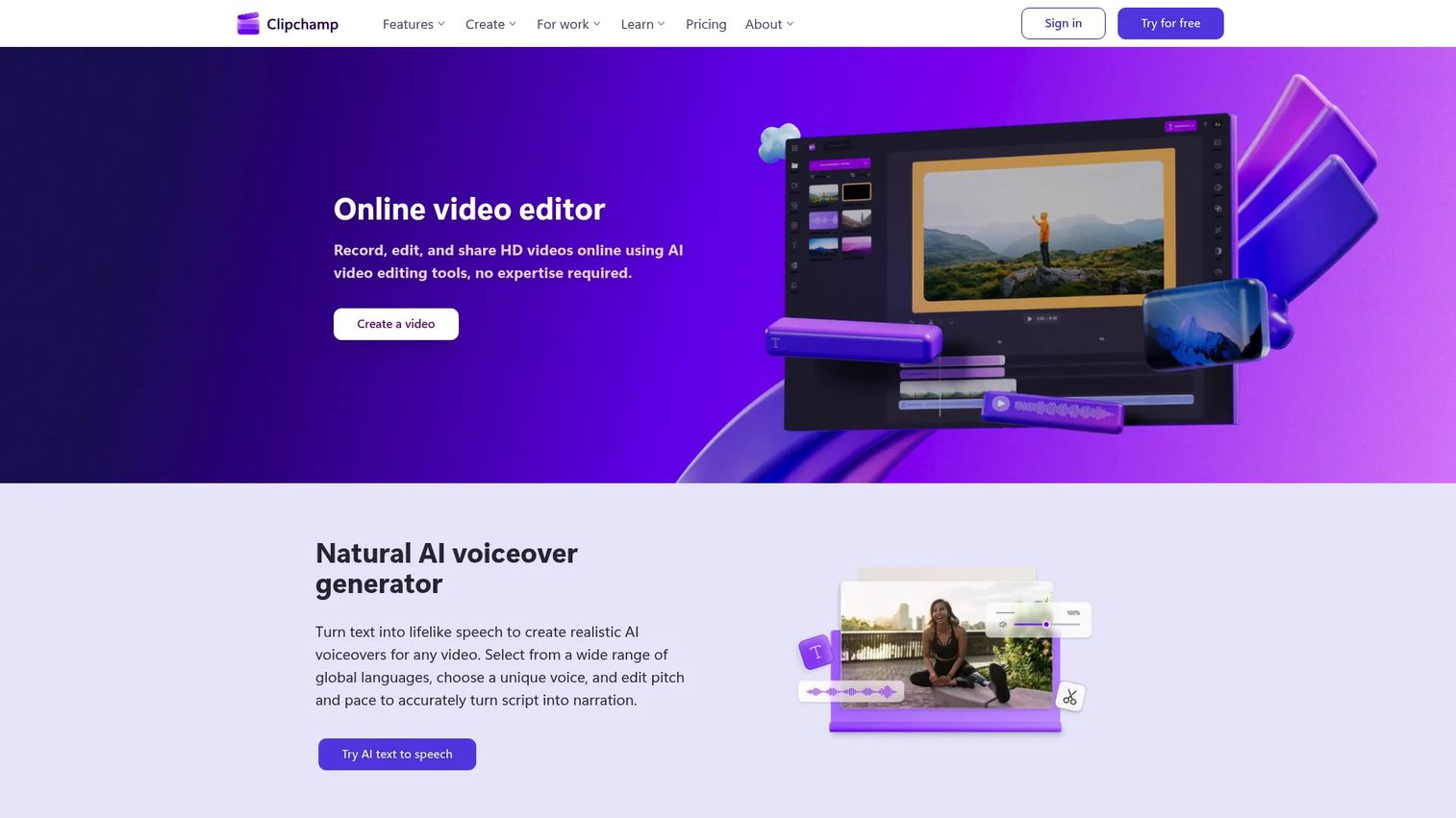
Clipchamp is not a screenshot tool. Its role in this list is as a post-capture video editor for teams who record with another tool and need to trim, caption, and polish the output in a browser.
Best for: Individuals, educators, and workplace teams needing accessible browser-based video editing and recording.
What it is: Clipchamp is a browser-based video editor from Microsoft for recording, editing, enhancing, and sharing videos. It supports trim, crop, resize, rotate, transitions, AI subtitles, text-to-speech, silence removal, noise suppression, and background removal. G2 rates it 4.1/5.
Key features:
- Video and audio recording in browser
- AI tools for subtitles, silence removal, and noise suppression
- Trim, crop, resize, and transitions
- Export up to 1080p HD on the free plan
Where Clipchamp falls short: Clipchamp is an editor, not a capture tool. Teams that need screenshot annotation or scrolling capture must use a separate tool. G2 reviewers note that 4K export is locked behind Microsoft 365 Personal or Family. The 4.1/5 G2 rating reflects some frustration with the premium feature gating.
Pricing: Free plan supports unlimited creation and 1080p HD export. Premium features, including 4K UHD export and premium stock assets, are included with Microsoft 365 Personal or Family.
G2 rating: 4.1/5
How it compares to Snagit: Clipchamp edits video. Snagit captures screens and creates quick visual instructions. The two tools serve adjacent but distinct workflow stages.
14. Shottr (Mac screenshot tool)
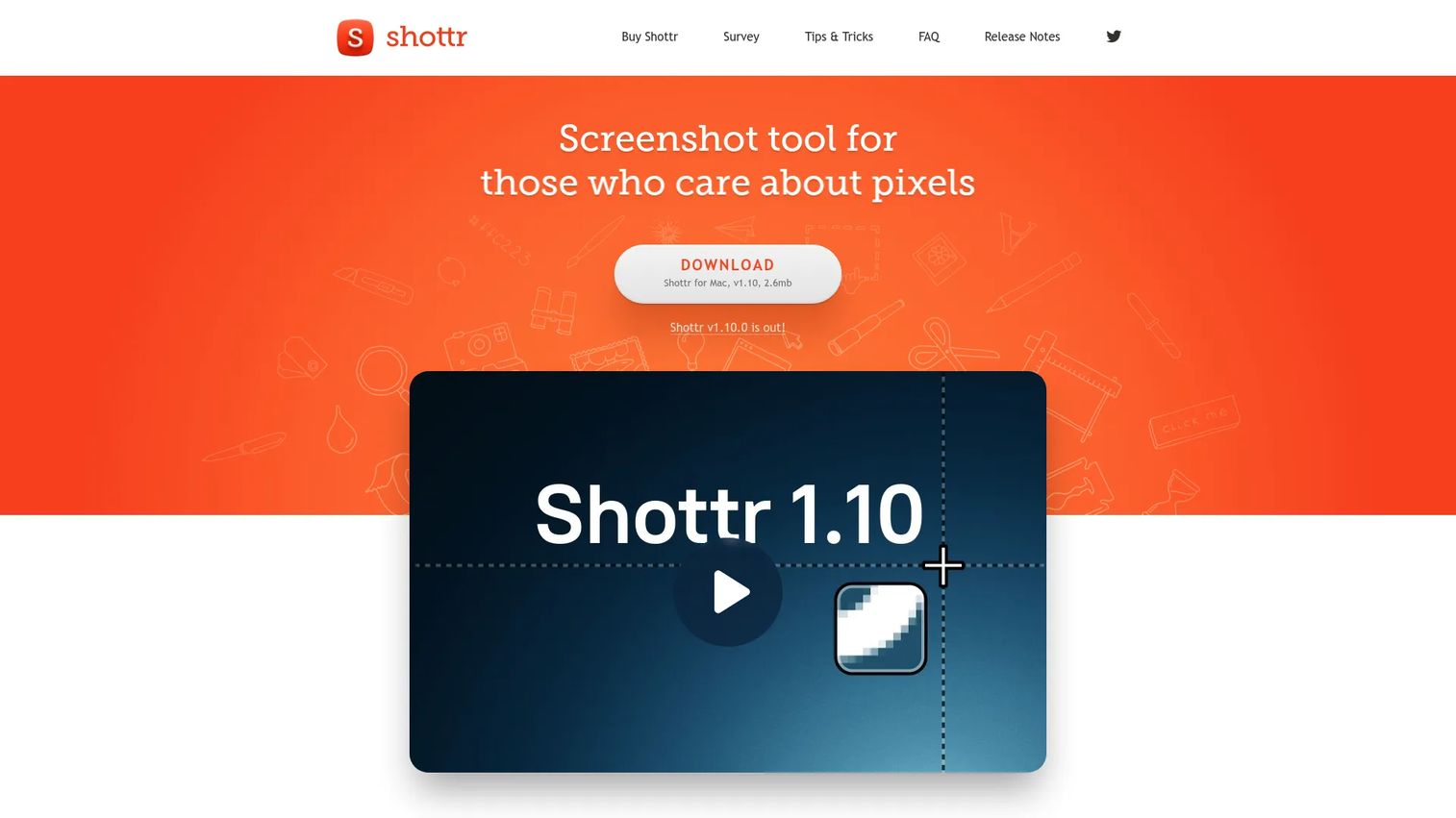
Shottr is built specifically for Mac and covers the screenshot annotation, OCR, and measurement features that macOS Screenshot alone does not provide.
Best for: Mac designers, developers, and other users who need fast screenshot capture with annotation, OCR, and pixel measurement.
What it is: Shottr is a lightweight native macOS screenshot tool for capturing, annotating, measuring, editing, and sharing screenshots. Features include scrolling screenshots, OCR, QR-code recognition, object removal, screen ruler, magnifier, and color picker. Free use is available; commercial use requires a one-time purchase.
Key features:
- Scrolling screenshots and annotated captures
- OCR and QR-code recognition
- Pixel ruler, magnifier, and color picker
- Object removal and pixelation tools
Where Shottr falls short: Shottr is macOS-only, so it does not apply to Windows or Linux teams. No video recording or interactive training capability.
Pricing: Free (with periodic upgrade prompts). Basic tier at $12 one-time (required for commercial use). Friends Club at $30 one-time (experimental features).
G2: 4.7
How it compares to Snagit: A strong Mac-focused alternative for screenshot and annotation work. Snagit covers more ground with video, library, and step-based documentation, but Shottr is more precise for pixel-level Mac work.
15. ScreenToGIF (GIF screen recording)
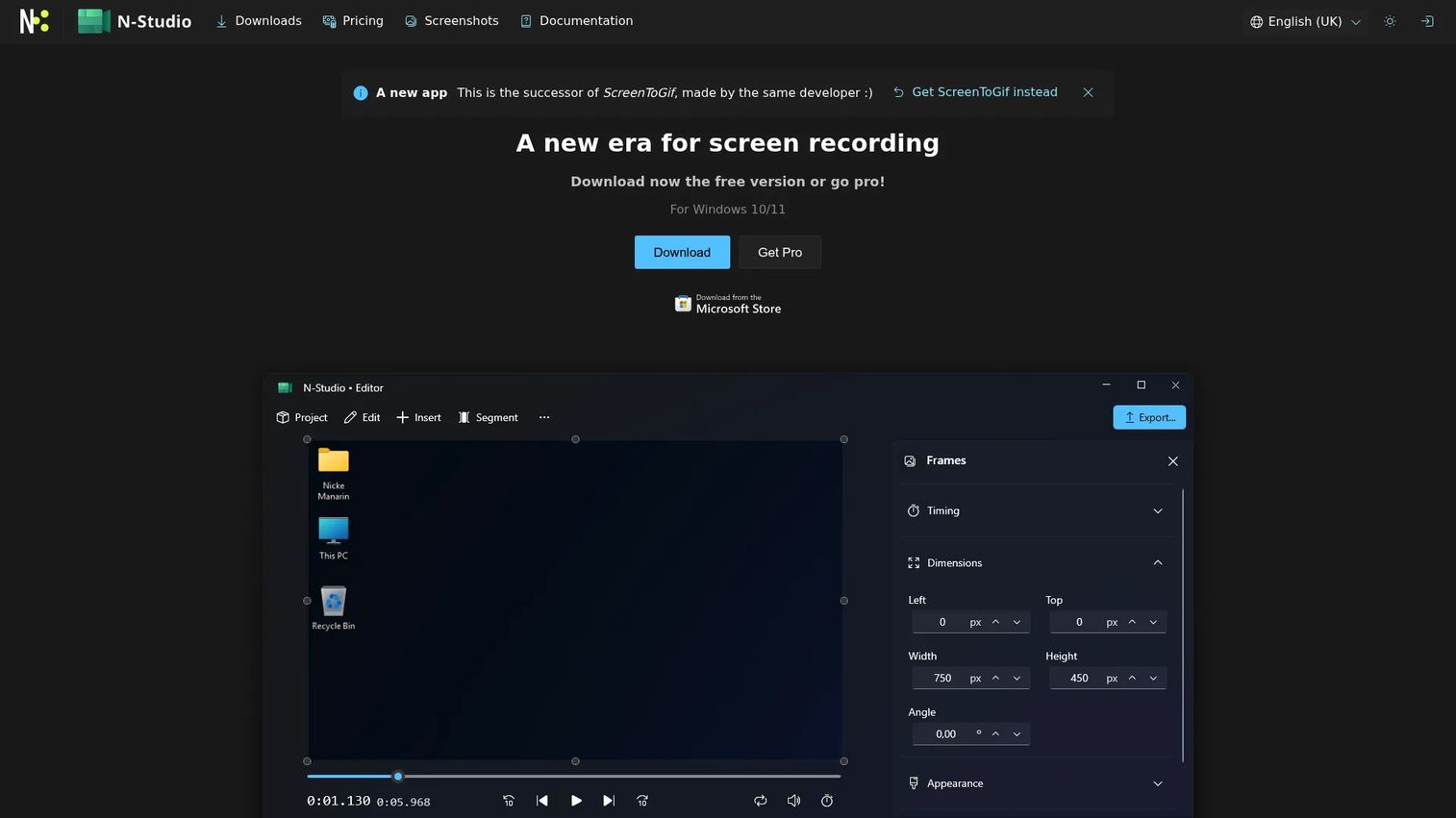
ScreenToGIF does one job: Record a screen area, webcam, or sketchboard and turn it into an editable GIF or video. For teams producing short software clips for documentation or social media, nothing else on this list matches its GIF-specific editing workflow.
Best for: Windows users creating and editing short screen recordings or GIFs locally.
What it is: ScreenToGIF is free, open-source Windows software for recording screen areas, webcam feeds, or sketchboard drawings. It supports frame-by-frame editing and exports to GIF, APNG, video, PSD, or PNG.
Key features:
- Screen-area, webcam, and sketchboard recording
- Frame-by-frame GIF editor
- Export to GIF, APNG, video, and PNG
Where ScreenToGIF falls short: GIFs are passive. Viewers watch rather than click through. The tool is Windows-only and covers GIF workflows only, so teams needing screenshot annotation or document generation must use something else alongside it.
Pricing: Free and open-source. Donation-based.
G2: 4.5
How it compares to Snagit: Stronger for GIF-specific workflows. Snagit is broader across capture modes, annotation, and documentation.
16. Skitch (screenshot markup)
Skitch is now part of Evernote and functions as an annotation layer for users already in that ecosystem. For teams outside Evernote, its utility is limited compared with standalone tools.
Best for: Evernote users who need to annotate images and PDFs within that workflow.
What it is: Skitch is an image and PDF annotation editor integrated into Evernote. It supports arrows, text, shapes, blur, and simple annotation. Its current state is as a feature within Evernote rather than a fully independent product.
Key features:
- Annotations with arrows, text, and shapes
- Blur tool
- PDF and image editing integrated into Evernote
Where Skitch falls short: Skitch lacks the depth of a standalone capture tool. Platform availability is tied to Evernote. No screen recording, no video editing, no interactive training.
Pricing: Free access through Evernote's free plan. Evernote Starter at $8.25/month (monthly) or $99/year. Advanced at $20.83/month (monthly) or $249.99/year.
G2: 4.5
How it compares to Snagit: A much simpler annotation option for Evernote users. Not a replacement for Snagit's capture and documentation workflow.
17. macOS Screenshot (built-in screen capture)
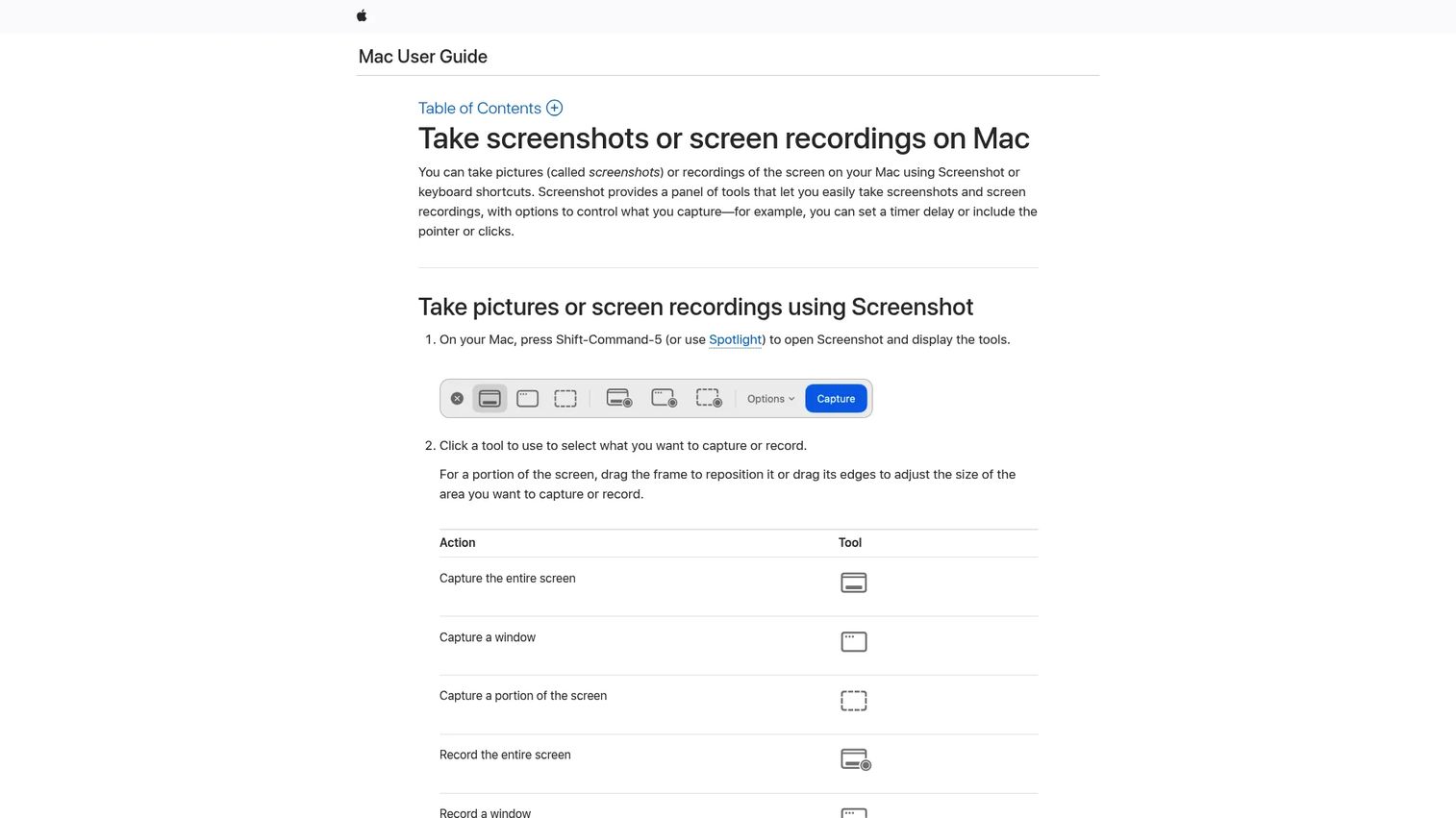
macOS Screenshot is the first tool every Mac user should try before paying for anything else. Its keyboard shortcuts, screen recording, and floating thumbnail workflow cover the majority of basic capture needs at no cost.
Best for: Mac users who need quick screenshots, screen recordings, and basic annotation or sharing.
What it is: A built-in macOS utility for capturing screenshots and screen recordings. Supports entire screen, window, or selected portion capture and recording. Options include setting timers, save locations, microphone, pointer visibility, and floating thumbnails.
Key features:
- Entire screen, window, or selected portion capture and recording
- Timer and floating thumbnail options
- Annotation and trim via built-in Quick Look
- Multiple save destination options
Where macOS Screenshot falls short: Limited annotation without opening Preview alongside it. No advanced documentation library, interactive training output, or upload automation.
Pricing: Free. Included with macOS.
G2: 4.3
How it compares to Snagit: Covers basic Mac capture at no cost. Snagit adds a stronger annotation editor, scrolling capture, library, and step-based documentation features.
18. Preview (built-in Mac markup)
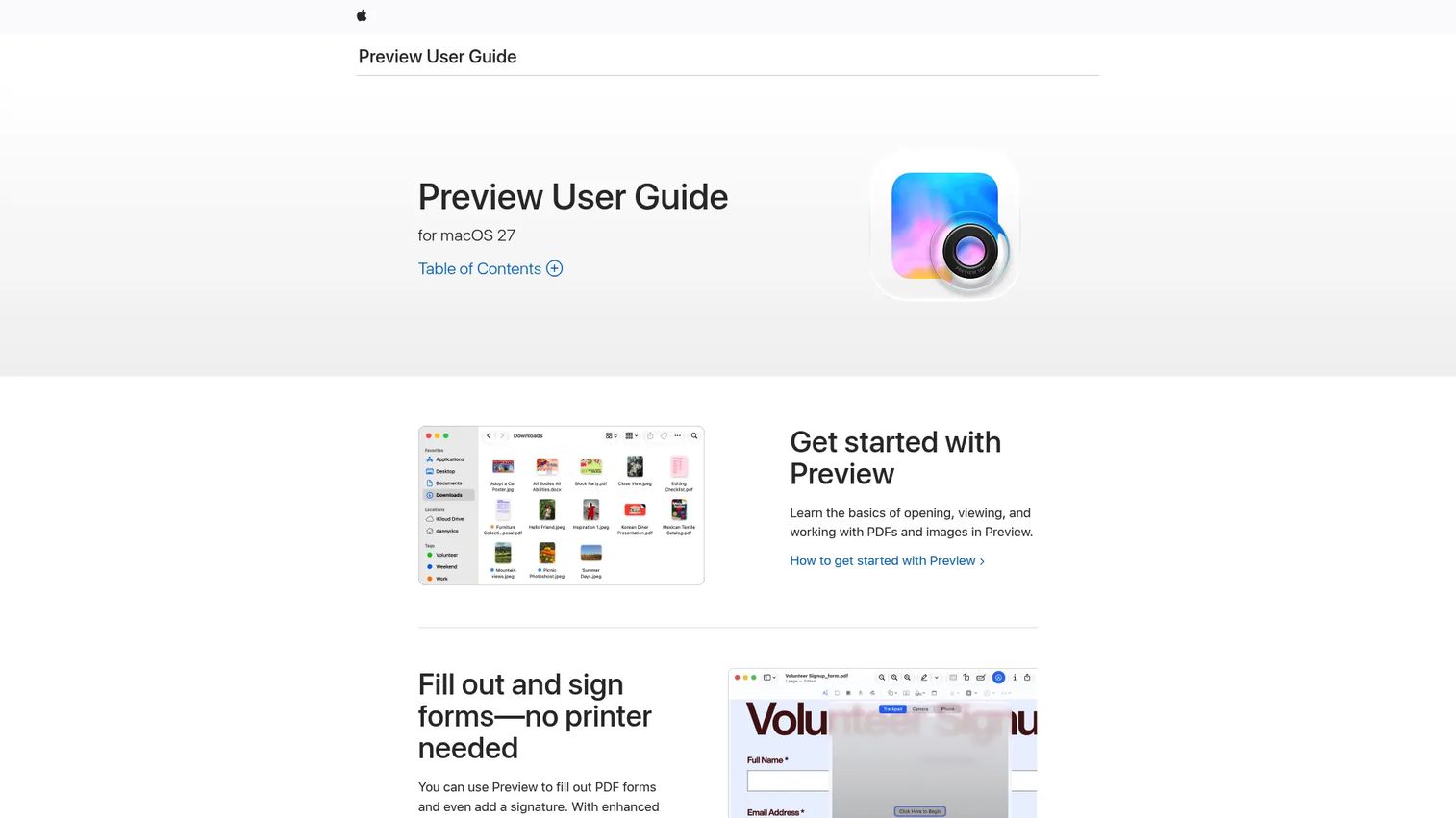
Preview is not a capture tool. It is the free markup layer Mac users already have for opening and annotating images and PDFs after they are captured.
Best for: Mac users who need built-in tools for reading, annotating, signing, and managing PDFs and images.
What it is: Preview is a built-in macOS app for viewing, annotating, signing, and editing PDFs and images. It supports shapes, text, signatures, cropping, resizing, and page management for PDFs.
Key features:
- Annotation with shapes, text, and signatures
- Crop and resize images
- PDF page management and password protection
- Background removal
Where Preview falls short: Preview is not a capture tool. It opens files; it does not take screenshots. No recording, no interactive training, no upload workflow.
Pricing: Free. Included with macOS.
G2: 4.3
How it compares to Snagit: Useful as a free companion to macOS Screenshot for markup, not a full Snagit replacement on its own.
19. FFmpeg (media processing)
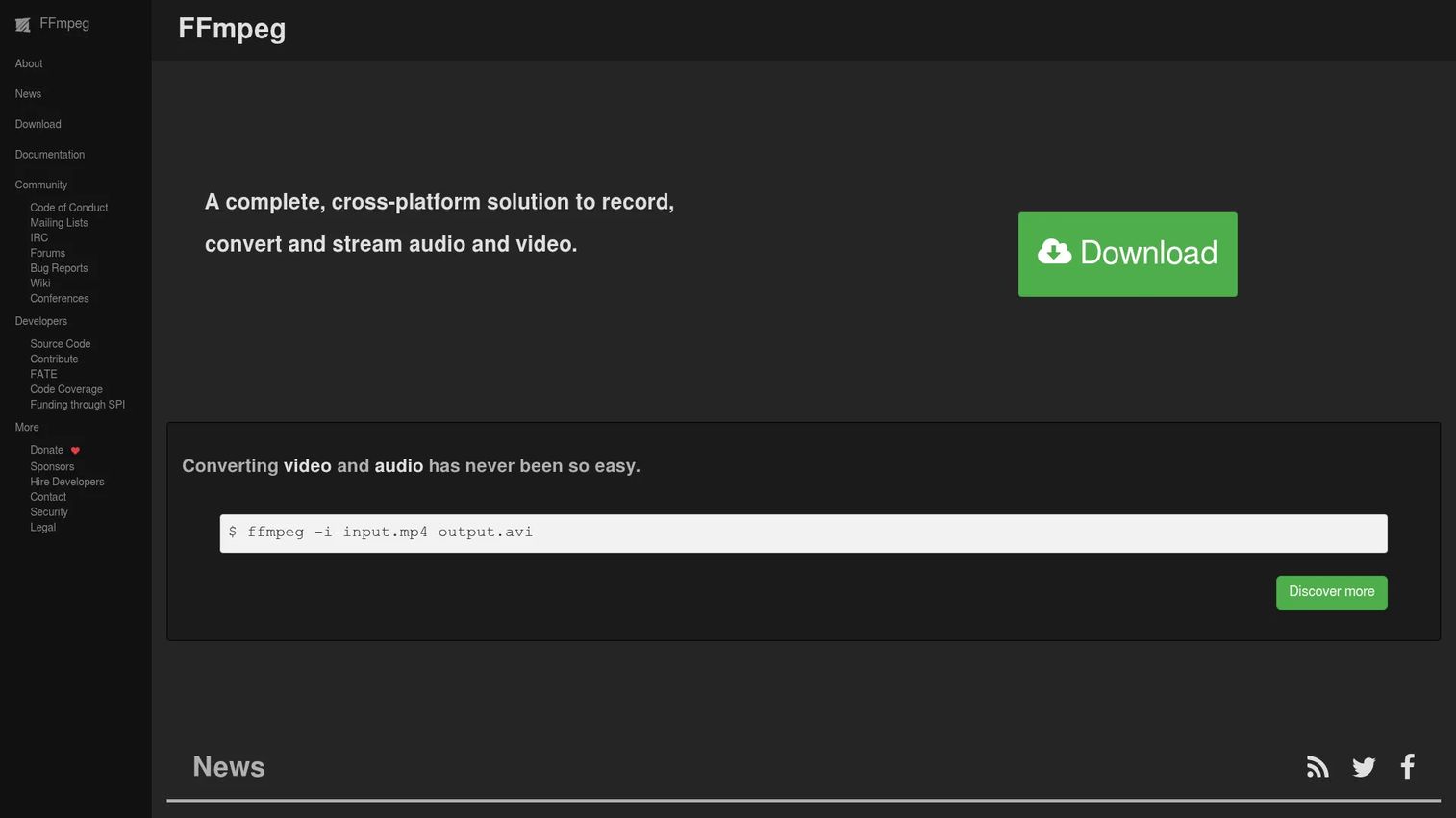
FFmpeg earns a place here for technical marketers and developers who need programmatic control over video conversion, GIF creation, and batch media processing that no GUI tool covers as well.
Best for: Developers and technical media teams needing programmable multimedia recording, conversion, and streaming.
What it is: FFmpeg is a free, open-source, cross-platform solution for recording, converting, and streaming audio and video. It operates via command-line tools and supports a broad range of codecs, formats, filters, and protocols.
Key features:
- Media recording, conversion, and streaming
- Support for a wide range of audio and video codecs
- Batch processing and scripting capability
Where FFmpeg falls short: FFmpeg has no visual annotation interface and no interactive training capability. The command-line requirement makes it inaccessible to non-technical team members. Not a direct Snagit replacement for annotation or documentation workflows.
Pricing: Free and open-source. No paid tier.
G2 rating: 4.6/5
How it compares to Snagit: Powerful for technical media processing after capture. Not a user-friendly capture or documentation alternative for most marketing teams.
20. IrfanView (image viewer and light editor)
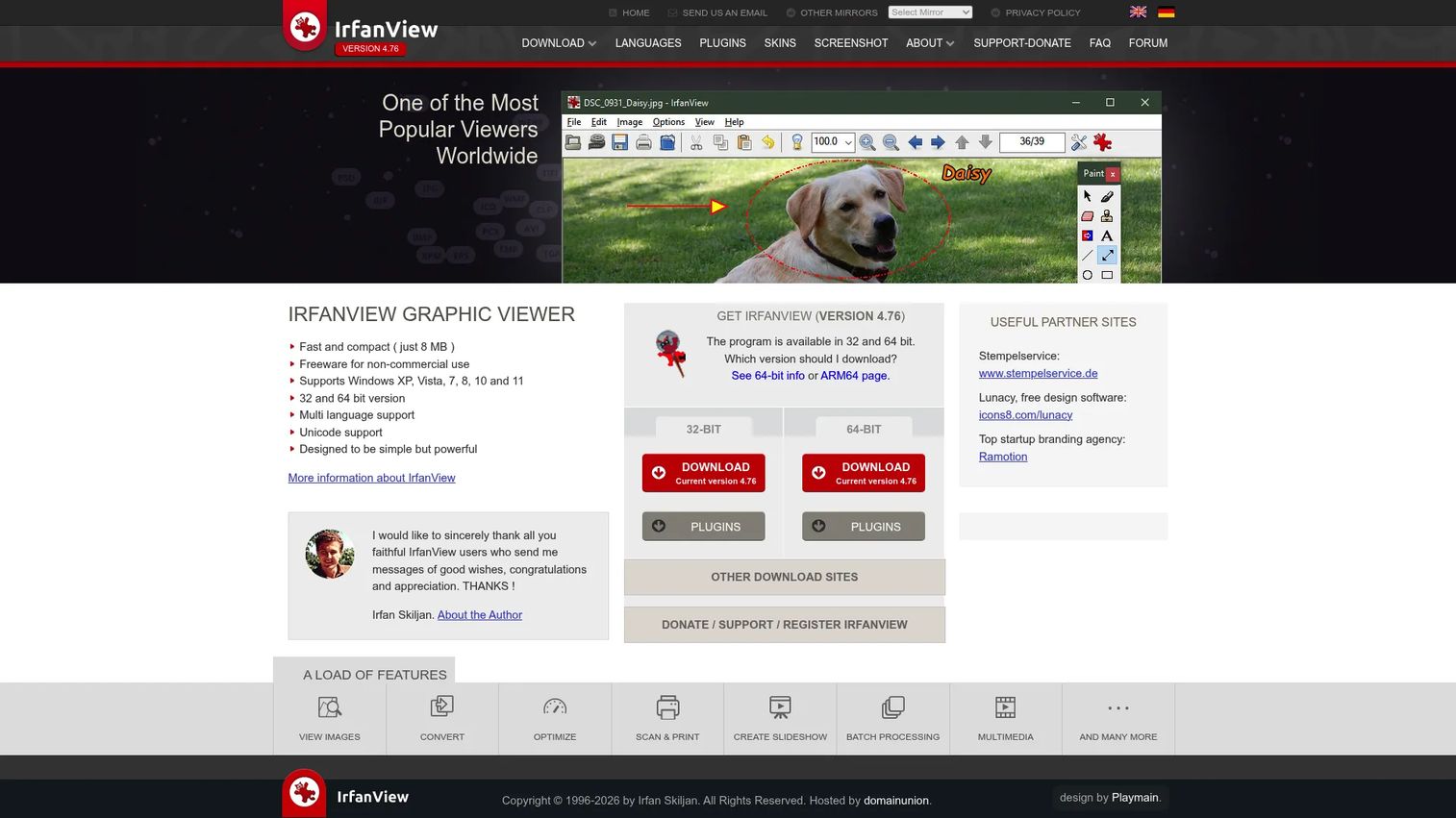
IrfanView has been around long enough that many Windows users have it installed without thinking about it. For fast image review, cropping, resizing, and batch conversion, nothing on this list matches its speed.
Best for: Windows users needing a lightweight image viewer with batch processing, conversion, and basic editing.
What it is: IrfanView is a fast, compact freeware graphic viewer for Windows supporting a wide range of file formats. It handles batch conversion, image editing (crop, rotate, effects, overlays), slideshow creation, scanning, printing, and multimedia playback. Free for private and non-commercial use; commercial use requires a license.
Key features:
- Supports many image file formats
- Batch conversion with multithreading
- Image editing including crop, rotate, and effects
- Slideshow creation and export
Where IrfanView falls short: Not a full capture or screen recording suite. Annotation capability is limited compared with dedicated screenshot tools. Better as a companion image viewer than a Snagit replacement.
Pricing: Free for private, non-commercial, educational, and humanitarian use. Single commercial license at $18 (perpetual). Discounts for 11 or more licenses.
G2 rating: 4.6/5
How it compares to Snagit: A good companion for reviewing and processing captured images. Not a substitute for Snagit's capture, annotation, and video workflow.
What is the best Snagit alternative for interactive guides?
Guideflow is the right pick when the job is internal training, employee onboarding, or software process education.
Snagit can build visual step guides using its Step Capture feature, but the output is a static image sequence. When an employee needs to follow a process rather than look at it, an interactive demo that the viewer clicks through produces a materially different engagement. Guideflow captures the software flow, generates step content automatically, and lets teams organize multiple guides in a demo center by role, process, or team. Analytics track step-level completion and drop-off per guide. For internal training SOPs that need to stay current as software changes, the update-and-republish workflow is significantly faster than rebuilding a screenshot guide.
Which Snagit alternative is best for free Windows screen capture?
ShareX is the most capable free Windows option for power users; Windows Snipping Tool is the best zero-setup built-in pick.
ShareX handles screenshots, screen recording, GIF capture, OCR, and upload automation with no cost and no account required. Its configuration takes more time upfront, but the output breadth exceeds what Snagit offers in most categories. For marketers who need quick campaign screenshots without automation, Windows Snipping Tool is already installed, covers region capture and basic recording, and requires no setup at all. Greenshot sits between the two: Free, open-source, and focused on clean annotated screenshots without the configuration overhead of ShareX.
Which Snagit alternative records the most polished video?
Camtasia is the strongest option for edited tutorial video; OBS Studio is the go-to for free advanced recording.
Camtasia provides multi-track editing, cursor effects, AI-powered captions, and noise removal in a workflow designed for tutorial and training video production. Teams whose output is a polished course or demo video will find Snagit's recording tools fall short of what Camtasia offers. OBS Studio covers the other end: Free, highly configurable, and built for multi-source recording and live streaming. For teams who record webinars or multi-camera production, OBS handles complexity that neither Snagit nor Camtasia address. Clipchamp is worth adding for browser-based editing of recorded clips, particularly for teams already in the Microsoft 365 ecosystem.
What is the cheapest Snagit alternative?
The cheapest options are tools that come free with the operating system or are open-source.
Windows Snipping Tool and macOS Screenshot cost nothing because they ship with the OS. ShareX, Greenshot, Flameshot, OBS Studio, ScreenToGIF, and FFmpeg are all free and open-source. For teams with modest capture needs, these cover the majority of Snagit use cases at no cost. Guideflow has a free plan for teams exploring the interactive guide format. FastStone Capture and Shottr are the most affordable paid options at $29.95 and $12 respectively, both as one-time purchases rather than annual subscriptions.
Which Snagit alternative is best for Mac?
Shottr is the strongest dedicated Mac screenshot option; macOS Screenshot plus Preview covers free built-in capture and markup.
Shottr adds scrolling capture, OCR, pixel measurement, and annotation to the Mac experience that the built-in tools do not cover. For designers and developers who do precise work on Mac, Shottr's ruler and color picker make it particularly useful. Teams that do not need those precision tools can pair macOS Screenshot with Preview for free. When the job moves beyond static screenshots into documenting and sharing software processes for onboarding or SOPs, Guideflow handles that workflow for Mac and Windows users alike, since it operates through the browser rather than requiring a platform-specific application.
When should you stay with Snagit?
Stay with Snagit if the team already uses it heavily and the library, templates, and Step Capture workflow are central to daily work. The switching cost is real when screenshots, recordings, and step guides are organized in the Snagit library and shared through TechSmith channels.
Snagit is worth keeping when the team needs scrolling capture, OCR, Smart Redact, and annotation in a single familiar application, and when the subscription cost is acceptable relative to the documentation volume it supports. Teams running on a TechSmith stack, with Camtasia handling video and Snagit handling capture, have a coherent workflow that individual free tools cannot replicate cleanly.
If the renewal feels like overhead for a team that uses three features out of twenty, that is the moment to compare costs against ShareX, Greenshot, or FastStone Capture.
Why teams switch from Snagit to Guideflow
Snagit captures software and creates annotated visuals. Guideflow turns the same captured software into a step-by-step interactive demo that employees or customers navigate on their own. The switch happens when the output needs to teach a process, not simply document one.
Growth marketers and training teams typically reach this point when static screenshots stop reducing support tickets, when new employees still need a human to walk them through software after reviewing a Snagit guide, or when campaign SOPs fall out of date faster than they can be recaptured and annotated.
Guideflow handles this by capturing the software flow through the Chrome extension or native app, generating step content automatically, and publishing a shareable demo in about two and a half minutes. Teams can organize multiple guides using demo centers, give users hands-on exploration through sandboxes, and track step-level completion and drop-off through the analytics dashboard. HubSpot, Salesforce, Pipedrive, Zoho, and Marketo integrations route that engagement data into existing CRM and marketing workflows.
One important boundary: Guideflow is not a screenshot annotation tool. For quick one-off image markup, any of the lightweight tools on this list will serve better. Guideflow fits when the job is building a reusable, trackable, interactive software guide for onboarding, training, or customer education.
Start your journey with Guideflow today!
FAQs
The best choice depends on the job. Guideflow is the strongest alternative when the goal is interactive guides for internal training, employee onboarding, or SOPs. ShareX leads for free Windows power users who need capture automation. Greenshot covers lightweight annotated screenshots. Camtasia is the pick for edited tutorial video. For zero-install capture, Windows Snipping Tool and macOS Screenshot are the built-in defaults.
ShareX is the most capable free Windows option, covering screenshots, screen recording, GIF capture, OCR, and upload automation. Greenshot is a faster install for simple annotation. Flameshot is the strongest open-source choice for Linux and cross-platform teams. OBS Studio handles advanced screen recording without cost. For built-in tools, Windows Snipping Tool and macOS Screenshot are already on the machine.
No single free tool replicates every Snagit feature for every user. ShareX comes closest for power users who want broad capture modes, GIF recording, and upload automation. Windows Snipping Tool is the most accessible free option for basic screenshots and short recordings. Greenshot covers annotated screenshots without the configuration overhead of ShareX.
Shottr is the strongest dedicated Mac screenshot tool, adding scrolling capture, OCR, and pixel measurement to the standard Mac experience. For free built-in capture and markup, macOS Screenshot paired with Preview covers most basic annotation needs. When the goal shifts to documenting and sharing software processes for training or SOPs rather than taking static screenshots, Guideflow runs in the browser and works across platforms.
Yes, when the job is training, onboarding, SOPs, or software education. No, if the job is only quick static screenshots. Screenshot tools capture a visual. Interactive guide tools let viewers follow and interact with a software process step by step. The two categories overlap in subject matter but produce fundamentally different outputs in terms of viewer engagement and analytics.
OBS Studio is the most powerful free option for advanced recording, multi-source capture, and streaming. Camtasia is the stronger choice for edited training video with multi-track editing, cursor effects, and AI tools. Clipchamp handles browser-based editing of recorded clips. Snagit remains a capable option for quick recordings if the team is already using it for annotation and documentation.
Yes, for teams that rely on its full feature set: Scrolling capture, OCR, Smart Redact, the searchable library, Step Capture, and TechSmith ecosystem integration. Alternatives make sense when the subscription cost exceeds the value delivered, when the platform or OS needs do not align, or when the output format has shifted from screenshots to video or interactive guides. Snagit and Guideflow are often used together: Snagit for quick visual captures and Guideflow for the step-by-step interactive guides those captures sometimes need to become.
Snagit captures and edits screenshots or screen recordings. Guideflow turns captured software processes into interactive step-by-step demos that viewers follow and interact with. Snagit is the right tool for static visual documentation, annotated screenshots, and short recordings. Guideflow is the right tool when someone needs to learn or follow a software process, track their progress through it, and when the team needs analytics on how that content performs.