ScreenPal (formerly Screencast-O-Matic) covers a lot of ground: Screen recording, webcam capture, video editing, hosting, and education-focused training workflows. For many teams it does the job well enough. But search volume for ScreenPal alternatives keeps growing, and the reasons are consistent: Some teams need a different output format entirely, others hit the limits of its editing workflow, and a growing segment has realized that passive recordings are the wrong tool for software training that requires employees to actually do the task.
The best ScreenPal alternatives for most teams break into two categories. The first is a like-for-like video or recording swap. The second is a category upgrade to interactive step-by-step software guides. The best ScreenPal alternative for interactive internal training is Guideflow, while Loom is the strongest pick for quick async video and OBS Studio is the best free recording option.
This roundup covers nine tools across both categories: Interactive guide platform, async video messaging, open source recording, tutorial editing, transcript-based editing, browser-based video editing, polished Mac recording, marketing video hosting, and screen capture.
TL;DR
- Best overall for internal training and SOPs: Guideflow turns software captures into interactive step-by-step guides that employees click through. Plans start free, with paid plans from $35/user/month (annual).
- Best like-for-like video alternative: Loom, for async screen-and-camera messages and quick share links. Free plan available; Business from $18/user/month.
- Best free recording option: OBS Studio, free and open source, with no watermarks or usage limits.
- Best for polished tutorial editing: Camtasia, for structured training videos with timeline editing, cursor effects, and quizzes. Plans start at $39/year.
- Best for transcript-based editing: Descript, for editing narrated video by editing the transcript. Free plan available; paid from $16/person/month (annual).
- Best for browser-based marketing videos: VEED, for social video, auto-captions, and browser editing. Free plan available.
- What to know going in: This list spans two categories. Some tools replace ScreenPal's video workflow. Others, like Guideflow, change the output format entirely from passive recording to interactive guide.
What's inside
- A fair ScreenPal overview and its category
- Why teams search for ScreenPal alternatives, with sourced reasons
- A category-labeled comparison table with pricing and G2 ratings
- Nine ranked alternatives with per-tool cards
- Use-case picks routing by workflow type
- FAQs for switchers comparing formats and cost
What is ScreenPal?
ScreenPal is a screen recording, webcam recording, video editing, hosting, and education-video platform for creating tutorials, training content, and shareable screencasts. Originally launched as Screencast-O-Matic, it rebranded to ScreenPal and expanded beyond basic recording into a broader video creation suite.
Its core strengths are cross-platform coverage across desktop, mobile, and Chromebook; a combined recorder and editor under one subscription; integrated video hosting; and education-specific features including interactive video elements such as quizzes and polls. Teams use it for software tutorials, employee training videos, support documentation, and course content.
ScreenPal sits in the screen recorder and editor category. It performs well when the job is a hosted training video. Teams start looking elsewhere when they need more advanced editing, faster async sharing, free local recording, or a format where viewers complete tasks rather than just watch them.
Why teams look for ScreenPal alternatives
Teams search for ScreenPal alternatives most often when passive video stops fitting the job, the editing tools feel limiting, or pricing becomes a question worth asking.
They need interactive training instead of passive recordings
Video works for watching. When the goal is software onboarding, SOP documentation, or internal process training where employees need to complete the steps themselves, a recording puts the viewer in a passive seat. Interactive step-by-step guides let people click through each task at their own pace, which fits training workflows that require task completion rather than observation. This distinction sets up the case for Guideflow in this list.
They want quicker async video sharing
Some teams sending update messages, quick client replies, or sales follow-ups find ScreenPal's workflow heavier than the job requires. They want a shareable link the moment recording stops, with viewer notifications and lightweight team organization. G2 reviewers of ScreenPal note the platform covers more than a focused async messaging tool needs. Loom is built specifically for that narrower job.
They need a free option without watermarks or hosting dependencies
ScreenPal's free tier adds watermarks to recordings and limits hosting. Teams that want local recording control with no subscription cost and no watermark have a clear alternative in OBS Studio, which is fully free and open source.
They need deeper editing or transcript-based production
Instructional video teams building polished training courses often want timeline-based multi-track editing, cursor path controls, text-based transcript editing, or studio-grade audio cleanup. Camtasia and Descript each address one end of that need, and ScreenPal's editor sits in the middle without fully matching either.
They need marketing-grade video hosting or browser production
Digital marketers running campaigns, A/B testing landing page videos, or producing social content often need a branded player, lead capture, viewer analytics, or browser-based production. ScreenPal's hosting is education-oriented. Wistia and VEED both serve marketing-specific distribution and production workflows.
How we picked these ScreenPal alternatives
Each tool was selected based on real workflow overlap with ScreenPal's core jobs: Recording, editing, training video production, and hosting. Pricing was drawn from each vendor's pricing page. Ratings are from G2 where available. Tools were chosen to cover genuine workflow diversity, so a reader can find a match whether they need video, recording, interactive guides, or capture.
According to Mordor Intelligence (2025), the global screen-recording software market was estimated at $2.1 billion in 2025. The category is growing, and the choice between passive video and interactive software guidance is increasingly a workflow decision, not a default.
This list labels every tool by category so readers can distinguish a video swap from a format upgrade.
ScreenPal alternatives at a glance
Guideflow is the top pick when the job is interactive internal training. Loom leads for async video messaging, and OBS Studio covers teams that want free local recording. The table below spans both video and interactive guide categories.
| Tool | Category | Best for | G2 rating | Free plan | Starting price |
|---|---|---|---|---|---|
| Guideflow | Interactive guide platform | Internal training, onboarding, SOPs | 5.0 | Yes | $35/user/month (annual) |
| Loom | Async video messaging | Quick screen-and-camera messages | 4.7 | Yes | $18/user/month |
| OBS Studio | Screen recording and streaming | Free local recording and live production | 4.6 | Yes | Free |
| Camtasia | Screen recording and video editing | Polished tutorial and training videos | 4.6 | No | $39/year |
| Descript | Transcript-based video editing | Editing narrated video through text | 4.6 | Yes | $16/person/month (annual) |
| VEED | Browser-based video editor | Social video, captions, browser editing | 4.6 | Yes | Contact vendor |
| Screen Studio | Screen recording and editing | Polished Mac product recordings | 4.8 | No | $9/month (annual) |
| Wistia | Marketing video hosting | Campaign video hosting and analytics | 4.6 | Yes | $79/month (annual) |
| Snagit | Screen capture and documentation | Screenshots, short captures, annotations | 4.7 | No | $39/user/year |
The best ScreenPal alternatives in 2026
1. Guideflow (interactive guide platform)
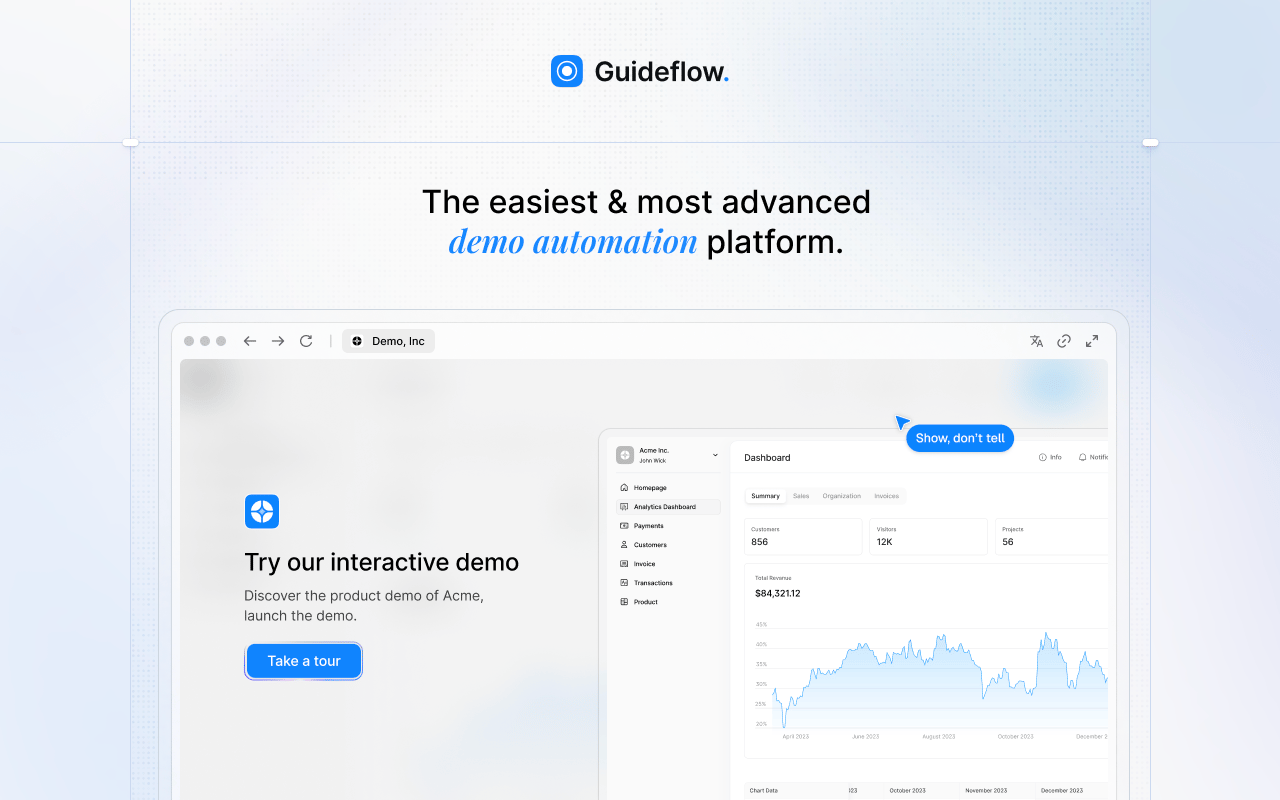
Guideflow helps teams capture their software once and transform it into an interactive demo that users click through step by step, while ScreenPal focuses on recording and sharing videos. The viewer navigates the guide at their own pace, completing each task rather than watching someone else complete it. For internal training, SOPs, employee onboarding, and product education, this difference in format changes whether training sticks.
Best for: Teams replacing repetitive training videos with interactive step-by-step guides for onboarding, SOPs, support documentation, and product education.
What it is: Guideflow is a demo automation platform for creating, sharing, and tracking interactive guides and demos. It supports six format types: Interactive demos, demo pages, demo centers, sandboxes, live demos, and mobile demos. For internal audiences, the interactive demo format functions as a guided software experience people click through rather than a video they watch.
Key features:
- Capture through the Chrome extension or native app, with screenshot, HTML, and video modes
- Step content and CTAs written automatically after capture
- Editor for text, images, graphs, and branching
- Step-level completion, drop-off, and viewer flow analytics
- Company-level visitor identification; CRM records created when a viewer identifies through a form or personalized link
- Integrations with HubSpot, Salesforce, Pipedrive, Zoho, and Marketo
- Translation into more than 30 languages
- AI voiceover
- Demo Center for organizing multiple guides and demos in a branded hub
Where Guideflow falls short: Look elsewhere if your only need is a quick one-off screen-and-camera video message. Look elsewhere if your team requires a traditional desktop timeline editor for cinematic video production. The structured guide workflow pays off for reusable, repeatable experiences, so it works better for teams building an onboarding library than those sending disposable recordings.
Pricing: Free at $0, Solo at $35/user/month (annual), Growth at $499/month (annual), Advanced at $1,499/month (annual), Enterprise from $2,999/month (annual) with SSO, advanced governance, and enterprise security.
G2 rating: 5.0
How it compares to ScreenPal: ScreenPal creates videos people watch. Guideflow creates interactive guides people complete. They address the same surface workflow, training people on software, but deliver fundamentally different engagement because Guideflow's output requires the viewer to click through each step.
2. Loom (async video messaging)
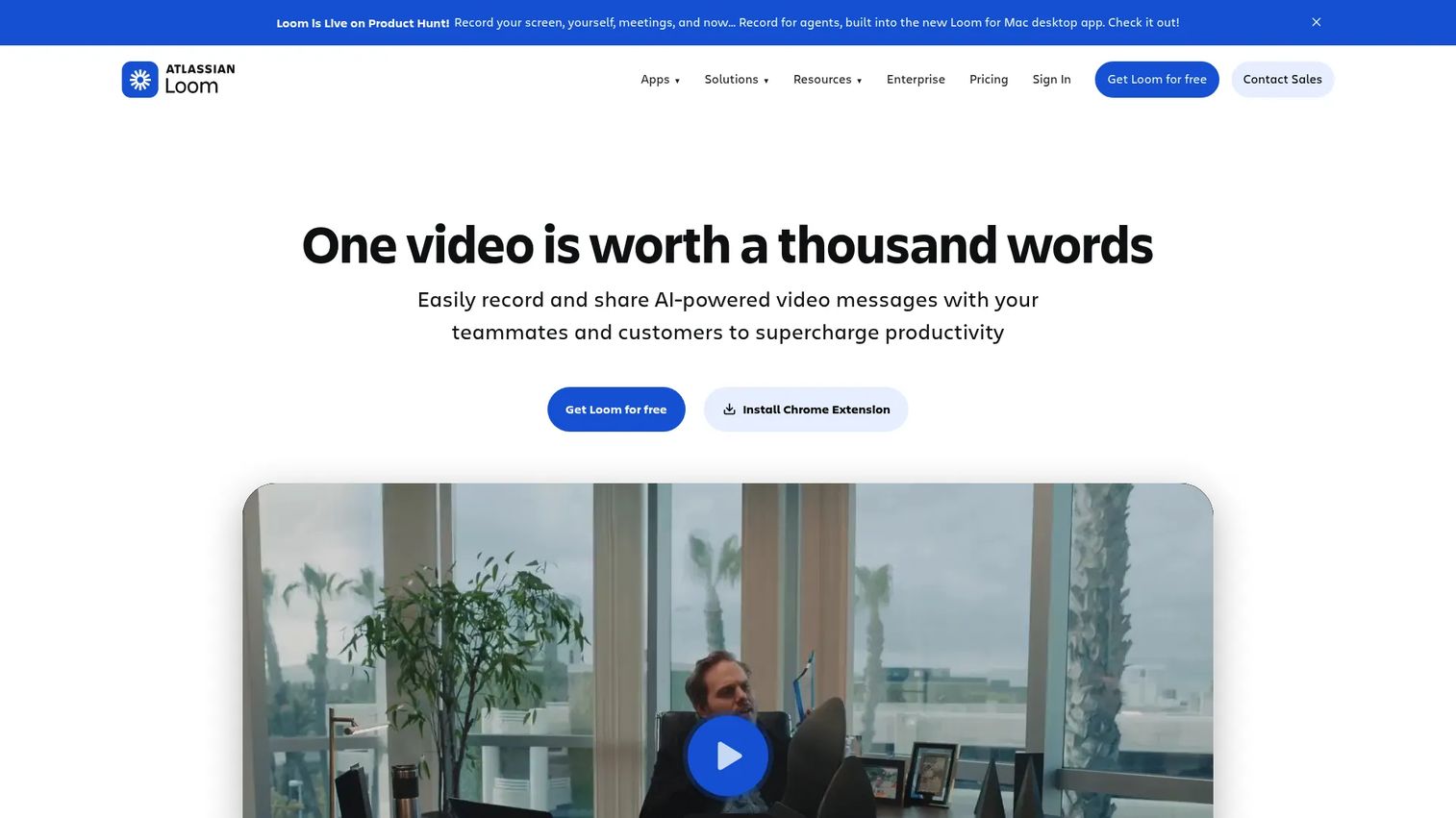
Loom, now part of Atlassian, is what teams reach for when the job is a quick recorded message. Record your screen, your camera, or both, stop recording, and a shareable link is ready within seconds. The format excels for sales follow-ups, async internal updates, and customer replies where a personal clip delivers more context than a text message.
Best for: Teams sending screen-and-camera video messages for sales sequences, async internal communication, and quick client responses.
What it is: Loom is an AI-powered async video messaging platform. It records screen and camera, generates transcripts and AI summaries, supports viewer comments and reactions, and organizes videos in team workspaces. The core loop is record, share link, track engagement.
Key features:
- Screen and camera recording with immediate link sharing
- AI-generated titles, summaries, chapters, and filler-word removal
- Viewer engagement tracking on paid plans
- Comments, reactions, and threading on video messages
- Team libraries and workspace organization
Where Loom falls short: Loom's Starter plan limits video count and recording length, which G2 reviewers flag as a constraint for teams producing high volumes. Recorded clips stay passive; a viewer watching a software tutorial cannot interact with the steps, which matters for training that requires task completion. Teams needing detailed post-production editing typically rely on a separate editor alongside Loom.
Pricing: Starter plan at $0 with recording and video limits, Business at $18/user/month, Business + AI at $24/user/month, Enterprise at custom pricing.
G2: 4.7
How it compares to ScreenPal: Loom focuses on async messaging and fast sharing. ScreenPal is broader, covering tutorial creation, education video editing, and hosted course content. Loom wins when the output is a personal video link sent quickly; ScreenPal serves more structured training production.
3. OBS Studio (screen recording and streaming)
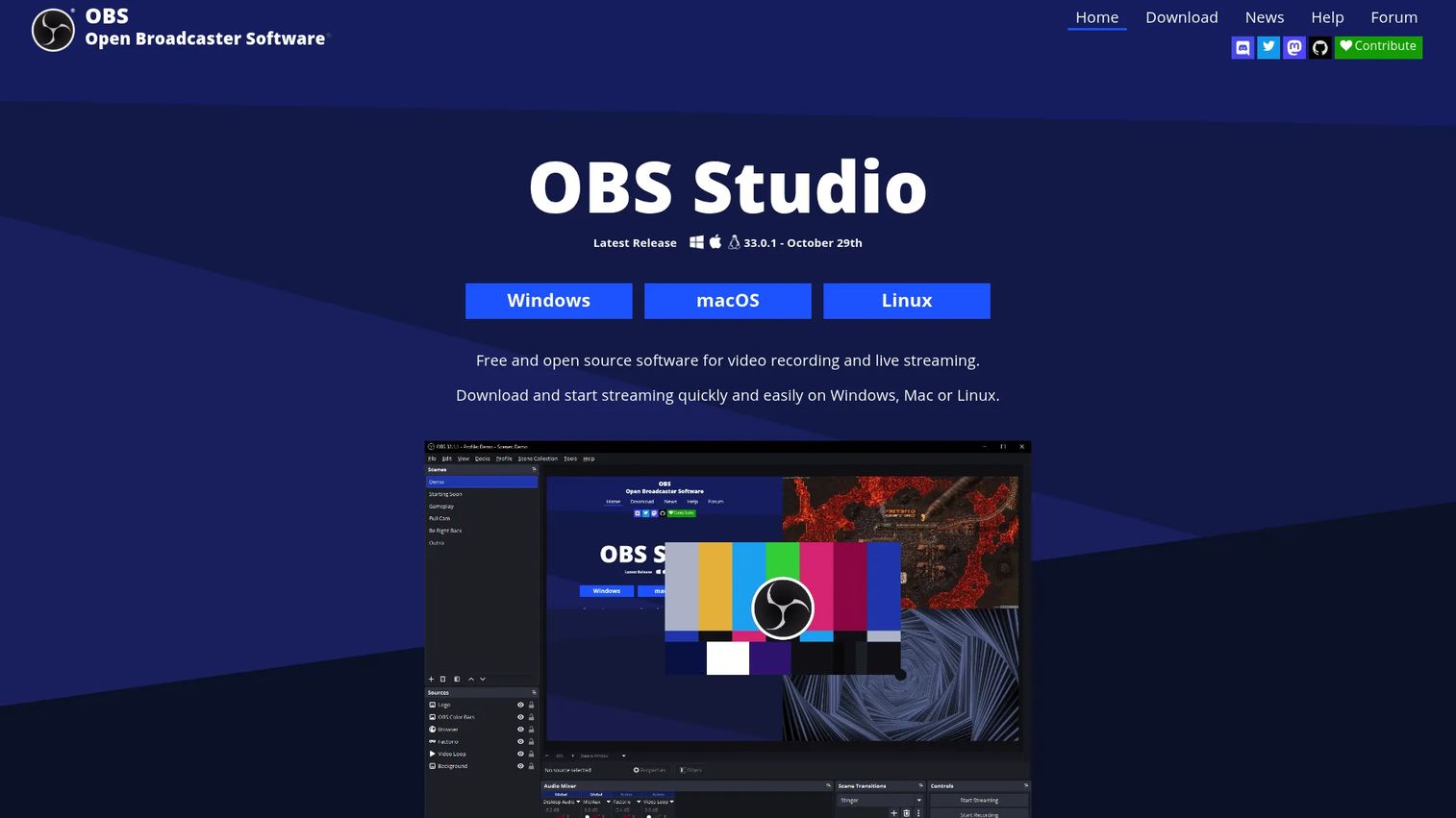
OBS Studio is the reference answer for anyone who wants free, unlimited recording without watermarks or subscriptions. It is open source, available on Windows, macOS, and Linux, and handles both local recording and live streaming through scene-based composition.
Best for: Technical teams and creators that want free local recording, scene control, live streaming, and no subscription dependency.
What it is: OBS Studio is free, open source software for screen recording and live streaming. It has no watermarks, no usage limitations, and may be used commercially. It captures displays, windows, webcams, images, browser sources, and audio inputs, composited into configurable scenes.
Key features:
- Local recording with no watermark or file limits
- Live streaming to platforms through RTMP
- Scene composition with multiple video and audio sources
- Audio mixer with per-source filters and VST plugin support
- Plugin ecosystem and Lua/Python scripting support
Where OBS Studio falls short: OBS does not include built-in cloud hosting, so recorded files need a separate platform for sharing and distribution. The setup process involves configuring scenes, sources, and encoding, which takes more effort than a plug-and-play screen recorder. Teams wanting polished tutorial editing need a separate video editor, as OBS produces raw output.
Pricing: Free.
G2 rating: 4.6
How it compares to ScreenPal: OBS handles recording and streaming with full local control and no cost. ScreenPal packages recording, editing, and hosting together with education-specific features. OBS wins on cost and control; ScreenPal wins on out-of-the-box workflow for training video production.
4. Camtasia (screen recording and video editing)
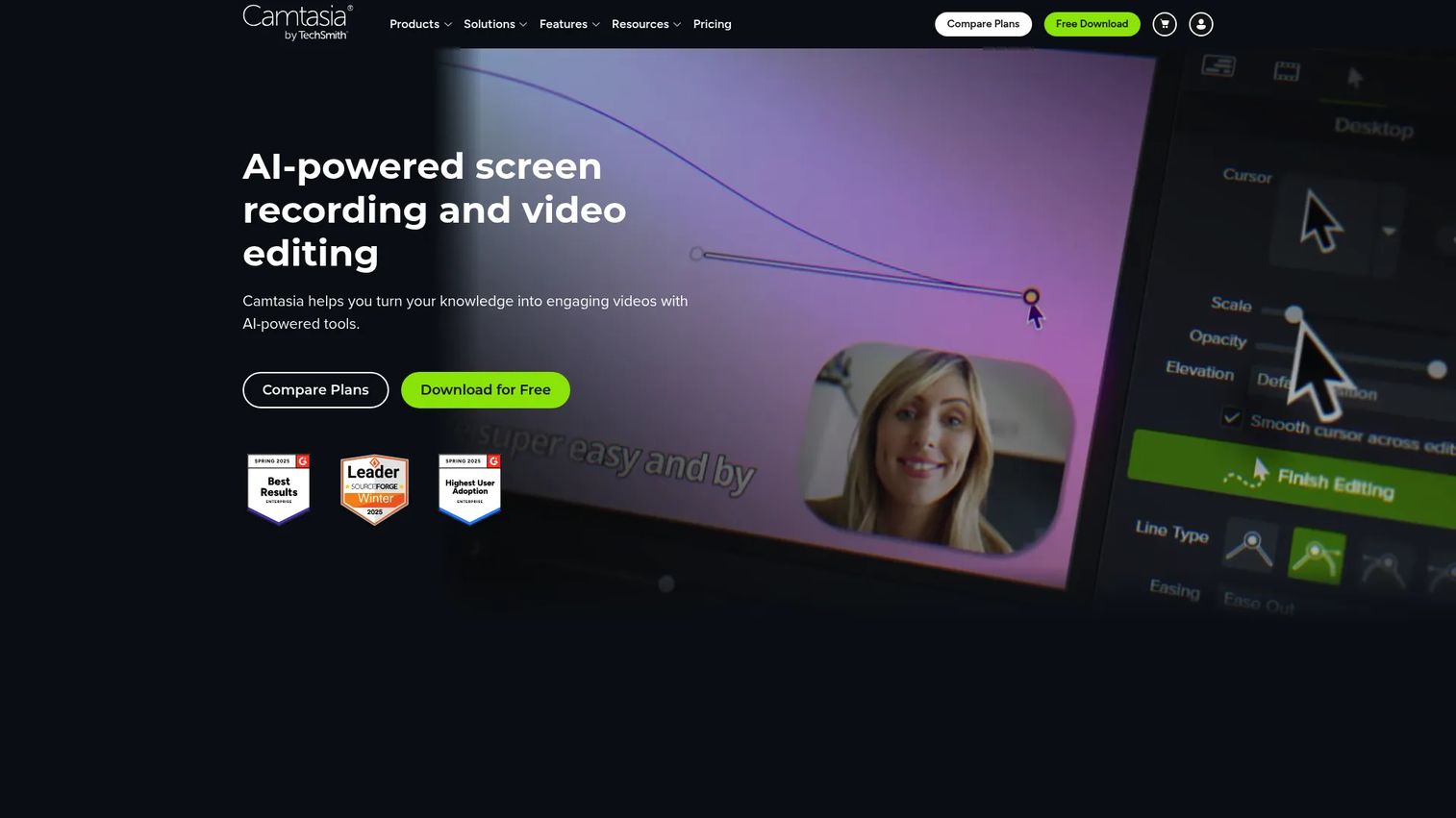
Camtasia from TechSmith is the tool teams reach for when the output needs to look like a professional training course. It combines screen recording up to 4K with a full multi-track video editor designed specifically for instructional content.
Best for: Teams producing structured tutorial videos, software training courses, and polished instructional content with detailed editing requirements.
What it is: Camtasia is an AI-powered screen recorder and video editor built for tutorial and training video production. It supports multi-track editing, cursor effects, annotations, captions, quizzes, and SCORM export. TechSmith positions it as the standard for instructional content creation.
Key features:
- Screen recording up to 4K at 60 fps
- Multi-track timeline editing with transitions, animations, and callouts
- Cursor scaling, path editing, and click effects
- Quizzes and SCORM export for LMS delivery
- AI text-based video editing, background noise removal, and script generation
Where Camtasia falls short: Camtasia's pricing requires an annual subscription, with the entry Starter plan at $39/year including only watermarked recording. Full editing capability requires the Essentials plan at $179.88/year, which G2 reviewers note is a step up from what casual screen recorders expect. Teams wanting quick async sharing find the workflow oriented toward polished production rather than rapid distribution.
Pricing: Starter at $39/year (watermarked), Essentials at $179.88/year, Create at $249/year, Pro at $599/year.
G2 rating: 4.6
How it compares to ScreenPal: Camtasia offers deeper editing capability than ScreenPal and is specifically built for structured tutorial production. ScreenPal is accessible and covers recording, editing, and hosting at a lower entry point. Camtasia is the right call when the editing quality and LMS integration requirements exceed what ScreenPal provides.
5. Descript (transcript-based video editing)
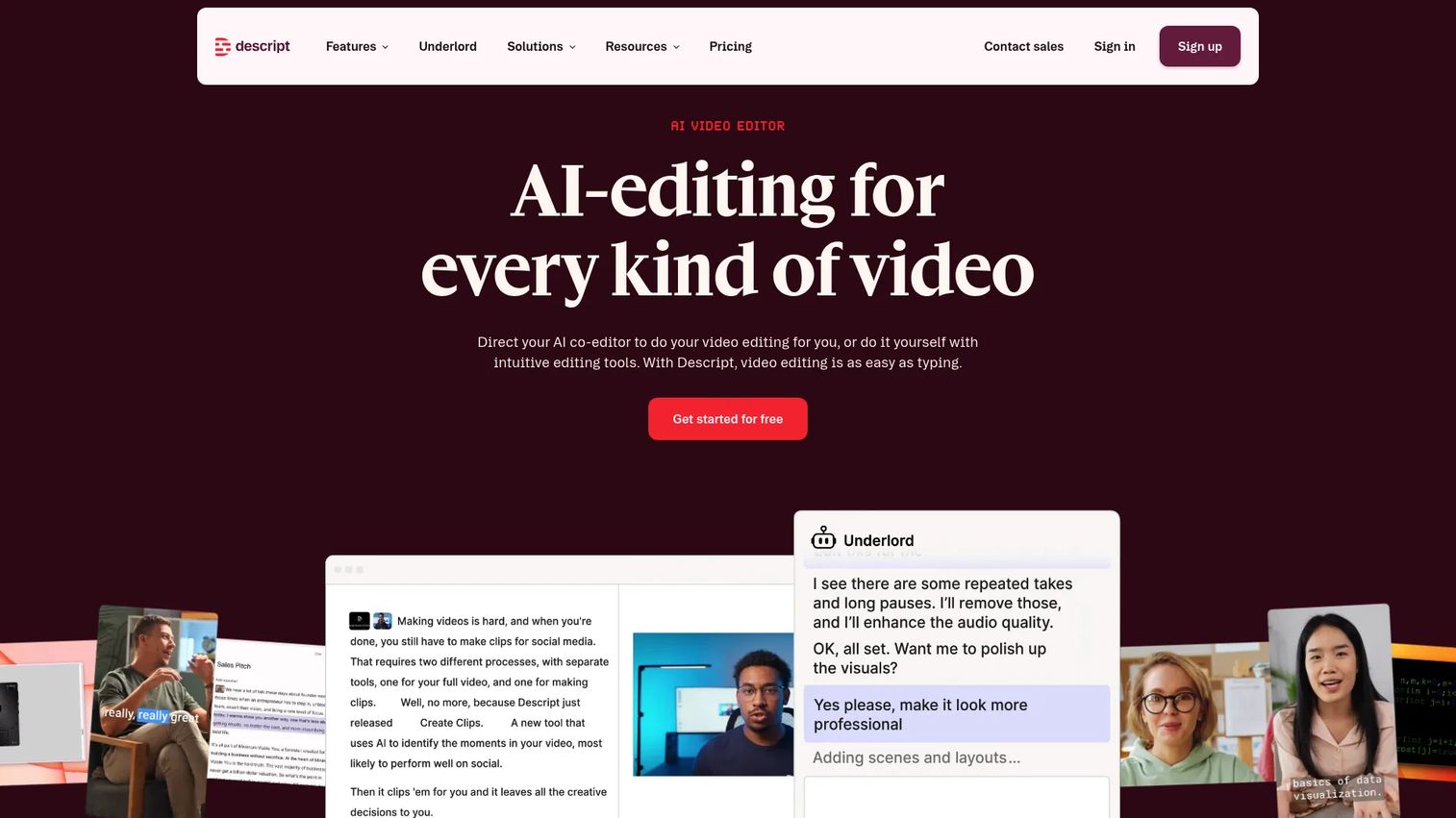
Descript flips how most people think about video editing. Instead of cutting on a timeline, you edit the transcript and the video follows. Delete a sentence from the text and the corresponding audio and video disappear. For teams producing narrated recordings, webinar clips, or training content where spoken words drive the structure, this approach removes much of the friction in post-production.
Best for: Teams editing webinars, narrated product walkthroughs, training videos, and podcasts by working in text rather than a video timeline.
What it is: Descript is a transcript-based audio and video editor with screen recording, automatic transcription, captions, translation, Studio Sound audio enhancement, and an AI co-editor called Underlord. It is used for podcasts, marketing videos, training content, and social clips.
Key features:
- Text-based video editing tied to automatic transcription
- Studio Sound audio enhancement for reducing background noise
- Screen recording and remote recording
- Captions, translation, and AI speech generation
- AI co-editor Underlord for cutting, repurposing, and improving content
Where Descript falls short: Descript is at its strongest when spoken narration is the backbone of the asset. G2 reviewers note that editing non-narrated screen content, like a silent software demo, loses the core advantage of the transcript workflow. Advanced export options, media quality, and AI features become more capable at higher tiers, so teams with heavy production needs should check what their plan covers.
Pricing: Free at $0, Hobbyist at $16/person/month (annual), Creator at $24/person/month (annual), Business at $50/person/month (annual), Enterprise at custom pricing.
G2 rating: 4.6
How it compares to ScreenPal: Descript is a better fit when the bottleneck is editing narration, cleaning audio, or repurposing spoken content into clips and captions. ScreenPal is more focused on screen capture, hosted education video, and simple tutorial workflows.
6. VEED (browser-based video editor)
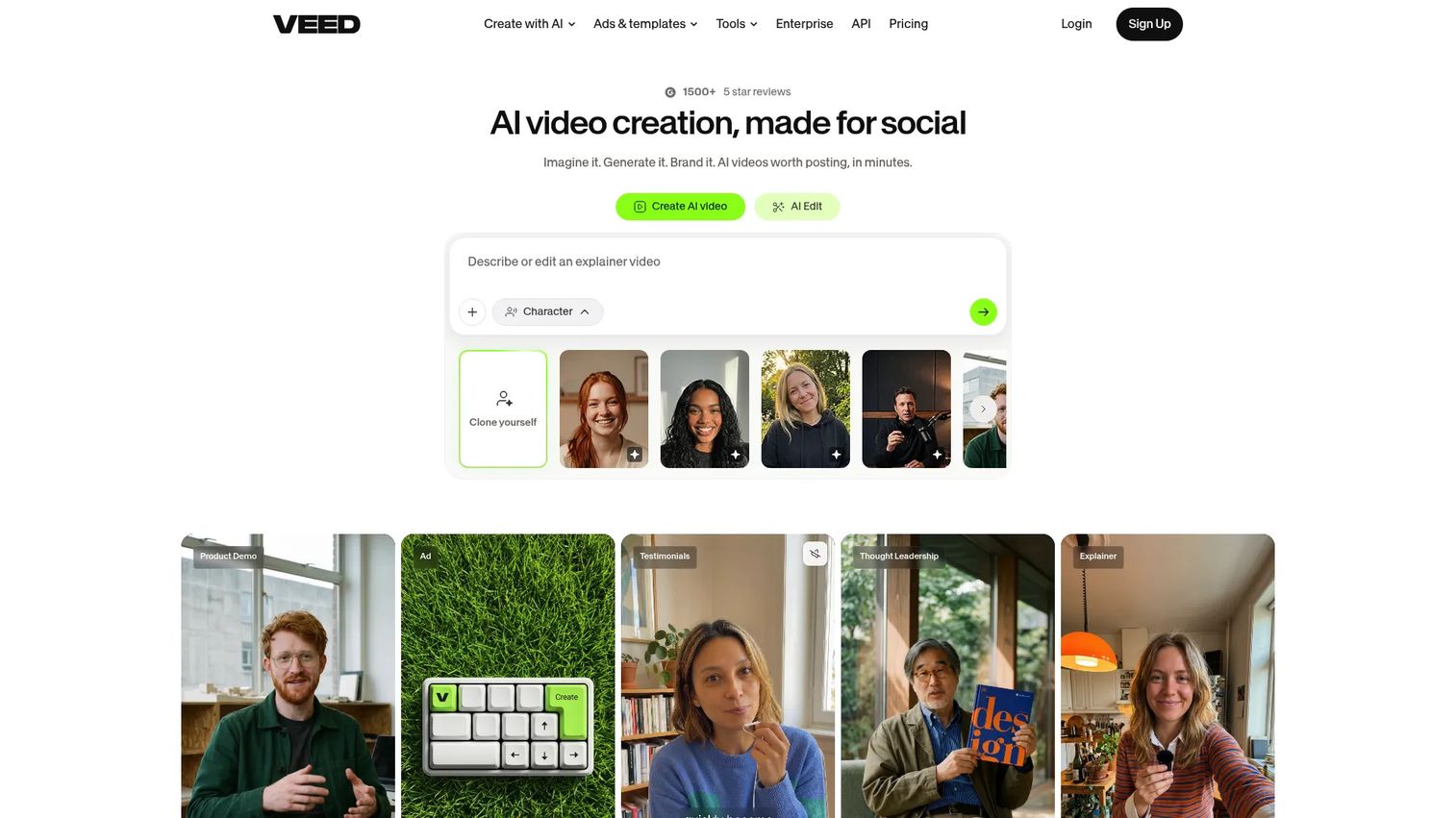
VEED sits in the browser, so there is nothing to install and nothing to manage locally. Marketing teams use it to add captions to social clips, create branded templates, translate content for different markets, and produce campaign-ready videos without opening a desktop editor.
Best for: Marketing and social media teams producing branded videos, caption-heavy content, and campaign assets directly in the browser.
What it is: VEED is an AI-powered browser-based video creation and editing platform. It supports video editing, compression, screen recording, automatic subtitles, captions, transcription, translation, AI dubbing, and background removal.
Key features:
- Browser-based editing with no desktop installation
- Automatic subtitles and captions with translation and AI dubbing
- Screen recording within the browser
- Templates, brand kits, and AI video generation
- Background removal and video compression
Where VEED falls short: VEED's pricing page confirmed free access and paid plans with per-seat billing, but numeric plan prices were not publicly displayed at time of writing. Teams should check VEED's pricing page for current tier costs before committing. G2 reviewers note that heavy editing workflows can feel constrained in a browser, and larger teams should evaluate workspace and collaboration costs carefully.
Pricing: Free plan available; paid per-seat plans with per-seat billing. Contact VEED for current pricing.
G2 rating: 4.6
How it compares to ScreenPal: VEED is stronger for social video production, marketing captions, and browser-based editing. ScreenPal is stronger for education-oriented screen recording, tutorial hosting, and embedded training content workflows.
7. Screen Studio (screen recording and editing)
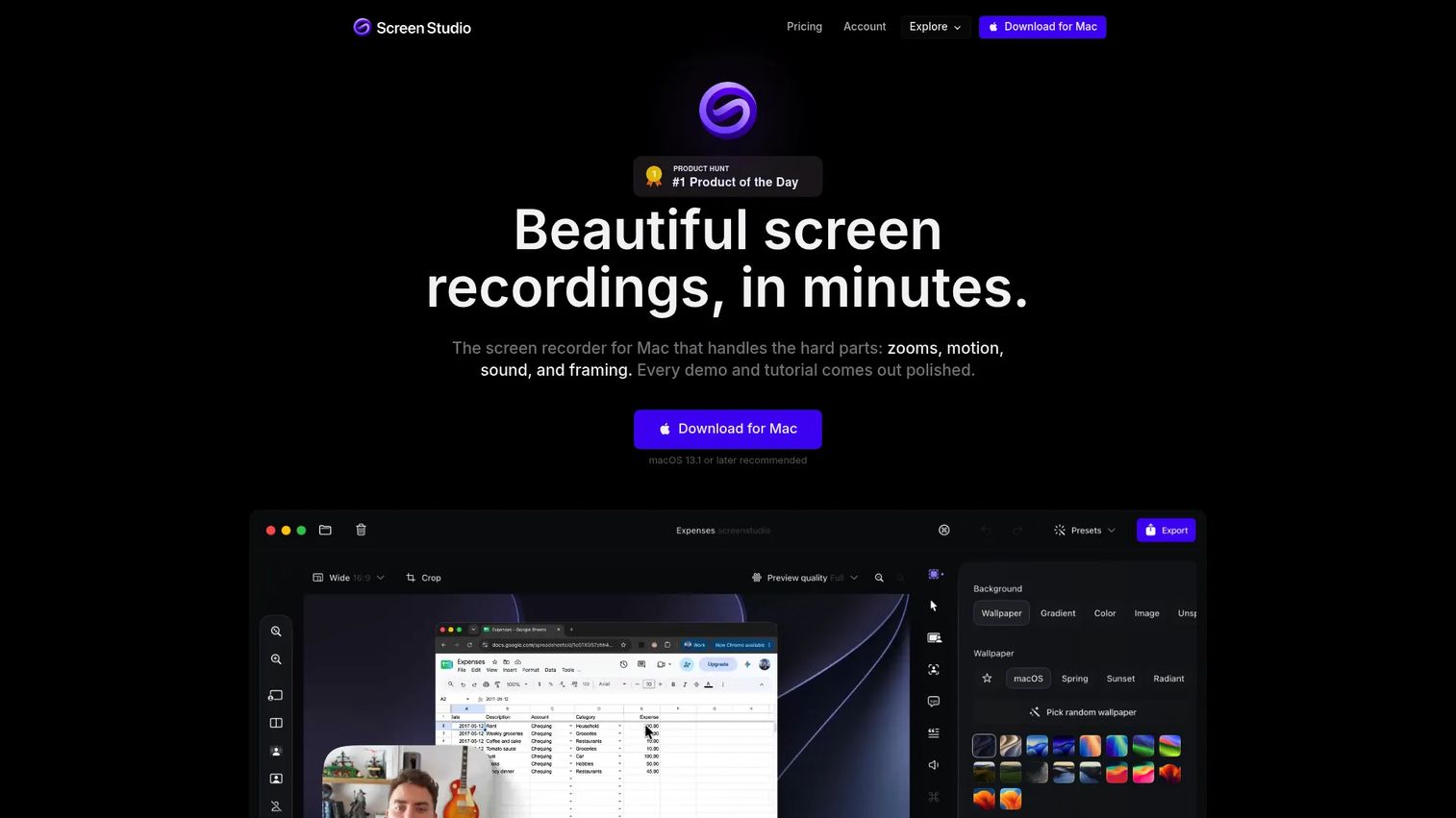
Screen Studio is built for one purpose: Making Mac screen recordings look as polished as a professionally produced product demo. Automatic zooms follow cursor movement, transitions are smooth, and the output looks closer to a designed video than a raw screencast.
Best for: Product marketers, founders, and Mac-based creators producing high-polish product videos, demo recordings, and feature launches.
What it is: Screen Studio is a macOS screen recording and editing application. It applies automatic zoom and cursor effects during or after recording, supports camera overlay, includes transcript-based editing, and exports to shareable links, MP4, or GIF. Every plan includes every feature.
Key features:
- Automatic zooms tied to cursor movement
- Cursor smoothing and click effects
- Camera overlay with customizable frame positioning
- Transcript-based editing and noise reduction
- iPhone and iPad recording with device mockups
Where Screen Studio falls short: Screen Studio currently supports macOS only, which limits mixed-platform teams. G2 reviewers note it is purpose-built for clean product recordings, so teams needing a training library, LMS delivery, or interactive guides need a different tool for those jobs. It captures and polishes; it does not host, quiz, or allow viewer interaction.
Pricing: Yearly plan at $9/month (billed annually), monthly plan at $29/month. All features included at every price point. Team pricing at $9/user/month (annual) or $20/user/month (monthly).
G2 rating: 4.8
How it compares to ScreenPal: Screen Studio produces more polished recordings on Mac. ScreenPal covers more workflow surface area across recording, editing, hosting, and education video. Screen Studio wins on output quality for product videos; ScreenPal wins on cross-platform coverage and training content workflows.
8. Wistia (marketing video hosting)
Wistia is where marketing teams host videos they want their customers and prospects to watch and convert from. Its branded player, viewer analytics, lead capture forms, and marketing automation integrations make it a distribution and measurement platform, not a recording replacement.
Best for: Growth and demand generation teams hosting marketing videos on websites, landing pages, and campaign sequences with viewer attribution and lead capture.
What it is: Wistia is an end-to-end media hosting platform with video creation, hosting, branded player customization, viewer analytics, CTAs, forms, and marketing automation integrations. It supports webinars and social clip generation alongside its hosting core.
Key features:
- Branded video player with customizable design
- Viewer analytics including watch time, engagement, and drop-off
- CTAs and lead capture forms embedded in the player
- Marketing automation integrations
- Virtual recording studio and screen-and-webcam recording tools
Where Wistia falls short: Wistia is primarily a hosting and distribution platform. Teams creating raw recordings or training videos need a separate recording tool to feed it content. G2 reviewers note pricing can grow meaningfully as storage and feature requirements increase, and the Business plan at $79/month (annual) is the entry point for branded controls and analytics, which is higher than most screen recorder alternatives in this list.
Pricing: Free at $0 with 25 GB storage, Business at $79/month (annual), Business + Signals at $329/month (annual), Enterprise at custom pricing.
G2 rating: 4.6
How it compares to ScreenPal: Wistia focuses on marketing video distribution, analytics, and lead capture. ScreenPal focuses on screen recording, editing, and education-oriented hosting. Wistia is the right call when the job is measuring how marketing audiences engage with video; ScreenPal is better suited for tutorial creation and training workflows.
9. Snagit (screen capture and documentation)
Snagit from TechSmith is the tool for teams whose daily need is a screenshot with an annotation, a quick scrolling capture, or a short video clip embedded in a process document. It is narrow in scope and deep in that scope.
Best for: Teams creating annotated screenshots, short screen recordings, visual documentation, and quick knowledge base assets.
What it is: Snagit is a screen capture and recording tool for creating annotated screenshots, visual documentation, and short videos. It includes Step Capture for auto-generating visual guides, Smart Redact for identifying and masking sensitive information, scrolling capture for long pages, and annotation tools.
Key features:
- Step Capture for automatically creating numbered visual guides
- Scrolling capture for full-page screenshots
- Smart Redact for identifying and redacting sensitive information
- Short video recording with webcam and cursor controls
- Screenshot editing with text recognition, annotations, and callouts
Where Snagit falls short: Snagit is not built for long-form video editing or full training course production. G2 reviewers note that teams moving beyond quick documentation into multi-step video tutorials typically use Camtasia alongside it. Snagit does not include video hosting, interactive guide capabilities, or LMS delivery.
Pricing: Snagit Individual at $39/user/year (annual), Business at $48/user/year (annual), Enterprise at custom pricing.
G2 rating: 4.7
How it compares to ScreenPal: Snagit is purpose-built for fast visual documentation and annotated screen captures. ScreenPal is better when the core output is a hosted training video rather than a quick screenshot or short clip.
What is the best ScreenPal alternative for interactive training?
Guideflow is the best pick when training requires employees to complete software tasks, not just watch them.
Videos are well suited to observation: A customer testimonial, a product announcement, a demo someone watches once. When the goal is an employee completing a software workflow, documenting an SOP, or running through an onboarding process, having them watch a recording leaves task completion unverified. Guideflow's interactive demos work for employee onboarding, internal SOPs, support team education, and product training because the viewer clicks through each step in sequence. Step-level completion and drop-off analytics show which steps people get stuck on, so the guide can be improved without re-recording anything.
Which ScreenPal alternative is best for quick video messages?
Loom is the right tool when the output is a personal screen-and-camera message.
For sales follow-up sequences, async internal updates to a distributed team, quick client walkthroughs, or replying to a support ticket with a recording, Loom's core loop fits: Record, share link, see who watched. It is built for that job, and the free Starter plan covers basic use. Loom does not replace interactive training guides, and it is not a video production platform. When the job is a quick recorded message, Loom handles it well.
What is the best free ScreenPal alternative?
OBS Studio is the clearest free option, with no watermarks, no subscription, and no recording limits.
OBS is fully open source and covers recording and live streaming without restrictions. Teams comfortable with scene configuration and local file management will find it covers their needs at zero cost. Beyond OBS, Guideflow, Loom, Descript, and VEED all offer free plans, though each carries different scope. Free plans typically limit features, storage, or seats; check each tool's current pricing page for specifics. OBS is the choice when cost is the only driver and local recording control matters.
Which ScreenPal alternative is best for polished tutorial videos?
Camtasia is the strongest fit for structured tutorial production with detailed editing requirements.
Camtasia's timeline editor, cursor effects, callout tools, and SCORM export are designed for teams producing instructional video courses. Teams editing narrated content and wanting text-based editing will find Descript a better match. For polished Mac product recording with minimal editing overhead, Screen Studio covers that job. The choice between them comes down to whether the bottleneck is editing depth (Camtasia), narration editing (Descript), or recording quality on Mac (Screen Studio).
What is the cheapest ScreenPal alternative?
OBS Studio is free, making it the lowest-cost option outright.
For teams that need an interactive guide platform, Guideflow has a free plan. For async video messaging, Loom's Starter plan is free. For transcript-based editing, Descript's free plan covers basic use. The cheapest practical choice depends on the job. OBS eliminates cost for recording. Guideflow's free plan removes the cost barrier for trying interactive guides. No other tool on this list is free for all users at all tiers.
When should you stay with ScreenPal?
ScreenPal is a solid choice when it already fits your workflow without friction.
Stay with ScreenPal when your core job is screen recording for hosted education video, your team already uses the existing library, and your editing requirements do not exceed what its built-in editor provides. Educators running courses on its platform, trainers who deliver content through its hosting environment, and support teams producing quick tutorial clips for a help center are all well-served. The tools in this list solve for specific gaps. If those gaps do not describe your situation, switching costs likely outweigh the benefits.
Why teams switch from ScreenPal to Guideflow
The switch from ScreenPal to Guideflow usually happens when the job description changes from "make a training video" to "help someone complete a software process."
Employees clicking through beats watching. When the goal is onboarding or SOP completion, an interactive guide requires the viewer to take each action in sequence. That changes how learning lands compared to a recording they can skip through or watch passively.
Guides stay current without re-recording. A ScreenPal tutorial needs a new recording whenever the UI changes. In Guideflow, text, images, branching, and individual steps are editable after capture, so maintaining a library of guides does not require starting over with every product update.
Analytics show where people get stuck. Step-level completion and drop-off data from Guideflow's analytics identify which steps in an onboarding guide are causing confusion. ScreenPal tracks video watch time; Guideflow shows whether the viewer actually completed step seven.
The same guide works across teams. Marketing, sales, support, product, and onboarding can all share and use the same interactive guide library through Guideflow's integrations with HubSpot, Salesforce, Pipedrive, Zoho, and Marketo. More than 500,000 guideflows have been created, and the first interactive guide takes about two and a half minutes to build.
Look elsewhere if your team needs a traditional timeline video editor or one-off personal video messages. Guideflow is built for repeatable, interactive software experiences.
Start your journey with Guideflow today!
Frequently asked questions: ScreenPal alternatives
The best alternative depends on the workflow. Guideflow is the strongest fit for interactive internal training and SOPs. Loom handles async video messaging. OBS Studio covers free local recording. Camtasia is built for polished tutorial video production with timeline editing and SCORM export.
OBS Studio is free with no watermarks and no usage limits. Guideflow, Loom, and Descript also offer free plans, each with different scope. Check each tool's current pricing page to understand what their free tier includes before making a decision.
Guideflow is built for this. Employee onboarding often requires new hires to complete software tasks, not watch recordings of someone else completing them. Interactive guides in Guideflow let employees click through each step in sequence, and step-level analytics show which steps need improvement.
Loom is the choice for quick async video messages. OBS Studio handles local recording and streaming without cost. Camtasia is the right fit when the goal is a polished tutorial with detailed post-production editing and LMS delivery.
ScreenPal records, edits, hosts, and shares video. Guideflow captures software flows and turns them into interactive step-by-step guides that viewers click through rather than watch. ScreenPal produces a video; Guideflow produces an interactive guide. Both can support training workflows, but the viewer experience and output format are different.
Loom is the stronger tool for async video messaging, quick share links, and personal screen-and-camera clips. ScreenPal is stronger for education-oriented tutorial creation, video editing, and hosted training content. ScreenPal vs Loom is a workflow question, not a quality question.
For software task completion, SOPs, and onboarding flows where the learner needs to perform each step, interactive guides can replace training videos to good effect. Videos still work well for narrative content, product announcements, and face-to-camera communication where watching is the goal. The right choice depends on what the training requires the viewer to do.
Wistia is the choice for marketing video hosting, branded player controls, and viewer analytics. VEED fits social video production and caption-heavy browser editing. Loom works for quick async campaign feedback and client walkthroughs. Guideflow fits interactive product education and internal team onboarding tied to marketing workflows.