

Your team ships the feature on time, then loses a week because every lab device, field laptop, or customer pilot machine still needs a clean build by hand. Device setup isn't glamorous, but it sits directly in the path of activation. The global OS deployment and provisioning market reached $4.36 billion in 2025, according to DataIntelo, and the pressure on endpoint provisioning is only increasing as Windows 11 migration, remote work, and distributed lab environments compound the problem. OS imaging and deployment software is how IT and product operations teams break that cycle: Capture a known-good baseline once, then push it everywhere.
The right tool depends heavily on your environment shape. A classroom needing PXE-based multicast looks nothing like an MSP managing cloud-connected recovery. A distributed sales team refreshing laptops across five countries needs something different from a QA lab resetting twenty identical workstations each sprint.
This guide cuts through the noise with 12 tools reviewed by deployment model, OS support, driver handling, automation, and pricing.
What's inside
This guide compares 12 OS imaging and deployment tools for 2026, chosen for relevance across enterprise, SMB, MSP, school, lab, and recovery use cases.
- Who this is for: IT administrators, endpoint engineering teams, MSPs, lab operators, and product operations leaders evaluating device provisioning infrastructure
- How tools were selected: Recurring presence in the category, breadth of deployment capability, and practical buyer relevance across environment types
- What we compare: Imaging method, deployment model, driver and post-deployment automation, pricing, and G2 rating
- What to verify before buying: OS support, hardware compatibility, network requirements, licensing model, and whether the tool covers provisioning, recovery, or both
TL;DR
- Best overall for enterprise Windows deployment: ManageEngine OS Deployer, with hardware-independent imaging across LAN and WAN from a free starting tier
- Best for fast standardized rollouts: Acronis Snap Deploy, with multicast deployment pushing images to many machines simultaneously
- Best for mixed hardware and distributed teams: SmartDeploy, with 1,500+ prebuilt platform packs and cloud deployment support
- Best free options for technical teams: Clonezilla (disk imaging) and FOG Project (PXE network deployment)
- Best for Microsoft-centric enterprises: Microsoft Configuration Manager, covering OS deployment as part of full endpoint lifecycle management
- Best for MSP backup and recovery: NinjaOne Backup, with cloud-managed image backup integrated into an RMM-adjacent workflow
What is OS imaging and deployment software?
OS imaging and deployment software creates, stores, and deploys operating-system images so teams can provision or restore multiple computers from a controlled baseline.
How OS imaging works
A team configures a reference machine with the correct OS, apps, drivers, and policies. The imaging tool captures that machine as a master image, stored on a server, NAS, cloud location, or removable media. When a device needs provisioning, the tool deploys that image to the target hardware, optionally injecting drivers, joining the machine to a domain, applying naming conventions, and running post-deployment scripts.
Key capabilities to look for
- Master image capture
- Bare-metal deployment
- PXE and network boot
- Driver injection and driver management
- Hardware-independent imaging
- Multicast and unicast deployment
- USB and offline media support
- Post-deployment scripts and task automation
- Domain joining and computer naming
- Image validation and verification
- Backup and bare-metal recovery
Where OS imaging differs from endpoint management
Imaging tools deploy or restore a device to a known baseline. Endpoint management tools handle what happens after provisioning: Patching, inventory, compliance, and software distribution. Some platforms cover both. Modern zero-touch provisioning via cloud MDM can reduce imaging needs in cloud-first Windows environments, but imaging still matters for labs, kiosks, classrooms, factories, shared workstations, and any recovery scenario where a device needs a full rebuild from scratch.
When to use OS imaging and deployment software
Standardize new devices before onboarding
Every device that reaches a user, student, or QA engineer should start from the same OS build, security baseline, and application set. Manual configuration per device is slow and inconsistent, and configuration drift creates support tickets that eat into time better spent on release work. Imaging converts device setup from an artisanal problem into a repeatable operation, which is what makes activation time predictable at scale.
Refresh labs, classrooms, and shared workstations
QA environments, training labs, call centers, and school computer rooms share one property: Devices get used hard and need periodic resets. After each cohort, term, or test cycle, re-imaging returns every machine to a clean state in minutes rather than hours. This matters for product teams running release validation across multiple environments where a contaminated baseline produces false test results.
Recover endpoints after failure or compromise
A disk failure, ransomware event, or botched update can take a device offline. Bare-metal recovery from a known image baseline is faster and more reliable than manual reinstallation. Some tools in this list prioritize this recovery workflow; others focus on fleet deployment. Knowing which job you need to solve first narrows the field significantly.
OS imaging and deployment software comparison
The table below is a shortlist organized by environment fit, not a universal ranking. Choose by deployment model first: PXE-based network imaging, cloud-connected provisioning, local LAN deployment, and backup-led recovery all point to different tools.
| # | Product | Best for | Key differentiator | Pricing | G2 rating |
|---|---|---|---|---|---|
| 1 | ManageEngine OS Deployer | Enterprise Windows deployment across mixed hardware | Hardware-independent imaging with driver and SID handling | From $0 (Free) | 4.2/5 |
| 2 | Acronis Snap Deploy | Standardized mass deployment | Multicast deployment to many machines at once | From $25/year per PC | 4.5/5 |
| 3 | SmartDeploy | Distributed teams with mixed hardware | 1,500+ platform packs for driver abstraction | From $1,100/year | 4.7/5 |
| 4 | AOMEI Image Deploy | Small teams deploying Windows over LAN | Free tier with LAN-based multi-PC deployment | Free; Technician $199 | 4.5/5 |
| 5 | Clonezilla | Free technical disk imaging | Open-source with multicast and broad filesystem support | Free | 4.3/5 |
| 6 | FOG Project | Free PXE network deployment | Web-based open-source imaging with multicast | Free | N/A |
| 7 | Macrium Reflect | Windows backup and bare-metal recovery | Rapid Delta Restore and ransomware-resilient imaging | Contact vendor | 4.7/5 |
| 8 | Microsoft Configuration Manager | Microsoft-centric enterprise deployment | Task sequences, WIM workflows, and full endpoint control | Included in select Microsoft plans | N/A |
| 9 | Quest KACE Systems Deployment Appliance | Appliance-based managed deployment | Dedicated hardware appliance with multicast and task sequencing | Contact vendor | N/A |
| 10 | Ivanti Endpoint Manager | Endpoint lifecycle management with OS provisioning | Unified endpoint management across Windows, macOS, Linux, mobile | Contact vendor | 4.2/5 |
| 11 | Broadcom Ghost Solution Suite | Legacy enterprise imaging and migration | Established toolkit for provisioning, migration, and recovery | Contact vendor | 3.7/5 |
| 12 | NinjaOne Backup | MSP backup and endpoint recovery | Cloud-managed image backup integrated with RMM workflows | Contact vendor | 4.7/5 |
Best 12 OS imaging and deployment software tools for 2026
1. ManageEngine OS Deployer
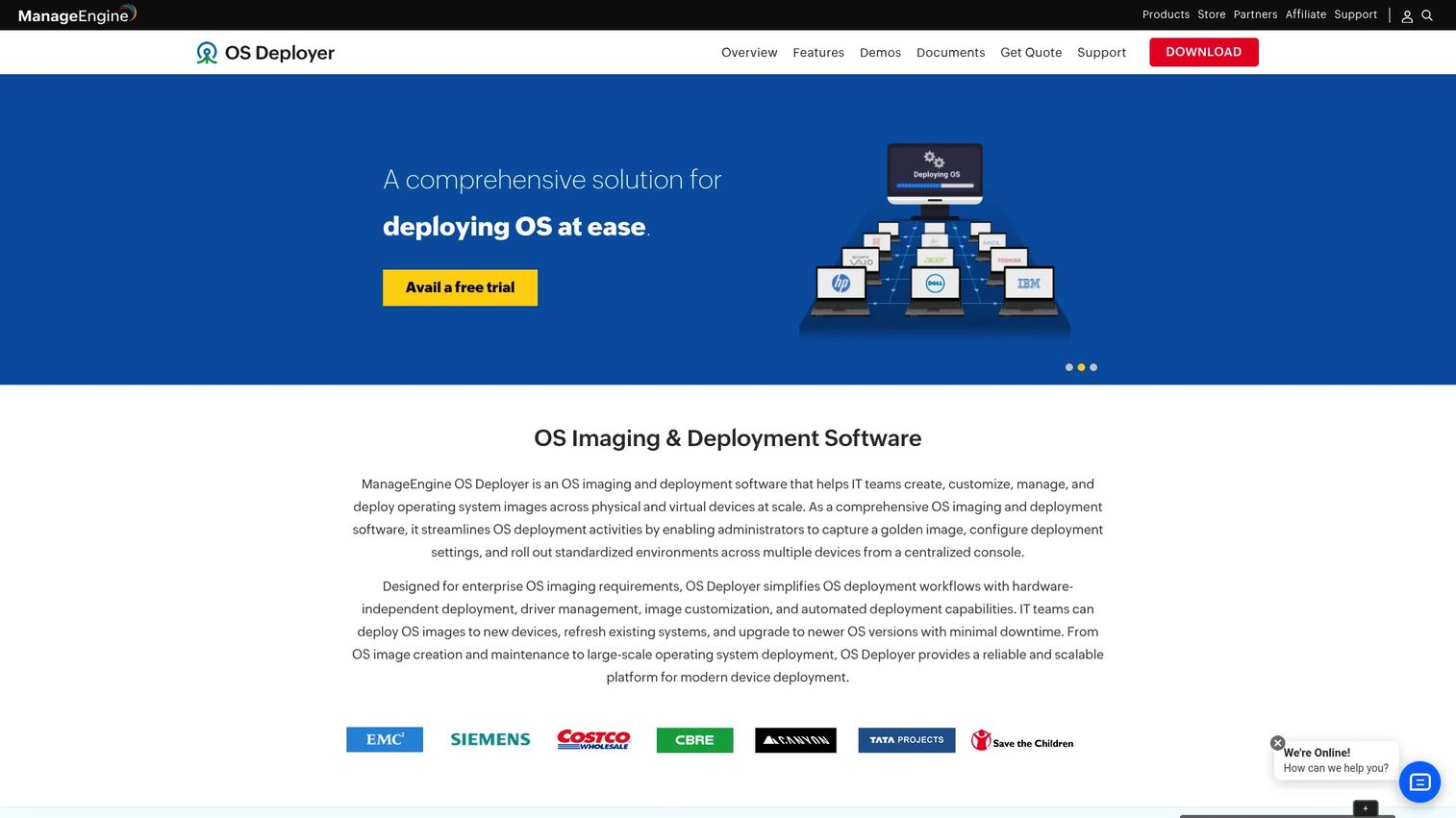
ManageEngine OS Deployer is a dedicated Windows imaging and deployment platform built for IT teams managing diverse hardware across LAN, WAN, and remote office environments. It handles the full imaging lifecycle from master image creation through post-deployment configuration, including driver injection, user profile migration, and automated computer naming. The free edition supports up to four workstations and one server, making it possible to validate the workflow before committing to a paid tier.
Best for: IT teams standardizing Windows image deployment across mixed-hardware environments, including branch offices and remote locations.
Key features
- Hardware-independent deployment with automated driver management
- Online and offline imaging modes
- User profile migration during deployment
- Multicast and unicast deployment options
- Zero-touch deployment support
Why choose ManageEngine OS Deployer: It covers the full imaging workflow in a single product, from capture to post-deployment configuration, without requiring you to assemble separate tools for driver handling and profile migration. Teams that want a structured, repeatable process rather than a bare-bones cloning utility will find this a practical fit.
ManageEngine OS Deployer pricing: The Free edition supports up to four workstations at no cost. The Professional plan is $645 per year for 100 workstations (LAN environments); the Enterprise plan, which adds WAN support, runs $745 per year for 100 workstations.
G2 rating: 4.2/5
2. Acronis Snap Deploy
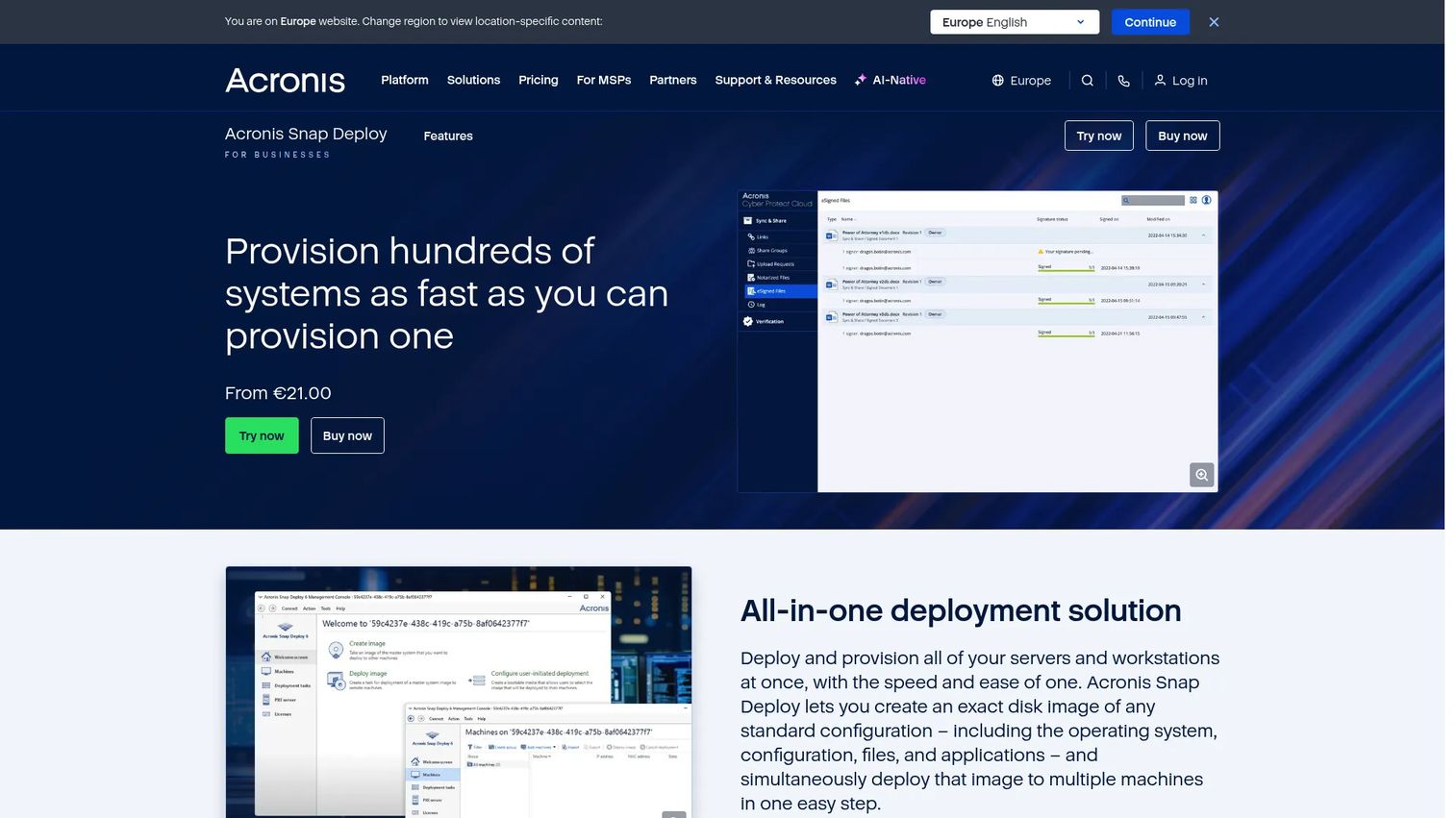
Acronis Snap Deploy is a disk imaging and OS deployment tool built for pushing standardized images to large numbers of machines quickly. Its Acronis Universal Deploy technology handles hardware-independent restoration, so a single master image can land on devices with different chipsets and drivers without manual intervention. Deployment can be triggered manually, automatically, on a schedule, or by user initiation, which gives IT teams flexibility across different rollout scenarios.
Best for: IT teams, educational institutions, retailers, and enterprises that need rapid, standardized image deployment across many similar devices.
Key features
- Multicast deployment to many machines simultaneously
- Bare-metal provisioning from a central console
- Acronis Universal Deploy for dissimilar hardware
- Deployment templates for repeatable configurations
- Support for live Windows machines without manual booting
Why choose Acronis Snap Deploy: When the primary job is pushing a clean, repeatable system image to a large batch of devices as fast as possible, multicast delivery is the differentiator. Teams that also need broader endpoint lifecycle management will typically pair this with a separate management platform.
Acronis Snap Deploy pricing: Licenses start at $25 per PC or tablet per year and $109 per server per year. Multi-year terms (three-year and five-year) are available.
G2 rating: 4.5/5
3. SmartDeploy
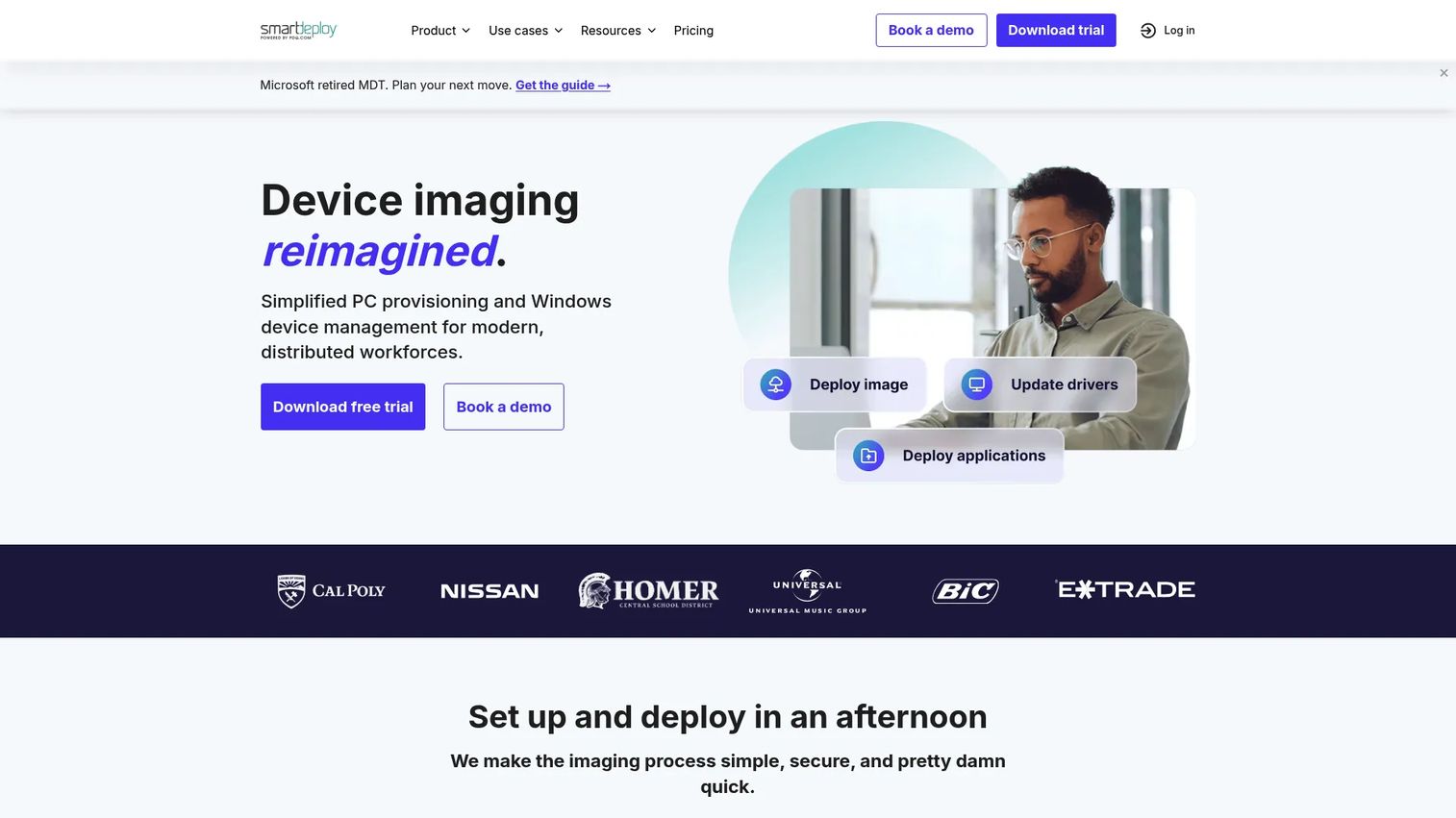
SmartDeploy takes a platform-pack approach to hardware-independent Windows imaging: Instead of capturing a driver-loaded image per device model, you maintain a single WIM file and apply model-specific platform packs at deployment time. With over 1,500 prebuilt platform packs, the tool covers a wide range of hardware without requiring IT to build and maintain driver libraries manually. Cloud, network, and offline deployment options make it practical for distributed teams where devices are provisioned across sites or shipped directly to employees.
Best for: IT teams supporting mixed hardware across remote or multi-site environments where maintaining model-specific images creates overhead.
Key features
- Hardware-independent Windows imaging with platform packs
- 1,500+ prebuilt driver packs by device model
- Cloud, network, and offline deployment modes
- Application deployment, patching, and in-place Windows 11 upgrades
- Remote scripts, wipes, and user data migration
Why choose SmartDeploy: The platform-pack model reduces the driver maintenance burden when device models change or expand. One baseline image serves many hardware profiles, which matters to product operations teams managing pilot hardware that evolves across release cycles.
SmartDeploy pricing: Annual, per-device licensing starts at $1,100 per year across Starter, Plus, and Pro packages. Per-tier prices require a quote. A 15-day fully functional trial is available.
G2 rating: 4.7/5
4. AOMEI Image Deploy
AOMEI Image Deploy is a lightweight Windows image deployment tool that pushes a master image to multiple computers over a local network. The workflow is straightforward: Create an image with AOMEI Backupper, host it on a server, and deploy it to target machines that PXE boot into the AOMEI environment. The free edition covers the core deployment job without a license cost, making it accessible for small teams, school IT departments, and labs that need basic LAN-based deployment without enterprise overhead.
Best for: Small IT teams, school administrators, and lab operators deploying consistent Windows images to machines on the same network.
Key features
- LAN-based deployment to multiple computers simultaneously
- Real-time deployment progress monitoring per client
- Preset computer names and IP addresses before deployment
- Hardware-independent deployment to dissimilar hardware
- PXE network boot support
Why choose AOMEI Image Deploy: The free edition handles the core job for straightforward LAN environments without a licensing discussion. Teams needing more flexible deployment scenarios, multi-site support, or deeper post-deployment automation will want to evaluate more capable platforms.
AOMEI Image Deploy pricing: The Free edition is available at no cost. The Technician edition, which removes restrictions on the number of computers, is $199 as a one-time purchase.
G2 rating: 4.5/5
5. Clonezilla
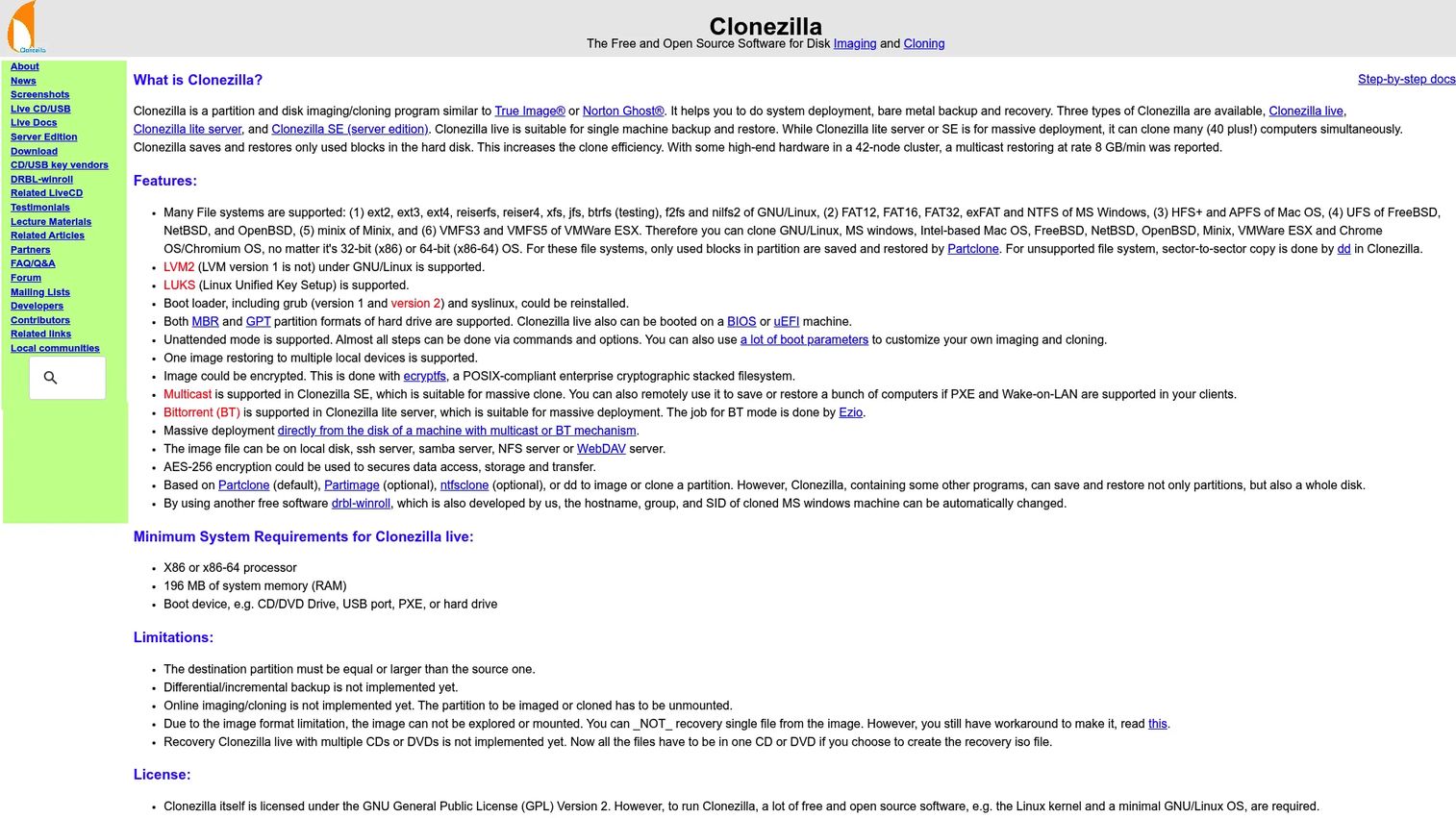
Clonezilla is free, open-source disk imaging and cloning software maintained by the National Center for High-performance Computing in Taiwan. It runs in two modes: Clonezilla Live handles single-device imaging, while Clonezilla SE (Server Edition) coordinates mass deployments using multicast or BitTorrent distribution, capable of deploying to dozens of machines in parallel. It supports a broad range of filesystems across Windows, Linux, macOS, BSD, and VMware environments, and stores images on local disks, SSH servers, NFS shares, Samba shares, or WebDAV.
Best for: Technically experienced IT administrators performing disk imaging, cloning, bare-metal backup, or large-scale system deployment without a licensing budget.
Key features
- Disk and partition imaging with multicast or BitTorrent deployment
- Clonezilla Live for single-device backup and restore
- Broad filesystem support across Windows, Linux, macOS, BSD
- AES-256 encrypted images
- Storage flexibility: Local, SSH, Samba, NFS, WebDAV
Why choose Clonezilla: For technical teams comfortable with command-line or guided text-based interfaces, Clonezilla delivers genuine capability at zero license cost. The learning curve is real, so teams without Linux administration experience or those needing a polished GUI should look at tools with dedicated support.
Clonezilla pricing: Completely free and open source.
G2 rating: 4.3/5
6. FOG Project
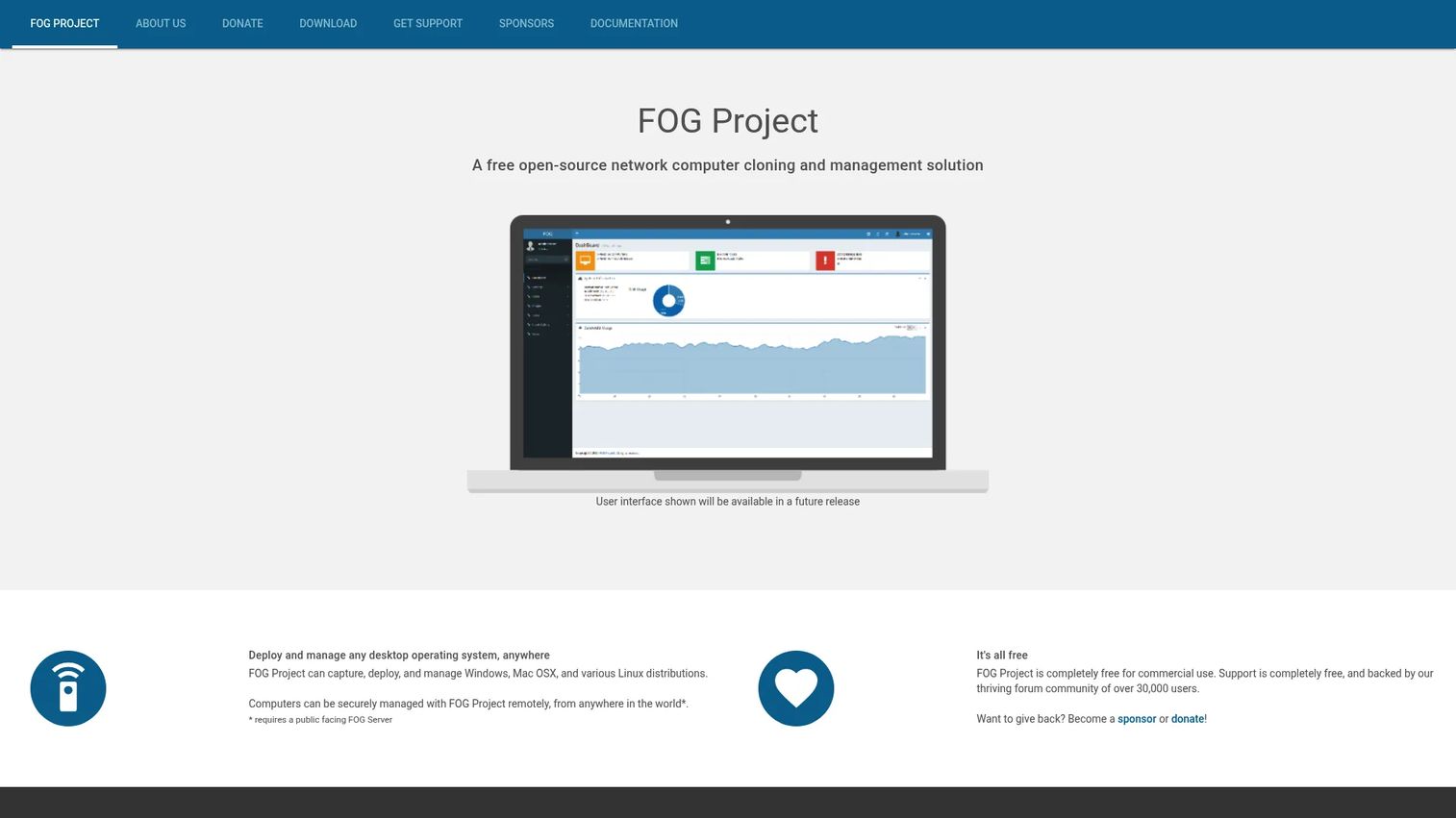
FOG Project is a free, open-source network computer cloning and management solution that runs on a self-hosted Linux server. IT administrators access it through a web-based console, where they manage host inventories, create deployment tasks, and schedule imaging sessions. FOG uses PXE boot to bring target machines into the deployment environment and supports multicast imaging so multiple devices can receive the same image simultaneously over the network. It handles Windows, macOS, and Linux systems and is used widely in schools, university IT departments, and community IT shops.
Best for: Organizations needing free, self-hosted PXE-based network imaging with web management, particularly schools, labs, and community IT teams comfortable with Linux server administration.
Key features
- PXE boot deployment with a web management console
- Multicast imaging for simultaneous multi-device deployment
- Hardware-independent imaging
- Host inventory management
- Multi-site installation support
Why choose FOG Project: FOG is a strong fit when the team wants centralized network imaging without license fees and has the Linux administration skills to set it up and maintain it. Community support through forums is active, but there is no commercial support tier, so maintenance responsibility sits entirely with your team.
FOG Project pricing: Completely free for commercial use.
7. Macrium Reflect
Macrium Reflect is Windows backup, disk imaging, and recovery software with a strong focus on reliability and speed of restoration. Its Rapid Delta Restore technology restores only changed data blocks rather than rewriting the full disk, which cuts recovery time significantly. The tool supports bare-metal restore to dissimilar hardware and includes Macrium Image Guardian, a ransomware-resilience layer that protects backup files from unauthorized modification. Note that Macrium Reflect Free is discontinued; current products span Home, Standalone, LTSC, Technicians, and SiteBackup editions.
Best for: Individuals and organizations prioritizing reliable Windows system imaging, scheduled backup, bare-metal recovery, and disaster recovery over fleet-scale provisioning.
Key features
- Disk image backup with Rapid Delta Restore
- Bare-metal restore to dissimilar hardware
- AES-256 encrypted images
- Ransomware protection via Macrium Image Guardian
- Resumable imaging and ARM device support
Why choose Macrium Reflect: The recovery-first design is the differentiator. For teams where the main risk is an endpoint going down and needing a fast, verified restore, Macrium Reflect performs well. Teams needing large-scale greenfield provisioning to many devices simultaneously will find this less suited to that job than deployment-first tools.
Macrium Reflect pricing: Pricing requires contacting the vendor. Plans include Reflect X Home, Reflect X Standalone, Reflect LTSC, Technicians, and SiteBackup, with one-year, three-year, and five-year terms available.
G2 rating: 4.7/5
8. Microsoft Configuration Manager
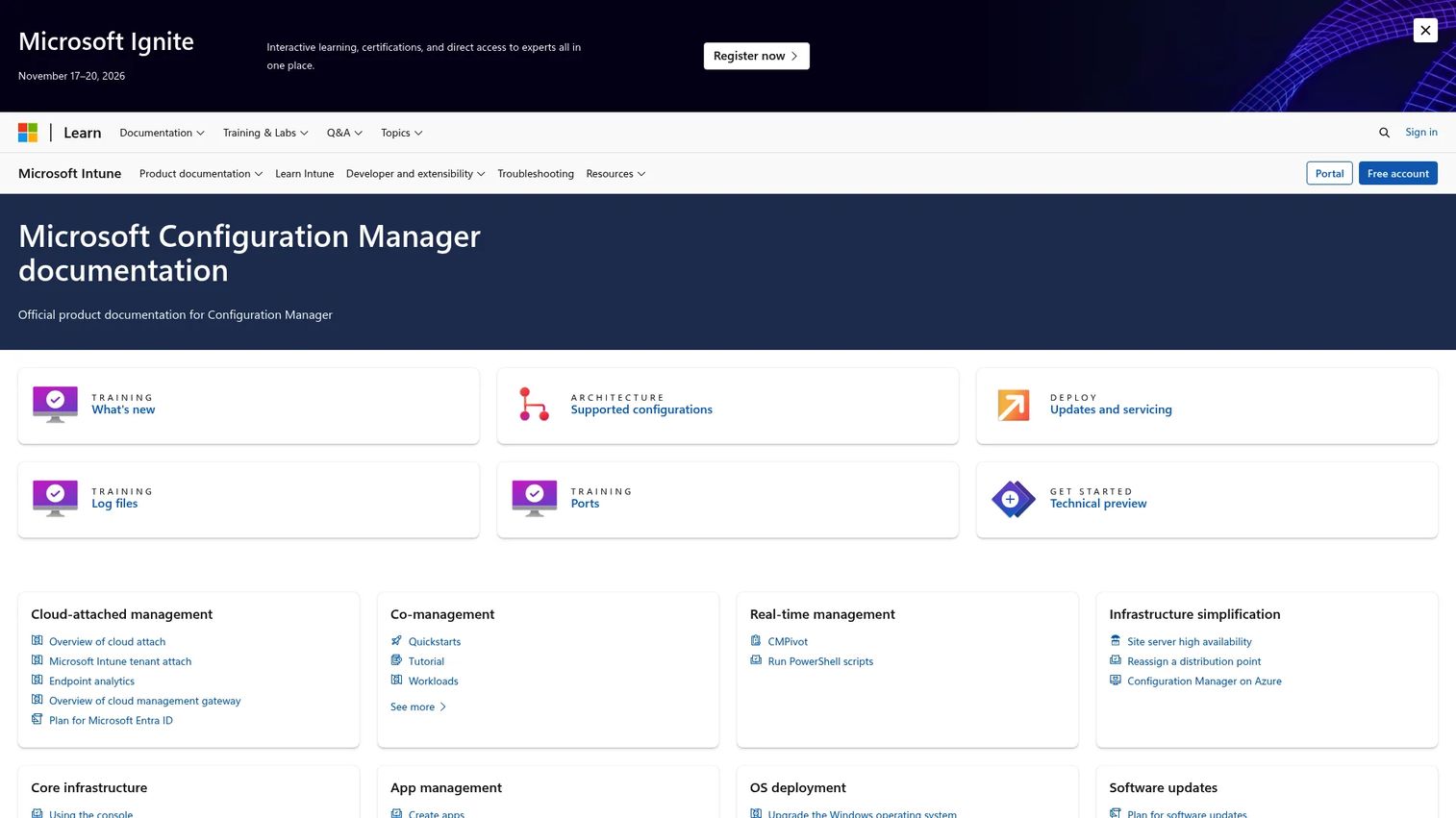
Microsoft Configuration Manager (often called MECM or ConfigMgr) is Microsoft's enterprise platform for managing Windows endpoints across their full lifecycle, including operating system deployment via task sequences and WIM-based workflows. Task sequences let administrators chain together hundreds of steps: Boot into WinPE, partition disks, apply the image, inject drivers, join a domain, install applications, apply group policy, and run custom scripts. Configuration Manager integrates deeply with Active Directory, Microsoft Intune for co-management, and the broader Microsoft endpoint management stack.
Best for: Enterprises already invested in Microsoft endpoint infrastructure that need OS deployment as part of a broader endpoint management, patching, and compliance operation.
Key features
- Task sequence OS deployment with WIM and WinPE support
- Application deployment and software-update management
- Co-management with Microsoft Intune
- Compliance settings and endpoint protection management
- Hardware and software inventory with reporting
Why choose Microsoft Configuration Manager: If OS deployment is one piece of a broader Microsoft endpoint management strategy, ConfigMgr handles it without needing a separate imaging tool. Task sequence complexity is real, though: Plan for training and design time before the first production deployment.
Microsoft Configuration Manager pricing: Access requires Software Assurance or equivalent subscription rights, included in select Intune, EMS, and Microsoft 365 enterprise plans.
9. Quest KACE Systems Deployment Appliance
The Quest KACE Systems Deployment Appliance is a dedicated hardware appliance that centralizes Windows and Linux imaging, scripted installations, task sequencing, and recovery operations across managed networks. Rather than assembling deployment infrastructure from components, the appliance model delivers a pre-packaged system with a web-based console for managing deployment tasks, scheduling reboots, tracking progress in real time, and handling multi-site environments. Customizable pre- and post-deployment configuration covers RAID setup, BIOS configuration, application installation, and custom scripts.
Best for: IT teams that want appliance-packaged deployment infrastructure with multisystem multicast capability and formal task sequencing, particularly in structured enterprise environments.
Key features
- Appliance-based centralized deployment and recovery console
- Automated task sequencing, scheduling, and real-time tracking
- Hardware-independent imaging with network OS installation
- Multisystem multicast deployment
- Customizable pre- and post-deployment configuration
Why choose Quest KACE Systems Deployment Appliance: The appliance model suits teams that want an owned, purpose-built deployment system rather than a software stack they maintain themselves. It's a good fit for formal IT operations teams that benefit from a contained, supportable deployment environment.
Quest KACE Systems Deployment Appliance pricing: Quest directs buyers to request pricing. Contact the vendor for a quote.
10. Ivanti Endpoint Manager
Ivanti Endpoint Manager is a unified endpoint management platform that covers OS provisioning alongside patch management, software distribution, remote control, user profile management, and device discovery. It manages Windows, macOS, Linux, Chrome OS, mobile devices, and IoT endpoints from a single console. For teams that want imaging tied to ongoing endpoint operations rather than a standalone deployment tool, Ivanti positions OS provisioning as one workflow within a broader lifecycle management system.
Best for: Enterprises needing OS provisioning embedded in a unified endpoint management platform that also handles patching, inventory, and compliance across heterogeneous device fleets.
Key features
- OS provisioning, migrations, and in-place upgrades
- Patch management and software distribution
- Remote control and user profile management
- Discovery, data normalization, and dashboards
- Mac management alongside Windows and Linux
Why choose Ivanti Endpoint Manager: The right fit for teams that see endpoint deployment as one step in a longer lifecycle, not an isolated event. If you already manage endpoints in Ivanti or are evaluating a unified management approach, OS provisioning comes included rather than requiring a separate imaging tool.
Ivanti Endpoint Manager pricing: Pricing is quote-based. Contact Ivanti for a custom quote.
G2 rating: 4.2/5
11. Broadcom Ghost Solution Suite
Broadcom Ghost Solution Suite is Broadcom's endpoint provisioning and imaging toolkit, covering bare-metal provisioning, system imaging, OS migration, remote restore, hardware-independent deployment, and centralized task automation. It carries a long history in enterprise imaging under the Symantec brand before Broadcom's acquisition, and organizations that built deployment workflows around Ghost tooling will find the capabilities familiar. The product is sold through Broadcom's partner channel.
Best for: IT teams maintaining established imaging workflows, particularly those with existing processes and expertise built around the Ghost product family.
Key features
- Bare-metal provisioning and system imaging
- OS migration and endpoint refresh
- Hardware-independent deployment
- Remote restore and rebuild
- Centralized task automation
Why choose Broadcom Ghost Solution Suite: Organizations with existing processes built around Ghost tooling have a continuity argument for staying. For net-new evaluations, review the current product roadmap and support model carefully, as Broadcom's portfolio management post-acquisition affects long-term planning for some products.
Broadcom Ghost Solution Suite pricing: Sold through Broadcom partners. Contact the vendor or a reseller for pricing.
G2 rating: 3.7/5
12. NinjaOne Backup
NinjaOne Backup is endpoint backup and recovery built into the NinjaOne platform, designed for MSPs and IT teams managing cloud-connected endpoint fleets. It supports file, folder, and full image backups with cloud, local, and hybrid storage, plus incremental and deduplicated backups that reduce storage overhead. Recovery can be granular (individual files) or full-system, with immutable storage and ransomware-resilient protection as security layers. For MSPs already operating on NinjaOne for RMM, adding Backup consolidates recovery operations into the same console.
Best for: MSPs and IT teams prioritizing centralized, policy-driven endpoint backup and recovery integrated with an existing endpoint management workflow.
Key features
- File, folder, and full image backups
- Cloud, local, and hybrid storage options
- Incremental, deduplicated, and encrypted backups
- Granular file and full-system recovery
- Immutable storage for ransomware resilience
Why choose NinjaOne Backup: The fit is strong when recovery and business continuity are the primary drivers, not classroom-style fleet imaging or greenfield provisioning. Teams looking for PXE-based mass deployment will need a different tool; NinjaOne Backup excels at keeping endpoints recoverable under a managed MSP or IT operations model.
NinjaOne Backup pricing: Pricing is quote-based. A 14-day free trial is available for the broader NinjaOne platform.
G2 rating: 4.7/5
Considerations when choosing OS imaging and deployment software
Match the tool to your deployment model
PXE-based network boot, USB media, cloud provisioning, offline imaging, and remote deployment each fit different environments. A school lab that controls its local network benefits from FOG Project or AOMEI Image Deploy on PXE. A distributed sales team provisioning laptops across five countries needs cloud delivery and remote script support, which points to SmartDeploy or a platform like Ivanti.
Check hardware-independent deployment and drivers
Driver injection and hardware abstraction matter whenever devices are not identical. Deploying a single image to mixed hardware without proper driver handling produces boot failures and support tickets. Ask each vendor specifically how they handle driver injection: Manual packs, prebuilt libraries, or automatic detection all carry different maintenance burdens.
Separate provisioning from recovery
Some tools in this list are primarily deployment platforms (ManageEngine OS Deployer, SmartDeploy, Acronis Snap Deploy). Others are primarily backup and recovery tools (Macrium Reflect, NinjaOne Backup). A few span both. Knowing which problem you are solving first prevents buying a recovery tool for a provisioning job, or vice versa.
Evaluate post-deployment automation
The deployment itself is often the easy part. Computer naming, domain joining, application installation, patching, and policy assignment determine whether a device is actually ready to use. Tools with strong task sequencing or scripting support (Microsoft Configuration Manager, Quest KACE, ManageEngine) reduce manual steps after the image lands.
Calculate total cost of ownership
License fees are only part of the cost. Open-source tools like Clonezilla and FOG Project carry no license cost but require server infrastructure, administration time, and self-managed troubleshooting. Enterprise platforms require training, server capacity, and sometimes professional services for initial setup. Add up technician time, failure recovery effort, and ongoing maintenance before comparing sticker prices.
Conclusion
OS imaging and deployment software choice comes down to environment shape. No single tool wins across every scenario.
For enterprise Windows deployment with structured driver handling across LAN and WAN, ManageEngine OS Deployer is the most complete starting point. Acronis Snap Deploy wins when the job is pushing a clean image to many machines at once. SmartDeploy suits distributed teams managing mixed hardware with a low per-image maintenance burden. Clonezilla and FOG Project remain the strongest free options for technically capable teams who can self-manage. Microsoft Configuration Manager belongs in Microsoft-heavy enterprises where OS deployment is part of a broader endpoint operations model. For recovery-first workflows, Macrium Reflect and NinjaOne Backup each bring strong image-based protection from different angles: On-premises recovery versus cloud-managed MSP operations.
Before committing, inventory your operating systems, map your deployment sites, and decide whether your primary need is provisioning or recovery. Run a pilot on three to five hardware models with a rollback plan in place. Track deployment time, driver failure rate, and post-deployment manual steps. The numbers will tell you whether the tool fits before you scale it across the fleet.
FAQs
OS imaging and deployment software creates a master image of a configured operating system, stores it centrally, and deploys it to multiple computers. Teams use it to provision new devices, refresh shared workstations, or restore endpoints to a known baseline after failure or compromise.
Cloning copies a disk or partition directly from one device to another, typically one to one. OS imaging captures a master image that can be deployed to many devices, with the deployment tool handling driver injection, computer naming, domain joining, and application installation at scale. Deployment-focused tools add orchestration that pure cloning utilities do not.
PXE is common for network-based deployment because it lets target machines boot from the network without a local OS or USB drive. It is not the only option. USB media, cloud-based workflows, offline images, and agent-triggered deployments are all viable depending on the tool and environment. Schools and labs often favor PXE for simultaneous deployment to many devices; disconnected sites may need USB or offline media.
Clonezilla and FOG Project are the strongest free options. Clonezilla handles disk imaging and cloning with broad filesystem support and multicast deployment. FOG Project adds PXE-based network deployment with a web management console. Both require technical setup and administration. AOMEI Image Deploy offers a free tier with a GUI for basic LAN-based Windows deployment, which lowers the barrier for teams without deep Linux experience.
The right answer depends on scale and Microsoft infrastructure maturity. Microsoft Configuration Manager is the most capable option for enterprises already running Microsoft endpoint management, using WIM-based task sequences and WinPE. ManageEngine OS Deployer and SmartDeploy both handle Windows imaging at smaller scales with cleaner onboarding. AOMEI Image Deploy covers basic Windows deployment for small teams without enterprise overhead.
Support varies by tool. Hardware-independent deployment requires the tool to inject or abstract drivers so the image boots on hardware it was not captured from. SmartDeploy's platform-pack model handles this by design. ManageEngine OS Deployer, Acronis Snap Deploy (via Universal Deploy), and Quest KACE all address driver handling. Clonezilla and FOG Project support hardware-independent deployment but require manual driver management. Test with every major hardware model in your fleet before production rollout.
Yes, in specific environments. Cloud-based zero-touch provisioning works well for cloud-joined Windows devices in organizations with strong MDM infrastructure. Imaging still serves labs, kiosks, classrooms, factories, shared workstations, and any site with limited or unreliable internet connectivity. Recovery scenarios, where a device needs a full rebuild from a known-good state, also rely on imaging regardless of the provisioning model in use.
Run a pilot covering at least three different hardware models, one remote or off-network site if applicable, and a deliberate failure scenario with a rollback plan. Measure deployment time per device, driver failure rate, and the number of manual steps required after the image lands. Track any post-deployment issues that required technician intervention. These four numbers reveal whether the tool fits your environment before you scale it across the full fleet.