Your finance folder is gone. The external drive holding last quarter's board materials is showing up as RAW. Someone emptied the Recycle Bin on the shared drive before realizing the investor deck was still in there.
The instinct is to download the first recovery tool that shows up in search. That instinct can make things worse. Running scan after scan on a failing drive risks overwriting the sectors you need. Installing software to the same drive you're trying to recover from can destroy file records before they're ever read.
The global data recovery software market was valued at $21.09 billion in 2025 and is projected to reach $42.93 billion by 2034, according to The Insight Partners (2025). That growth reflects how often data loss happens across organizations of every size. For a Series B company without a mature IT process, knowing which tool to reach for first is the difference between a recoverable incident and a permanent loss.
This guide cuts through 18 tools so you, or whoever you forward this to, can make one clear decision fast.
What's inside
This guide compares 18 file recovery tools covering deleted files, formatted drives, RAW partitions, memory cards, and external storage. It includes free, open-source, beginner-friendly, and professional options.
Tools were selected and evaluated on:
- Recovery scenario fit: Does it match your actual failure mode?
- Operating system support: Windows, Mac, Linux, or cross-platform?
- Free limits and pricing: What do you get before paying?
- Safety for unstable drives: Will scanning make a bad situation worse?
- Ease of use: Can a non-specialist run it without help?
Pricing and ratings in this guide were verified against vendor pages and G2 at time of writing.
TL;DR
- Best free Windows option: Recuva handles simple deleted-file recovery on Windows at no cost
- Best polished consumer pick: Disk Drill offers a clean interface and broad device support for Windows and Mac
- Best open-source stack: TestDisk and PhotoRec together cover partition repair and signature-based file recovery, both free
- Best built-in Microsoft option: Windows File Recovery works for Windows users who are comfortable with command-line tools
- Best for professional and technical workflows: R-Studio and UFS Explorer handle RAID, advanced file systems, and technician-grade jobs
- Best first move on a failing drive: Clone with Ddrescue before you scan anything else
What is file recovery software?
File recovery software is software that scans storage media for deleted, lost, inaccessible, or damaged file records and attempts to restore recoverable files to a safe destination.
When a file is deleted, the operating system typically removes the pointer to that file rather than immediately wiping the underlying data. Recovery software looks for those data blocks before they get overwritten by new writes. This is why stopping all activity on the affected drive is the single most important step you can take before opening any tool.
Common recovery scenarios this software addresses:
- Accidental deletion and emptied Recycle Bin
- Quick-formatted drives (where data blocks still exist)
- RAW partitions the OS can no longer read
- Corrupted or missing partition tables
- Lost partitions after a failed resize or partition operation
- Photo and video recovery from memory cards and USB drives
Key features to look for:
- Preview before recovery, so you can confirm files are intact
- Deep scan and quick scan modes for different failure types
- Support for target file systems: NTFS, APFS, HFS+, exFAT, FAT32, EXT
- Disk imaging so you can scan a clone rather than the original
- Safe destination: Recovery should always go to a separate drive
- Search, filter, and sorting to find specific files in large scan results
Hard limits to understand before you start:
Software cannot reliably recover overwritten data. SSD TRIM, which many modern SSDs run automatically on deleted blocks, can make deleted-file recovery impossible even minutes after deletion. Physical damage, such as clicking heads, water exposure, or fire damage, requires a professional lab. No software bypasses a hardware failure.
Do this first: Stop writing data to the affected drive. Do not install recovery software onto it.
When to use file recovery software
Recover recently deleted files
Use recovery software when files were deleted recently and the drive still mounts cleanly. The faster you act, the less likely the data blocks have been overwritten. Always recover to a different drive, not back to the same one. Tools like Recuva, Disk Drill, MiniTool Power Data Recovery, and EaseUS Data Recovery Wizard are good starting points for this scenario.
Scan formatted, RAW, or corrupted drives
When a partition disappears, a drive asks to be formatted, or folders become unreadable, you need a tool with deep-scan capability. Results may lose original file names and folder structure, especially with signature-based recovery. If the drive is showing any instability, clone it first before running a scan.
Work from a clone when the drive is failing
Clicking sounds, repeated disconnects, slow read speeds, and SMART warnings all indicate the drive is in physical distress. Repeated software scans on a failing drive stress the hardware further and can destroy readable sectors. Clone the drive first using Ddrescue or a similar sector-level tool, then run your recovery software against the clone. For business-critical data with physical symptoms, call a professional recovery lab before attempting any DIY steps.
File recovery software comparison
The table below works best as a triage tool. "Best for" matters more than "best overall" because a formatted-drive scenario and a simple undelete job need different tools entirely. Pricing reflects verified vendor page figures at time of writing.
| # | Product | Best for | Key differentiator | Pricing | G2 rating |
|---|---|---|---|---|---|
| 1 | Recuva | Simple Windows deleted-file recovery | Lightweight free recovery from the CCleaner family | Free / $24.95 one-time | N/A |
| 2 | Disk Drill | Polished consumer recovery across devices | Beginner-friendly with strong preview and disk health tools | Free / from $89/year | 4.0/5 |
| 3 | TestDisk | Partition repair and lost partition recovery | Open-source partition table and boot sector repair | Free | 4.3/5 |
| 4 | PhotoRec | Photo, video, and document signature recovery | Open-source; recovers 480+ file types from damaged media | Free | N/A |
| 5 | Windows File Recovery | Built-in Microsoft recovery on Windows | Microsoft command-line tool requiring no third-party install | Free | N/A |
| 6 | MiniTool Power Data Recovery | Simple Windows recovery with free allowance | Guided scans with 1GB free recovery tier | Free / from $69 one-month | 4.4/5 |
| 7 | R-Studio | Advanced professional and technician recovery | RAID reconstruction, network recovery, hex editor | From $49.99 one-time | N/A |
| 8 | EaseUS Data Recovery Wizard | Beginner-friendly paid recovery, Windows and Mac | Broad consumer scenarios with file repair and NAS recovery | Free preview / from $69.95 one-month | N/A |
| 9 | DMDE | Technical users wanting low-cost recovery power | Disk editor plus file-system reconstruction and RAID | Free / from $20 one-year | N/A |
| 10 | DiskGenius | Windows recovery plus partition management | Combines recovery, partition, cloning, and backup | Free / from $69.90 one-month | 4.9/5 |
| 11 | 4DDiG Data Recovery | Guided recovery for common consumer scenarios | AI-powered photo repair, NAS and cloud recovery | Free / from $45.95 one-month | 4.8/5 |
| 12 | DiskDigger | Photos and removable media recovery | Lightweight; supports virtual disk images and multiple file systems | Free / $14.99 one-time | N/A |
| 13 | Ddrescue | Cloning unstable drives before scanning | Sector-level rescue with resumable passes and error logging | Free | N/A |
| 14 | R-Undelete | Simple deleted-file recovery from R-Tools | Streamlined wizard with disk image support, free home version | Free (home) / $54.99 one-time | N/A |
| 15 | Stellar Data Recovery Professional | Polished professional recovery, Windows and Mac | BitLocker support, bootable media, and disk cloning | From $79.99/year | 4.7/5 |
| 16 | DiskInternals Uneraser | Deleted-file recovery across diverse file systems | Broad file-system support including ZFS and UFS | Free preview / from $29.95 one-time | 4.6/5 |
| 17 | UFS Explorer | Complex file systems, RAID, and NAS recovery | Professional RAID, NAS, virtual disk, and encrypted storage support | From $69.95 one-time | 5.0/5 |
| 18 | UnDeleteMyFiles | Lightweight basic undelete on Windows | Freeware with recovery-likelihood indicator and USB portability | Free | N/A |
Best 18 file recovery tools for 2026
1. Recuva
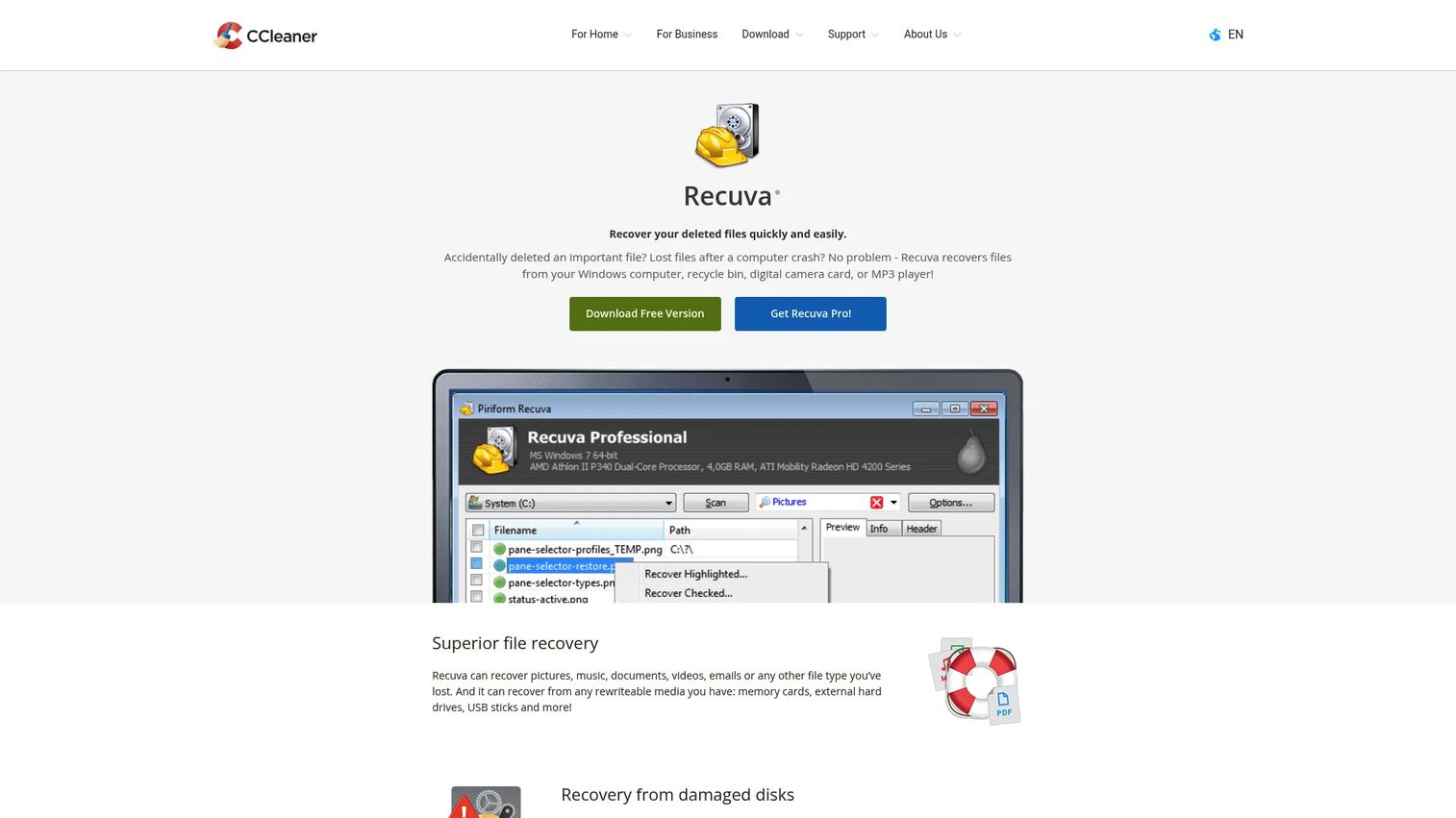
Recuva is a Windows file recovery tool from the CCleaner product family. It handles deleted files from hard drives, USB drives, memory cards, and the Recycle Bin, covering pictures, music, documents, videos, and email files. The tool runs a quick scan first, with a deep scan available for cases where the quick pass comes up empty. A portable version means you can run it from a USB stick without installing anything on the affected machine.
Best for: Windows users who need a lightweight first attempt at a recently deleted file on a healthy drive.
Key features
- Quick scan and deep scan modes for different recovery depths
- Recycle Bin and external-drive recovery
- Secure file overwrite for permanent deletion
- Portable version runs without installation
- No-cost base version with full recovery capability
Why choose Recuva: Recuva is the right first tool when the deletion was recent and the drive is healthy. It is not the right tool for partition recovery, RAID arrays, or drives showing hardware instability.
Recuva pricing: The free version covers full recovery. Recuva Professional is a one-time purchase at $24.95 and adds virtual hard drive support, automatic updates, and priority support.
2. Disk Drill
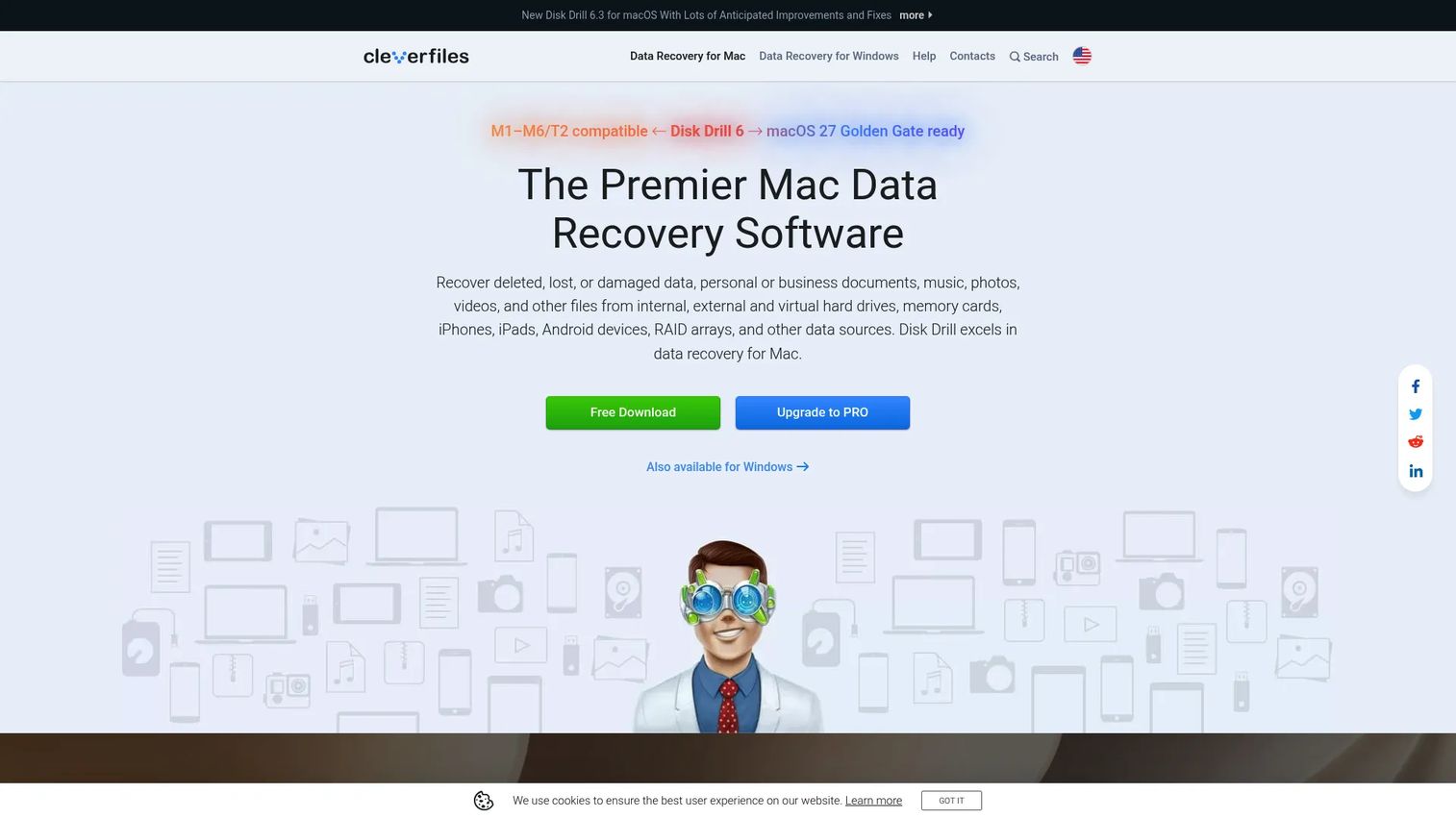
Disk Drill is a data recovery platform for Windows and Mac with a polished interface designed for users who do not want to interpret command-line output. It offers both Quick Scan and Deep Scan, file preview before committing to recovery, S.M.A.R.T. disk health monitoring, and a Recovery Vault feature that can protect files before deletion happens. Byte-to-byte backups let you create a disk image to work from.
Best for: Founders or ops leads who need a non-specialist to run a scan quickly before escalating to IT.
Key features
- Quick Scan and Deep Scan for different drive states
- File preview before recovery to confirm file integrity
- S.M.A.R.T. disk health monitoring
- Recovery Vault for proactive file protection
- Windows and Mac support with up to three device activations on PRO
Why choose Disk Drill: Disk Drill fits the scenario where someone non-technical needs to try recovery before the IT team gets involved. The free tier scans and shows what is recoverable; the paid tier is needed to actually save those files.
Disk Drill pricing: The Basic plan is free with platform-specific recovery limits. PRO runs $89 per year or $149 as a one-time lifetime license. Enterprise pricing is custom.
G2 rating: 4.0/5 based on 64 reviews (G2).
3. TestDisk
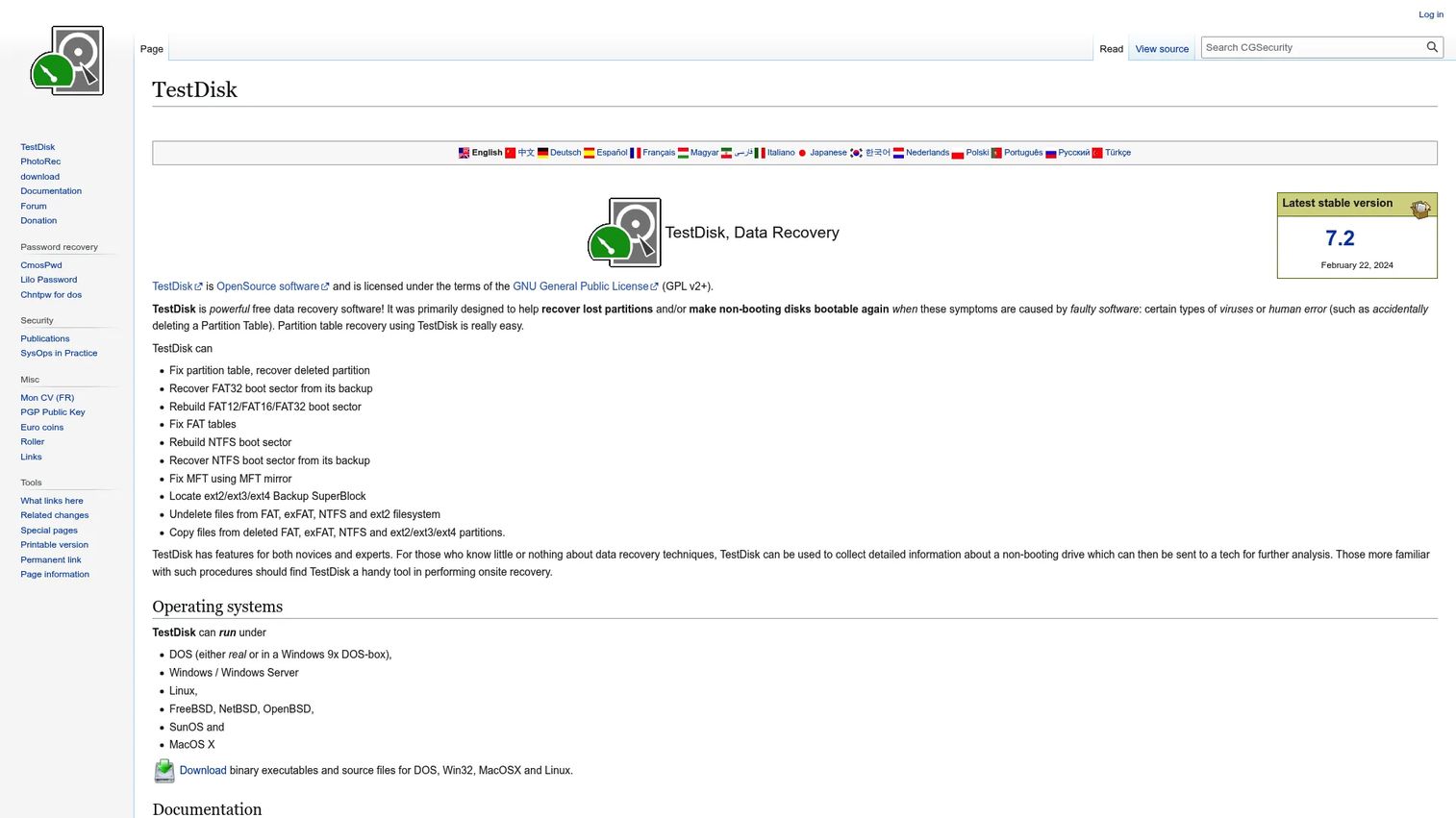
TestDisk is a free, open-source utility focused on partition recovery and disk repair rather than individual file undelete. It rebuilds partition tables, repairs boot sectors, and can recover lost partitions from FAT, exFAT, NTFS, and ext2/3/4 file systems. It runs on Windows, macOS, Linux, and several BSD variants.
Best for: Technical users or IT staff dealing with lost partitions, damaged partition tables, or boot-sector failures.
Key features
- Partition table recovery and rebuild
- Boot sector repair for damaged disks
- File system support: FAT, exFAT, NTFS, ext2/3/4
- Cross-platform: Windows, macOS, Linux, FreeBSD
- Command-line interface; no GUI
Why choose TestDisk: Use TestDisk when the problem is partition structure rather than a deleted file. It is powerful for the right failure mode and difficult for anyone unfamiliar with disk concepts.
TestDisk pricing: Free and open source under the GNU General Public License.
G2 rating: 4.3/5 based on 12 reviews (G2).
4. PhotoRec
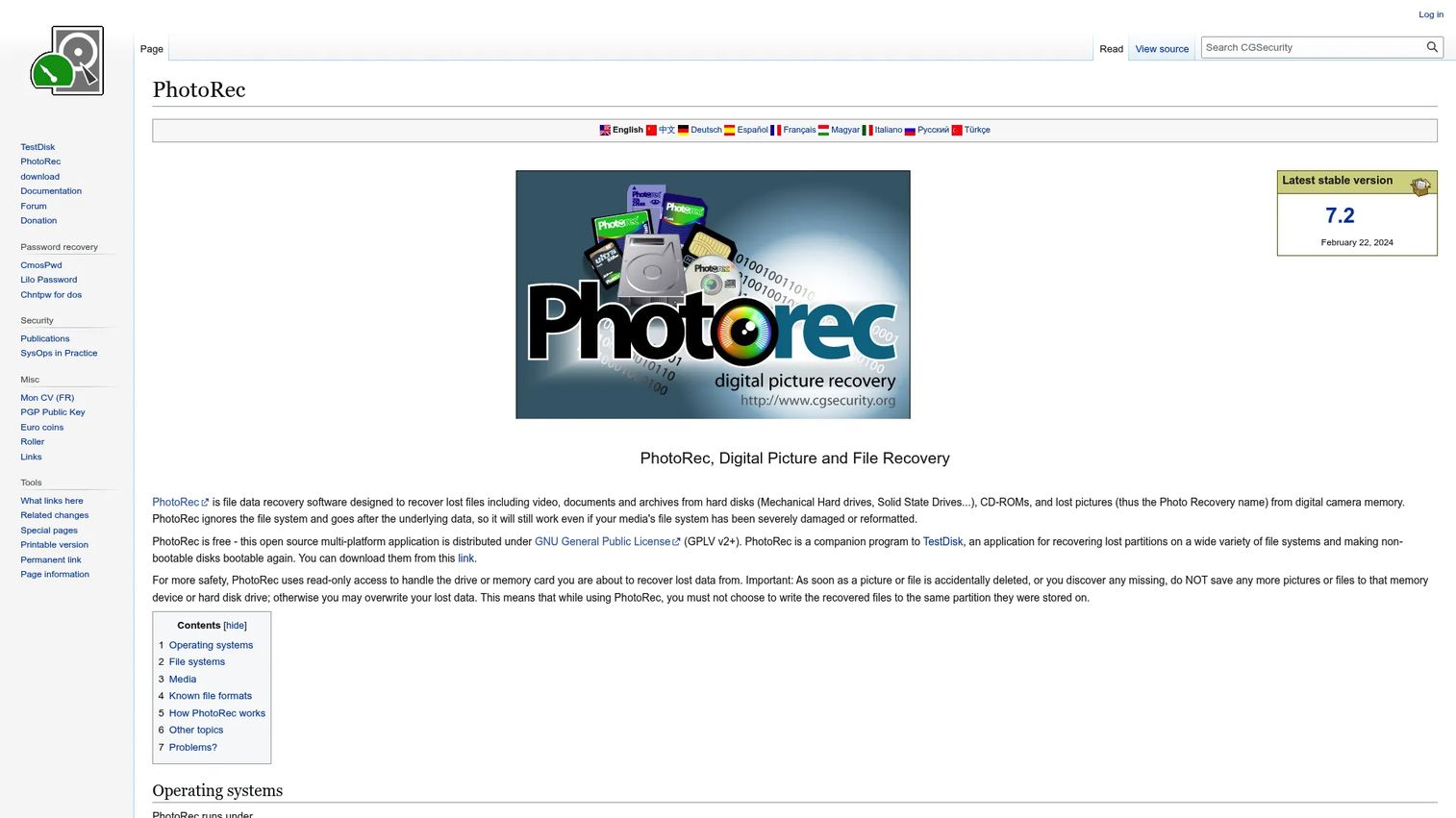
PhotoRec comes from the same project as TestDisk and takes a different approach: It ignores file-system metadata entirely and identifies recoverable files purely by their binary signatures. This means it can recover files even when the file system is severely damaged or reformatted. It supports 480+ file extensions across approximately 300 file families, covering photos, videos, documents, and archives.
Best for: Recovering photos, videos, and common document types from damaged, reformatted, or heavily corrupted media.
Key features
- Signature-based recovery ignoring file-system state
- Supports hard drives, SSDs, memory cards, USB drives, and disk images
- Recovers 480+ file types across 300 file families
- Runs on Windows, macOS, Linux, and several BSD variants
- Read-only access during the recovery process
Why choose PhotoRec: PhotoRec is the right tool when the file system is gone and other tools find nothing. The trade-off is that recovered files lose their original names and folder structure; expect a large numbered output folder.
PhotoRec pricing: Free and open source under the GNU General Public License.
5. Windows File Recovery
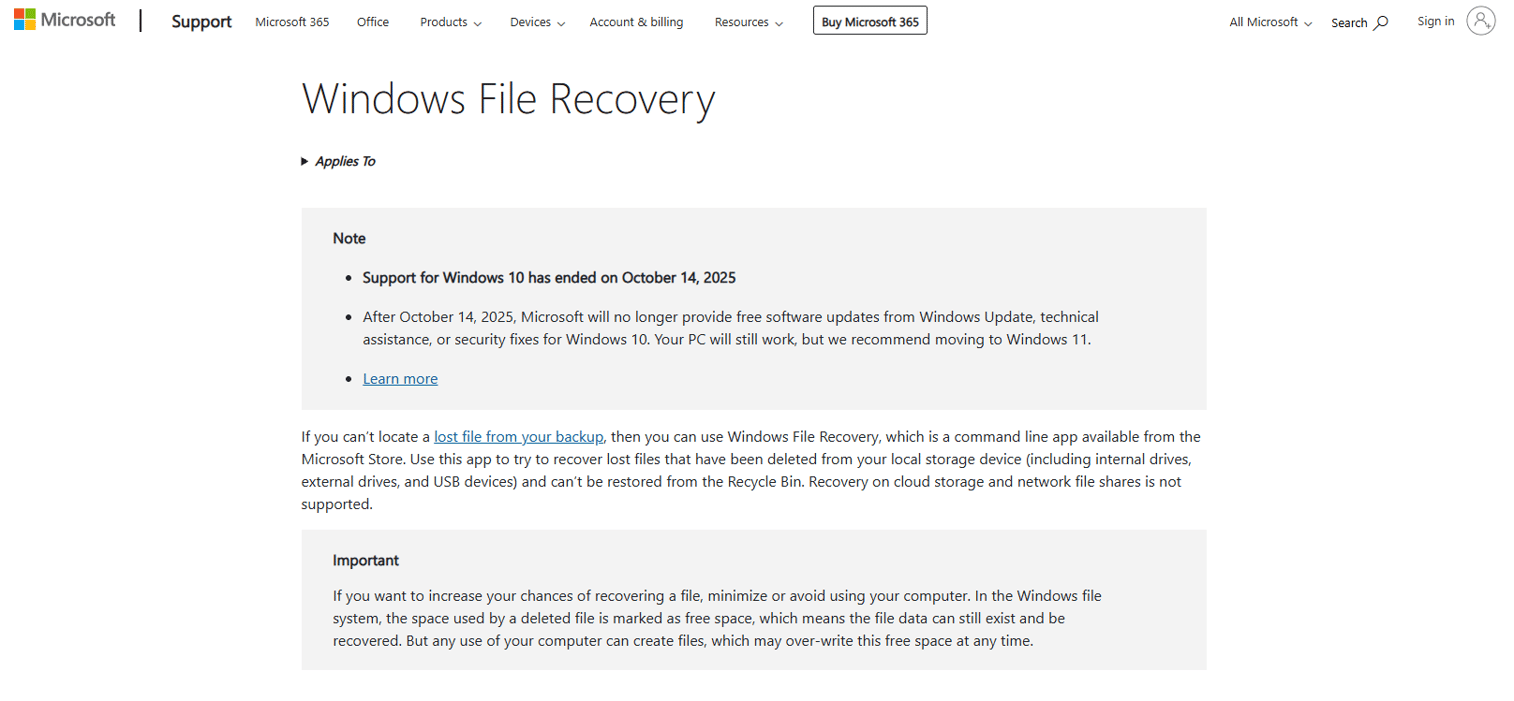
Windows File Recovery is Microsoft's command-line recovery app, available free from the Microsoft Store. It supports NTFS-formatted internal and external drives and USB drives, using regular mode for recent deletions on healthy NTFS drives and extensive mode for older deletions, non-NTFS drives, or more thorough scans. No third-party software installation required.
Best for: Windows users who want a Microsoft-provided tool and can follow command-line syntax.
Key features
- Free from the Microsoft Store; no third-party dependency
- Regular and extensive recovery modes for NTFS
- File filtering by name, path, type, or wildcards
- Internal, external, and USB drive support
- No GUI; runs entirely from the command prompt
Why choose Windows File Recovery: The right choice when policy requires Microsoft tooling or when you want to avoid installing third-party software. Not suited for teams that need a graphical interface or for non-NTFS file systems.
Windows File Recovery pricing: Free from Microsoft.
6. MiniTool Power Data Recovery

MiniTool Power Data Recovery is a guided Windows recovery app covering deleted files, formatted drives, RAW partitions, and removable storage. The free edition recovers up to 1GB, which is enough to confirm whether the data is actually there before committing to a paid license. File preview, filtering, and scan-result saving are all available, along with WinPE bootable media for recovery when Windows itself cannot start.
Best for: Windows users who want a wizard-driven recovery flow with a free tier to preview results.
Key features
- Recovers from deleted, formatted, RAW, and lost partitions
- File preview and filtering during scan
- 1GB free recovery on the free edition
- WinPE bootable media for unbootable systems
- Scan-result saving to resume later
Why choose MiniTool: The 1GB free recovery cap is enough for a document or a small batch of photos. For larger recovery jobs, the paid tier starts at a reasonable entry point. It is a Windows-only tool; Mac users should look elsewhere.
MiniTool Power Data Recovery pricing: Free tier covers 1GB of recovery. Paid plans start at $69 for a one-month personal subscription, $89 for one year, and $129 for a lifetime personal license.
G2 rating: 4.4/5 (G2).
7. R-Studio
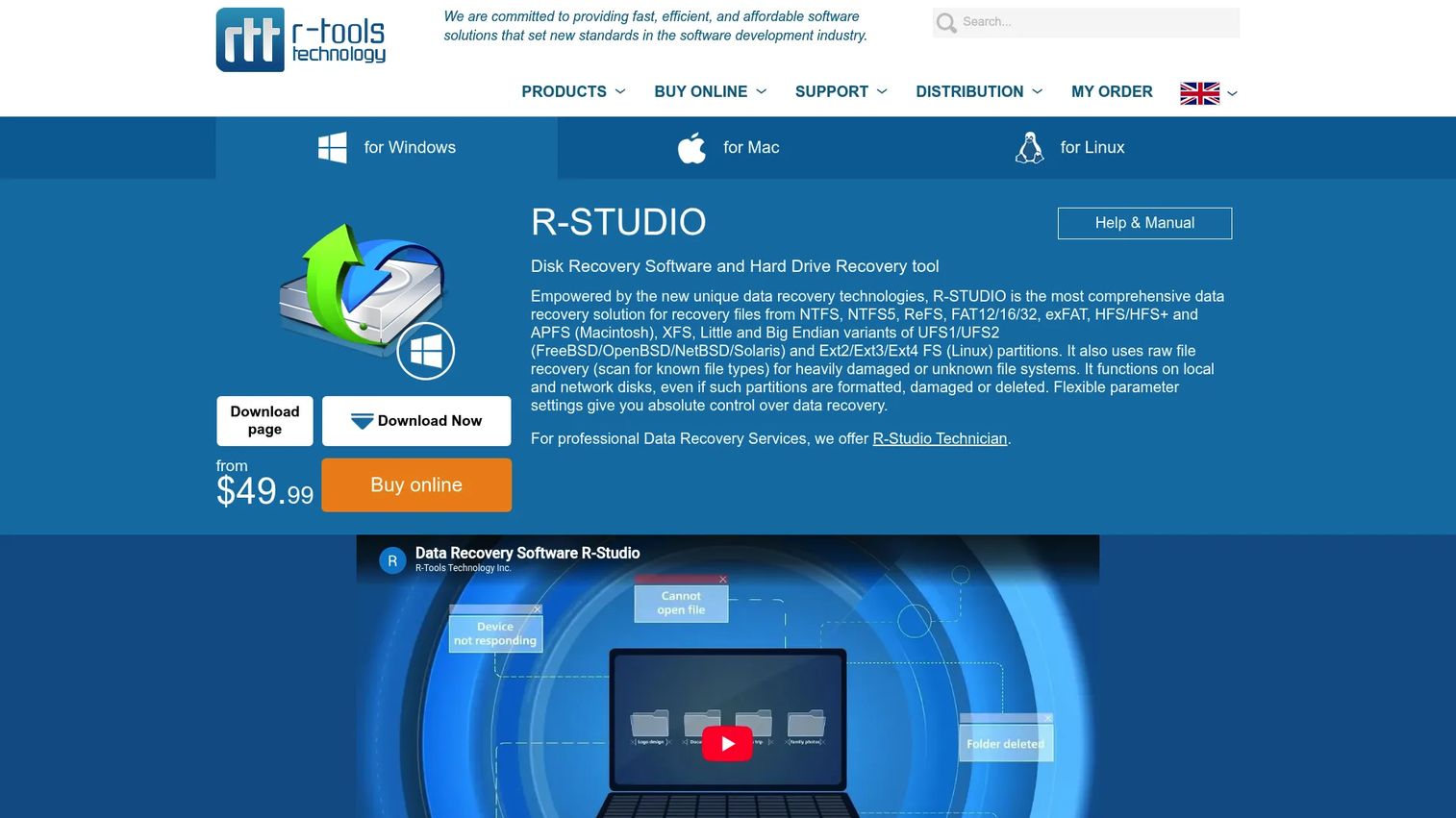
R-Studio is professional-grade data recovery software built for IT teams, system administrators, and technicians. It handles local and network disk recovery, automatic RAID parameter detection and reconstruction, disk imaging, raw recovery by file signature, and a hex viewer/editor for low-level inspection. The Technician license covers recovery for client machines, making it suited for managed service providers and internal IT departments.
Best for: IT professionals and technical operators handling complex recovery involving RAID, network drives, or damaged file systems.
Key features
- Recovery from local disks, network drives, and disk images
- RAID reconstruction with automatic parameter detection
- Raw recovery by known file type signatures
- Hex viewer/editor for low-level disk inspection
- S.M.A.R.T. monitoring and disk health data
Why choose R-Studio: Too much tool for a founder trying to recover one recently deleted spreadsheet, but the right choice when IT or a managed service provider needs technician-grade capability. Capterra reviewers report a 4.5/5 rating across 84 reviews.
R-Studio pricing: Standalone licenses start at $49.99 (FAT only) or $79.99 (all file systems). The Technician license for multi-client recovery is $899.99, all as one-time purchases.
8. EaseUS Data Recovery Wizard
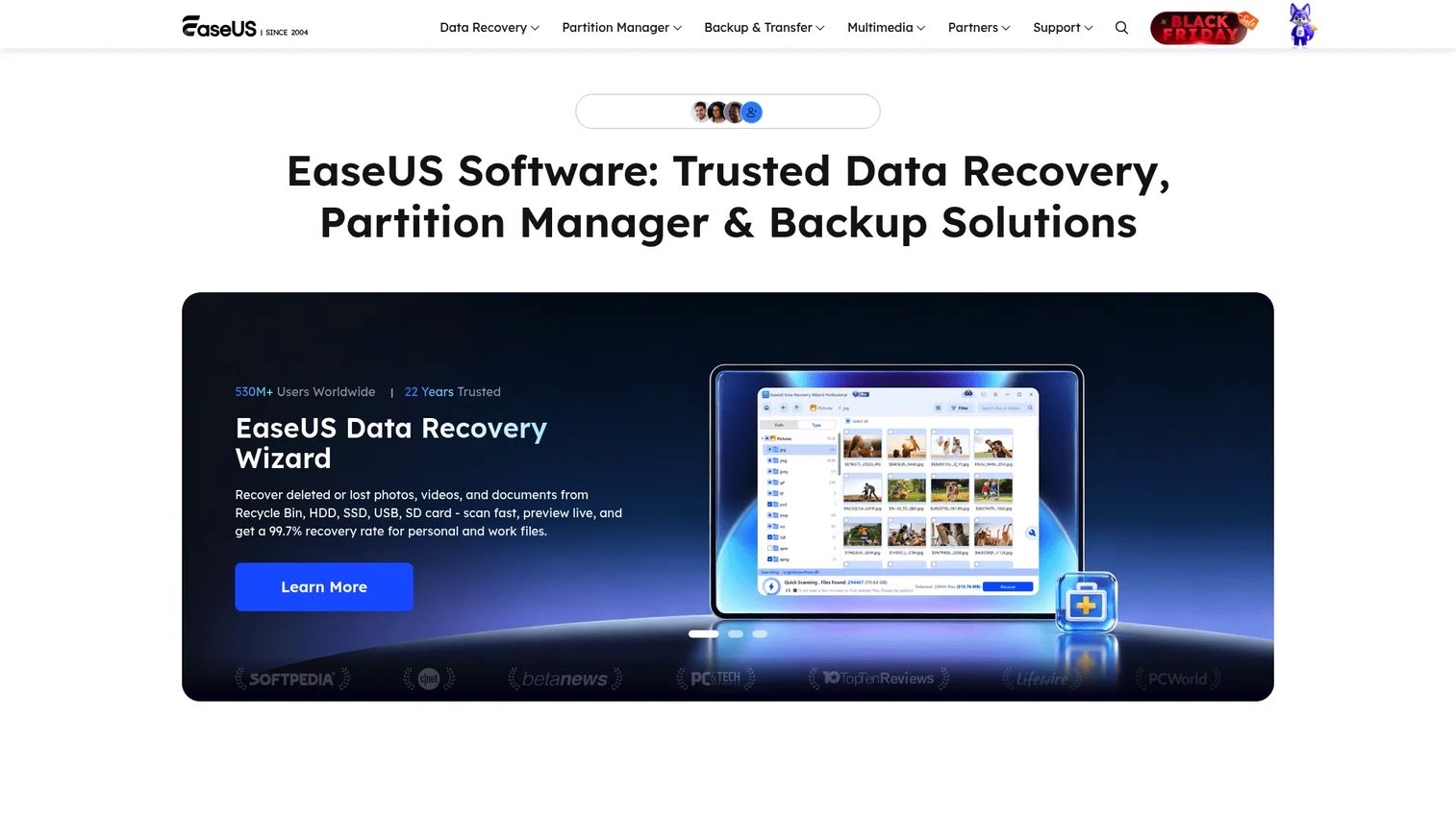
EaseUS Data Recovery Wizard is a commercial recovery tool for Windows and Mac covering deleted files, formatted drives, inaccessible partitions, NAS recovery, and corrupt video and photo repair. File preview is available before recovery, and the on-device AI-assisted filtering helps locate specific file types in large scan results. A bootable recovery option handles systems that cannot start Windows.
Best for: Users who want a guided, polished paid recovery experience with broad file-type support across Windows and Mac.
Key features
- Deleted, formatted, lost, and RAW partition recovery
- File preview and AI-assisted file filtering during scan
- Corrupt video and photo repair
- NAS recovery support
- Bootable recovery media for unbootable systems
Why choose EaseUS: A solid pick for non-technical users who want interface clarity and do not want to interpret command-line output. The free version shows what is recoverable; the paid plan is needed to save files.
EaseUS Data Recovery Wizard pricing: Free version for scanning and preview. Paid plans are $69.95 for one month (no auto-renewal), $99.95 for one year, or $149.95 for a lifetime license.
9. DMDE
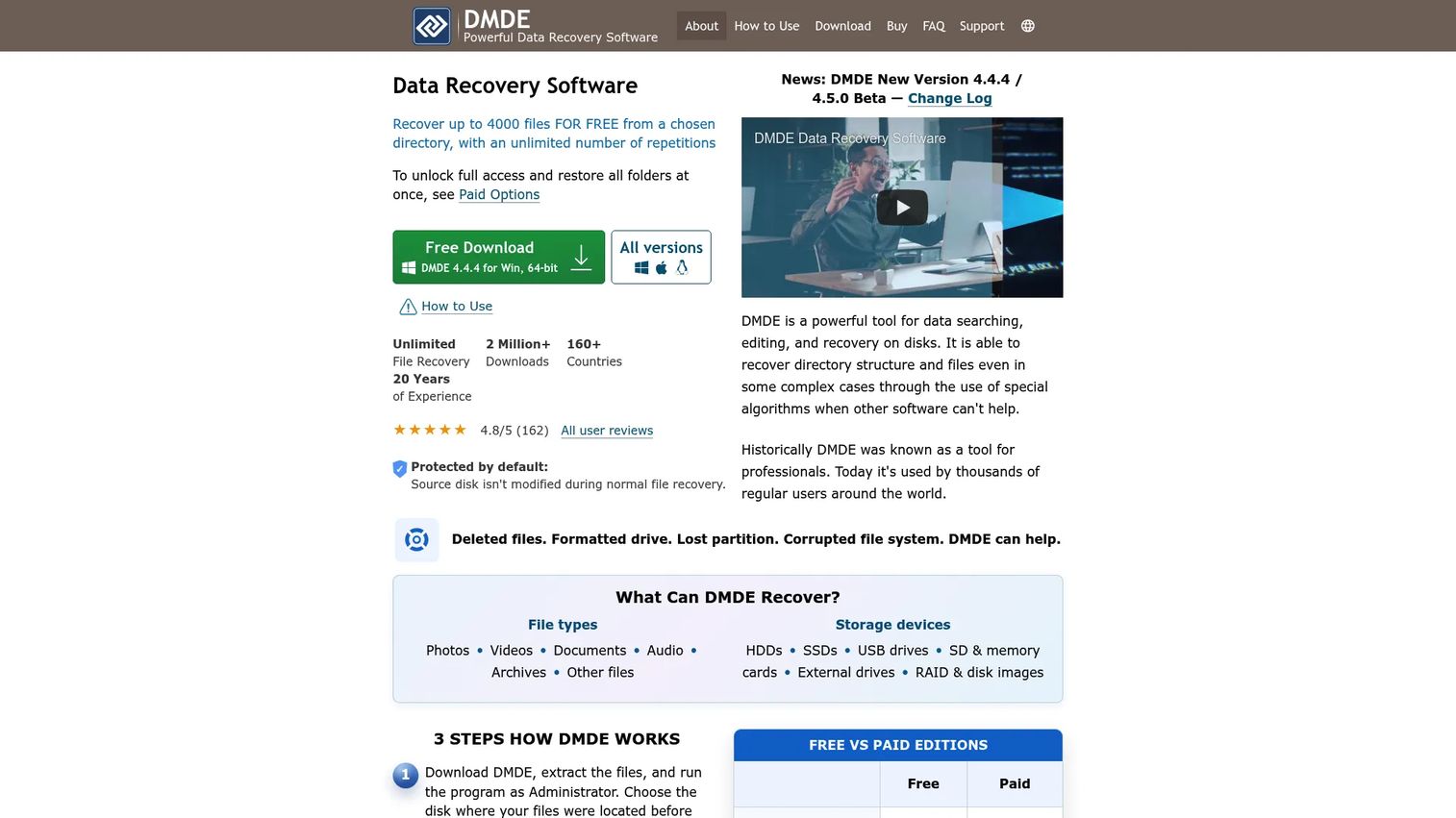
DMDE combines disk editing, file-system reconstruction, partition management, disk cloning, and RAID support in a compact, technically focused utility. The free edition recovers up to 4,000 files per request from a selected directory. Paid licenses range from a lightweight personal Express tier to a Professional license that covers commercial and client recovery work.
Best for: Technical users who want granular control over recovery at a low license cost.
Key features
- File-system and raw scanning with file-system reconstruction
- Partition recovery and management
- Disk cloning and imaging with I/O error handling
- Virtual RAID reconstruction
- Disk editor and cluster map
Why choose DMDE: DMDE sits between consumer tools and enterprise-priced professional suites. The low cost makes it attractive for technically confident IT staff. It is not the right starting point for a non-specialist.
DMDE pricing: Free edition recovers up to 4,000 files per request. Paid licenses start at $20 for a one-year Express license, $48 for Standard (perpetual), and $95 for Professional (perpetual).
10. DiskGenius
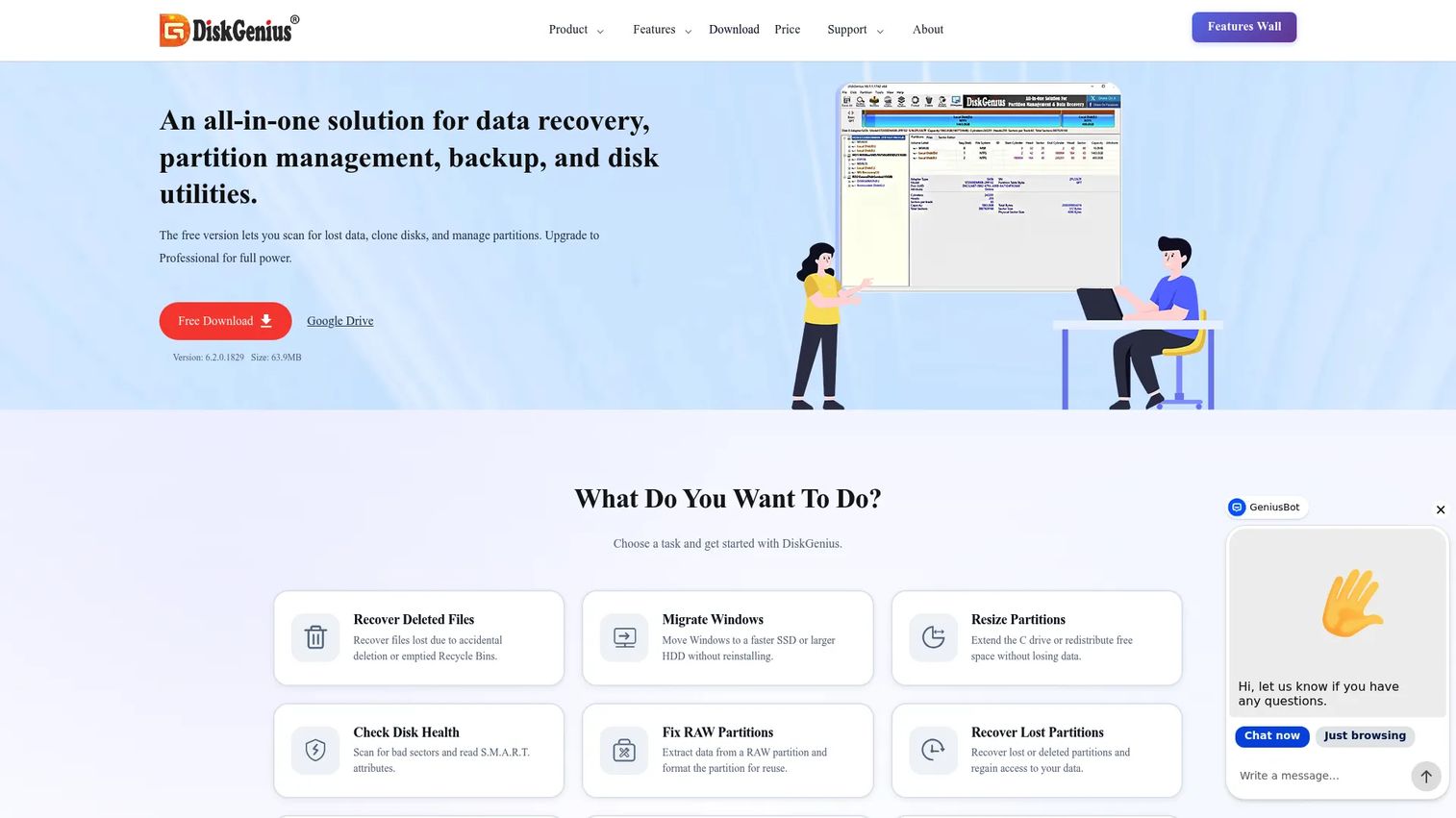
DiskGenius is a Windows tool that bundles file recovery, partition management, disk cloning, backup, and disk diagnostics into a single application. It covers deleted, formatted, lost, and RAW partition recovery alongside partition resizing, conversion, bad-sector checking, and secure erasure. This combination makes it useful when a recovery problem overlaps with a partition repair or disk maintenance task.
Best for: Windows users who need file recovery alongside disk management, cloning, or partition repair.
Key features
- Data recovery from deleted, formatted, lost, and RAW partitions
- Partition creation, resizing, splitting, and cloning
- Disk and partition backup and restoration
- Bad-sector verification and secure erasure
- Disk health monitoring
Why choose DiskGenius: A strong choice when you are not sure whether the problem is a deleted file or a partition issue, since DiskGenius handles both. The free edition covers many basic operations; the paid Professional edition adds commercial use rights.
DiskGenius pricing: Free edition available. Professional paid plans start at $69.90 for one month, $99.90 for one year, or $129.90 for a lifetime license.
G2 rating: 4.9/5 based on 4 reviews (G2).
11. 4DDiG Data Recovery
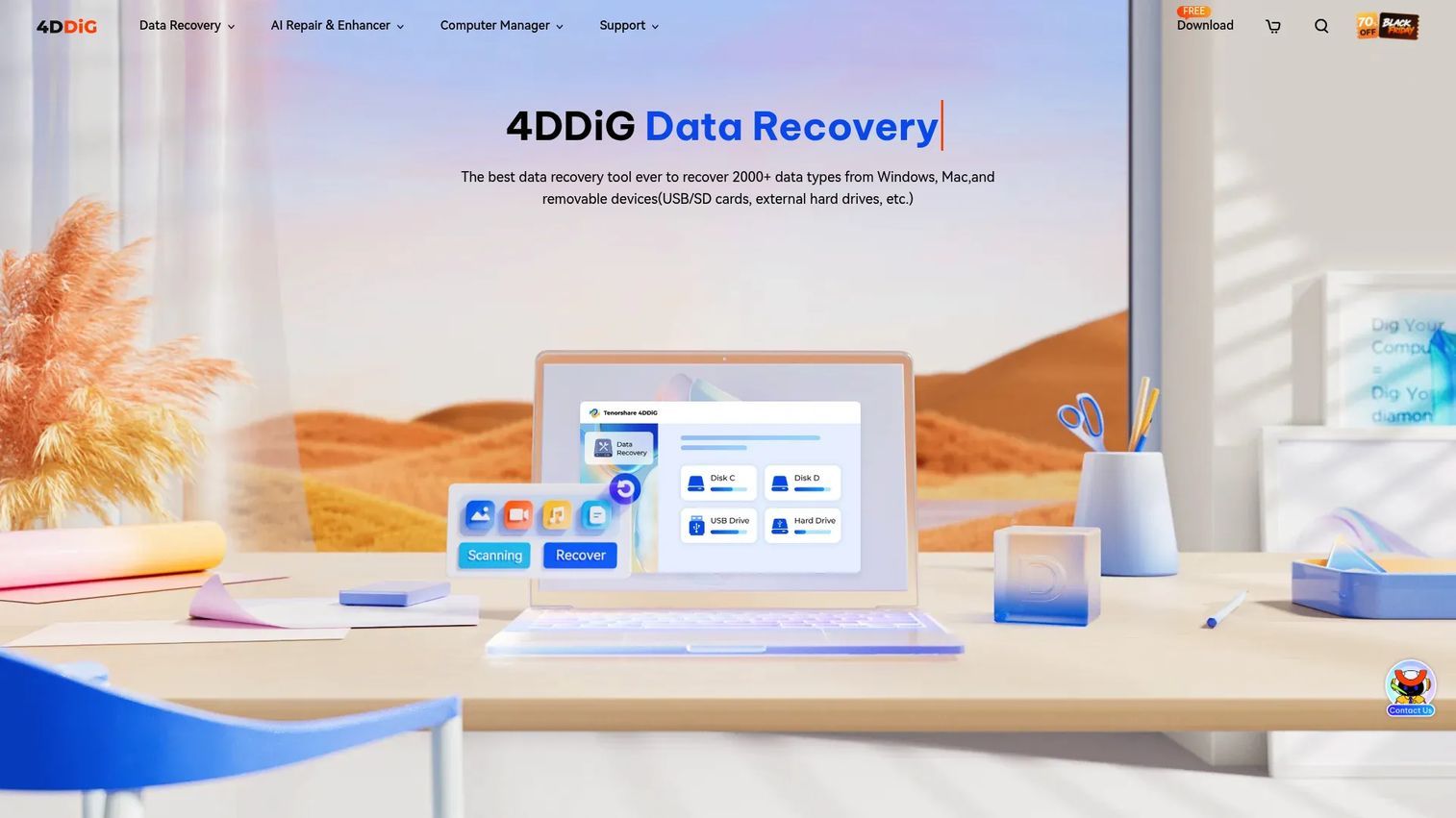
4DDiG Data Recovery covers the common consumer failure modes: Deleted files, formatted drives, corrupted partitions, and virus-affected storage. It supports 2,000+ file types, includes AI-powered photo and video repair for damaged media files, and extends to NAS and cloud-drive recovery. The free version recovers up to 2GB, which is enough to test whether your files are retrievable before buying.
Best for: Users who need a guided recovery flow for common devices and want to preview results before paying.
Key features
- Recovers 2,000+ file types including photos, videos, and documents
- Recovery from deleted, formatted, crashed, and virus-affected storage
- AI-powered repair for damaged photos and videos
- NAS and cloud-drive recovery support
- File preview and recovery while scanning
Why choose 4DDiG: The 2GB free recovery tier and AI photo repair make this a practical choice for non-technical users dealing with consumer storage failures. For RAID, encrypted drives, or complex file-system issues, more specialized tools will perform better.
4DDiG Data Recovery pricing: Free version covers up to 2GB of recovery. Paid licenses cost $45.95 for one month, $59.95 for one year, or $79.95 for a lifetime license.
G2 rating: 4.8/5 (G2).
12. DiskDigger
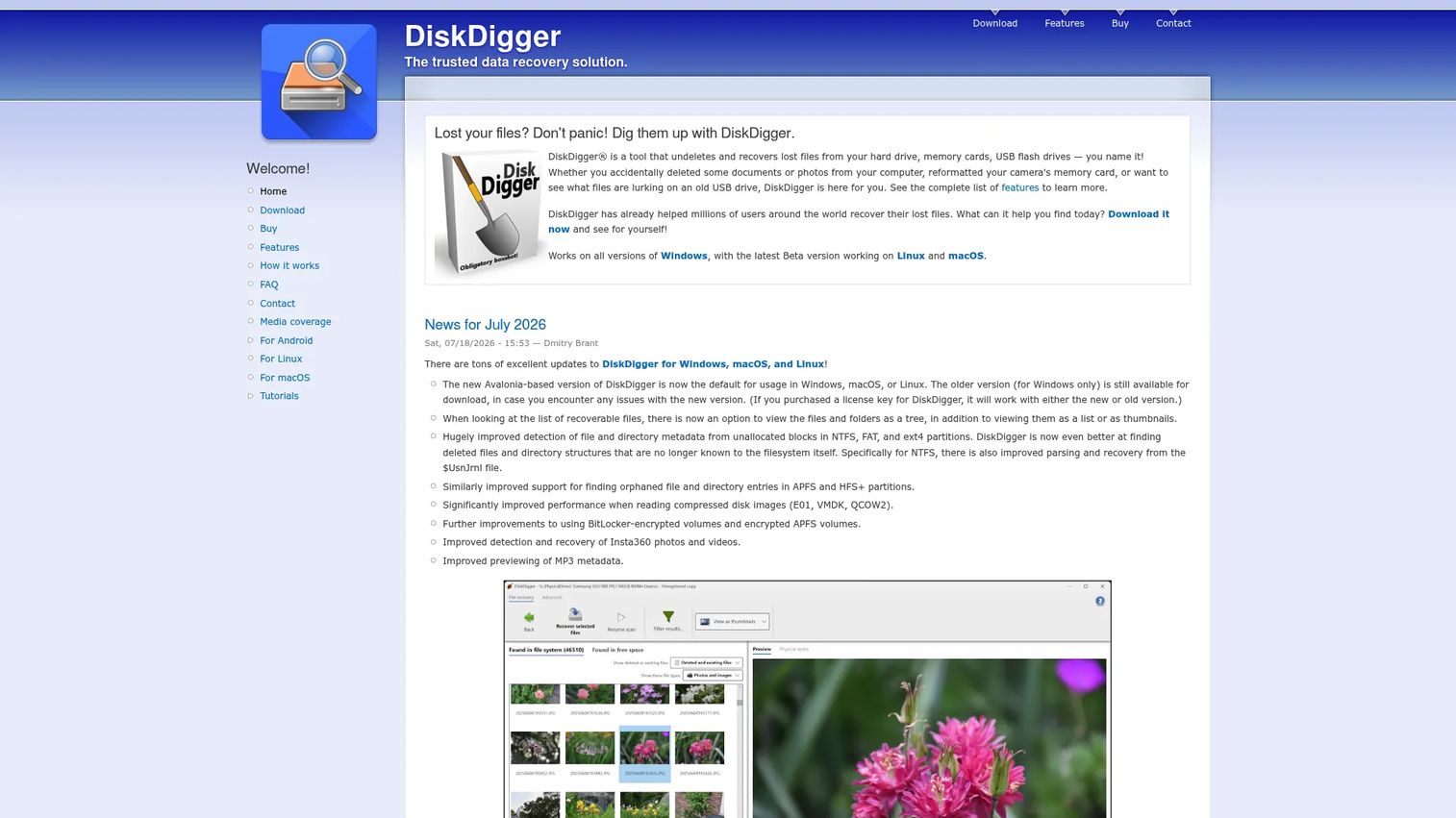
DiskDigger is a focused recovery tool covering FAT, NTFS, exFAT, ReFS, ext2, HFS+, and other file systems, with the ability to scan virtual disk images including E01, VMDK, VHD/VHDX, and QCOW2 formats. Filesystem-aware scanning and free-space carving give it two distinct scan modes for different drive states. The Linux version is completely free; the Windows personal license is a one-time purchase.
Best for: Individuals or technicians recovering photos and files from memory cards, USB drives, or virtual disk images.
Key features
- Filesystem-aware and free-space carving scan modes
- Virtual disk image scanning: E01, VMDK, VHD/VHDX, VDI, QCOW2
- Broad file-system support: FAT, NTFS, exFAT, ReFS, ext2, HFS+
- Preview for images, documents, audio, and video
- Windows, Linux, and macOS support
Why choose DiskDigger: Strong fit when the recovery target is photos or removable media, or when you need to scan a forensic or virtual disk image. Less suited to complex enterprise storage environments.
DiskDigger pricing: Windows can be downloaded and used for preview at no cost; saving recovered files requires a personal license at $14.99 as a one-time purchase. Linux use is free.
13. Ddrescue
GNU Ddrescue is a Linux command-line tool for copying readable sectors from damaged or failing drives to a safe destination image. Its algorithm prioritizes successfully copied areas first, then makes repeated passes to rescue as many sectors as possible from problematic regions. A mapfile logs progress, so rescue operations can be interrupted and resumed without starting over.
Best for: Creating a sector-level clone or image of a failing or damaged drive before running any recovery software against it.
Key features
- Sector-level copying with automated damage-aware algorithm
- Mapfile support for interruptable, resumable rescue operations
- Automatic merging of multiple damaged copies
- Error logging for tracking bad sectors
- Fill mode for selective output-file area overwriting
Why choose Ddrescue: Ddrescue is a rescue workflow, not a file browser. Use it first when hardware instability is the primary concern. After cloning, run your recovery software against the image, not the original drive.
Ddrescue pricing: Free software distributed under the GNU General Public License.
14. R-Undelete
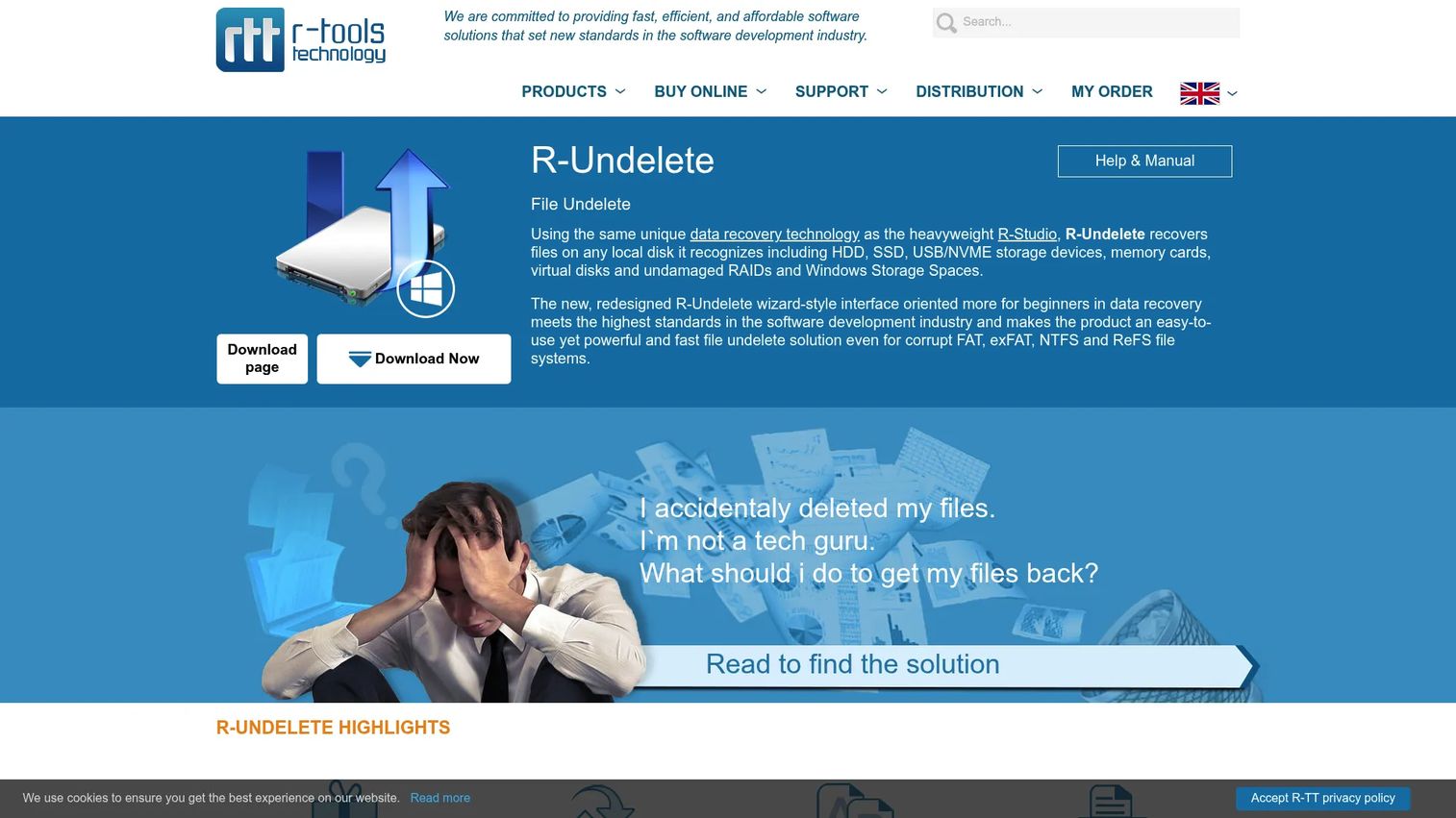
R-Undelete is a Windows-focused deleted-file recovery tool from the R-Tools product family, positioned as the accessible sibling to the more powerful R-Studio. It covers FAT, exFAT, NTFS, and ReFS file systems, raw file recovery by signature, disk image scanning, and file wiping. The free Home version handles basic recovery with some limitations on NTFS and ReFS; the paid version removes those restrictions.
Best for: Windows users who want a wizard-driven deleted-file recovery tool that is less complex than R-Studio.
Key features
- Recovery from FAT, exFAT, NTFS, and ReFS file systems
- Raw file recovery by file signature
- Disk image scanning support
- File viewer and file wiping
- Portable version available
Why choose R-Undelete: The free Home version covers everyday undelete jobs without the full complexity of R-Studio. When the recovery task is straightforward and the drive is healthy, R-Undelete gets it done without requiring technical depth.
R-Undelete pricing: R-Undelete Home is free for personal use. The full R-Undelete license is a one-time purchase at $54.99.
15. Stellar Data Recovery Professional
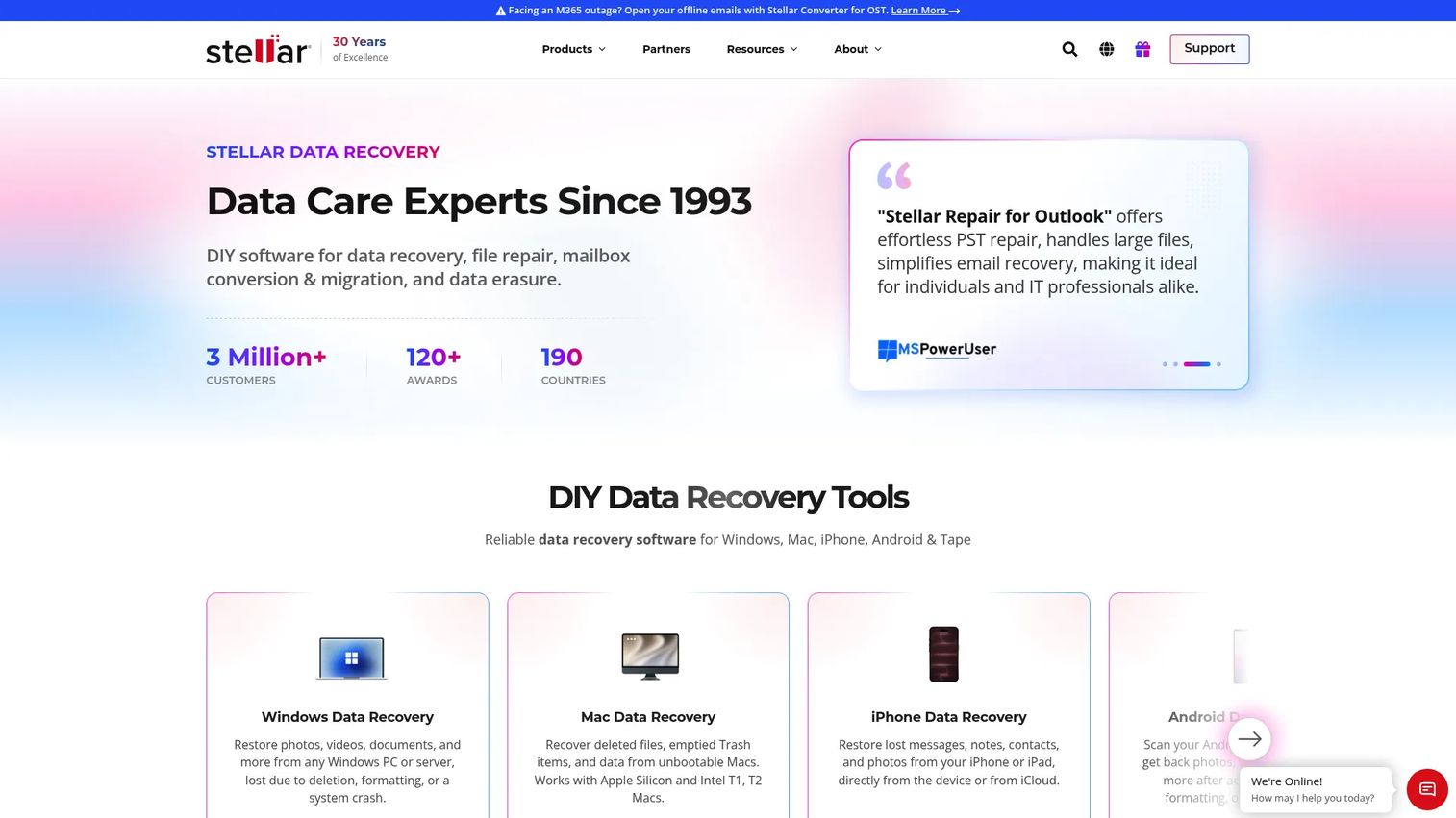
Stellar Data Recovery Professional is a Windows recovery tool covering deleted files, lost and formatted partitions, BitLocker-encrypted drives, unbootable systems, and optical media. Disk imaging and drive cloning are included, along with RAW deep scanning and bootable recovery media for systems that cannot start. The Professional edition adds capabilities beyond the Standard tier, including partition recovery and disk imaging; Premium adds corrupt video and photo repair.
Best for: Windows users who want a guided commercial recovery tool from an established brand, with support for BitLocker encryption and unbootable systems.
Key features
- Recovery from lost, deleted, and formatted partitions
- BitLocker-encrypted drive recovery
- Bootable recovery media for crashed systems
- Disk imaging and drive cloning
- RAW data recovery and deep scanning
Why choose Stellar: A reliable choice when the recovery scenario involves BitLocker encryption or a system that cannot boot into Windows. Annual pricing keeps entry costs manageable for occasional use.
Stellar Data Recovery Professional pricing: Plans are annual: Standard at $59.99/year, Professional at $79.99/year, and Premium at $89.99/year. A free version is available for scanning and previewing recoverable files.
G2 rating: 4.7/5 based on 9 reviews (G2).
16. DiskInternals Uneraser
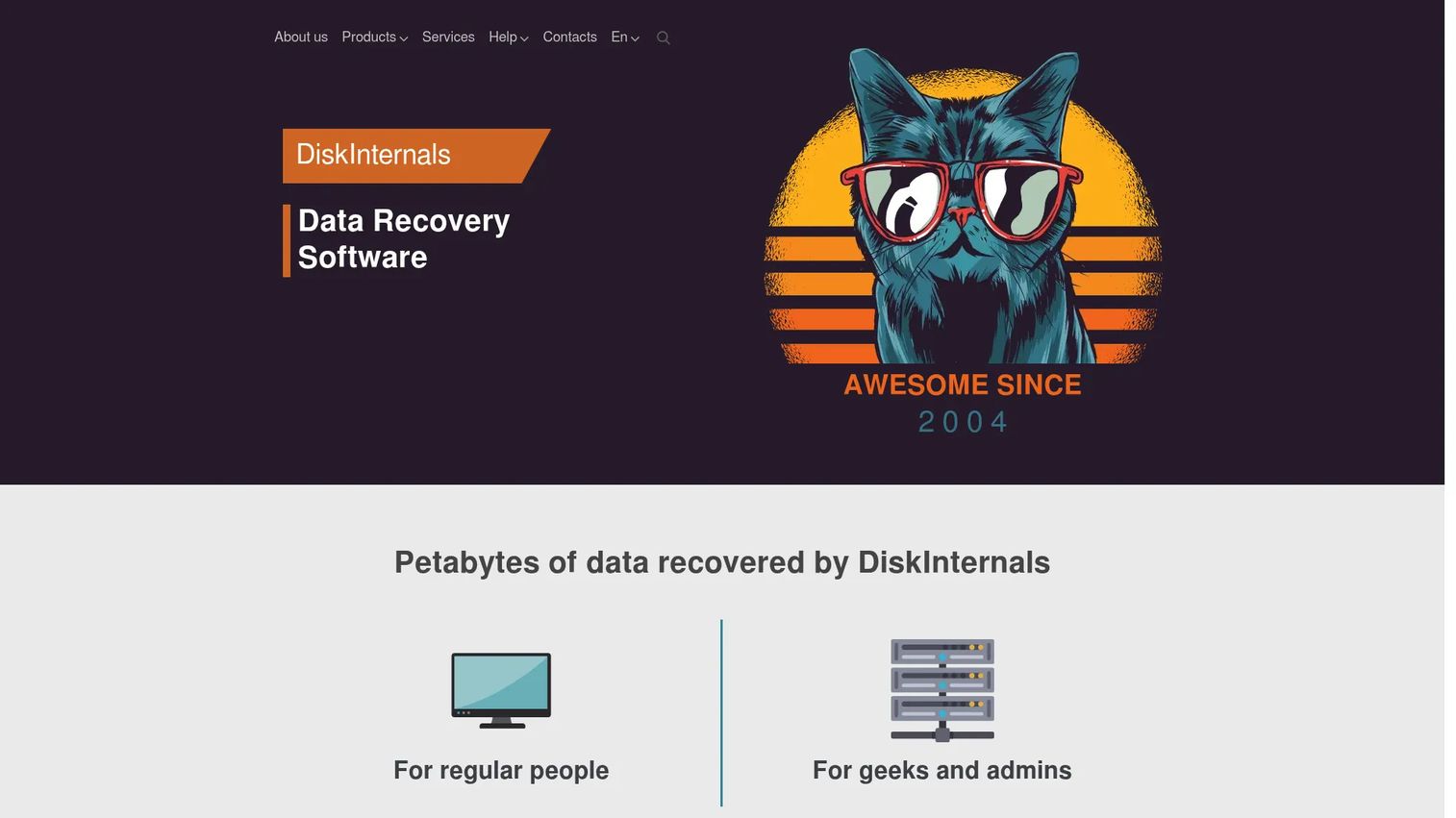
DiskInternals Uneraser is a Windows recovery utility with broader file-system coverage than most consumer tools, including NTFS, exFAT, FAT, HFS/HFS+, ext2/3/4, ZFS, Reiser, and UFS. It also handles RAID arrays, dynamic disks, virtual disk images, and forensic disk images natively. File preview is available before purchase, and recovered files can be exported via FTP or mounted as a new drive letter.
Best for: Windows users recovering from drives with less common file systems or who need native RAID and virtual-disk support.
Key features
- File-system support: NTFS, exFAT, FAT, HFS/HFS+, ext2/3/4, ZFS, Reiser, UFS
- Native RAID, Dynamic Disk, virtual-disk, and forensic-image support
- Preview recoverable files before purchasing a license
- FTP export and mounting recovered files as a drive letter
- Recovery Wizard with quick and deep scanning
Why choose DiskInternals Uneraser: Strong fit for Windows environments with non-standard file systems, NAS drives, or virtual disks. The Personal license covers non-commercial use; the Business license adds commercial and government work.
DiskInternals Uneraser pricing: Personal license is $29.95 as a one-time purchase. Business license is $79.95 one-time. Professional (for third-party commercial recovery services) requires a quote.
G2 rating: 4.6/5
17. UFS Explorer
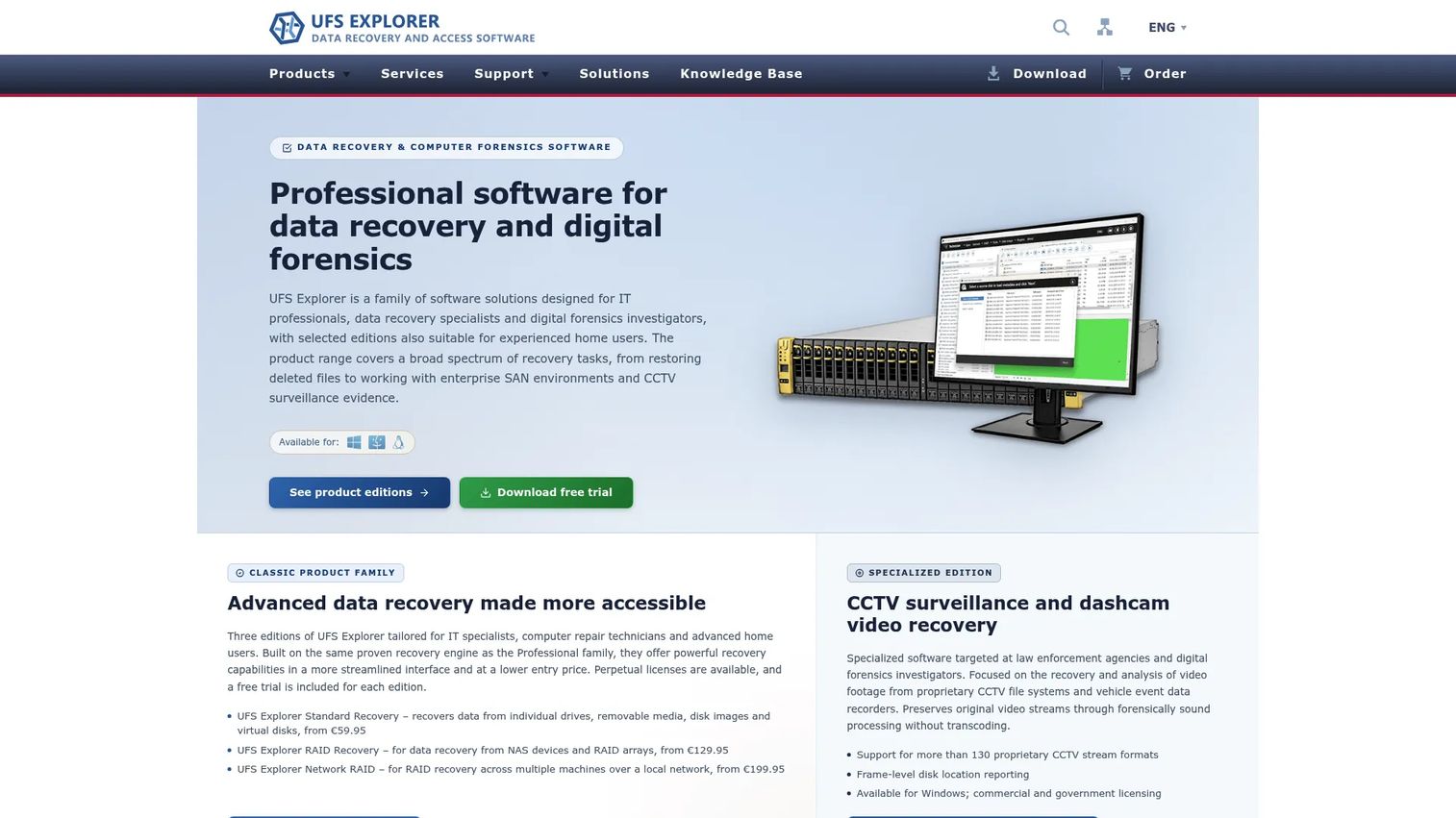
UFS Explorer is professional-grade recovery software targeting IT teams, managed service providers, forensic investigators, and data recovery specialists. It covers individual drives, RAID and NAS systems (including Synology, QNAP, Drobo, and Buffalo), virtual disks, encrypted storage, forensic image formats, SAN systems, and specialized CCTV formats. Disk imaging with defect-map production and hexadecimal analysis round out the technical toolkit.
Best for: IT professionals and recovery specialists handling RAID, NAS, virtual disk, or encrypted storage recovery.
Key features
- RAID and NAS recovery: Synology, QNAP, Drobo, Buffalo
- Support for Windows, macOS, and Linux file systems
- Virtual disk, encrypted storage, and forensic image support
- Disk imaging with defect-map production
- Hexadecimal analysis tools
Why choose UFS Explorer: The right tool for technically complex recovery jobs that exceed what consumer software can handle. Free trials with save-size limits allow evaluation before purchase. Too advanced for a quick undelete job.
UFS Explorer pricing: Personal licenses start at $69.95 for Standard Recovery (perpetual). RAID Recovery is $149.95 and Network RAID is $229.95. Professional Recovery (commercial license) starts at $469.95 and Technician at $699.95.
G2 rating: 5.0/5 based on 1 review (G2).
18. UnDeleteMyFiles
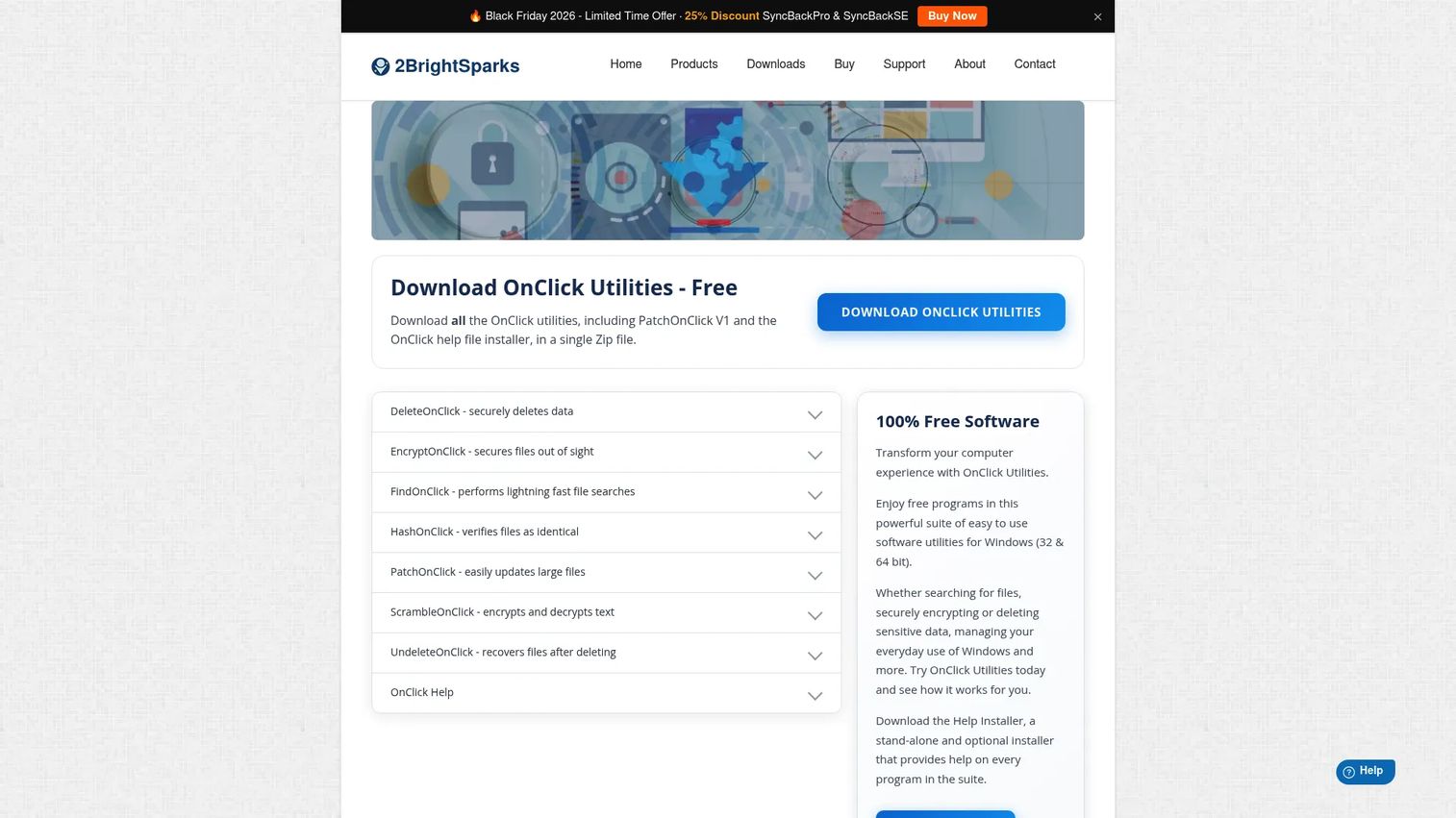
UnDeleteMyFiles redirects to UndeleteOnClick, part of the 2BrightSparks OnClick Utilities suite. It is freeware for Windows that recovers files from NTFS, FAT, and exFAT volumes, including after the Recycle Bin has been emptied. The tool handles compressed, encrypted, and Unicode-named files, displays a recovery-likelihood indicator for each found file, and can run as a portable app from USB media.
Best for: Windows users who want a free, no-installation option for basic deleted-file recovery.
Key features
- Recovers from NTFS, FAT, and exFAT volumes
- Works after Recycle Bin has been emptied
- Recovery-likelihood indicator for found files
- Supports compressed, encrypted, and Unicode-named files
- Portable USB use; no installation required
Why choose UnDeleteMyFiles: A practical first attempt for low-stakes undelete jobs on healthy Windows drives. Not suited to modern enterprise storage, complex failure modes, or drives showing any sign of hardware stress.
UnDeleteMyFiles pricing: Free. The OnClick Utilities suite is described by 2BrightSparks as 100% free.
Considerations when choosing file recovery software
Start with drive health
A drive that is clicking, disconnecting, overheating, or producing I/O errors is not a candidate for repeated software scans. Scanning a physically failing drive can destroy the remaining readable sectors. If the data is business-critical and the drive shows physical symptoms, call a professional data recovery lab before touching the hardware with any software.
Match the tool to the recovery scenario
A simple deleted-file undelete tool is not the same as a technician-grade recovery suite. Quick deletion on a healthy NTFS drive suits Recuva or MiniTool. Formatted partitions suit EaseUS or Disk Drill with deep scan. Lost partition tables suit TestDisk. RAID failure suits R-Studio or UFS Explorer. Getting the scenario wrong wastes time and risks additional writes to the drive.
Check free limits before scanning
Many recovery tools let you scan and preview files at no cost but charge for the actual save operation. Confirm the free recovery limit before you start. For a small batch of documents, a 1GB or 2GB free tier may cover the entire job. For a full drive recovery, budget for the paid license before beginning the scan.
Confirm operating system and file-system support
Windows, macOS, and Linux tools are not interchangeable, and file-system support varies widely. APFS recovery on a Mac requires different tooling than NTFS recovery on Windows. RAID arrays, NAS drives, and virtual disks narrow the field further. Check the vendor's supported file-system list against your actual drive format before downloading.
Know when software cannot help
Overwritten data, SSD TRIM, secure-erase operations, encryption without the decryption key, and physical hardware damage all sit outside what recovery software can address. Set honest expectations before promising recovery. For high-value data where a DIY attempt fails, a failed recovery attempt can increase the cost of professional lab recovery because subsequent scans have additional damage.
Conclusion
The best file recovery software for your situation depends on the failure mode, the operating system, and the drive's condition. Recuva handles straightforward Windows undelete jobs at no cost. Disk Drill gives a non-specialist a polished interface with enough capability to recover common files. TestDisk and PhotoRec together cover partition repair and signature-based recovery for free. R-Studio and UFS Explorer serve IT professionals dealing with RAID, complex file systems, and technician-level jobs. When a drive is showing instability, Ddrescue should be the first step, not the last.
The bigger lesson from a data-loss incident is not which recovery tool worked. It is that the incident happened at all. At 30 to 150 people, Datto's 2025 State of BCDR research found organizations running an average of more than three backup solutions, yet Unitrends found only 35% of organizations could recover from a downtime event within hours. Recovery software is a last-resort measure, not a data strategy. Use the incident to tighten backup cadence, test restores on a schedule, and establish a device-loss policy before the next one.
FAQs
The answer changes by failure mode. Recuva is the best free option for simple Windows deleted-file recovery. Disk Drill is the most polished consumer pick for Windows and Mac. R-Studio and UFS Explorer lead for professional and RAID scenarios. PhotoRec is the strongest free tool for signature-based recovery when the file system is gone. Drive health and storage type determine what is actually recoverable, so no single tool wins across every situation.
Recuva, TestDisk, PhotoRec, Windows File Recovery, and Ddrescue are all free. Recuva is the most accessible for everyday Windows users. TestDisk and PhotoRec require comfort with command-line workflows but handle scenarios that consumer tools cannot. Ddrescue is not a file-browser tool; it is for cloning a failing drive safely before attempting recovery. Always recover files to a different destination drive, never back to the same one you are scanning.
On a healthy, stable drive, yes, when used correctly. The key rule is to recover files to a separate destination, not to the source drive. On a failing drive, software scanning can stress the hardware and destroy readable sectors. If the drive shows clicking, disconnects, slow read speeds, or SMART warnings, clone it first with a tool like Ddrescue, then scan the clone rather than the original.
Deletion typically removes the file-system pointer to the data, not the data itself. The underlying blocks often remain until the operating system reuses them for new writes. Recovery depends on whether those blocks have been overwritten, whether SSD TRIM has cleared them, and whether the data was encrypted or securely erased. Recovery cannot be promised in advance; a scan and preview will show what is actually there.
Sometimes. Quick formatting removes the file-system structure but leaves data blocks in place. Deep-scan recovery can often find file signatures and restore many files, though original names and folder structure may be lost. Full formatting, sustained writes after formatting, SSD TRIM, and encryption all reduce or eliminate recovery odds. For valuable data, scan a clone of the drive rather than the drive itself.
For simple deleted-file recovery, Recuva is free and covers the common cases. Windows File Recovery handles the same job with no third-party software needed. MiniTool Power Data Recovery and EaseUS Data Recovery Wizard both offer polished guided workflows with free preview tiers. For formatted drives and partition loss, EaseUS or Disk Drill handle the beginner use case; R-Studio and DMDE cover technical and professional jobs.
Stop all activity on the affected drive immediately. Do not install recovery software onto the same drive you are trying to recover from. If the drive is physically unstable, do not scan it directly; clone it first using a sector-level tool. When you run recovery, save the recovered files to a separate drive. These four steps protect against the most common ways a recovery attempt goes wrong.
Call a professional when the drive has physical symptoms: Clicking, grinding, disconnecting, or not spinning up at all. Physical damage from water, fire, or impact also requires a lab. Business-critical data, RAID failure across multiple drives, and encryption complications where the key is unavailable or suspect are all scenarios where a failed DIY attempt can increase lab recovery costs. Software works well for logical data loss on healthy hardware; physical failure belongs in a cleanroom.