
A drive fails at the worst possible moment. Someone empties the Recycle Bin, reformats the wrong volume, or pulls an SD card mid-write. The files are gone from view, but not always gone from the disk. What you do in the next few minutes decides how much comes back.
The stakes are large enough that an entire software category exists to solve them. The global data recovery software market is projected to grow from USD 18.84 billion in 2026 to USD 39.12 billion by 2035, a compound annual growth rate of 8.46%, according to Industry Research Biz (2024). That growth tracks a simple reality: more storage, more devices, more chances for something to go wrong.
Here is the part most roundups skip. Not every recovery tool is built for the same device or the same failure mode. A simple undelete tool that shines on a Windows Recycle Bin can stall on a RAID array. A forensic-grade engine that reconstructs a corrupted partition table can feel like overkill for one deleted photo. The right choice depends less on brand recognition and more on what broke, where, and how.
If you sit in a technical role, you carry an extra burden: you often need to explain the choice to someone else. A colleague, a client, or a manager wants to know why this tool and not that one. This guide gives you the reasoning, not just the ranking.
What's inside
This guide compares the best data recovery software for Windows-focused and cross-platform recovery in 2026. It covers seven tools that recover deleted files, restore lost partitions, and handle formatted drive recovery across hard drives, SSDs, USB sticks, and memory cards.
We picked tools based on four criteria that matter when files are on the line: recovery depth across failure modes, device and file-system support, quality of free preview or trial, and pricing transparency. Every price, rating, and feature here is drawn from each vendor's current listings. Where a figure was not publicly confirmed, we left it out rather than guess.
TL;DR
- Best overall for most users: Disk Drill, with a recovery chance indicator, preview, and broad device support.
- Best for technical users: R-Studio, for RAID reconstruction, disk imaging, and deep file-system support.
- Best budget pick: DMDE, with free recovery of up to 4,000 files per session and low-cost lifetime editions.
- Best for free preview and simple recovery: Recuva, a lightweight Windows undelete tool with a genuinely useful free tier.
- Best for enterprise and RAID scenarios: UFS Explorer, spanning single-disk recovery through RAID, NAS, and forensic storage.
- Best for Windows beginners: EaseUS Data Recovery Wizard, with a simple scan-and-preview flow.
What is data recovery software?
Data recovery software is a program that scans a storage device to locate and restore files that have been deleted, lost, or made inaccessible after formatting, corruption, or hardware faults.
Deleting a file rarely erases it right away. The operating system marks the space as free and removes the pointer, but the underlying data often stays intact until something overwrites it. Recovery tools read the raw device, rebuild those pointers, and reconstruct file structures where possible.
What it can usually recover:
- Files deleted from the Recycle Bin or with Shift+Delete
- Data from a quick-formatted drive or lost partition
- Files from a corrupted or RAW file system
- Photos and videos from SD cards, USB drives, and memory cards
- Documents from an external hard drive that no longer mounts cleanly
What it often cannot recover:
- Data physically destroyed by drive damage (a job for hardware recovery labs)
- Files already overwritten by new writes to the same sectors
- Many files deleted from an SSD with TRIM enabled, since TRIM zeroes freed blocks
- Data on drives with full-disk encryption when the key is lost
Common device and file-system support:
- Devices: HDDs, SSDs, USB flash drives, SD and memory cards, external drives, RAID and NAS
- File systems: NTFS, FAT, exFAT, HFS+, APFS, EXT2/3/4, ReFS, and RAW volumes
Three features separate strong tools from weak ones. Preview lets you confirm a file is intact before you pay or commit. A recovery chance indicator tells you how likely a file is to come back whole. And recovering to a separate destination drive protects against overwriting the very data you are trying to save. Never restore files onto the same drive you are scanning.
When to use data recovery software
Recover deleted files quickly
Most data loss is mundane: an accidental delete, an emptied Recycle Bin, or a Shift+Delete that skipped the bin entirely. For these cases, a fast undelete scan often finds everything in seconds. The file table still holds fresh traces, so recovery odds are high if you act before new data lands on the drive. A lightweight tool with a quick scan mode handles this cleanly.
Recover from formatted or corrupted drives
Formatted drive recovery and corrupted volumes call for a deeper approach. A quick scan looks for intact file records; a deep scan reads the entire disk sector by sector and rebuilds files by their signatures. This is where file-system support matters. A tool that understands NTFS, exFAT, and RAW volumes can reconstruct a lost partition that a simpler tool would miss. Deep scans take longer, but they surface files that quick scans skip.
Recover from SSDs, USB drives, and SD cards
Device type changes your odds. SD card recovery and USB recovery usually go well, because those devices rarely run TRIM and hold deleted data longer. SSD recovery is different. On most modern SSDs, TRIM clears freed blocks shortly after deletion, which lowers recovery chances the longer you wait. Speed matters most here: stop using the drive, run a scan fast, and preview before recovery to confirm what survived.
Comparison table
The table below maps each tool to its buying intent, core use case, verified pricing, and rating. Pricing reflects each vendor's current published figures. Ratings come from the review platform where each product's score was verifiable, so the source differs by product.
| # | Product | Intent | Key use case | Pricing | Rating |
|---|---|---|---|---|---|
| 1 | Disk Drill | Broad consumer and prosumer recovery | Deleted files, deep scan, recovery chances on Mac and Windows | Free version; PRO and Enterprise (price not public) | 3.9/5 (G2) |
| 2 | R-Studio | Advanced and technical recovery | Damaged disks, RAID, network recovery | From $49.99 (permanent license) | 4.6/5 (G2) |
| 3 | EaseUS Data Recovery Wizard | Simple Windows recovery | Deleted, formatted, RAW, and crashed PC recovery | From $69.95/month | 4.8/5 (G2) |
| 4 | Stellar Data Recovery | Windows recovery and file repair | Lost partitions, RAW drives, bootable recovery | From $59.99/year | 4.3/5 (G2) |
| 5 | DMDE | Power-user and budget recovery | Disk editing, filesystem reconstruction, RAID | From $20 (1-year Express) | Not yet rated (G2) |
| 6 | Recuva | Simple Windows undelete | Deleted files, deep scan, removable media | Free; Pro $24.95 (one-time) | Rating not published |
| 7 | UFS Explorer | Demanding and enterprise storage | Single-disk, RAID, NAS, forensic recovery | From $69.95 (perpetual) | 5.0/5 (G2) |
1. Disk Drill
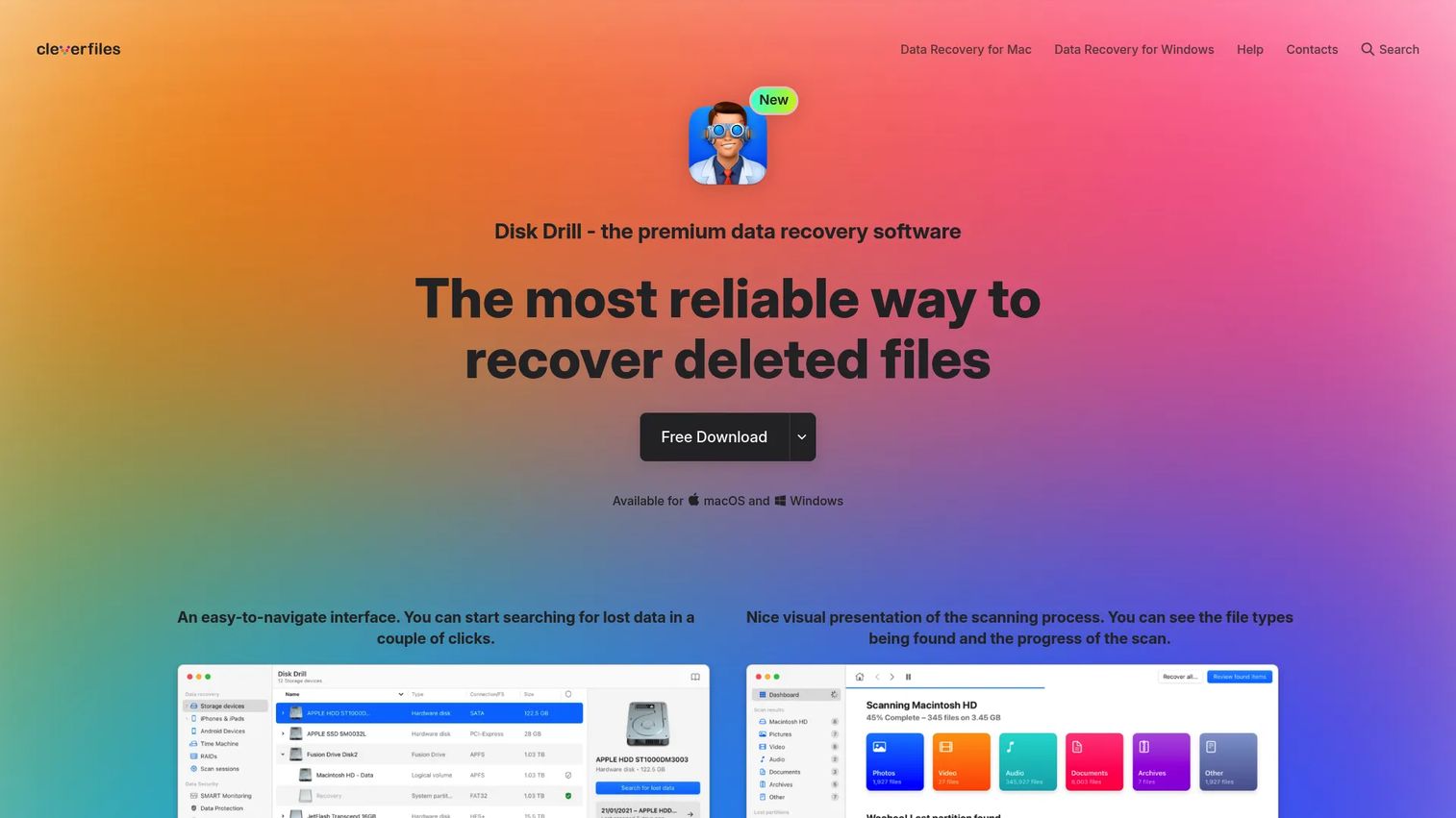
Disk Drill is data recovery software for macOS and Windows that leads the pack for everyday and prosumer recovery. It scans internal disks, external drives, USB sticks, and memory cards, then shows you what it found before you commit. The combination of a clean interface and serious scanning depth makes it a safe default when you are not sure which failure mode you are dealing with.
Best for: Individuals or small teams who need reliable deleted-file recovery on Mac or Windows without a steep learning curve.
Key strengths
- Recovery chances prediction: A deep scan estimates how likely each file is to come back whole, so you know what to expect before recovery.
- Recovery Vault and S.M.A.R.T. monitoring: Byte-level backup and disk health tracking help you protect data before the next failure.
- Broad device and preview support: Scan HDDs, SSDs, USB, and SD cards, and preview files before restoring them.
Why choose Disk Drill: It hits the sweet spot for the reader who wants strong recovery without becoming a recovery expert. The preview and recovery chance indicator remove guesswork, and the same tool handles a deleted document, a formatted USB stick, and a corrupted SD card. For a technical buyer who needs one dependable recommendation to hand a non-technical colleague, Disk Drill is an easy call.
Disk Drill pricing: Disk Drill offers a free version, plus PRO and Enterprise editions. The vendor's site confirms the free tier and the PRO and Enterprise plan names, but did not display a public numeric price for the paid editions at the time of writing. The free version is enough to run scans and preview recoverable files, which makes it a low-risk way to evaluate whether your data is recoverable before you decide on a paid plan.
2. R-Studio
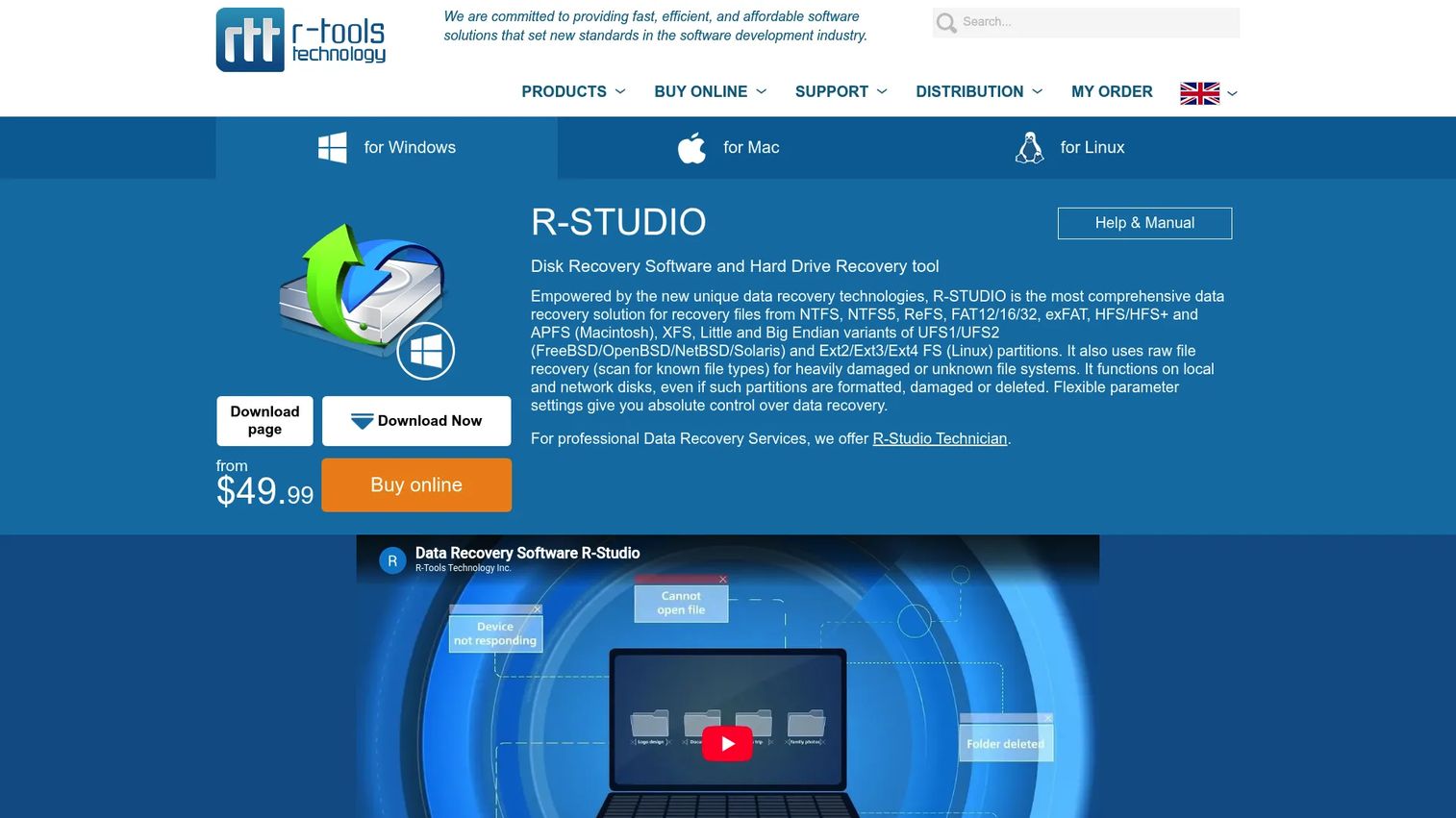
R-Studio is data recovery software built for recovering files from damaged, deleted, formatted, or network-accessible disks. It is the tool technical users reach for when a case is genuinely complex: a broken RAID, a corrupted partition table, or a disk that needs imaging before any recovery attempt. The interface assumes you know what a file system is, and rewards that knowledge with granular control.
Best for: SEs, IT teams, or advanced individuals recovering data from damaged disks and complex storage layouts.
Key strengths
- RAID reconstruction and disk imaging: Rebuild arrays and work from a byte-level image instead of the failing disk itself.
- Wide file-system coverage: Handle Windows, Mac, Linux, and tape or ISO media file systems from one tool.
- Network and Internet recovery: Recover files from disks reachable over a network, plus a built-in hex editor for manual work.
Why choose R-Studio: When the failure mode is beyond a simple undelete, R-Studio gives you the controls to work through it methodically. It is the right pick for someone who needs to recover a lost partition, rebuild a RAID, or image a dying drive. For a straightforward deleted-file case, a simpler tool gets you there faster, but for hard problems, this is where technical users land.
R-Studio pricing: R-Studio uses permanent licenses rather than subscriptions. The lineup starts at $49.99 for R-Studio FAT and $59.99 for R-Studio NTFS, with the full R-Studio edition at $79.99 and R-Studio Corporate at $179.99. Higher tiers include R-Studio Technician at $899.99 for professionals who recover data as a service. Every price is a one-time permanent license in USD.
3. EaseUS Data Recovery Wizard
EaseUS Data Recovery Wizard is data recovery software for recovering deleted, formatted, or lost files from common storage devices. Its strength is approachability. The scan-select-preview-recover flow is easy enough that a Windows beginner can run it without documentation, while still supporting the failure modes most people actually hit.
Best for: Individuals and small teams who want straightforward file recovery from a PC, laptop, hard drive, or USB drive.
Key strengths
- Simple scan and preview flow: Recover lost data from a PC, laptop, hard drive, or USB drive in a few guided steps.
- Broad file-system support: Works with FAT, exFAT, NTFS, EXT2/3/4, HFS+, and ReFS.
- Wide scenario coverage: Handles deleted, formatted, inaccessible, RAW, RAID, NAS, and crashed PC recovery.
Why choose EaseUS: The appeal is a low barrier to a wide range of recovery jobs. If you want one tool that a non-technical user can drive on their own for common Windows loss scenarios, EaseUS fits. The free trial lets you scan and preview before you commit, which is the right way to confirm files are recoverable first.
EaseUS pricing: EaseUS Data Recovery Wizard is priced at $69.95 per month, $99.95 per year, or $149.95 for a one-time license with lifetime upgrades. A free version is also available for previewing recoverable files, though its recovery limits are not fully documented. For most one-off recovery jobs, the annual or lifetime plan makes more sense than the monthly rate.
4. Stellar Data Recovery
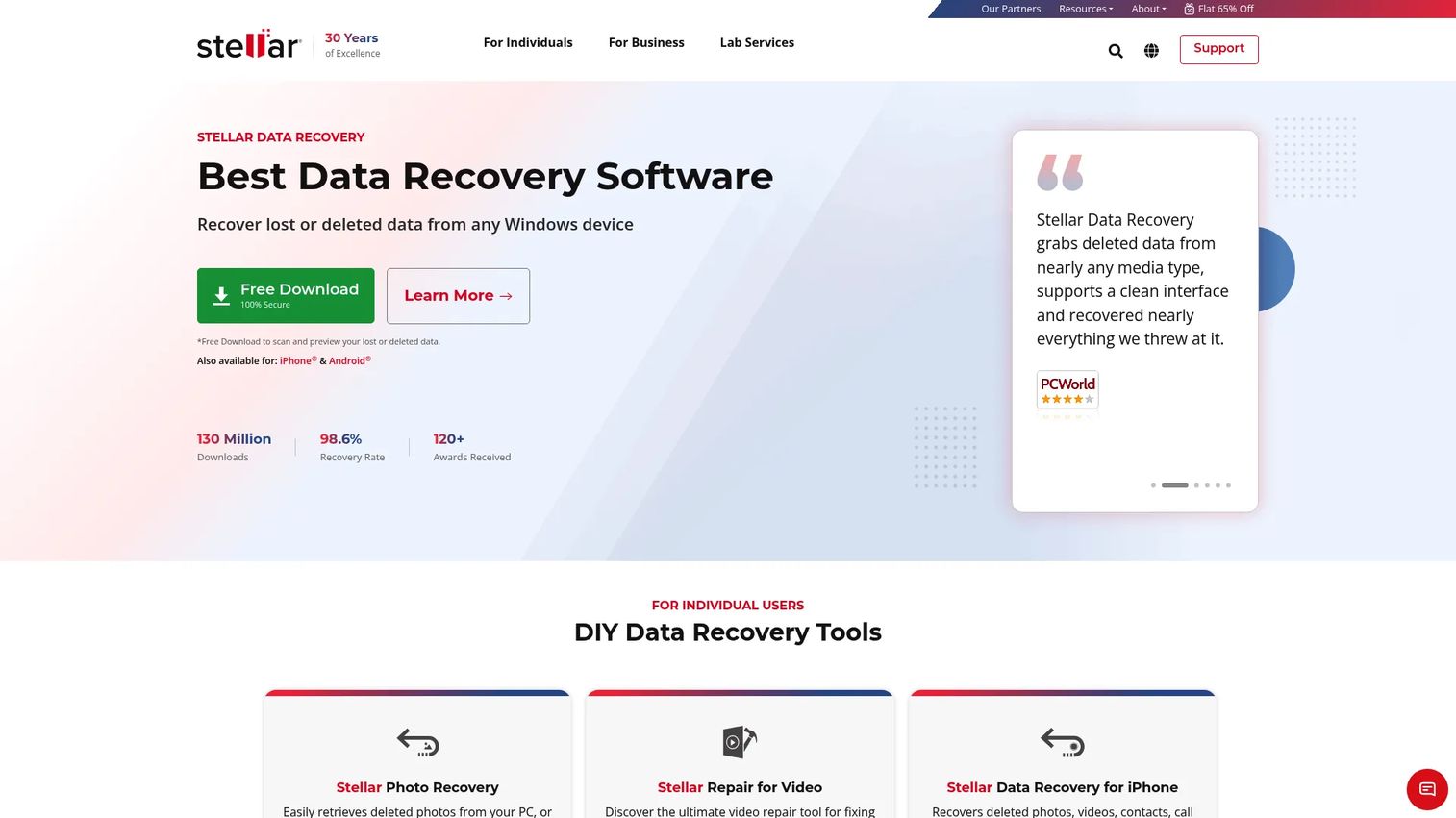
Stellar Data Recovery is data recovery software for Windows and related platforms, packaged in tiers so you buy only the depth you need. It recovers deleted and lost files from HDDs, SSDs, SD cards, and USB drives, and the higher editions add RAW drive recovery, partition recovery, and file repair for corrupted media.
Best for: Users who need DIY recovery from deleted, formatted, RAW, or unbootable Windows drives.
Key strengths
- Multi-device recovery: Restore deleted or lost files from HDDs, SSDs, SD cards, and USB drives.
- Free edition preview and recovery: The free edition supports up to 2 GB of recovery, enough to test the waters.
- Advanced recovery in Professional: RAW drive recovery, partition recovery, and bootable recovery media for unbootable systems.
Why choose Stellar: The tiered lineup lets you match spend to severity. Professional suits RAW and partition recovery, Premium adds file repair for corrupted photos and videos, and Technician targets professionals who handle recovery for clients or manage RAID cases. If your loss scenario is a formatted drive or a corrupted partition, one of the upper tiers is the right fit.
Stellar pricing: Editions start at $59.99 per year for the base Stellar Data Recovery, then Professional at $89.99, Premium at $99.99, Technician at $199, and the full Toolkit for Data Recovery at $299, all on one-year licenses. A free edition offers up to 2 GB of recovery, which is enough to confirm recoverability before you buy a paid tier.
5. DMDE
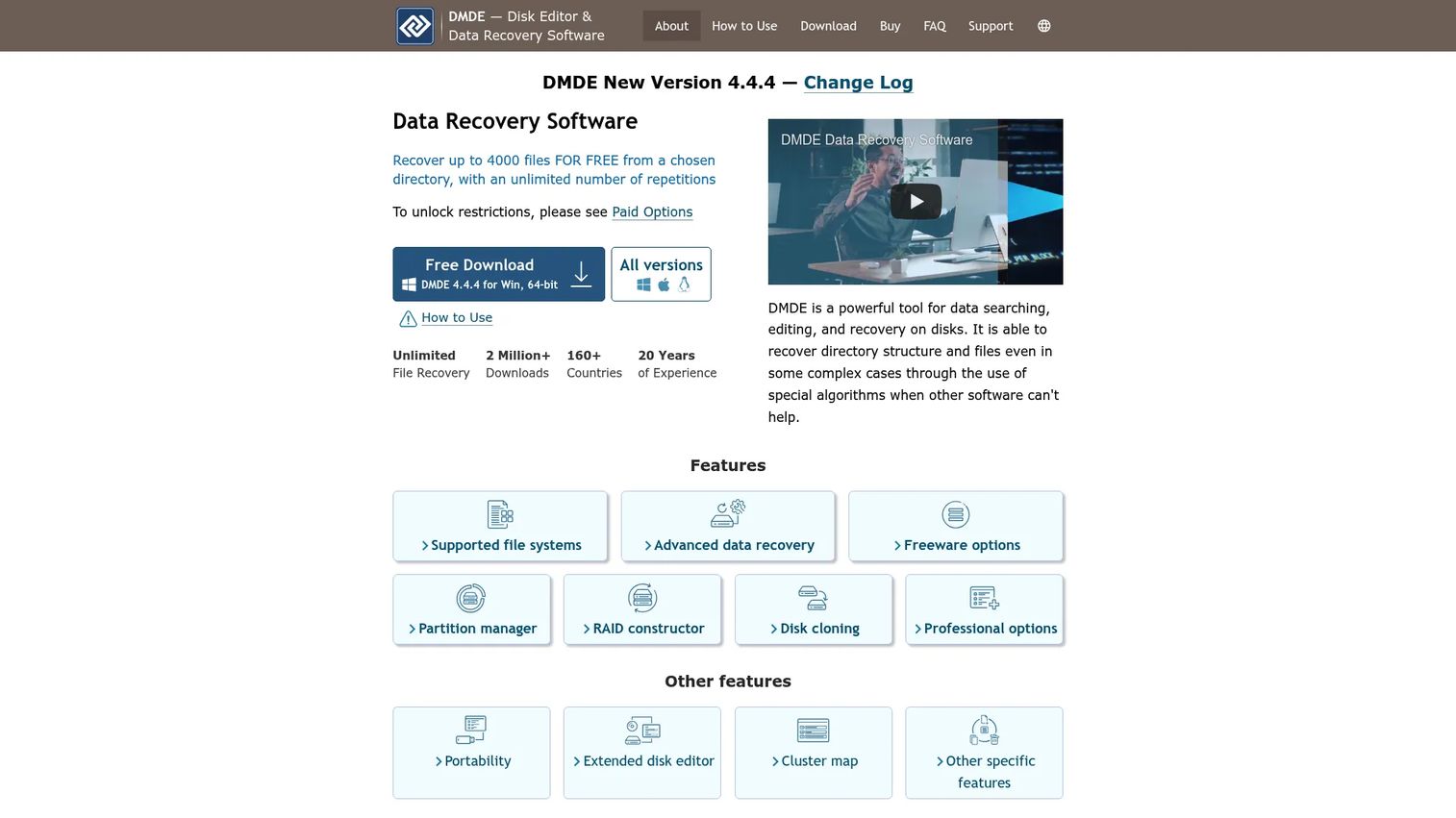
DMDE is a disk editor and data recovery program for recovering files and repairing disk or partition structures. It is a power-user favorite that pairs deep technical capability with unusually low pricing. It runs portably without installation, which is handy when you want to avoid writing anything to the affected system.
Best for: Individuals and IT teams who need advanced disk editing and recovery without a big software budget.
Key strengths
- Filesystem and raw scanning: Scan and rebuild file systems, or fall back to raw signature recovery when structures are damaged.
- Disk cloning and RAID reconstruction: Create disk images and rebuild RAID arrays before attempting recovery.
- Portable, no-install launch: Run it directly without installing, which keeps writes off the affected drive.
Why choose DMDE: DMDE is the pick when you want serious recovery depth and are comfortable with a functional, no-frills interface. The free version recovers up to 4,000 files per session from the current panel, which handles many real cases at no cost. For technical and budget-conscious buyers, it delivers capability that costs far more elsewhere.
DMDE pricing: DMDE offers a free version, then paid editions: Express at $20 for a one-year license, Standard at $48 as a perpetual license, and Professional at $95 for one OS family or $133 for multi-OS use, all in USD. The low entry price and free per-session recovery make it one of the strongest value plays in this list.
6. Recuva
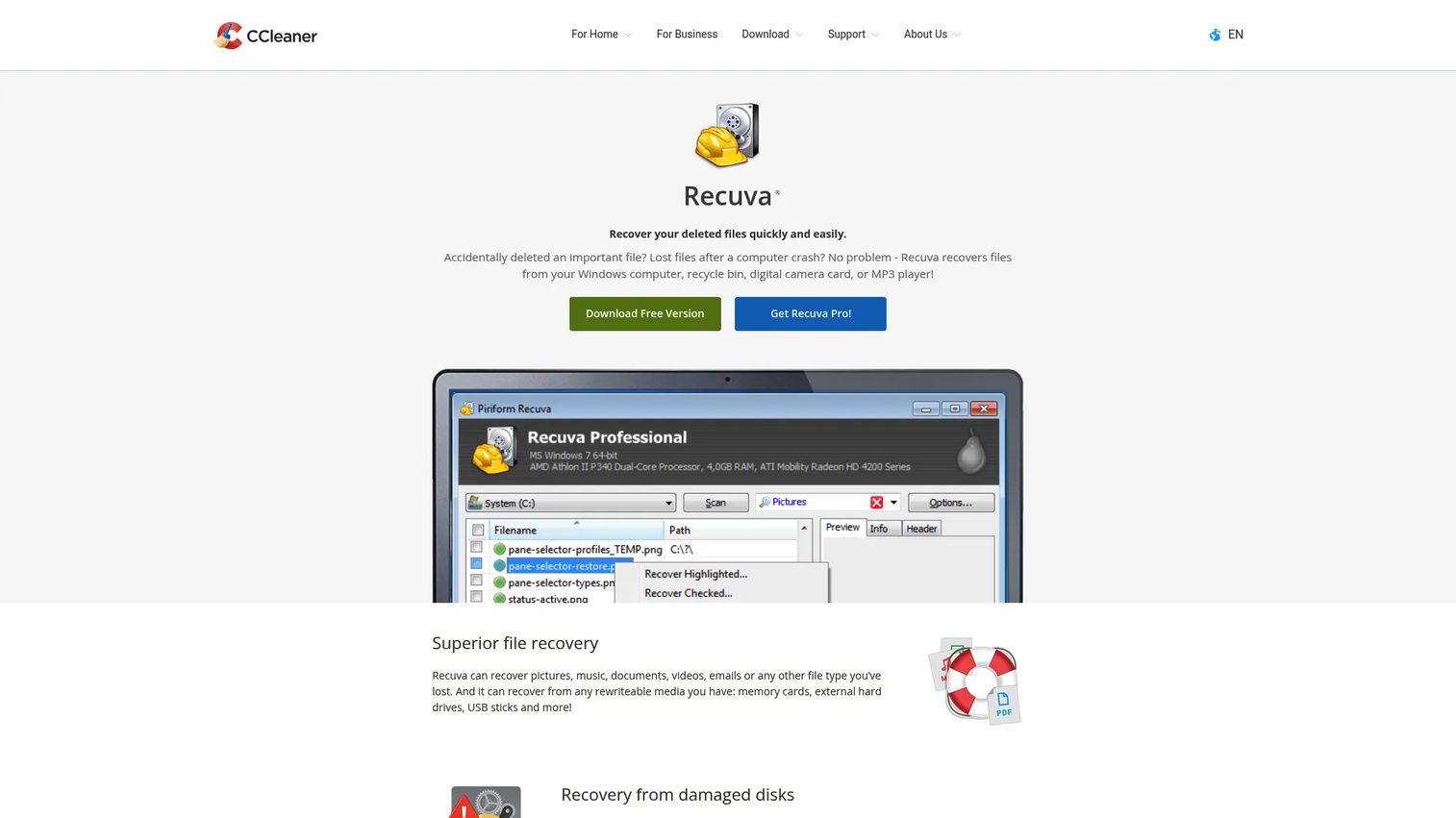
Recuva is Windows file recovery software for restoring deleted files from drives, USBs, and other writable media. It is deliberately simple, which is exactly why it works so well for the most common loss scenario: an accidental delete you noticed quickly. A wizard walks you through the scan, and a deep scan mode digs deeper when the quick scan comes up short.
Best for: Individuals who need to recover deleted files from Windows devices or removable storage.
Key strengths
- Advanced file recovery: Restore deleted files from hard drives, USB sticks, and memory cards.
- Deep Scan mode: Search for traces of deleted files when a standard scan misses them.
- Damaged and formatted drive support: Recover from damaged or newly formatted drives, plus secure-delete for overwriting sensitive files.
Why choose Recuva: Recuva is strongest for straightforward undelete work rather than complex forensic recovery. If someone emptied the Recycle Bin or wiped a USB stick and wants files back fast, this is the low-friction answer. The free version covers most home recovery jobs, and the Pro tier adds a small set of extras for a one-time fee.
Recuva pricing: Recuva offers a free version and Recuva Professional for a one-time $24.95. Both are licensed for home use only. For most casual deleted-file recovery, the free version does the job, and Pro is an inexpensive step up if you want automatic updates and premium support.
7. UFS Explorer
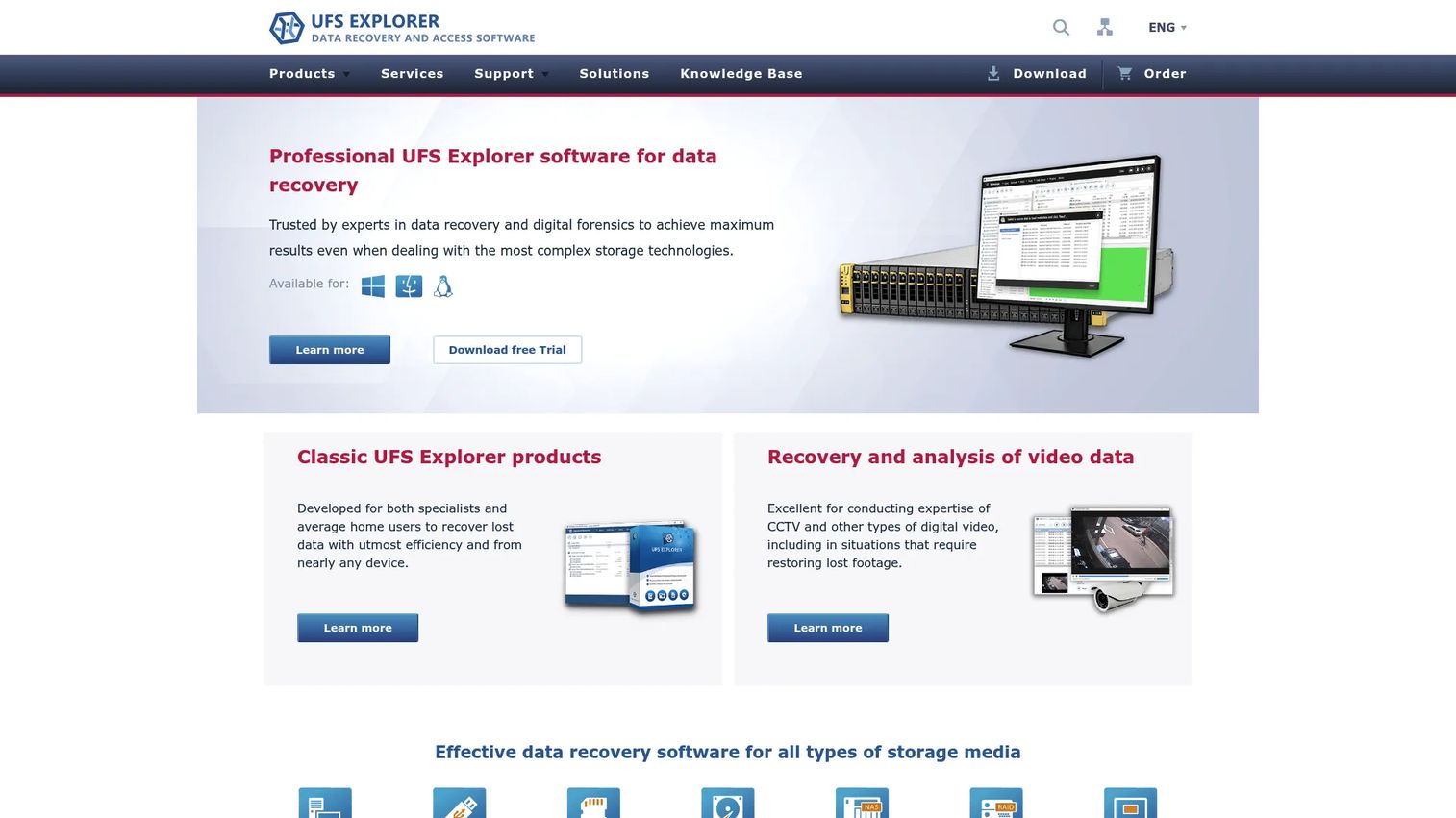
UFS Explorer is data recovery software for single-disk, RAID, NAS, forensic, and specialized storage cases. It sits at the technical and enterprise end of this list, with a Classic family for personal single-disk work and Professional editions that add RAID, encryption, VMFS, and forensic imaging. It is the tool for when the storage is more complex than a single Windows drive.
Best for: Teams and specialists who need advanced recovery across disks, RAID, NAS, and forensic storage.
Key strengths
- Single-disk recovery and imaging: Recover from individual drives and create disk images to work safely.
- RAID and NAS recovery: A built-in RAID Builder reconstructs arrays and NAS volumes.
- Advanced storage in higher editions: Encryption, VMFS, forensic image, hex editor, and SAN support in the Professional tiers.
Why choose UFS Explorer: UFS Explorer is the choice when recovery involves layered or enterprise storage that simpler tools cannot address. The Classic editions cover personal single-disk recovery affordably, while the Professional and Technician editions target specialists handling RAID, NAS, and forensic cases. If your scenario is a downed array rather than a deleted file, this is where to look.
UFS Explorer pricing: Pricing spans a wide range by capability. Standard Recovery for personal use starts at $69.95, RAID Recovery at $149.95, and Network RAID at $229.95, all perpetual licenses. Professional Recovery for commercial use is $699.95 perpetual, and the Technician edition is $469.95 on a limited-term license. A free trial lets you scan and evaluate before buying.
Considerations before you buy
Before committing to a paid license, run through this checklist. The right tool depends on your specific failure, not the loudest brand.
Match the tool to the failure mode
A deleted file needs a quick undelete; a downed RAID needs reconstruction. Identify what actually broke before you choose. Simple undelete tools are fast and cheap for accidental deletion, while formatted-drive and RAID cases need deeper scanning and file-system support.
Confirm device and file-system support
Check that the tool supports your device (SSD, USB, SD card, RAID) and file system (NTFS, exFAT, APFS, EXT4, or RAW). A tool that cannot read your file system will not recover from it, no matter how deep the scan.
Test the free preview first
Almost every tool here offers a free scan and preview. Use it. Preview confirms whether your files are intact and recoverable before you pay. If the preview shows corrupted or empty files, a paid license will not change that.
Recover to a separate drive
Never restore files onto the drive you are scanning. Writing recovered data back to the same disk can overwrite the very files you are trying to save. Keep a second drive ready as the destination.
Weigh free versus paid honestly
Free tools like Recuva and the per-session limits in DMDE cover many real cases. Paid tools earn their price on harder failures: RAID, corrupted partitions, and forensic work. Buy the depth your failure demands, not more.
Conclusion
The best data recovery software is the one that fits your specific failure, not the one with the most name recognition. Match the tool to what broke.
For most users, Disk Drill is the safe default: strong scanning, a recovery chance indicator, and preview across Mac and Windows. For technical users facing damaged disks, RAID, or corrupted partitions, R-Studio gives you the controls to work through it. On a budget, DMDE delivers real recovery depth with free per-session recovery and low-cost licenses. And for a simple, free-first undelete on Windows, Recuva is hard to beat. If your case involves enterprise storage, RAID, or NAS, UFS Explorer covers the demanding end.
Whatever you choose, act fast, stop writing to the affected drive, and preview before you recover. The sooner you scan, the more you get back.
FAQs
For most Windows users, Disk Drill and EaseUS Data Recovery Wizard are the strongest all-around picks, balancing broad device support with an easy scan-and-preview flow. Technical users handling RAID or corrupted partitions should look at R-Studio or UFS Explorer instead. Match the tool to your failure mode, then confirm the free preview finds your files before paying.
Reputable data recovery tools are safe because they read from the affected drive rather than write to it, so they do not overwrite your data. The main risk is user error: recovering files onto the same drive you are scanning can overwrite what you are trying to save. Always recover to a separate destination drive.
Often, yes, especially after a quick format, which clears the file table but leaves most data intact. Formatted drive recovery works best with a deep scan that rebuilds files by their signatures, so choose a tool with strong file-system support like R-Studio, Stellar, or UFS Explorer. Odds drop once new data is written over the formatted volume.
Recuva offers a genuinely useful free version for straightforward Windows undelete, and DMDE lets you recover up to 4,000 files per session at no cost. Stellar and Disk Drill also offer free previews and limited free recovery, which are enough to confirm your files are recoverable. For simple deleted-file cases, a free tool is often all you need.
Sometimes, but SSD recovery is less reliable than recovery from hard drives or SD cards. Most modern SSDs use TRIM, which zeroes out freed blocks shortly after deletion, so the data may be gone within minutes. If you deleted files from an SSD, stop using the drive immediately and run a scan as fast as possible.
SD card recovery usually goes well because memory cards rarely use TRIM and hold deleted data longer. Disk Drill, EaseUS, Stellar, and Recuva all handle SD and memory card recovery cleanly, with preview so you can confirm photos and videos before restoring. Stop using the card as soon as you notice the loss.
Use the free preview first, always. It shows whether your files are intact and recoverable before you spend anything. If the preview displays clean, complete files, a paid license lets you restore them; if it shows corrupted or empty results, paying will not improve the outcome. Preview is your recovery-chance test.
Most data recovery tools support NTFS, FAT, and exFAT for Windows, HFS+ and APFS for Mac, and EXT2/3/4 for Linux, plus RAW volumes where the file system is damaged. Broader tools like R-Studio and EaseUS add ReFS, tape, and network file systems. Confirm your specific file system is on the supported list before you buy.