A workstation refuses to boot after an update. The file backup is intact, but rebuilding Windows, applications, drivers, and settings could consume an entire day.
Disk imaging software addresses the bigger recovery problem. It captures the working state of a drive or partition, including boot data and installed applications. You can restore that image after hardware failure, ransomware, or a broken system change.
The category remains heavily focused on local recovery. Dataintelo reported that on premises deployments represented 64.8% of disk imaging software revenue in 2025.
The critical question is not whether a tool can create an image. It is whether you can boot its recovery media, access the backup, and restore within your recovery objective.
Which tool can you trust when restore time matters?
What’s inside
This guide compares 13 disk imaging tools for backup, recovery, migration, and endpoint deployment.
We assessed each option against practical recovery requirements:
- Full system and partition imaging
- Incremental or differential backup support
- Bootable recovery media and restore flexibility
- Windows compatibility and storage destinations
- Pricing, licensing, and current G2 ratings
The shortlist covers home users, IT administrators, MSPs, technical consultants, and small business operators. It includes paid products and free disk imaging software.
Treat the list as a starting point. Test your preferred option against the same hardware, storage, encryption, and network conditions you expect during an incident.
TL;DR
- Best overall for Windows imaging: Macrium Reflect. Strong image backup, rescue media, scheduling, and rapid recovery features
- Best for backup plus cyber protection: Acronis Cyber Protect Home Office. Combines imaging with malware protection and optional cloud storage
- Best for approachable home backup: EaseUS Todo Backup Home. Covers guided system backup, cloning, scheduling, and recovery media
- Best free friendly Windows option: AOMEI Backupper. Offers system imaging, incremental backups, cloning, and bootable media
- Best for fleet imaging and deployment: KACE by Quest. Fits centralized endpoint provisioning and systems management
- Best lightweight utility: Drive SnapShot. Supports live Windows imaging, differential backups, VSS, and command line operation
What is disk imaging software?
Disk imaging software creates a restorable snapshot of an entire drive, partition, or system volume. The image can include Windows, applications, boot data, settings, and files.
This makes disk image backup software useful when you need to recover a working machine. A file backup restores selected documents. A system image backup can restore the operating environment those documents depend on.
Disk imaging versus disk cloning
Imaging creates an archive that you store for later restoration. The archive may be compressed, encrypted, or split across several recovery points.
Cloning copies one disk directly onto another. Hard disk clone software is useful during HDD to SSD migration or drive replacement.
Use imaging when you need backup history or disaster recovery. Use cloning when you need a replacement disk that mirrors the source. Several products in this list support both jobs.
Key features to look for
- Full disk and partition imaging
- Incremental and differential backup types
- Bootable rescue media
- Bare metal restore
- VSS support for live Windows backup
- Encryption and ransomware protection
- NAS, network share, and cloud destinations
- Restoration onto different hardware
- HDD to SSD migration
- Scheduling and retention controls
Incremental backup jobs capture changes since the previous backup. They reduce storage consumption, but recovery may depend on a chain of image files.
Differential backup jobs store changes since the last full image. They usually require more space than incrementals, while keeping restore dependencies shorter.
How imaging differs from file backup
File backup protects selected data. It works when you need to recover a deleted spreadsheet or damaged project folder.
Disk imaging restores the machine’s working state. That distinction matters after drive failure, boot corruption, or a Windows installation problem.
A reliable plan often uses both. Keep frequent file backups for daily recovery, then create scheduled system images for wider failures.
When to use disk imaging software
Recover a machine after full drive failure
Bare metal restore rebuilds a system onto an empty replacement disk. You boot from recovery media, locate the stored image, and restore its partitions.
Test whether the recovery environment recognizes your storage controller and network adapter. Finding a missing driver during an outage is too late.
Migrate from HDD to SSD without rebuilding
Disk cloning can move Windows onto a replacement SSD without reinstalling applications. Some tools can also resize partitions during migration.
Check used space before moving to a smaller drive. The destination needs enough capacity for the restored data and required partitions.
Protect Windows systems before risky changes
Create an image before operating system upgrades, partition edits, driver changes, or major application installations. This gives you a defined rollback point.
For active systems, verify VSS backup support. VSS helps windows imaging software capture open files while the operating system remains online.
Disk imaging software comparison
This table gives you a quick view of each product’s intended role. It separates general recovery tools from cloud backup platforms and endpoint deployment products.
Pricing reflects vendor information researched in November 2026. Some introductory prices apply only to the first subscription term.
A missing G2 rating means no usable product rating was confirmed. It does not indicate product quality.
| # | Product | Best for | Key differentiator | Pricing | G2 rating |
|---|---|---|---|---|---|
| 1 | Macrium Reflect | Reliable Windows imaging | Image backup with deep rescue workflows | Custom pricing, 30 day trial | 4.7/5 |
| 2 | Acronis Cyber Protect Home Office | Backup with security extras | Imaging with malware and cloud options | From $44.99 first year | 4.3/5 |
| 3 | EaseUS Todo Backup Home | Home and small office backup | Guided imaging, cloning, and recovery | Free, paid from $39.95 yearly | N/A |
| 4 | AOMEI Backupper | Free friendly Windows imaging | Broad backup and cloning options | Free, paid from $39.95 yearly | N/A |
| 5 | Paragon Backup & Recovery Community Edition | Personal recovery planning | Free personal backup with WinPE recovery | Free for noncommercial use | 4.7/5 |
| 6 | MiniTool ShadowMaker | Simple Windows backup | Backup, synchronization, restore, and cloning | Free, paid from $12.99 monthly | N/A |
| 7 | IDrive | Cloud connected backup | Multidevice cloud protection | Free 10 GB, paid from $0.25 monthly | 4.5/5 |
| 8 | CloudBerry Backup | Bring your own cloud storage | Flexible cloud destinations and bare metal recovery | Free, paid from $29.99 yearly | 4.5/5 |
| 9 | Drive SnapShot | Lightweight live imaging | Compact utility with live Windows imaging | From €20.23 for 12 months | N/A |
| 10 | DriveImage XML | Basic Windows imaging | Free personal imaging with VSS | Free, commercial from $100 | 4.3/5 |
| 11 | DataNumen Disk Image | Disk cloning and forensic work | Cloning support for damaged media | Free download, licenses from $49.95 | 4.5/5 |
| 12 | KACE by Quest | Enterprise endpoint management | Fleet management and software deployment | Custom pricing | 4.0/5 |
| 13 | FlashBoot | Bootable USB and migration tasks | Portable Windows and bootable cloning workflows | Free, Pro costs $29.95 | 3.5/5 |
Best 13 tools for disk imaging software
1. Macrium Reflect
Macrium Reflect protects Windows computers, workstations, and servers through imaging, restoration, and cloning. Its recovery capabilities include Rapid Delta Restore and resumable imaging.
The software supports scheduled jobs and ransomware protection through Macrium Image Guardian. Its open image format and ARM hardware support also broaden its use across current Windows environments.
Best for: Windows users and IT teams that need dependable image based backup and recovery.
Key features
- Full disk image backups
- Incremental and differential backups
- Rapid Delta Restore
- Resumable image creation
- Macrium Image Guardian
Why choose Macrium Reflect: It fits teams that treat restoration as an operational workflow. Its scheduling, recovery, and image protection features support repeatable testing.
Macrium also suits technical buyers who need more than the best drive cloning software. Its core value lies in backup history and recovery depth.
Macrium Reflect pricing: Custom pricing. A free 30 day trial is available, while Home plans offer one year or three year terms.
G2 rating: 4.7/5.
2. Acronis Cyber Protect Home Office
Acronis Cyber Protect Home Office is now marketed as Acronis True Image. It combines backup, recovery, disk cloning, optional cloud storage, and endpoint security features.
The product supports full image and file backup. Higher plans add cloud capacity, malware protection, blockchain certification, and electronic signatures.
Best for: Home users and small businesses wanting backup with integrated security features.
Key features
- Full image and file backup
- Active disk cloning
- Cloud backup options
- Malware and ransomware protection
- Mobile and Microsoft 365 backup
Why choose Acronis: It reduces the need for separate consumer backup and security products. This breadth fits buyers who want local imaging plus offsite storage.
The cyber protection features also make it relevant for ransomware recovery planning. Still, test local recovery speed rather than assuming a cloud copy meets your downtime target.
Acronis pricing: Essentials starts at $44.99 for the first year. Advanced starts at $51.09, while Premium starts at $62.49 for the first year.
Acronis does not offer an ongoing free tier.
G2 rating: 4.3/5.
3. EaseUS Todo Backup Home
EaseUS Todo Backup Home provides system, disk, partition, and file backup for personal Windows computers. Its cloning features cover disks, partitions, and complete system migration.
Scheduled jobs can use full, incremental, or differential backup methods. The software also supports cloud backup and system transfer to another PC.
Best for: Home users wanting guided backup, migration, and recovery workflows.
Key features
- System image backup
- Disk and partition backup
- Incremental and differential scheduling
- Disk and system cloning
- Cloud backup support
Why choose EaseUS Todo Backup Home: Its product scope covers everyday recovery without assuming enterprise administration skills. It works well for freelancers and small offices.
The combination of imaging and system transfer also suits PC replacement projects. Buyers planning larger deployments should review the business editions separately.
EaseUS Todo Backup Home pricing: A free edition is available. Home costs $39.95 yearly, $59.95 perpetually, or $79.95 with lifetime upgrades.
Each Home license covers one computer.
G2 rating: N/A.
4. AOMEI Backupper

AOMEI Backupper handles system, disk, partition, file, folder, and email backups on Windows. It also supports disk imaging, synchronization, cloning, and bootable rescue media.
Scheduled jobs can use incremental or differential methods. Separate editions cover home users, workstations, technicians, and broader business use.
Best for: Windows users wanting capable free PC imaging software with paid upgrades.
Key features
- System and disk backup
- Incremental and differential jobs
- Disk and SSD cloning
- Bootable media creation
- File synchronization
Why choose AOMEI Backupper: The free Standard edition covers core personal backup requirements. Paid versions extend the model toward commercial and technician workflows.
It is a practical option for users comparing free hard disk image software. Validate edition limits before standardizing a business recovery process.
AOMEI Backupper pricing: Standard is free. Professional costs $39.95 yearly, Workstation costs $49.95 yearly, and Technician costs $499 yearly.
Lifetime and family options also appear in the vendor store.
G2 rating: N/A.
5. Paragon Backup & Recovery Community Edition
Paragon Backup & Recovery Community Edition provides personal Windows backup for files, volumes, and complete disks. It includes scheduling, retention controls, archive mounting, and WinPE recovery media.
There is an important status issue. Paragon states that the product became unavailable on October 8, 2025, although an official download page still displays it.
Best for: Existing personal users maintaining simple Windows recovery jobs.
Key features
- File and disk backups
- Custom schedules and retention
- WinPE recovery media
- Backup archive mounting
- Individual file recovery
Why choose Paragon: The Community Edition offers useful personal recovery features without a license fee. Existing users can manage backup versions and recover individual files.
New users should confirm download availability and maintenance status before adopting it. A discontinued utility is a weak foundation for long term recovery planning.
Paragon pricing: Community Edition is free for noncommercial use. No current paid Community Edition price was confirmed.
Business use requires another product or commercial license from the vendor’s current portfolio.
G2 rating: 4.7/5.
6. MiniTool ShadowMaker
MiniTool ShadowMaker backs up Windows systems, files, folders, partitions, and complete disks. It includes disk cloning, file synchronization, WinPE media, and PXE boot capabilities.
Backup schedules can use full, incremental, or differential methods. The software also supports dissimilar hardware restoration, encryption, and password protection.
Best for: Windows users wanting straightforward local imaging and cloning.
Key features
- System and disk backup
- Incremental and differential images
- Disk cloning
- WinPE and PXE boot
- Dissimilar hardware restore
Why choose MiniTool ShadowMaker: It covers broad Windows recovery basics through a relatively focused interface. The free edition provides a practical entry point.
Cloud sync was introduced for supported storage services in 2026. However, the vendor distinguishes synchronization from full cloud backup.
MiniTool ShadowMaker pricing: A free edition is available. Pro costs $12.99 monthly, $36 yearly, or $79 for a perpetual license.
Business Standard costs $129. Business Deluxe costs $399.
G2 rating: N/A.
7. IDrive
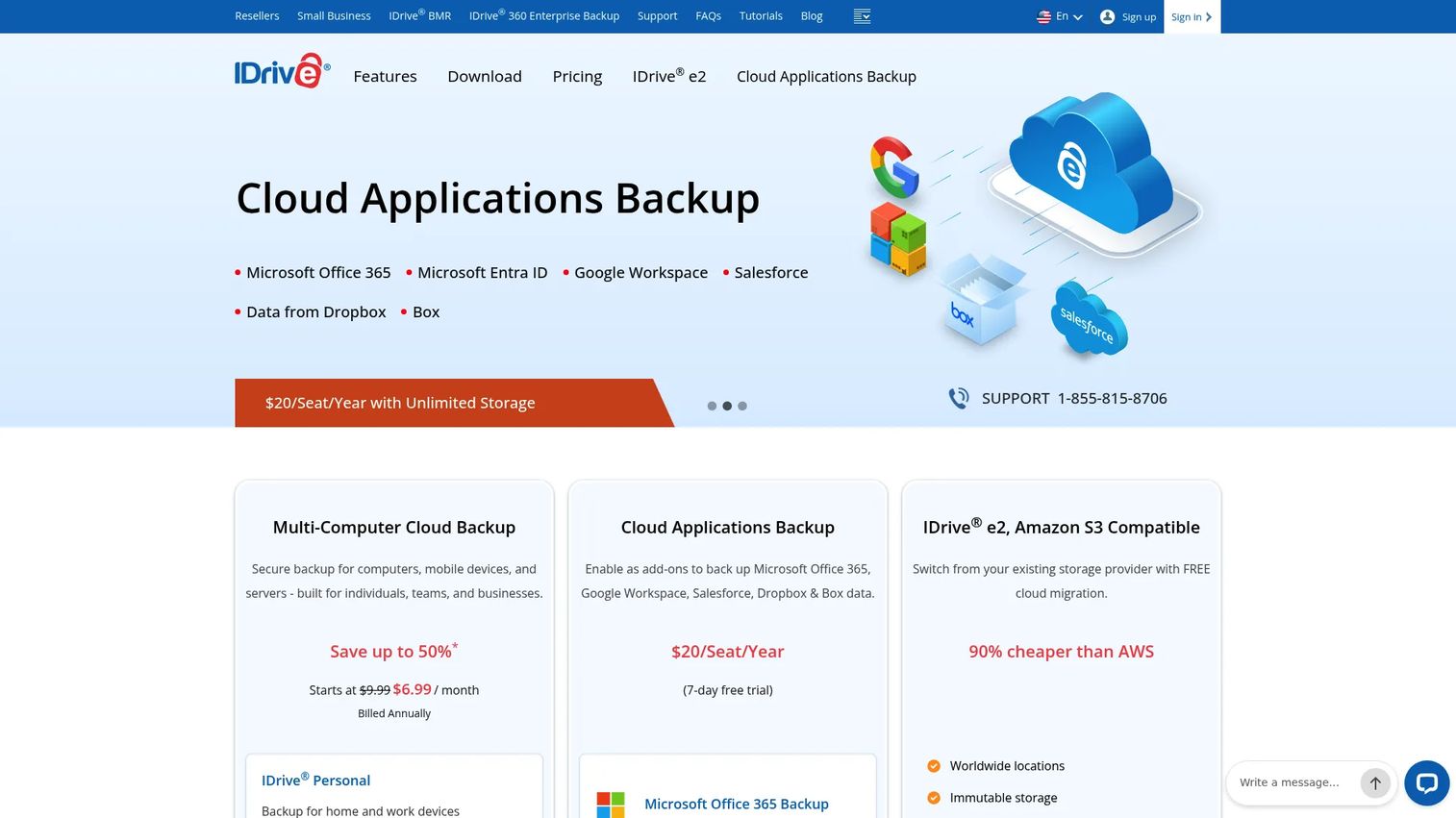
IDrive protects computers, mobile devices, servers, NAS systems, external drives, and cloud applications. It combines centralized cloud backup with device synchronization and retained file versions.
This is a cloud first product rather than a dedicated local imaging utility. Its value comes from protecting several device types through one account.
Best for: Individuals or teams needing offsite backup across multiple devices.
Key features
- Multidevice cloud backup
- External drive protection
- NAS and server backup
- File synchronization
- Thirty retained file versions
Why choose IDrive: It fits recovery plans where offsite storage is a primary requirement. The free allocation also makes initial testing inexpensive.
Local image restoration and cloud recovery create different operational experiences. Measure download time and recovery throughput before relying on cloud disk backup during an outage.
IDrive pricing: Basic includes 10 GB free. Mini starts at $0.25 monthly, Personal at $9.99, and Business at $19.99 monthly.
Selected plans display introductory discounts for the first year.
G2 rating: 4.5/5.
8. CloudBerry Backup
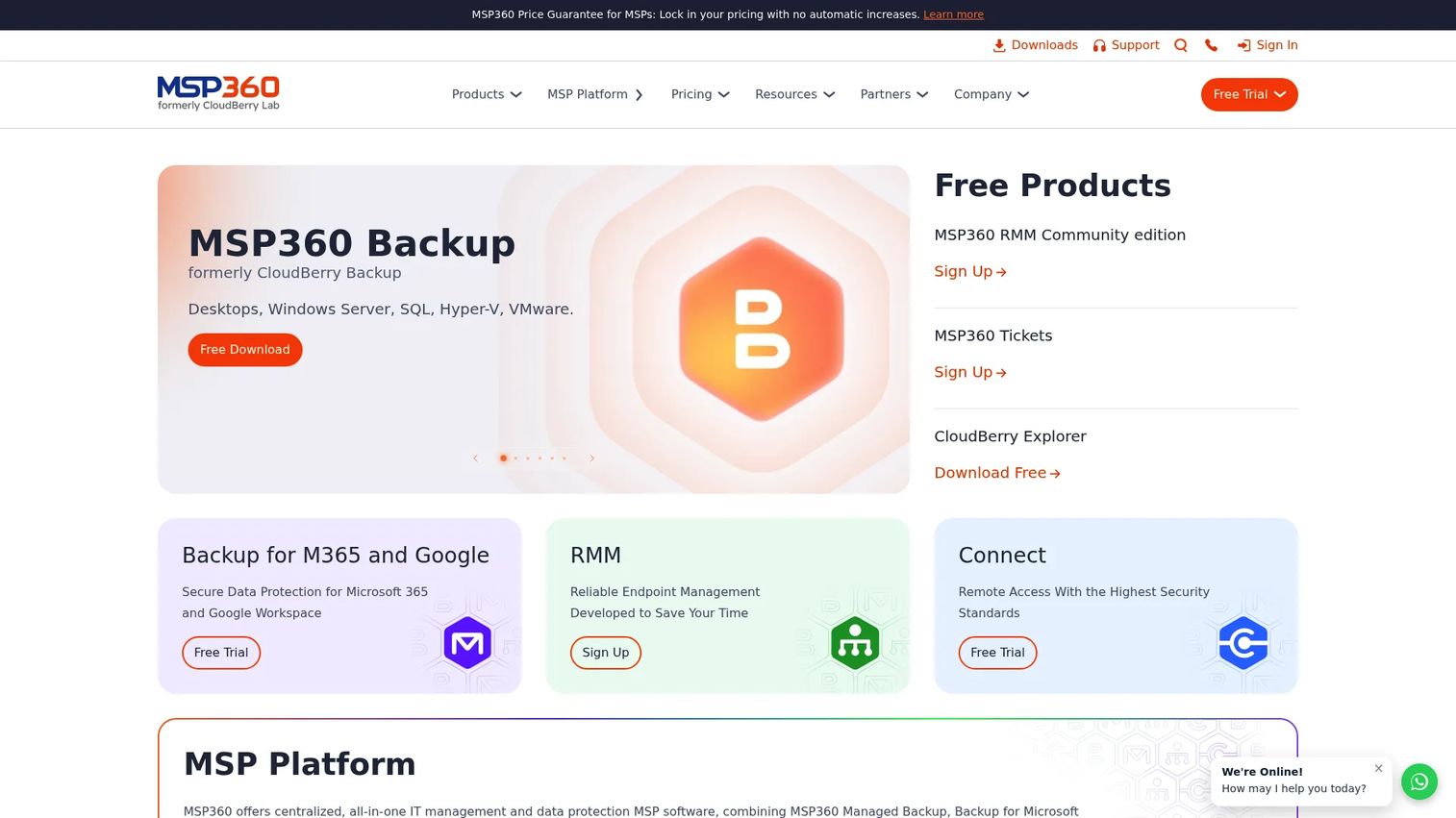
CloudBerry Backup is now called MSP360 Backup. It provides file and image based protection for desktops, servers, virtual machines, and supported cloud destinations.
The software can store backups with several cloud providers. It also supports bare metal recovery, compression, encryption, and immutable storage configurations.
Best for: Businesses and MSPs wanting control over cloud storage destinations.
Key features
- File and image based backup
- Bare metal recovery
- Multiple cloud destinations
- Encryption and compression
- Object Lock support
Why choose CloudBerry Backup: It separates backup software from the underlying storage account. That model fits teams already managing cloud infrastructure.
The tradeoff is operational ownership. You need to understand storage charges, retention settings, credentials, and recovery paths across both services.
CloudBerry Backup pricing: A free edition is available. Desktop costs $29.99 yearly, Server costs $109.99, and Ultimate costs $179.99 per computer.
SQL costs $124.99 yearly. Prices exclude VAT.
G2 rating: 4.5/5.
9. Drive SnapShot
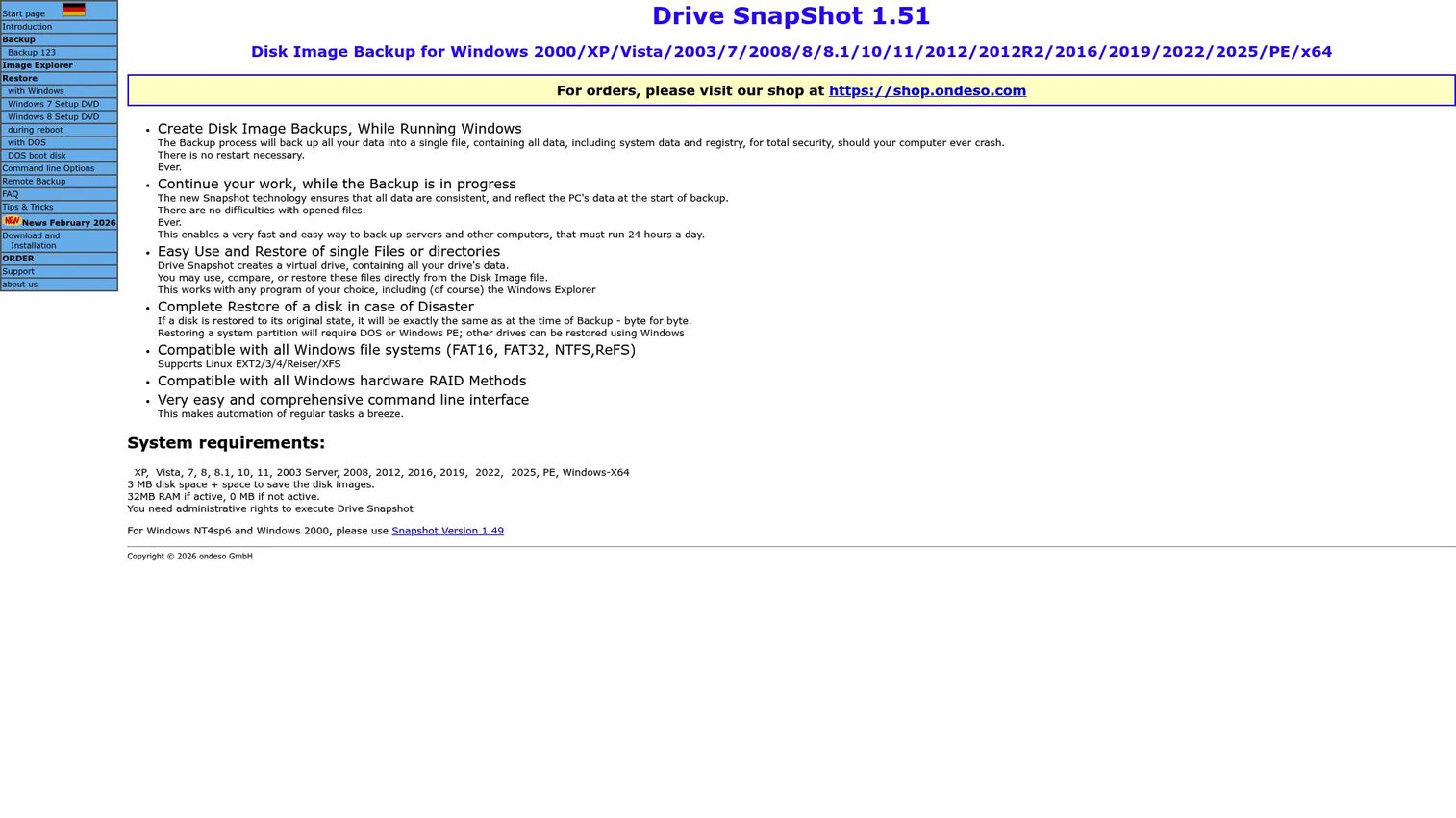
Drive SnapShot is a compact Windows imaging utility. It creates complete disk or partition images while Windows continues running.
The software supports VSS, differential images, encryption, compression, and RAID. Administrators can automate jobs through its command line and Windows Task Scheduler.
Best for: Technical Windows users wanting lightweight live imaging.
Key features
- Live Windows disk imaging
- VSS and differential images
- Virtual image mounting
- Command line operation
- RAID support
Why choose Drive SnapShot: It avoids the footprint of a larger backup suite. The utility fits operators comfortable building their own schedules and recovery procedures.
Its minimal interface assumes technical familiarity. Test recovery media and restoration commands before using it on critical systems.
Drive SnapShot pricing: Workstation commercial licensing starts at €20.23 for 12 months. Private workstation licensing costs €39 for 60 months.
A free 30 day trial is available. Server licensing starts at €45.22 for 12 months.
G2 rating: N/A.
10. DriveImage XML
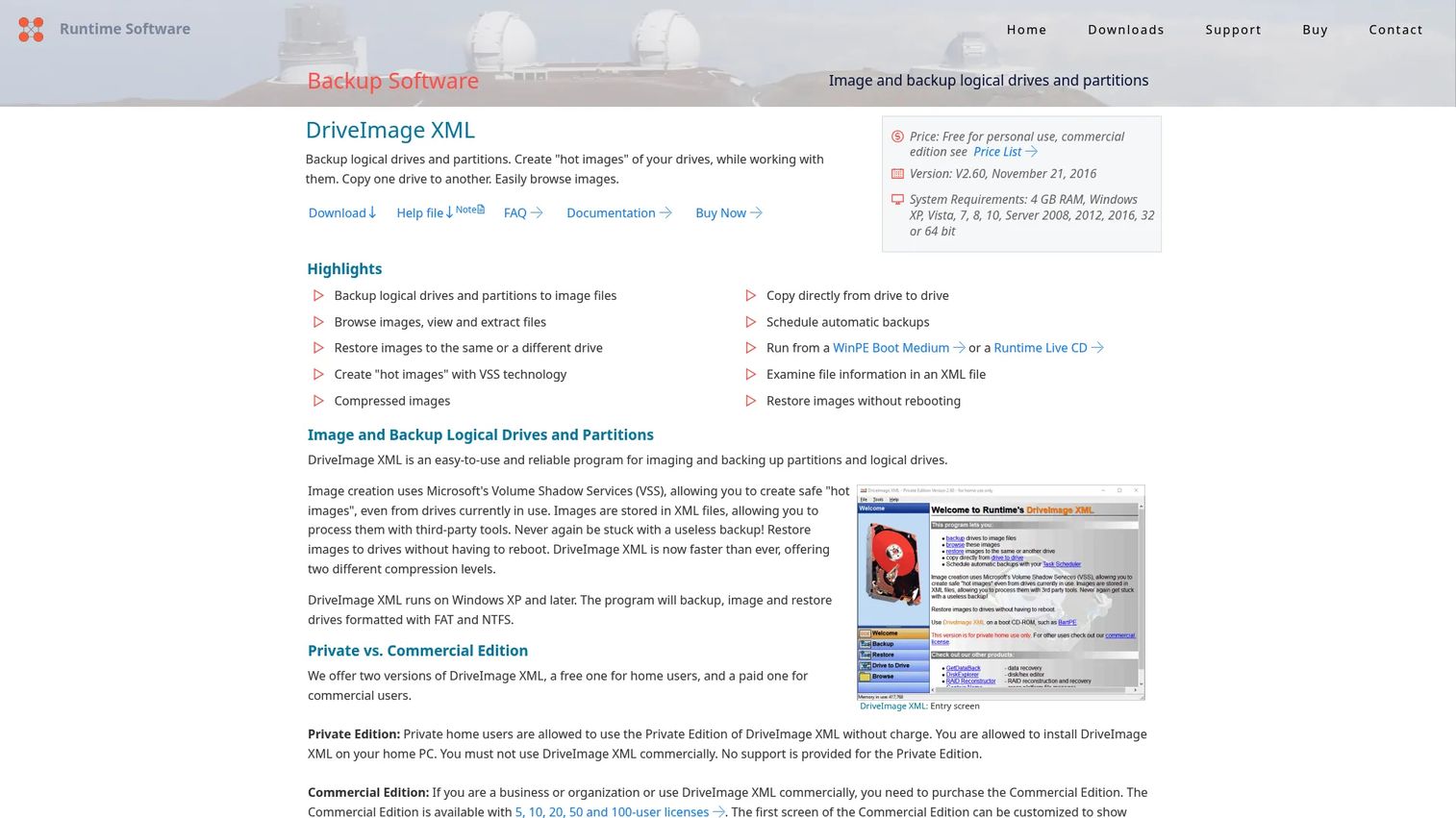
DriveImage XML creates image files from logical Windows drives and partitions. You can browse stored images, extract individual files, restore onto another drive, or copy directly between disks.
The utility supports VSS for hot imaging and can run from WinPE. Scheduled jobs use Windows Task Scheduler.
Best for: Home users needing basic Windows partition imaging at no cost.
Key features
- Drive and partition imaging
- VSS hot imaging
- Image browsing
- Drive to drive copying
- WinPE operation
Why choose DriveImage XML: Its free personal edition covers straightforward imaging and file extraction. Commercial licenses use a simple user count model.
The current product page lists version 2.60 from November 2016. Evaluate compatibility carefully before using it as a Windows 10 disk imager or on newer systems.
DriveImage XML pricing: Private Edition is free for home use. Commercial licensing starts at $100 for five users.
Larger commercial packages range from ten to 100 users.
G2 rating: 4.3/5.
11. DataNumen Disk Image
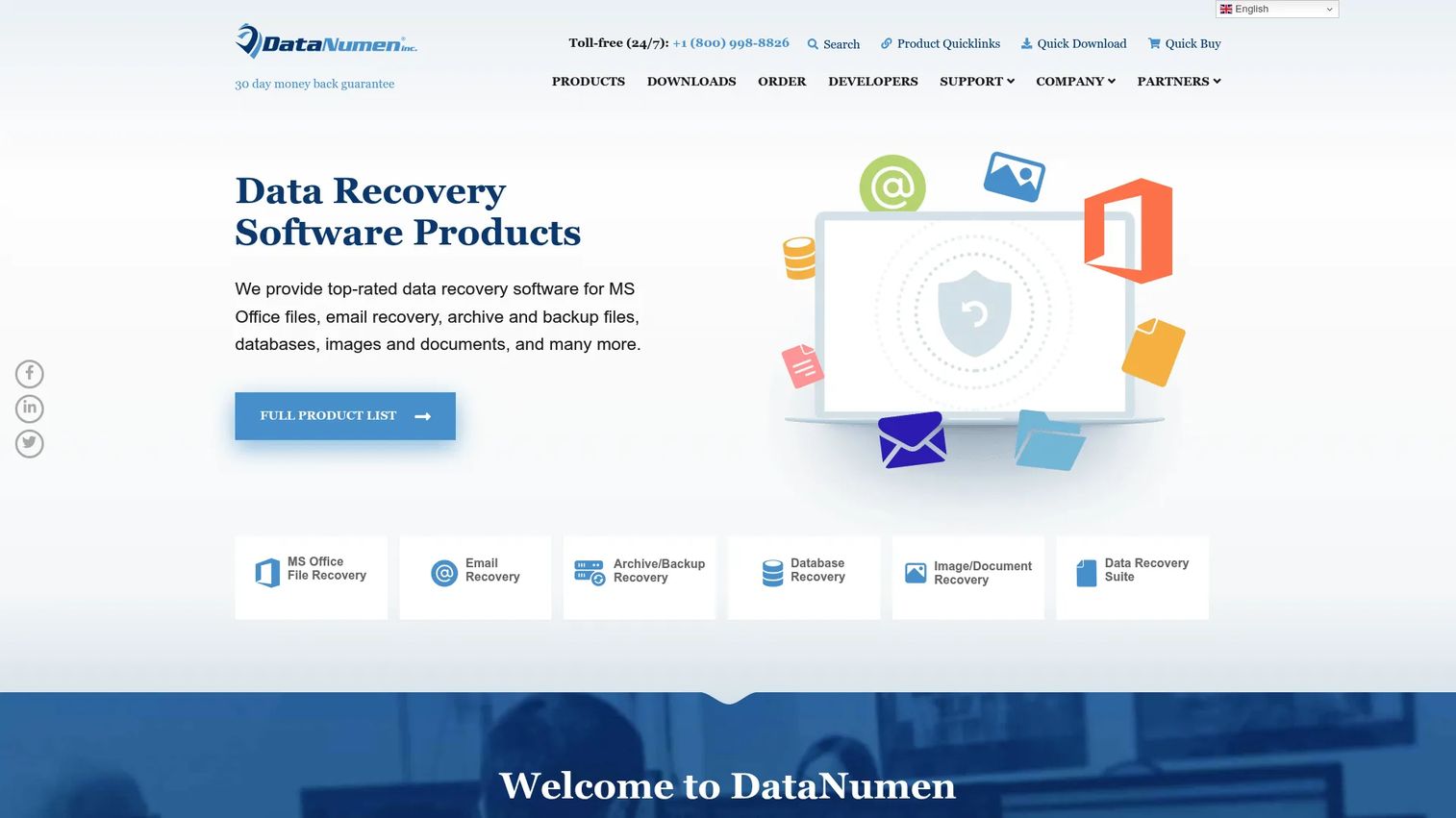
DataNumen Disk Image clones and restores disks, including corrupted storage media. It supports HDDs, SSDs, USB drives, optical media, and other storage types.
The product can batch clone multiple drives. Its listed use cases include backup, recovery, computer forensics, and electronic discovery.
Best for: Operators needing narrow disk cloning, recovery, or forensic imaging capabilities.
Key features
- Disk image creation
- Normal and corrupted drive cloning
- Batch cloning
- Image restoration
- Multiple storage media types
Why choose DataNumen Disk Image: It focuses on direct image creation rather than scheduled backup management. Damaged media support makes it relevant for specialist recovery work.
Do not treat it as a full disaster recovery suite without additional planning. Scheduling, retention, and recovery media may require separate processes.
DataNumen Disk Image pricing: A free download is available. A single user license costs $49.95 as a one time purchase.
Volume prices fall to $6.95 per license for purchases of at least 500 users.
G2 rating: 4.5/5.
12. KACE by Quest
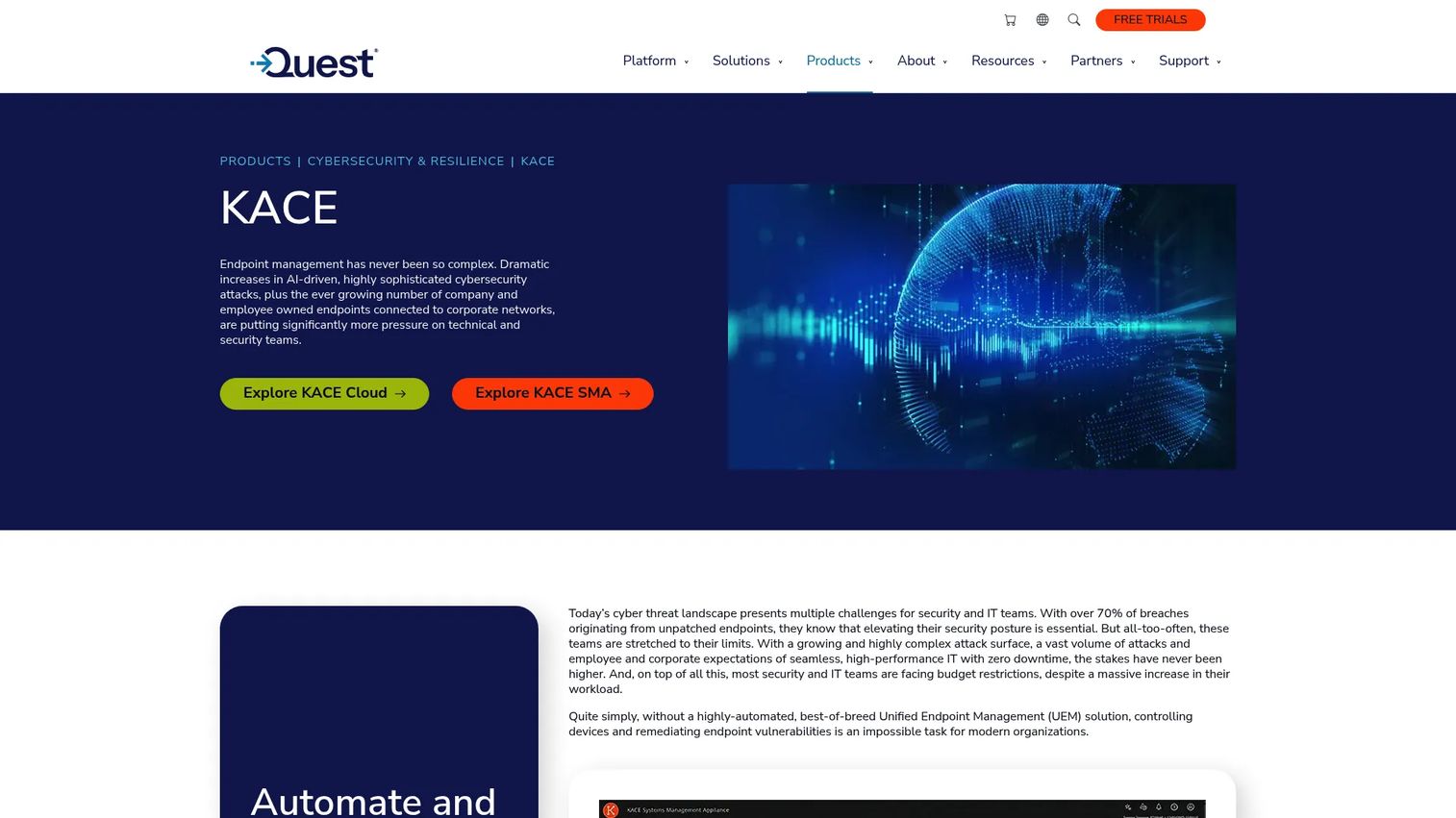
KACE by Quest serves organizations managing endpoints across cloud and local environments. Its capabilities cover discovery, inventory, patching, software deployment, scripting, and service desk workflows.
KACE fits this list as an endpoint management and deployment product. It does not serve the same role as a personal system image backup utility.
Best for: IT teams managing endpoint configuration and deployment across a fleet.
Key features
- Endpoint inventory and discovery
- Operating system patching
- Software deployment
- Policy and script automation
- Integrated service desk
Why choose KACE: It fits teams that need repeatable endpoint operations at scale. Centralized policy and reporting matter more here than one machine’s restore interface.
Choose it for fleet management, deployment, and operational governance. Use a dedicated backup product when your primary requirement is workstation recovery history.
KACE pricing: Custom pricing. Quest routes buyers through its sales team for product selection and procurement.
The reviewed product pages did not identify an ongoing free tier.
G2 rating: 4.0/5.
13. FlashBoot
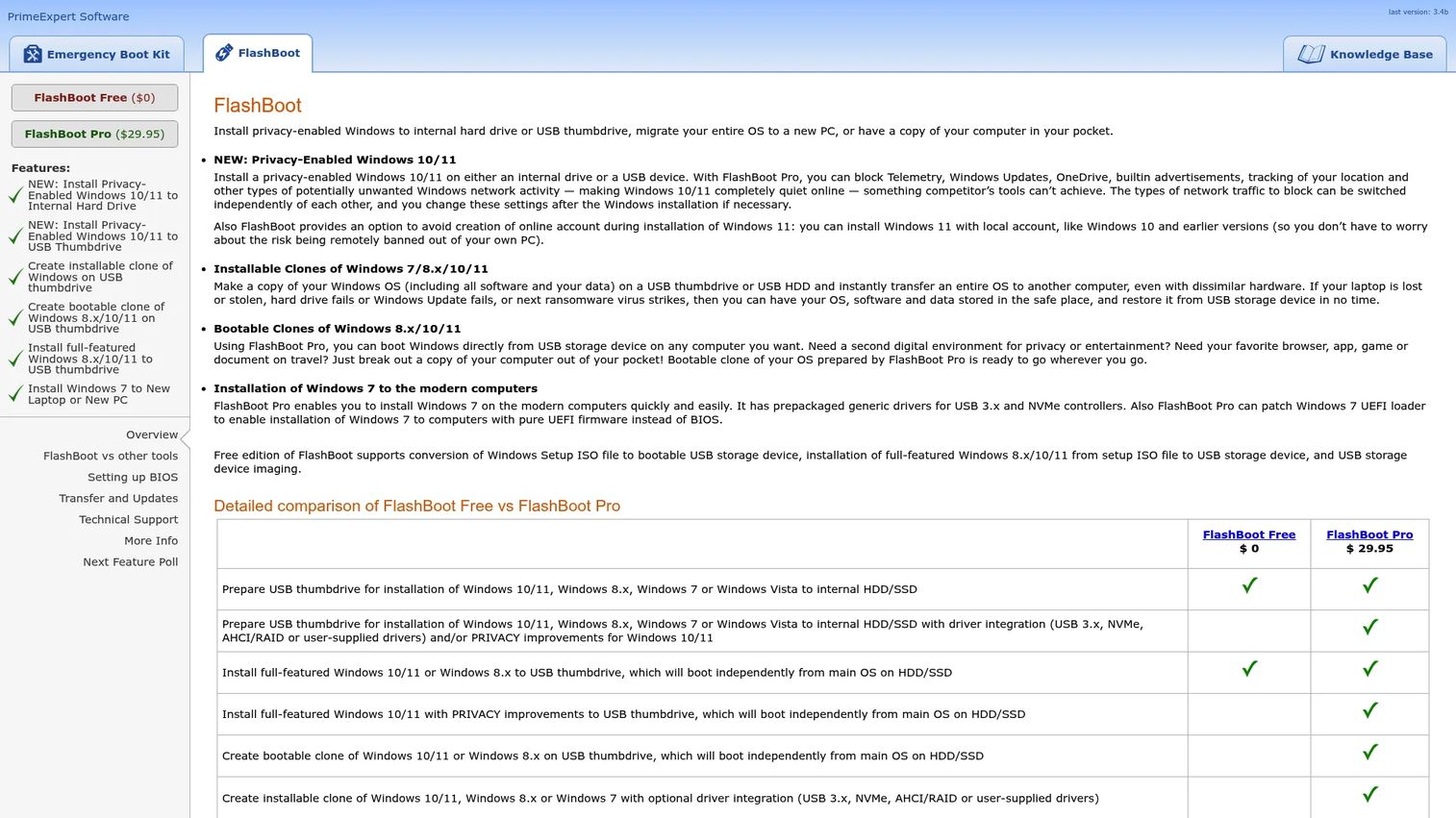
FlashBoot creates bootable Windows USB media and installable operating system clones. It also supports Windows migration between computers or drives.
The product covers UEFI, USB 3.x, NVMe, and modern Windows installations. Some workflows also support Windows 7 installation on newer hardware.
Best for: Users needing bootable USB creation or Windows migration.
Key features
- Bootable USB creation
- Installable Windows clones
- Portable Windows environments
- Driver integration
- UEFI and NVMe support
Why choose FlashBoot: It handles boot and migration jobs that sit beside traditional imaging. It is useful for portable recovery media and moving Windows installations.
FlashBoot is not designed around scheduled full system backup. Choose it when USB boot workflows matter more than retention policies or incremental recovery points.
FlashBoot pricing: FlashBoot Free costs $0. FlashBoot Pro costs $29.95.
The vendor does not specify a billing period for the Pro license.
G2 rating: 3.5/5.
Considerations when choosing disk imaging software
Restore confidence matters more than backup creation
A completed backup job proves that an image exists. It does not prove the image will restore under your failure conditions.
Run a recovery test onto spare hardware or an isolated virtual machine. Record the boot process, required credentials, driver steps, and total recovery time.
Check full, incremental, and differential image support
Full images create independent recovery points but consume more storage. Incremental chains reduce storage use while creating dependencies between backup files.
Differential images sit between those models. Match the method to your recovery history, retention requirements, and acceptable restore complexity.
Verify bootable recovery media before you need it
Create rescue media during deployment, then test it on the target hardware. Confirm that it sees local disks and encrypted volumes.
For network share backup, test DNS, credentials, and network drivers inside the recovery environment. Your normal Windows configuration may not carry over.
Match storage destinations to your risk model
External drives offer quick local restoration. NAS storage simplifies centralized access, while cloud storage provides geographic separation.
Keep at least one isolated copy when ransomware resilience matters. A mounted backup target can be exposed to the same incident as the source.
Confirm Windows, server, and hardware support
Check Windows versions, VSS behavior, BitLocker handling, UEFI support, and RAID drivers. Server use may require a separate license or product edition.
Restoring to different hardware adds another layer. Validate storage controllers, network adapters, boot modes, and vendor support before choosing a standard.
Conclusion
Macrium Reflect is the strongest general Windows choice for image backup and structured recovery. Acronis suits users wanting backup with malware protection and optional cloud storage.
EaseUS and AOMEI provide approachable paths for home users or small offices. Both cover imaging and cloning without assuming deep administrative experience.
KACE serves a different job. It fits endpoint management and fleet operations rather than personal recovery. Drive SnapShot takes the opposite approach with a compact technical utility.
IDrive and CloudBerry Backup support cloud connected strategies. Compare them carefully against local restore speed and your recovery objectives.
Do not select a product from its feature list alone.
Choose two candidates. Create the same system image with each, build recovery media, and perform one test restoration. Measure the time required and document every manual step.
A backup becomes dependable only after you prove the restore.
FAQs
Disk imaging software creates a restorable copy of a drive, partition, or system volume. It can preserve Windows, installed applications, boot records, settings, and files.
Common uses include full system backup, disaster recovery, drive migration, and rollback after risky changes. Technical teams also image standard configurations before endpoint deployment.
Disk imaging stores a drive or partition inside an image archive. You can retain several images and restore a selected recovery point later.
Cloning copies one drive directly onto another. Imaging fits backup history, while cloning fits migration or immediate drive replacement.
AOMEI Backupper offers a free Standard edition with Windows backup and cloning features. EaseUS Todo Backup Home and MiniTool ShadowMaker also provide free editions.
DriveImage XML remains free for personal use, although its product page lists an older release. Verify current compatibility, licensing, recovery media, and incremental support before choosing.
Yes, if the software supports image restoration and bootable recovery media. Bare metal restore can rebuild Windows onto an empty replacement disk.
Hardware differences can complicate the process. Check storage drivers, boot mode, partition layout, and support for dissimilar hardware before an emergency.
Some Windows imaging tools use Volume Shadow Copy Service, commonly called VSS. It creates snapshots while files and applications remain open.
VSS support alone does not guarantee application consistency for every workload. Verify database requirements and run restoration tests using representative data.
External drives provide quick local recovery and simple isolation. NAS devices support centralized network access, while cloud storage protects against site level incidents.
A combined approach gives you faster restoration plus an offsite copy. Keep at least one copy offline or otherwise isolated from ransomware.
Sometimes. The used data must fit on the target, and the software needs suitable partition resizing or migration support.
A source drive’s total capacity can exceed the SSD even when its used space does not. Test the process before migrating a production system.
Create an image before major Windows upgrades, partition changes, or hardware maintenance. Critical systems also need a regular schedule tied to recovery objectives.
Use incremental backups when you need frequent recovery points without storing a complete image every time. Keep periodic full images to limit chain dependency.