Your sales lead's laptop is full. She can't install the product build your team sent over, can't sync the customer export, and the Windows update that was supposed to run overnight is stuck at zero percent. She files an IT ticket. Someone spends forty minutes on it.
That's the real cost of neglected disk space: Not abstract slowness, but concrete workflow interruptions at the worst possible moments. A new hire gets a recycled laptop loaded with three years of temp files. A remote engineer can't run a local dev environment. A demo machine throws a low-disk warning five minutes before a customer call.
The instinct is to delete random folders, but that's where things go wrong. The useful question isn't just how to free space. It's which files are safe to remove, whether the built-in Windows tools are enough, and whether a paid utility justifies another line on the software budget.
According to Dataintelo (2026), the global disk cleaning software market reached $2.8 billion in 2025, with enterprise users accounting for 61.2% of demand. That's a lot of organizations treating this as a real operational problem, not a consumer hobby.
This guide cuts through the noise so you can make a fast, low-risk decision.
What's inside
- Eight Windows disk cleanup tools, including two built-in Windows options and six third-party utilities
- Selection criteria: Safety controls and preview modes, cleanup depth and scope, privacy options, Windows 10 and Windows 11 compatibility, and cost
- Which tools suit simple routine cleanup versus privacy-focused deletion or broader PC maintenance
- What to check before removing files from an SSD, a shared laptop, or a company device
TL;DR
- Best built-in automatic cleanup: Windows Storage Sense handles routine temp-file removal with no extra software or subscription
- Best for broad PC maintenance: CCleaner covers junk files, browser traces, startup management, and software updates in one desktop utility
- Best free open-source option: BleachBit gives technical users granular control, command-line automation, and secure deletion at no cost
- Best for scheduled Windows cleanup: Wise Disk Cleaner runs on a schedule with a focused interface and no paid tier required
- Best for privacy-focused cleanup: PrivaZer goes deeper on activity traces and secure deletion than any other free option on this list
- Start here: If your only problem is a nearly full drive, run Windows Storage Sense before downloading anything else
What is disk cleanup software?
Disk cleanup software identifies removable files, such as temporary files, browser caches, logs, installer leftovers, and recycle-bin contents, so you can recover storage space on a Windows computer.
What disk cleanup software removes
- Temporary files created by Windows and installed applications
- Browser caches, cookies, and download traces
- Old installer files and Windows update remnants
- Application logs and crash reports
- Recycle Bin contents
- Duplicate files, in tools that include that feature separately
A scan result should always be reviewed before deletion. Cleanup software distinguishes disposable system files from personal documents and active project folders, but you are the final checkpoint.
What disk cleanup software does not do
- It does not repair failing hardware or diagnose drive wear
- It does not replace a backup strategy
- It does not detect or remove malware
- It does not guarantee measurable speed gains
- It does not make registry cleaning safe by default
Built-in Windows cleanup versus third-party utilities
| Capability | Windows built-in tools | Third-party disk cleanup software |
|---|---|---|
| Temporary-file cleanup | Strong for routine cleanup | Often broader app and browser coverage |
| Automated maintenance | Storage Sense scheduling | Varies by tool |
| Privacy-trace cleanup | Limited | More detailed in most paid and free options |
| Secure deletion | Limited | Available in selected tools |
| System-wide maintenance | Limited | Available in broader utility suites |
| Risk level | Lower with recommended settings | Depends on scan controls and user settings |
When to use disk cleanup software
Recover space before an update, install, or device handoff
A nearly full drive blocks Windows updates, large software installs, cloud sync, and new-hire device preparation. Start with the built-in Windows tools before adding anything else to the stack. Storage Sense and the legacy Disk Cleanup utility handle the majority of routine cases without requiring a new tool or subscription.
Standardize basic maintenance on a small Windows fleet
When you're managing shared or aging company laptops across a team, ad hoc cleanup doesn't scale. A tool with scheduling, preview controls, and documented settings makes it easier for an IT generalist or ops lead to maintain a repeatable process. Assign ownership of any recurring subscription before purchase.
Remove browser traces and selected sensitive files
Standard file deletion, browser cache clearing, and secure deletion are three different operations with different consequences. For work devices, confirm your data retention requirements before removing business records, browser cookies, or saved session data. Privacy-focused tools like PrivaZer and BleachBit handle secure deletion specifically, but they need more care than a basic junk-file scan.
Quick decision path:
- Need space only: Start with Windows Storage Sense
- Need browser or privacy cleanup: Evaluate PrivaZer or BleachBit
- Need broader maintenance features: Compare CCleaner, Glary Utilities, and IObit Advanced SystemCare
- Need a one-time manual pass: Use Windows Disk Cleanup or Wise Disk Cleaner
Disk cleanup software comparison
Use the table below as a screening tool, not a final decision. Review scan results before deleting anything, and verify pricing and compatibility on each vendor's site before purchase.
| # | Product | Best for | Key differentiator | Pricing | G2 rating |
|---|---|---|---|---|---|
| 1 | Windows Storage Sense | Automatic routine cleanup | Built into Windows, no install needed | Included with Windows | N/A |
| 2 | CCleaner | Broad PC maintenance | Cleanup plus privacy, startup, and update tools | Free; paid from $29.95/yr | 4.5/5 |
| 3 | BleachBit | Free open-source cleanup | Open-source, secure deletion, command-line | Free | 3.0/5 |
| 4 | Wise Disk Cleaner | Scheduled Windows cleanup | Junk cleanup, browser traces, HDD and SSD optimization | Free | N/A |
| 5 | Glary Utilities | All-in-one Windows maintenance | Broad utility suite with cleanup and startup controls | Free; Pro from $39.95/yr | 4.1/5 |
| 6 | PrivaZer | Privacy-focused cleanup | Deep trace cleanup, secure deletion, portable version | Free; Pro via contribution | 4.8/5 |
| 7 | IObit Advanced SystemCare | Broader PC optimization | Cleanup with performance and startup management | Free; Pro from $16.77/yr | N/A |
| 8 | Windows Disk Cleanup | One-time manual cleanup | Legacy built-in tool, no installation required | Included with Windows | N/A |
Pricing and ratings verified October 2026 from each vendor's pricing page and G2 listing.
Best 8 disk cleanup software tools for Windows in 2026
1. Windows Storage Sense
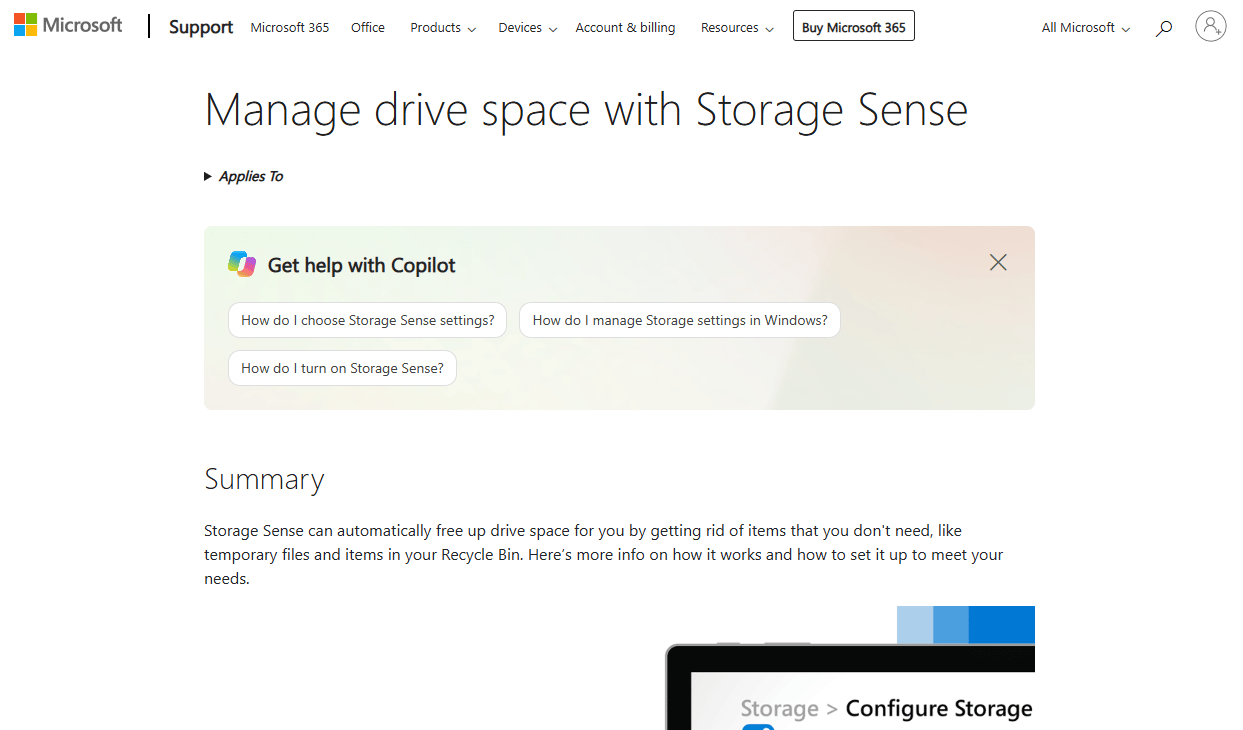
Windows Storage Sense is a built-in Windows feature, available on both Windows 10 and Windows 11, that automatically frees system-drive space by removing temporary files, Recycle Bin contents, and inactive cloud files. You configure it once in Settings, and it runs on a schedule you define. No agent to install, no account to create, no subscription to manage.
Best for: Windows users and IT administrators who want automated disk-space management with no additional software.
Key features
- Automatic temporary-file and Recycle Bin cleanup
- Configurable schedule: Daily, weekly, monthly, or on low disk space
- Downloads-folder cleanup based on file age
- Makes inactive OneDrive files online-only to free local space
- Available natively on Windows 10 and Windows 11
Why choose Windows Storage Sense: It's the right first move for any storage problem that doesn't require privacy cleanup or scheduled deep scans. No procurement, no vendor relationship, no renewal date.
Windows Storage Sense pricing: Included with supported Windows installations. There's no separate cost.
Before enabling the Downloads-folder cleanup setting, review what's in there. Storage Sense can delete files older than a configured threshold, which may include installers or documents that haven't been filed elsewhere.
2. CCleaner
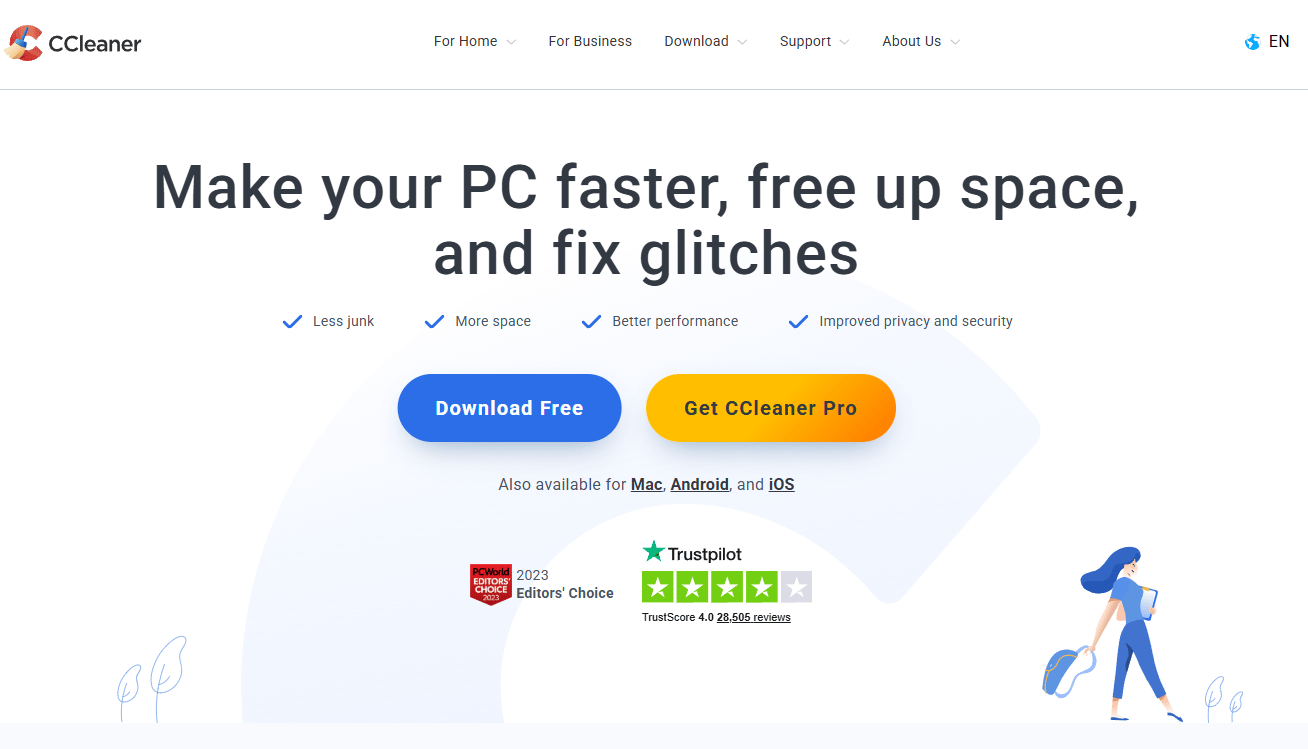
CCleaner is one of the most widely used PC maintenance tools on Windows. It covers junk-file cleanup, browser trace removal, startup management, app uninstallation, disk analysis, and, on paid tiers, software and driver updates. The free version handles the core cleanup jobs. Paid plans add Health Check, automatic cleaning runs, and update management.
Best for: Small teams or individual operators who want a familiar, broad-coverage desktop utility for cleanup and basic Windows maintenance.
Key features
- Custom junk-file and system-file cleanup
- Browser trace and cookie removal across major browsers
- Health Check workflow for guided maintenance
- Startup and installed-app management
- Secure drive wiping on paid tiers
Why choose CCleaner: Choose it when Storage Sense covers too little and you want one tool for browser cleanup, startup management, and junk-file removal. Keep driver updating as a separate, deliberate action rather than an automatic one.
CCleaner pricing: The free tier handles standard cleaning. CCleaner Professional runs $29.95 for the first year, renewing at $44.95/year. CCleaner Professional Plus, which adds Speccy and Recuva, runs $39.95 for the first year, renewing at $64.95/year.
G2 rating: 4.5/5
3. BleachBit
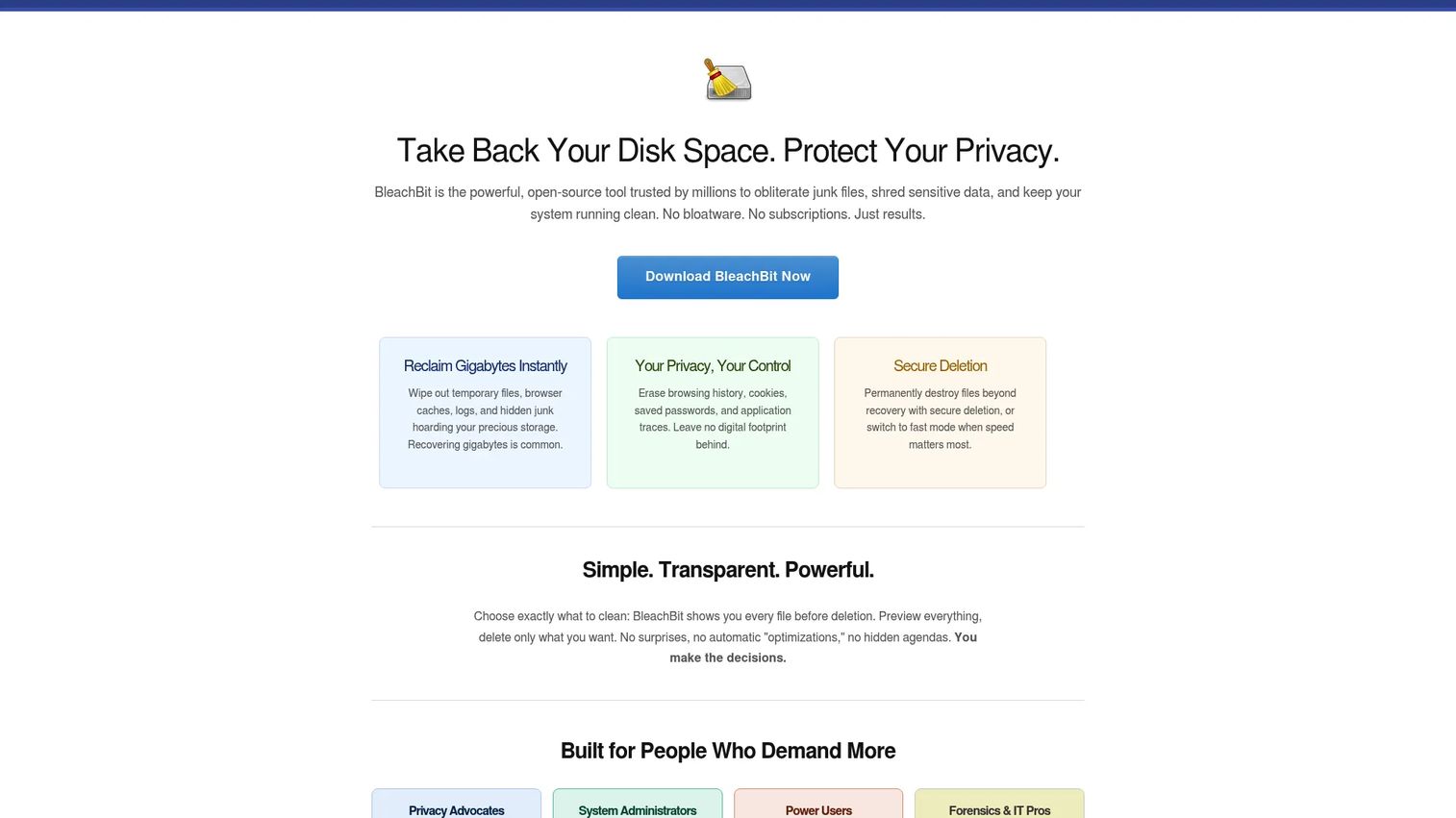
BleachBit is a free, open-source disk cleaner for Windows and Linux. It gives you granular control over what gets removed: Temporary files, application caches, browser history, logs, and cookies. Before any deletion, a preview shows exactly what will go. For teams with a technical IT person, command-line support makes BleachBit scriptable for repeatable, automated cleanup across devices.
Best for: Technical operators who want free, open-source cleanup with detailed category selection, preview controls, and scripting support.
Key features
- Cleans cache, cookies, history, logs, and temporary files
- Preview mode before any deletion runs
- Secure file shredding and free-space wiping
- Command-line interface for scripting and automation
- Supports Windows and Linux
Why choose BleachBit: Choose it when you need transparency, granular cleanup rules, and scripting without a subscription. It's especially useful for developers or IT generalists who value repeatability and want to inspect what's being removed before committing.
Secure deletion in BleachBit is a separate, intentional action. It overwrites file contents before removing them, which is meaningfully different from standard junk cleanup. Use it with care on shared or managed devices, and confirm your company's data-retention requirements first.
BleachBit pricing: Completely free. All features are available without registration or a paid upgrade.
G2 rating: 3.0/5 (based on a small review set)
4. Wise Disk Cleaner
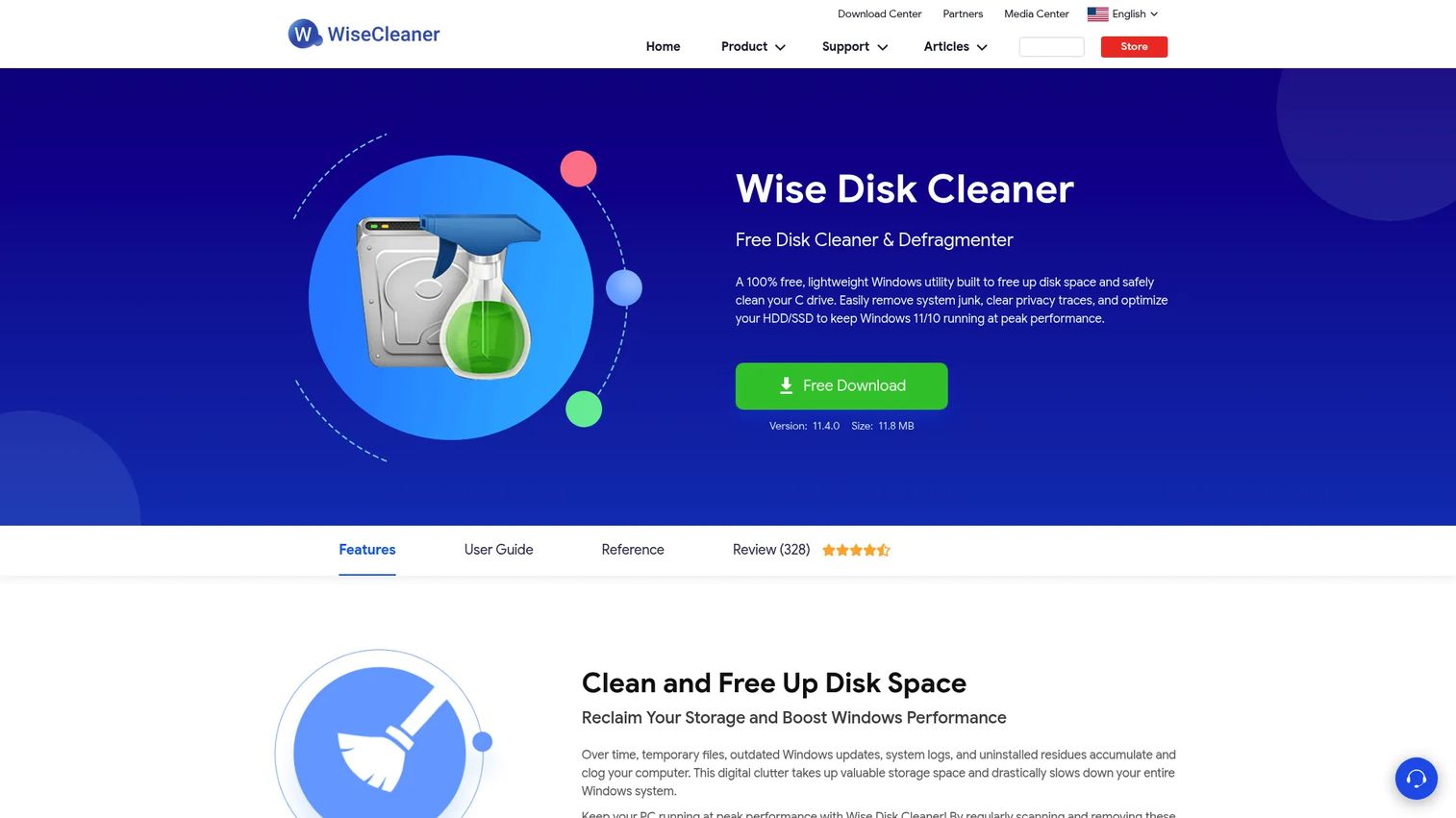
Wise Disk Cleaner is a focused Windows utility for junk-file removal, browser-trace cleanup, and scheduled maintenance. It supports both HDD defragmentation and SSD TRIM, though the SSD optimization path behaves differently from a manual defrag and should not be treated the same way. The interface is clean and task-focused, with light and dark modes.
Best for: Windows users who want free scheduled cleanup with an interface built around disk space rather than a broad utility suite.
Key features
- Junk-file and system-file cleanup scans
- Browser cache, history, and cookie removal
- Scheduled automatic cleanups
- HDD defragmentation and SSD TRIM support
- Secure deletion by overwriting deleted data
Why choose Wise Disk Cleaner: Choose it when scheduled cleanup matters and you don't need the broader set of maintenance modules that come with suites like Glary Utilities or CCleaner. It earns its place precisely because it stays focused.
One important note on drives: Do not run manual HDD-style defragmentation on an SSD. Windows manages SSD optimization automatically, and unnecessary manual passes reduce drive lifespan. Wise Disk Cleaner's SSD support uses TRIM rather than full defragmentation, but confirm the behavior on your specific configuration before running.
Wise Disk Cleaner pricing: Completely free. No paid edition of Wise Disk Cleaner exists on the official product page.
5. Glary Utilities
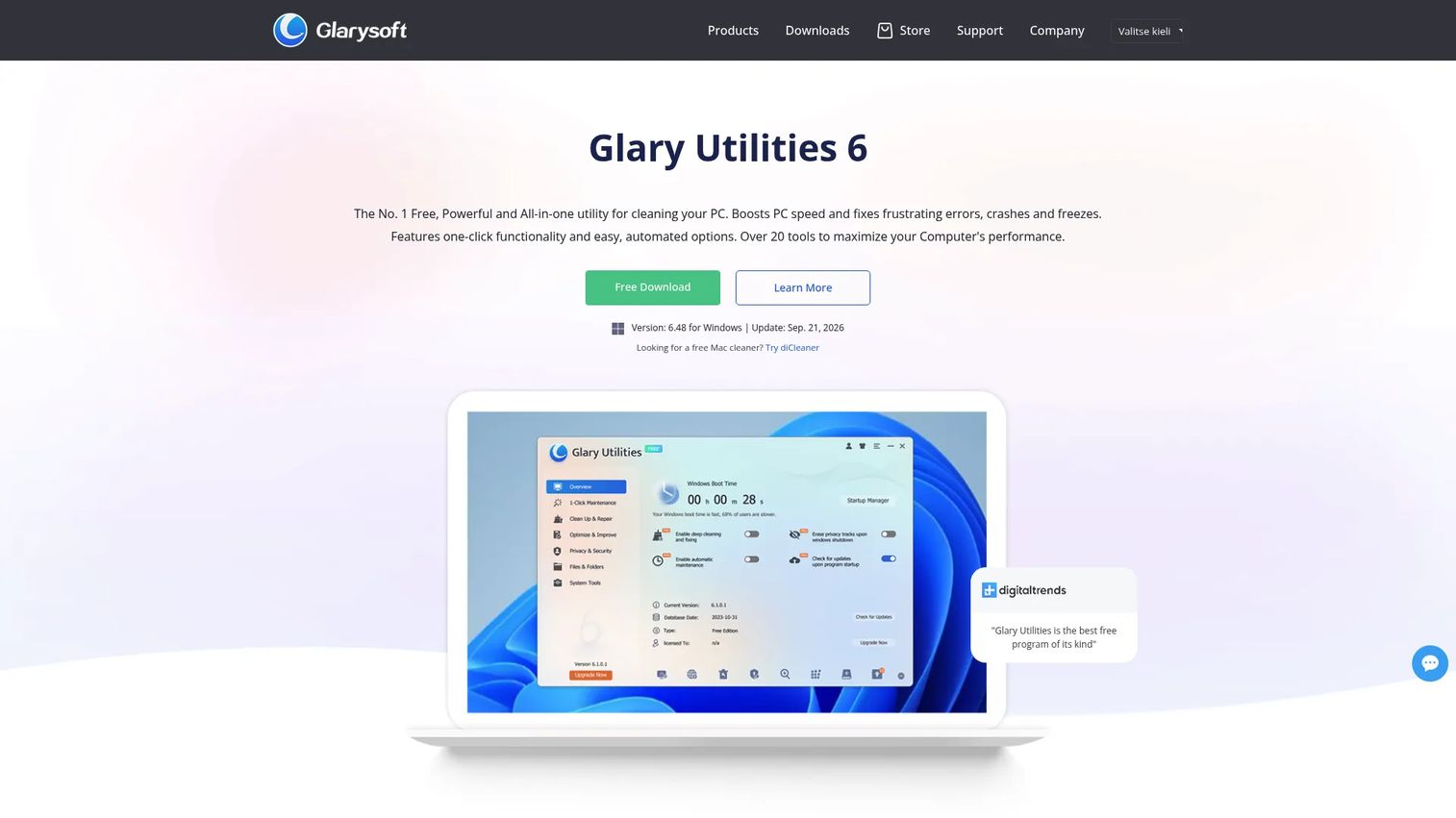
Glary Utilities is a broad Windows maintenance suite covering disk cleanup, registry repair, startup management, privacy cleanup, file recovery, duplicate-file finding, and disk-space analysis. The One-Click Maintenance feature runs several of these jobs together. The free version handles most routine tasks. The Pro plan adds scheduled maintenance, automatic updates, and priority support.
Best for: Operators who want a wider Windows utility toolkit and prefer a single dashboard for cleanup, startup checks, and routine maintenance.
Key features
- One-Click Maintenance for bundled routine tasks
- Disk cleanup and drive-space analysis
- Startup-program management and software uninstall
- Privacy-trace and browser-history cleanup
- File recovery and duplicate-file finder
Why choose Glary Utilities: Choose it when your team needs cleanup alongside practical maintenance tools, such as startup control and uninstall support. It fits a small internal IT workflow better than a single-purpose junk cleaner, particularly when one person owns multiple maintenance tasks.
A word on registry cleaning: It is included in Glary Utilities but should not be treated as routine maintenance. Create a restore point and back up the device before running any registry changes. Registry errors are rare as a source of PC problems, and an incorrect removal can cause real instability.
Glary Utilities pricing: The free version is available for personal use. Glary Utilities Pro covers three PCs at $39.95/year. A Technician license for service providers runs $169/year.
G2 rating: 4.1/5
6. PrivaZer
PrivaZer is a Windows cleaning tool built specifically around privacy. It scans and removes activity traces from browser history and cookies, jumplists, Prefetch files, RAM, the pagefile, hibernation files, and free disk space. Secure overwriting is built into the core workflow rather than treated as an add-on. A portable version means it can run from a USB drive without installation.
Best for: Windows users who prioritize removing activity traces and want deeper control than built-in tools provide, including portable and command-line options.
Key features
- Deep scanning of browser data, registry traces, RAM, pagefile, and free space
- Secure overwriting for irreversible cleanup
- Smart cleanup of cookies, jumplists, and Prefetch
- Portable version requiring no installation
- Command-line support for automation
Why choose PrivaZer: Choose it when privacy cleanup is the primary job and browser cache removal alone isn't enough. It goes considerably deeper than most free tools on this list. Keep the scope clear: Privacy cleanup removes traces and frees space, but it is not a substitute for endpoint security or company data-retention policies.
On managed work devices, confirm your retention requirements before running a deep cleanup. Some browser history and activity traces may be subject to legal hold or company policy.
PrivaZer pricing: The standard version is free. PrivaZer PRO is available to contributors, but the official site does not show a fixed price. It uses a pay-what-you-want contribution model.
G2 rating: 4.8/5
7. IObit Advanced SystemCare
IObit Advanced SystemCare combines junk-file cleanup with startup optimization, privacy cleanup, system health scanning, memory management, and software updating. It runs a broader sweep than a dedicated disk cleaner. The free version covers the core cleanup jobs. Pro plans add AI-powered deep cleaning, Safe Folder ransomware protection, and automatic maintenance.
Best for: Small businesses or individual operators who want cleanup alongside startup management and ongoing Windows maintenance from one product.
Key features
- Junk-file and system-file cleanup
- Startup, memory, and CPU optimization
- Privacy and browser-trace cleanup
- System health scanning
- Safe Folder ransomware protection (Pro)
Why choose IObit Advanced SystemCare: Choose it when the operational problem extends beyond disk space and includes recurring maintenance tasks like startup bloat or performance checks. For teams that only need temporary-file cleanup, the scope here is broader than necessary, and the Pro cost should be weighed against the simpler free options.
Keep performance claims specific to features. Cleanup software removes junk files. It does not fix hardware bottlenecks, insufficient RAM, or poorly optimized applications.
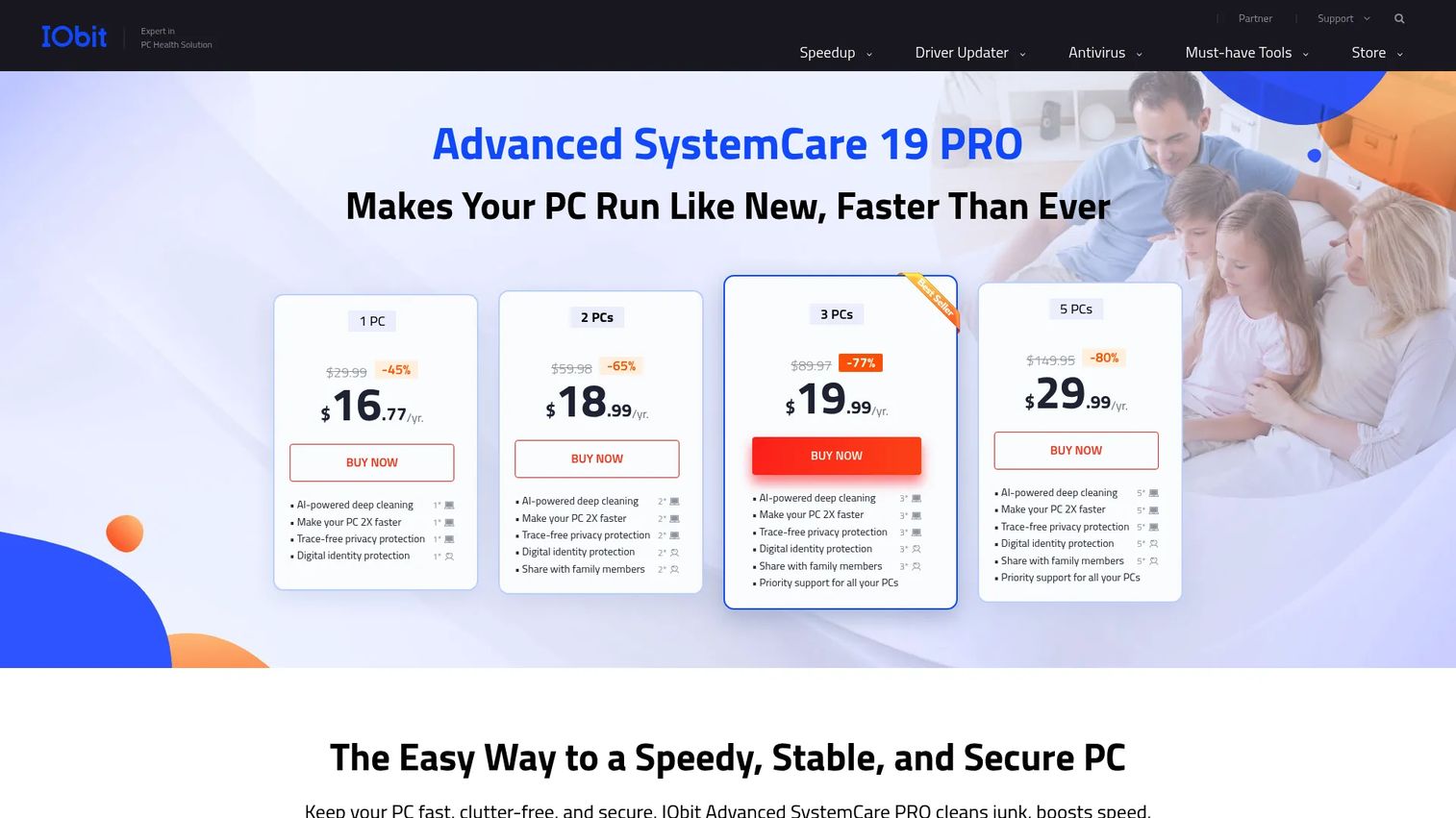
IObit Advanced SystemCare pricing: The free version covers standard cleanup. Pro plans start at $16.77/year for one PC, $18.99/year for two PCs plus one free, $19.99/year for three PCs, and $29.99/year for five PCs.
8. Windows Disk Cleanup
Windows Disk Cleanup is the legacy built-in utility for manually removing temporary files, downloaded program files, Recycle Bin content, and selected system files. It's been part of Windows for decades and remains available on most Windows 10 and Windows 11 installations. Microsoft now emphasizes Storage settings and Storage Sense for ongoing management, but Disk Cleanup remains useful for a controlled one-time pass.
Best for: Users who want a built-in, manual cleanup option to review and remove specific file categories without installing anything.
Key features
- Temporary-file and system-file removal
- Recycle Bin and downloaded-program-file cleanup
- "Clean up system files" option for deeper system-level removal
- Command-line support for scripted execution
- No separate installation required
Why choose Windows Disk Cleanup: Choose it for a careful one-time cleanup where you want to review each file category before deleting anything. It complements Storage Sense rather than duplicating it: Storage Sense handles ongoing automation, while Disk Cleanup suits the occasional deliberate manual pass.
The "Clean up system files" option removes Windows update files and other system-level data. Read the category descriptions before selecting anything unfamiliar. Old Windows installation files can be large, but removing them eliminates the ability to roll back a major update.
Windows Disk Cleanup pricing: Included with Windows. No subscription or separate cost.
Considerations before choosing disk cleanup software
Start with the built-in Windows tools
Windows Storage Sense and Disk Cleanup are the lowest-risk first step for routine cleanup. A third-party utility should solve a defined gap: Scheduled cleaning, browser-trace management, secure deletion, or broader maintenance that the built-in tools don't cover. Adding software before identifying the specific gap creates unnecessary complexity.
Review every deletion category before confirming
Cleanup tools can remove browser cookies, downloads, restore points, and application caches. Those files may be disposable in most cases, but they can also affect logins, saved sessions, or rollback options. Never approve a full scan without checking the category list first, especially on a shared or recently set-up device.
Treat registry cleaning as optional, not routine
Registry cleaning is not standard PC maintenance. A corrupted registry entry can cause genuine instability, and the performance gains from cleaning are rarely measurable. Before running any registry tool, create a restore point and back up critical devices. Most of the tools on this list include registry cleaning as an optional module, not a default.
Separate SSD care from file cleanup
Disk cleanup software removes files. It does not diagnose drive wear, replace backups, or fix a failing SSD. Manual HDD-style defragmentation on an SSD shortens drive lifespan; Windows handles SSD optimization automatically through TRIM. If a drive is failing, a cleanup tool won't fix it. Check drive health with a dedicated diagnostic tool and prioritize backups.
Check plan terms and device limits before committing
Paid plans vary by device count, automatic-cleanup features, support tier, and renewal pricing. CCleaner and Glary Utilities both show meaningful differences between intro and renewal pricing. Assign an internal owner for any recurring subscription before purchase, and confirm whether the license covers personal or commercial use.
Conclusion
Most storage problems on Windows work laptops are solved before you open a browser tab. Start with Storage Sense for ongoing background cleanup, run Windows Disk Cleanup for a one-time manual pass, and only add a third-party tool when you've confirmed what the built-in options don't cover.
For free open-source cleanup with granular controls, BleachBit is the practical choice. For scheduled cleanup without a paid tier, Wise Disk Cleaner fits. For privacy traces and deep scan coverage, PrivaZer leads the free options. When the problem extends beyond disk space to startup bloat and broader maintenance, CCleaner and Glary Utilities both offer capable free tiers with paid upgrades for teams that need scheduling and automation.
The practical next step: Run a Windows storage scan today. If that clears the issue, you're done. If not, choose a tool based on the specific cleanup job, then review the first scan before deleting anything. Don't add a paid subscription for a problem a built-in Windows feature already solves.
FAQs
The safest starting point is Windows Storage Sense, since it's already installed and runs automatically with no added risk. For deeper browser and privacy cleanup, BleachBit and PrivaZer are both free and cover more ground than the built-in tools. The right choice depends on whether you need routine space recovery, browser-trace removal, or secure deletion.
It can be, when the tool includes a preview mode and you review categories before confirming. Standard junk-file cleanup carries low risk. Registry cleaning, secure deletion, and system-file removal require more care and should be done with a restore point in place. Aggressive settings on shared or managed devices deserve extra scrutiny.
Removing junk files frees storage space. It can reduce noticeable slowness when a nearly full drive is the bottleneck, or when excessive startup programs are contributing to poor responsiveness. It won't fix failing hardware, insufficient RAM, malware, or poorly optimized software. Avoid tools that claim guaranteed speed improvements without specific feature explanations.
Use Storage Sense for routine automated cleanup of temporary files and Recycle Bin content. Reach for a third-party tool when you need detailed browser cleanup, privacy trace removal, secure deletion, scheduled maintenance, or broader features like startup management. Storage Sense handles the common case well; third-party tools solve specific gaps.
Don't remove personal documents, current project folders, unknown application data, or recovery files without understanding what they contain. Be careful with the Downloads folder, browser data that includes saved passwords or active sessions, system restore points, and Windows installation media. Check the category description in your cleanup tool before approving any unfamiliar item.
Windows Disk Cleanup remains available on most Windows 11 installations, though Microsoft now emphasizes the Storage settings panel and Storage Sense for ongoing management. Access Disk Cleanup by searching for it in the Start menu or running cleanmgr.exe. The interface and functionality are unchanged from Windows 10.
No. Manual defragmentation is designed for HDDs, not SSDs. Windows manages SSD optimization automatically through TRIM, which is a different process. Running a full HDD-style defrag on an SSD increases unnecessary write cycles and shortens the drive's lifespan. File cleanup is a separate operation from drive optimization and does not require a follow-up defrag on either drive type.
For most Windows work laptops, automated temporary-file cleanup through Storage Sense and a manual review every four to six weeks covers routine maintenance. Run a deeper manual cleanup before device handoffs, major OS upgrades, or when a low-storage warning appears. Heavy development environments, video editing workflows, or machines that cache large downloads may need more frequent attention.