You want to color something. Maybe it's a hobby, maybe it's a printable for your kids, maybe it's line art you sketched last week. So you search for a tool, and the results split into two useless piles.
One pile is bare product pages with three feature bullets and no context. The other is dense pro software that assumes you already know what a blend mode does.
Neither tells you which tool fits your skill level, your device, or your actual goal.
The global coloring apps market reached USD 1.31 billion in 2025 and is projected to hit USD 2.39 billion by 2033, according to Verified Market Research (2025). More options arrive every year, which makes the choosing harder, not easier.
Some of these tools paint freehand in a browser. Some manage layers like a desktop art studio. Some turn a photo into a printable outline in seconds. Picking the wrong category wastes an afternoon.
What's inside
This guide covers the top coloring software for 2026, from zero-setup browser painters to advanced editors and photo conversion apps. It helps hobbyists, beginners, parents printing activity sheets, and anyone who wants a photo-to-coloring-page workflow.
We picked and ranked each tool against four criteria:
- Ease of use: How fast you get from open to coloring
- Layer and brush control: Whether you can stack, blend, and refine
- Export options: PNG, PDF, and print-ready output
- Free access: Whether you can start without paying
Tools are sorted by how directly they serve the primary job: Coloring.
TL;DR
- Best all-around free pick: Krita gives you desktop-grade brushes and layers at zero upfront cost.
- Best zero-setup browser tool: Paint opens in a tab and lets you start coloring immediately.
- Best browser painter with layers: Kleki stacks 16 layers with blend modes, no install needed.
- Best photo to coloring page: Colorscape turns your photos into printable outlines and custom books.
- Best advanced editor: Clip Studio Paint gives illustrators and comic artists deep brush and layer control.
- Best free general image editor: GIMP handles coloring plus broader edits with full layer support.
What is coloring software?
Coloring software is any application that lets you add, blend, or generate color on a digital canvas, whether you paint freehand, fill line art, or convert a photo into an outline.
The category splits into four practical types. Knowing which one you need saves the most time.
- Browser-based paint tools: Open in a tab, no install, mouse-friendly. Best for casual coloring and quick sketches.
- Desktop digital art editors: Installed programs with deep brush engines and layer stacks. Best for detailed illustration and serious workflows.
- Mobile coloring apps: Touch and stylus-first, often with photo conversion. Best for tablets and on-the-go creation.
- Photo-to-coloring converters: Turn images into line-art outlines you can print or fill. Best for activity sheets, gifts, and custom books.
Most coloring workflows come down to the same core features. Here's what to check before you commit.
- Layer support: Stack colors, outlines, and shading on separate levels
- Brush control: Adjust size, opacity, pressure sensitivity, and stabilization
- Selection tools: Fill specific regions without bleeding over lines
- Export formats: PNG for screens, PDF or high-res for print
- Canvas scaling: Work at print resolution so output stays crisp
A browser painter and a full desktop editor both count as coloring software. They serve different jobs. The browser tool wins on speed to first stroke. The desktop editor wins on depth of control. Neither is better in the abstract, only better for a given task.
Free access is common in this category. Several strong options cost nothing to start, which lowers the risk of picking wrong.
When to use coloring software
Color digitally without a tablet
You don't own a drawing tablet, and you're not buying one to color a few pages. A mouse-friendly, browser-based editor is enough. These tools load in a tab, skip the install, and let you paint or fill with clicks and drags. Great for casual users, kids, and anyone testing whether digital coloring clicks before investing in hardware.
Turn photos into coloring pages
You want a printable outline from a real photo, not a freehand painting. A conversion tool beats a full editor here. It detects edges, strips color, and outputs a clean line drawing you can print or fill. Ideal for activity sheets, personalized gifts, and generating pages fast without any drawing skill.
Use advanced layer and brush controls
You care about precision. You want layer management, brush stabilization, blend modes, and control over every stroke. A desktop-grade editor is the right choice. These tools take longer to learn, but they reward the time with output you can sell, print large, or publish. Best for illustrators, comic artists, and committed hobbyists.
Comparison table
The table below ranks all seven tools by how directly they serve coloring, starting with the most accessible browser and free options, then the photo converter, then the deeper editors. Pricing and ratings reflect verified figures from each vendor's site and G2 at the time of writing.
| # | Product | Best for | Key differentiator | Pricing | G2 rating |
|---|---|---|---|---|---|
| 1 | Paint | Casual browser coloring | Opens and paints instantly in a tab | Free | Not rated |
| 2 | Kleki | Browser painting with layers | 16 layers with blend modes, no install | Free (donation-supported) | Not rated |
| 3 | Colorscape | Photo to coloring page | Turns photos into printable outlines | Free tier, Creator $6.99/mo | Not rated |
| 4 | Clip Studio Paint | Illustrators and comic artists | Realistic brushes plus comic and animation tools | From $0.99/mo | 4.4 |
| 5 | Krita | Free advanced painting | Desktop-grade brushes, open source | Free | 4.4 |
| 6 | GIMP | Free general image editing | Full editor with layers and plugins | Free | 4.3 |
| 7 | Adobe Fresco | Stylus-friendly painting | Live brushes plus Adobe sync | Free | 4.5 |
Best 7 coloring software tools for 2026
1. Paint
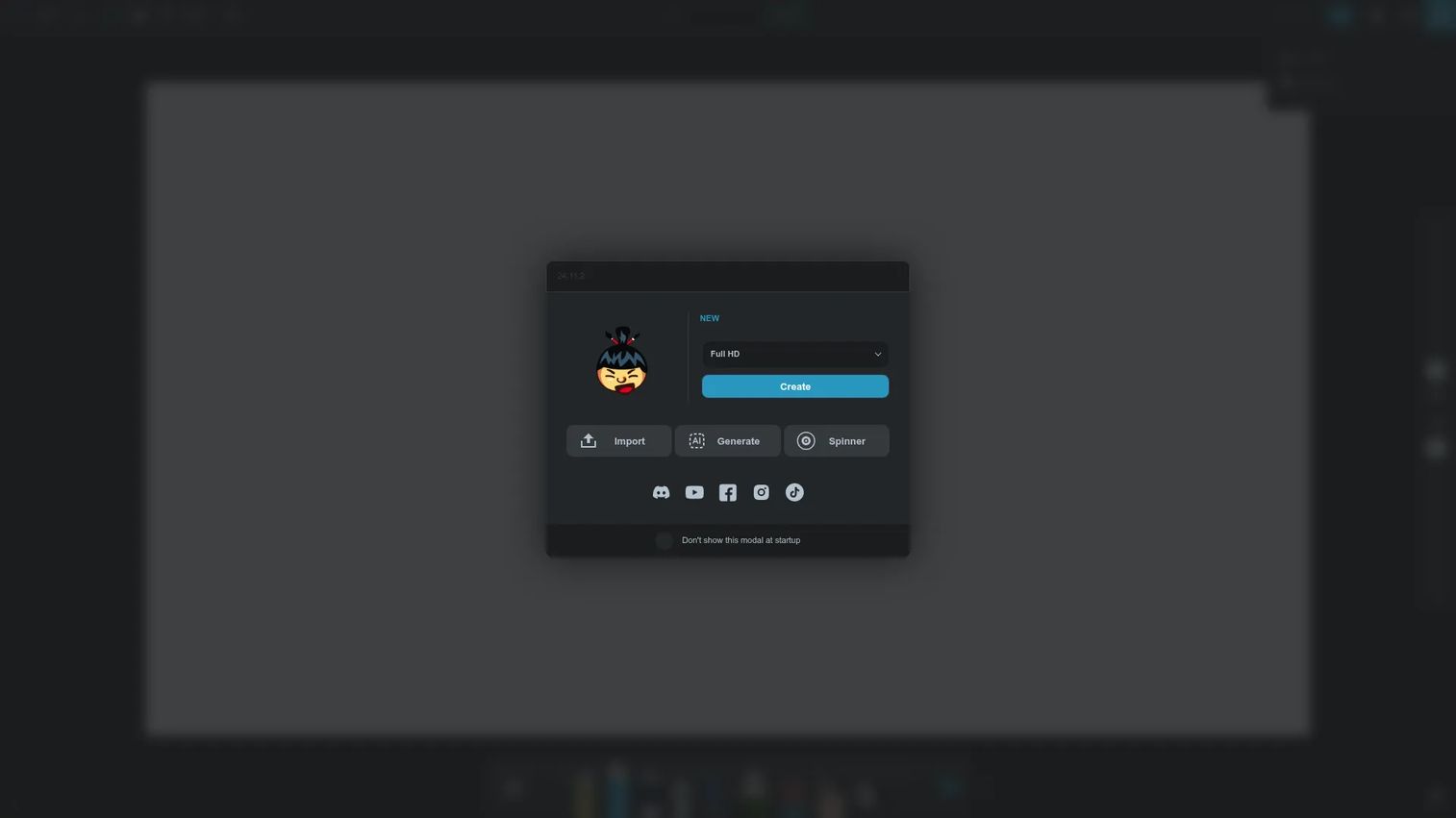
Paint is a browser-based drawing and painting app that gets you coloring with almost no setup. Open the page, start painting, or drop in an image to draw over. It also offers a dedicated coloring mode for filling shapes directly. The whole point is speed: No account, no download, no learning curve before your first stroke.
Best for: Casual users who want to color or sketch in the browser without installing anything.
Key features
- Start painting directly in the browser
- Open an image to edit or draw on
- Dedicated coloring mode
- No install or account needed
Why choose Paint: Pick Paint when you value speed over depth. It's the fastest way to test digital coloring, though it won't match a desktop editor on brush precision or layer control.
Paint pricing: Paint is a free browser tool. There's no paid tier and no download required to start.
Paint does not carry a verified G2 rating, so treat peer reviews as unavailable rather than a signal either way.
2. Kleki
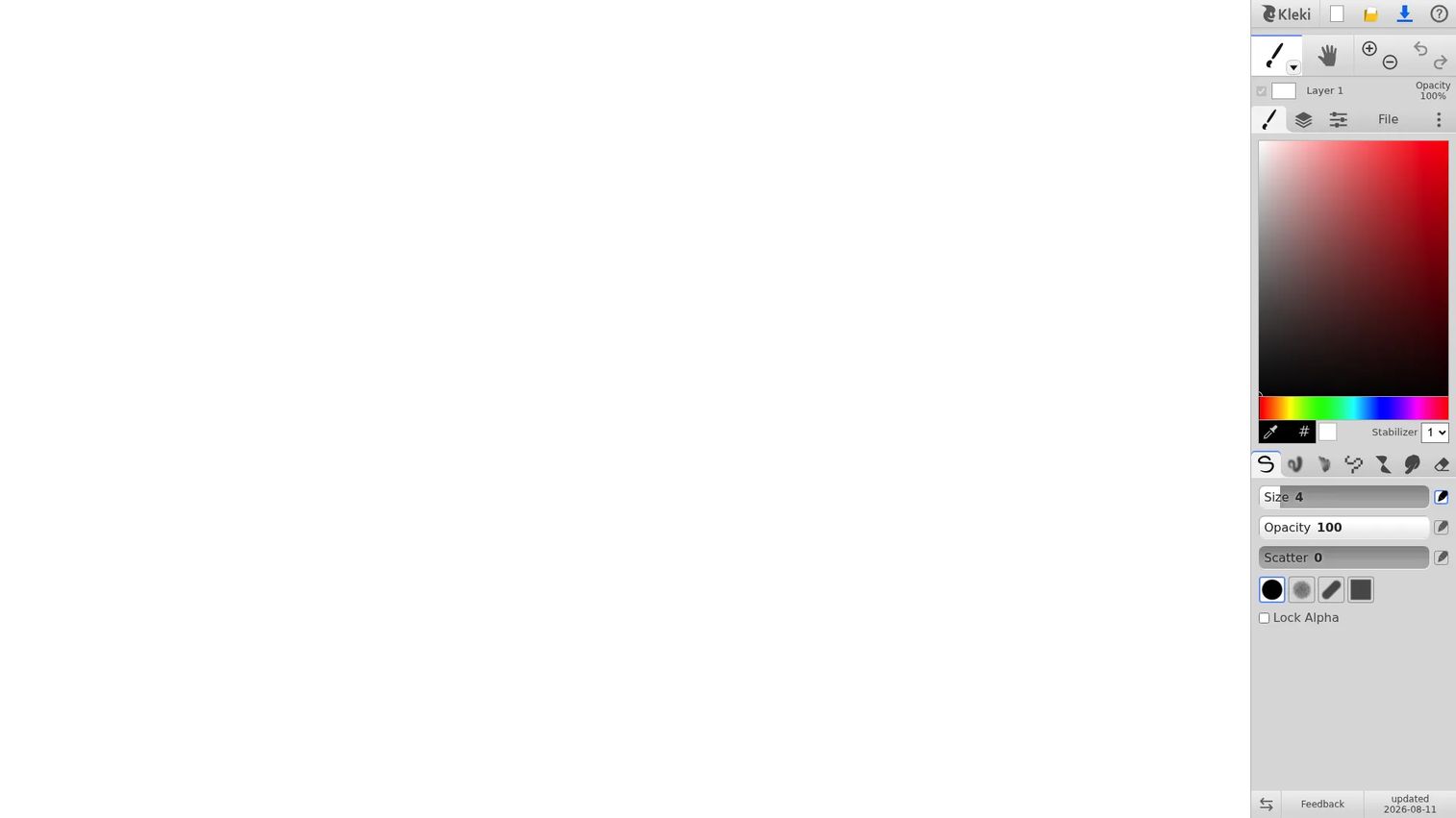
Kleki is a community-funded browser painting tool for people who want real control without a heavy install. It runs in the tab and supports up to 16 layers with blend modes, so you can separate outlines from fills and shading. Pressure-sensitive pen input and touch gestures make it work on both a laptop and a tablet.
Best for: Artists who want a lightweight, mouse or pen-friendly painting workflow with proper layers.
Key features
- 16 layers with blend modes
- Pressure-sensitive pen support
- Touch gestures for tablets
- Browser storage for saving work
Why choose Kleki: Kleki fits when you want layer-based painting but don't want to download software. Note that work lives in browser storage, so export finished pieces rather than relying on the session to persist.
Kleki pricing: Kleki is free and ad-free. Donations support development, and there's no paid plan to worry about.
Kleki does not have a verified G2 rating available, so no third-party score is listed here.
3. Colorscape
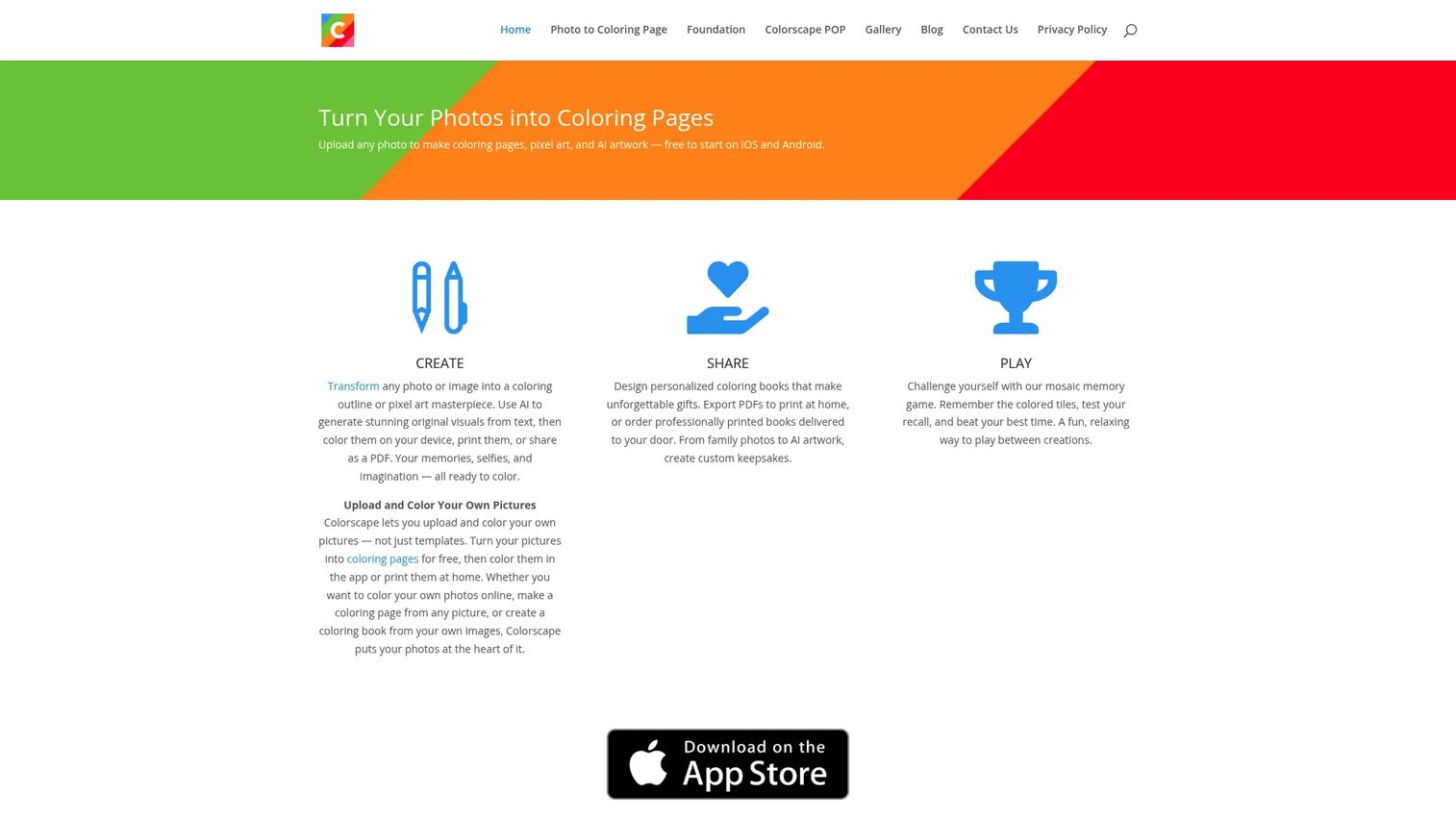
Colorscape is a mobile app that turns your own photos into coloring pages, pixel art, and AI-generated artwork. Snap or upload a photo, and it converts the image into a clean outline you can color or print. It exports to PDF for printing and even supports print-on-demand coloring books, which sets it apart from painting editors.
Best for: People who want to turn personal photos into printable coloring pages or custom books.
Key features
- Photo-to-coloring-outline conversion
- PDF export for printing
- Print-on-demand coloring books
- Pixel art and AI image generation
Why choose Colorscape: Choose Colorscape when your goal is a printable page, not a freehand painting. It handles the conversion a general editor can't, though it's less suited to drawing from scratch.
Colorscape pricing: A free tier covers weekly usage. The Creator subscription runs $6.99 per month or $49.99 per year, and on-demand pages cost $0.99 each without a subscription.
Colorscape does not have a verified G2 rating available at the time of writing.
4. Clip Studio Paint
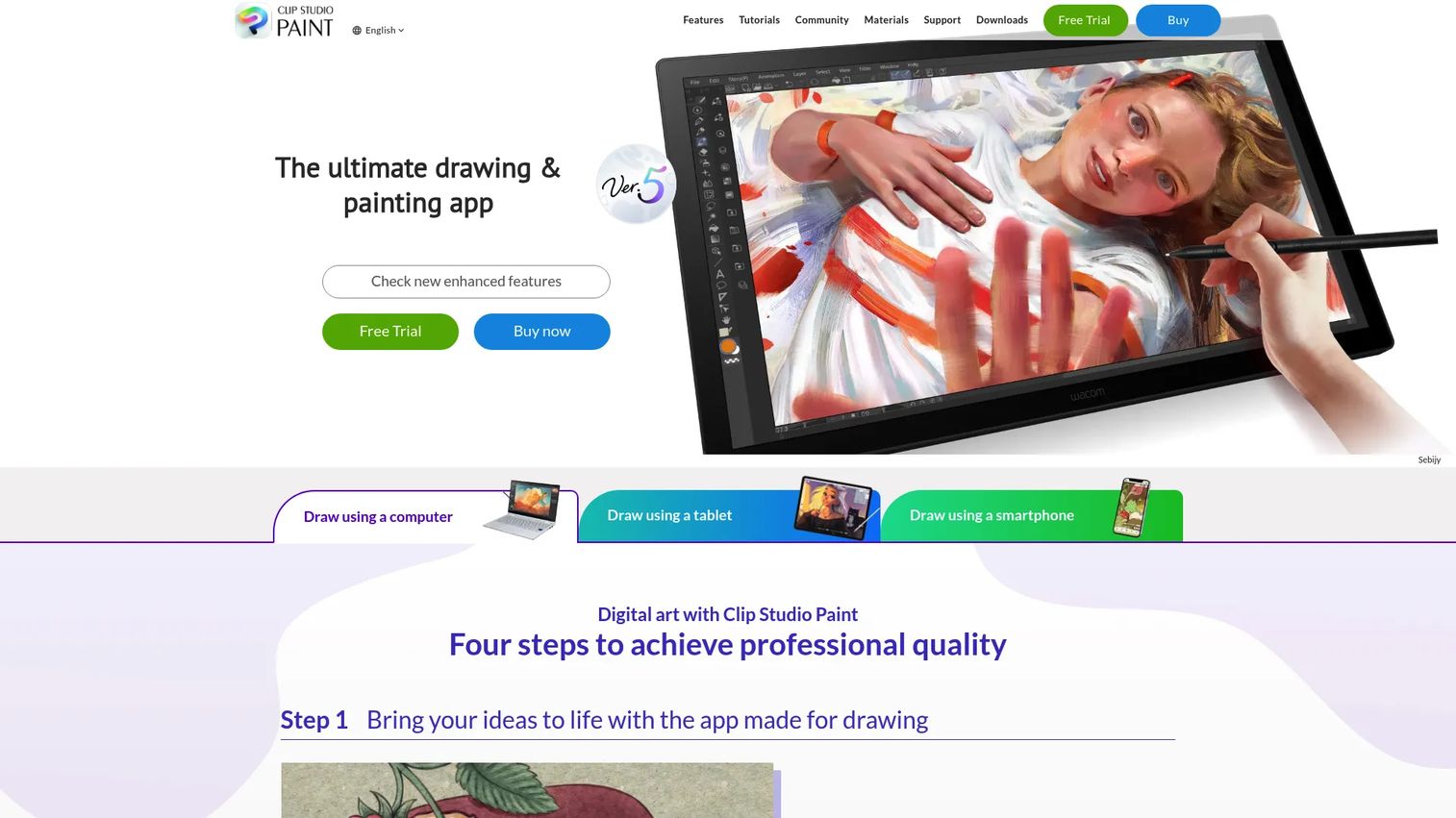
Clip Studio Paint is digital art software built for illustration, comics, manga, webtoons, and animation. Its brush engine feels close to traditional media, and it packs comic-specific tools like paneling, speech bubbles, and perspective rulers. For coloring detailed line art, the precise brush and layer control gives you room to work at a professional level.
Best for: Illustrators, comic artists, and animators who want a specialized drawing and coloring app.
Key features
- Realistic brushes and painting tools
- Comic tools: Paneling, speech bubbles, perspective
- Animation and 3D model-assisted workflows
- Deep layer and blend control
Why choose Clip Studio Paint: Pick it when your work demands polished, illustration-grade output. The tradeoff is a steeper learning curve than any browser tool, so budget setup time before your first finished piece.
Clip Studio Paint pricing: Subscription plans start from $0.99 per month. The site also lists a 12-month license option and an Update Pass for perpetual-license users.
On G2, Clip Studio Paint holds a 4.4 out of 5 rating, reflecting broadly positive reviews from working artists.
5. Krita
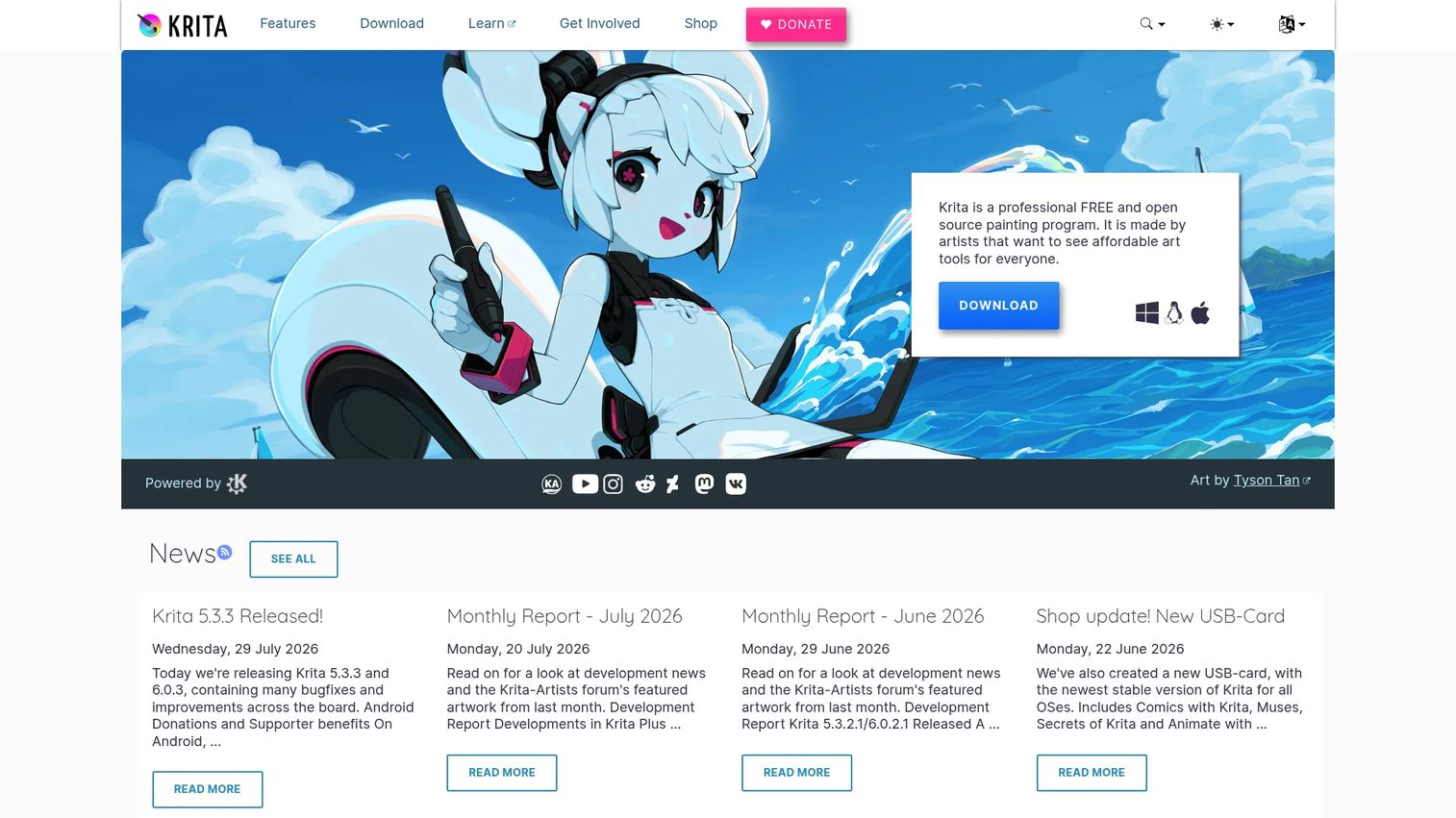
Krita is free, open-source digital painting and 2D animation software with a genuinely deep brush engine. It supports multiple brush types, layers, drawing assistants, and stabilizers, so you get desktop-grade control without paying anything upfront. For coloring, the combination of quality brushes and flexible layers rivals paid editors.
Best for: Artists and illustrators seeking a free, powerful painting and animation tool.
Key features
- Multiple brush types and engines
- Layers, drawing assistants, and stabilizers
- Animation tools built in
- Customizable interface
Why choose Krita: Choose Krita when you want serious capability at zero cost and don't mind installing desktop software. If you only need to color a page or two, a browser tool gets you there faster.
Krita pricing: Krita is free software. An optional Development Fund lets supporters chip in from $5.80 per month, but nothing gates the core app.
Krita earns a 4.4 out of 5 on G2, a strong score for a free, community-built tool.
6. GIMP
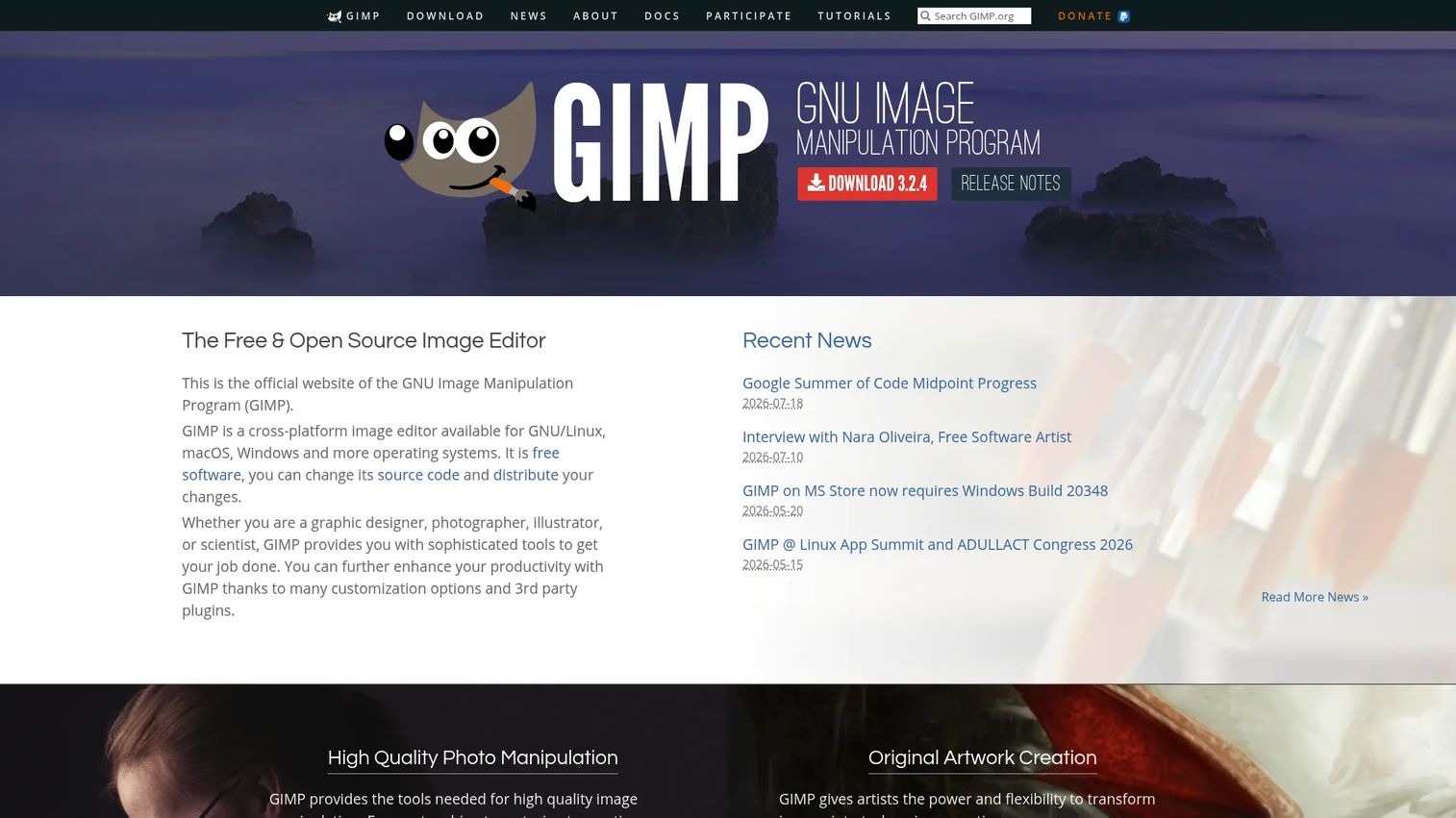
GIMP is a free, open-source, cross-platform image editor that handles photo retouching, composition, and authoring. It's not coloring-first, but its layers, channels, selection tools, and multiple undo make it capable for coloring workflows, especially if you also need broader edits. Plugin and scripting support extends it well past the basics.
Best for: Individuals or teams needing a free, extensible desktop editor that also colors.
Key features
- Photo retouching and image composition
- Layers, channels, and selection tools
- Multiple undo and redo
- Plugins, scripting, and wide file-format support
Why choose GIMP: Reach for GIMP when coloring is one job among several image-editing needs. Its interface is broader than a dedicated coloring app, so expect a slightly longer path to a purely coloring task.
GIMP pricing: GIMP is free of charge. The project doesn't sell the software, and every download comes at no cost.
GIMP holds a 4.3 out of 5 on G2, drawn from roughly 1,485 reviews at the time of writing.
7. Adobe Fresco
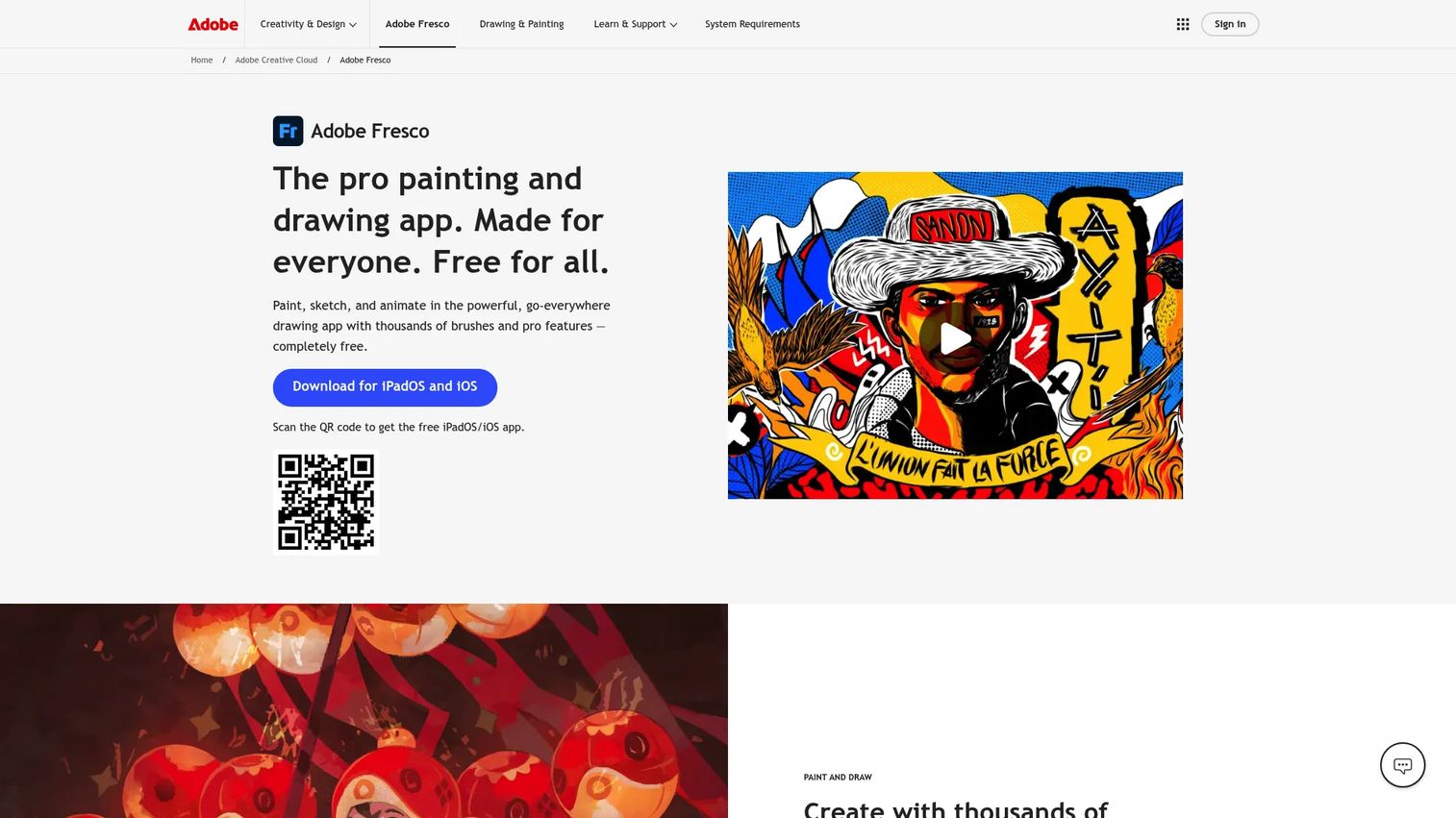
Adobe Fresco is a free digital painting and drawing app from Adobe, built for creating, sketching, and animating. It offers thousands of vector, raster, and live brushes, plus unlimited layers and sync with Photoshop and Illustrator. The touch and stylus experience feels natural, which makes it a strong pick for tablet coloring.
Best for: Digital artists who want a stylus-friendly painting app tied into the Adobe ecosystem.
Key features
- Thousands of vector, raster, and live brushes
- Frame-by-frame animation and motion presets
- Unlimited layers
- Sync with Photoshop and Illustrator
Why choose Adobe Fresco: Fresco suits you if you already use Adobe tools or work primarily on a tablet with a stylus. It leans toward touch input, so a pure mouse-and-keyboard user may prefer a desktop editor.
Adobe Fresco pricing: Adobe states that Fresco is free. Creative Cloud subscription options appear on the same page for users who want the wider Adobe toolset.
Adobe Fresco carries a 4.5 out of 5 rating on G2, the highest score among the tools in this list.
Considerations
Before you commit an afternoon to any of these, run through a short checklist. It saves you from picking a tool that's either too shallow or too heavy for the job.
Ease of use
Match the setup cost to the task. A browser tool like Paint or Kleki gets you coloring in seconds, which matters for quick or one-off work. A desktop editor demands install and learning time, so only take that on when the output justifies it.
Layer support
Decide whether you need to separate outlines, fills, and shading. Simple coloring works fine on a single canvas, but any serious piece benefits from layers. Kleki, Krita, Clip Studio Paint, GIMP, and Fresco all give you real layer control.
Brush and stroke control
Look at brush size, opacity, pressure sensitivity, and stabilization. These features determine how clean your lines and fills look. Browser tools cover the basics, while Krita, Clip Studio Paint, and Fresco offer far finer tuning.
Export and print output
Check that the tool exports what you actually need. PNG covers screen use, while PDF and high-resolution files matter for print. Colorscape is built for printable PDFs, and desktop editors let you set canvas resolution for large prints.
Device and input fit
Confirm the tool works with your hardware. Mouse-only? Browser painters and desktop editors handle that. Tablet and stylus? Adobe Fresco and Kleki are built for touch input.
Conclusion
The right coloring software comes down to matching the tool to the job, not chasing the most features.
For low-friction coloring without any setup, start with a browser painter. Paint opens and colors instantly, and Kleki adds layers and blend modes while still running in a tab. Both are free, so testing costs you nothing.
For turning photos into printable pages, Colorscape does the conversion no painting editor can, with PDF export and custom-book options.
For deeper control, the advanced editors earn their place. Krita gives you desktop-grade painting for free, GIMP covers coloring plus wider image editing, Clip Studio Paint suits illustration and comics, and Adobe Fresco shines on a stylus and tablet.
A practical next step: Try one free browser tool first to see whether digital coloring fits how you work. If you outgrow it, move up to Krita or a paid editor when you need the extra control. Start free, then invest once you know what you actually need.
Start your journey with Guideflow today!
FAQs
Browser-based tools like Paint are the easiest starting point because they need no install or account. You open a tab and begin coloring within seconds. For a bit more capability without much added complexity, Kleki adds layers while staying beginner-friendly.
Yes. Krita and GIMP are both free, open-source desktop editors with full layer support. Kleki offers 16 layers with blend modes directly in the browser at no cost. Adobe Fresco is also free and includes unlimited layers.
Absolutely. Browser painters like Paint and Kleki work well with a mouse, as do desktop editors like Krita and GIMP. A stylus improves precision for detailed work, but plenty of people color effectively with a mouse alone.
Colorscape is built specifically for this. It converts photos into clean line-art outlines, exports them as PDFs for printing, and can even produce print-on-demand coloring books. That photo-to-outline workflow is different from what a painting editor does.
For pure speed and simplicity, Paint is hard to beat since it opens and colors instantly. If you want layers and blend modes without leaving the browser, Kleki is the stronger pick. Both are free and require no download.
For serious digital painting, Krita, Clip Studio Paint, and Adobe Fresco lead the field. Krita is free and open source with a deep brush engine. Clip Studio Paint suits illustration and comics, while Fresco excels with a stylus and tablet.
Yes, if you export at the right resolution. Colorscape outputs print-ready PDFs directly. Desktop editors like Krita, GIMP, and Clip Studio Paint let you set canvas size and resolution so your printed pages stay sharp.
Focus on layers, brush control, selection tools, and export formats. Layers let you separate outlines from fills, brush control shapes how your strokes look, and selection tools keep color inside the lines. Check that export covers PNG for screens and PDF or high-res for print.